> ## Documentation Index
> Fetch the complete documentation index at: https://razorpay-881012b3.mintlify.site/llms.txt
> Use this file to discover all available pages before exploring further.
# View Reports
> Find out how to generate the QR Codes report from the Razorpay Dashboard.
Available in
🇮🇳 India
You can generate the QR Codes report from the Dashboard.
1. Log in to the Dashboard.
2. Navigate to **Reports**.
3. On the Reports page, enter the following details:
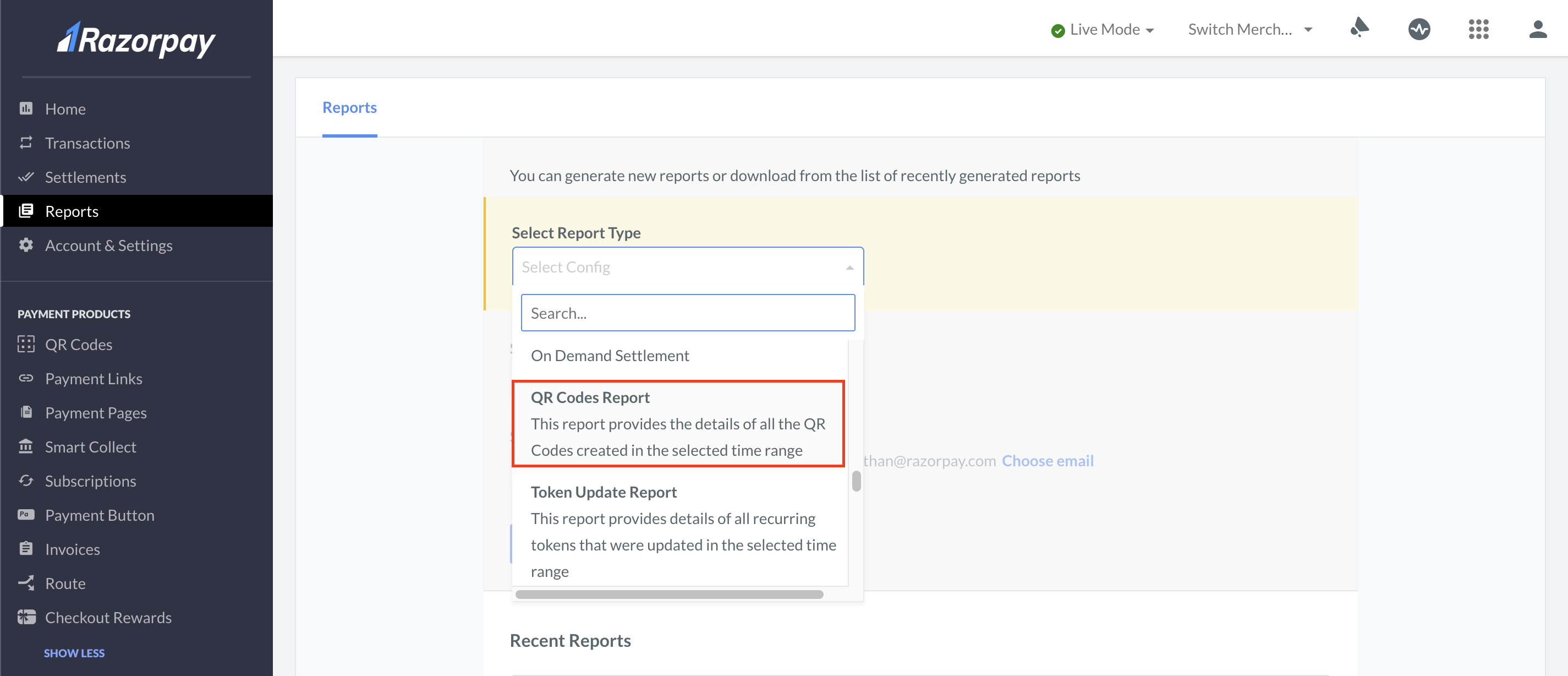
1. **Select Report Type**: Select the **QR Codes Report**.
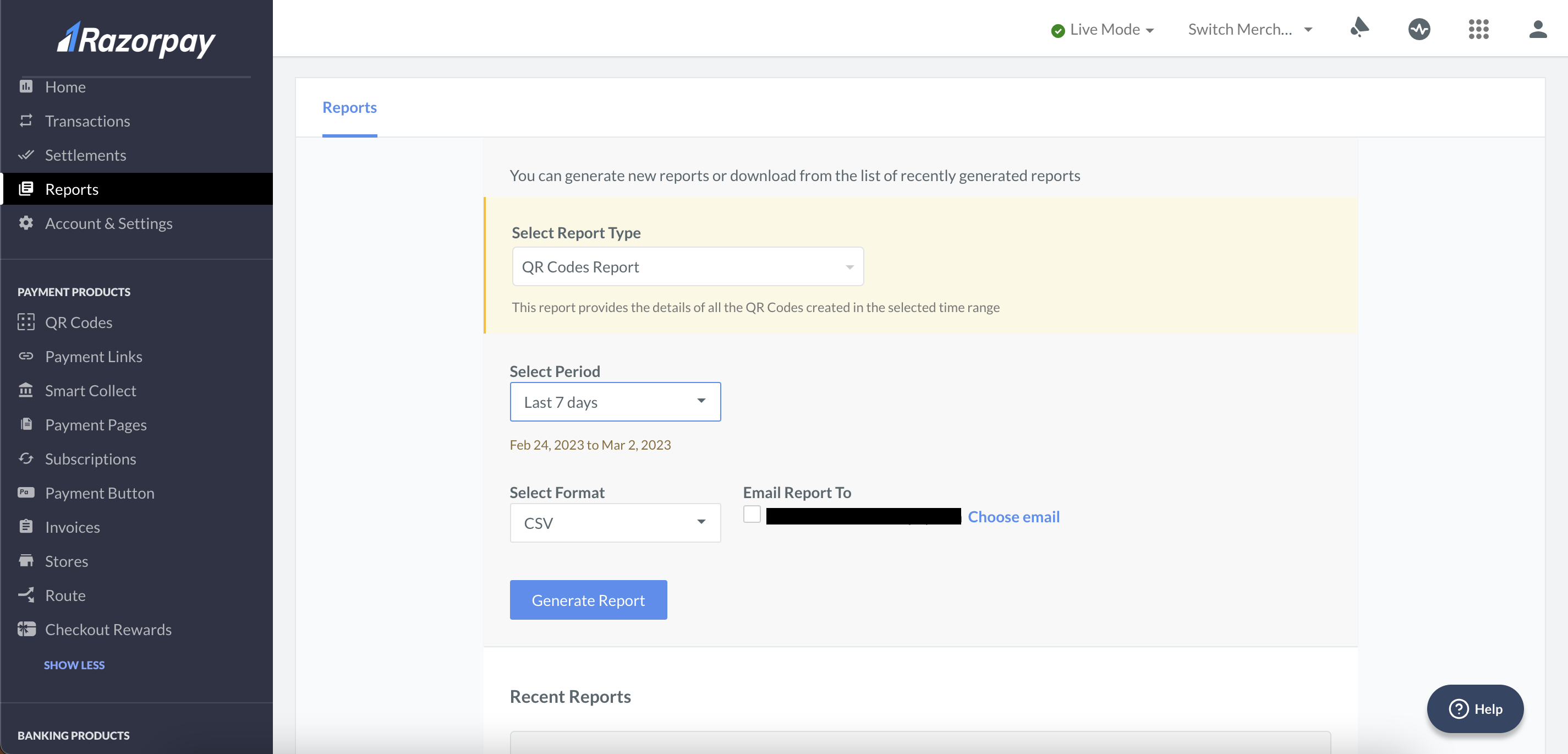
 2. **Select Period**: Select the period for which the report should be generated.
3. **Select Format**: Select the file format. You can report in CSV, XLS and XLSX formats.
4. **Email Report To**: You can send the report to the email address registered with Razorpay.
4. Click **Generate Report**.
2. **Select Period**: Select the period for which the report should be generated.
3. **Select Format**: Select the file format. You can report in CSV, XLS and XLSX formats.
4. **Email Report To**: You can send the report to the email address registered with Razorpay.
4. Click **Generate Report**.
 Download a [sample QR Codes Report](https://razorpay.com/docs/build/browser/assets/images/sample-qrcode-report.xlsx).
Once the report is generated, you can view the following fields:
| Field | Description |
| -------------------------- | ---------------------------------------------------------------------------------- |
| `id` | The unique id of a QR Code. |
| `status` | The status of the QR Code. This can be either `active` or `closed`. |
| `name` | The name given to the QR Code during its generation. |
| `description` | The description given to the QR Code during its generation. |
| `notes` | Any Internal Note added during the generation of the QR Code. |
| `usage_type` | Indicates if the QR can accept only one payment or multiple payments. |
| `fixed_amount` | Indicates if the QR Code can accept only a fixed amount or not. |
| `amount` | This section displays the QR Code's amount only if it accepts a fixed amount. |
| `provider` | Indicates which type of QR Code it is. This can either be `upi_qr` or `bharat_qr`. |
| `payments_amount_received` | Indicates the total amount paid through a particular QR Code. |
| `payments_received_count` | Indicates the total number of payments made through a particular QR Code. |
| `close_reason` | Indicates the reason why a QR Code is Closed. |
Download a [sample QR Codes Report](https://razorpay.com/docs/build/browser/assets/images/sample-qrcode-report.xlsx).
Once the report is generated, you can view the following fields:
| Field | Description |
| -------------------------- | ---------------------------------------------------------------------------------- |
| `id` | The unique id of a QR Code. |
| `status` | The status of the QR Code. This can be either `active` or `closed`. |
| `name` | The name given to the QR Code during its generation. |
| `description` | The description given to the QR Code during its generation. |
| `notes` | Any Internal Note added during the generation of the QR Code. |
| `usage_type` | Indicates if the QR can accept only one payment or multiple payments. |
| `fixed_amount` | Indicates if the QR Code can accept only a fixed amount or not. |
| `amount` | This section displays the QR Code's amount only if it accepts a fixed amount. |
| `provider` | Indicates which type of QR Code it is. This can either be `upi_qr` or `bharat_qr`. |
| `payments_amount_received` | Indicates the total amount paid through a particular QR Code. |
| `payments_received_count` | Indicates the total number of payments made through a particular QR Code. |
| `close_reason` | Indicates the reason why a QR Code is Closed. |