> ## Documentation Index
> Fetch the complete documentation index at: https://razorpay-881012b3.mintlify.site/llms.txt
> Use this file to discover all available pages before exploring further.
# Issue Refunds
> Issue refunds to customers using Razorpay Dashboard and APIs.
Available in🇮🇳 India🇸🇬 Singapore🇺🇸 United States
You can issue refunds to your customers using the Dashboard or APIs. Refunds are possible for `captured` payments only.
**Customer Looking for Refund**
If you are a customer looking for a refund, know about [customer refunds](/docs/payments/customers/customer-refunds).
## Full and Partial Refunds
Refunds can be made either in **full** or in **part**.
* **Full Refund**
You can refund the entire amount that you received in the payment.
* **Partial Refund**
You can refund part of the amount received in the payment. You can issue multiple, partial refunds as long as their sum does not exceed the captured amount.
A payment moves to the `refunded` state only when the entire amount is refunded to the customer. In case of partial refunds, the payment remains in the `captured` state till the entire payment is refunded.
## Issue Refunds
### Issue Refunds Using Dashboard
Watch this video to see how to issue a refund.
To issue refunds:
1. Log in to the Dashboard.
2. Navigate to **Transactions** → **Payments**.
3. Select the payment for which refund is requested. The payment should be in the `captured` state.
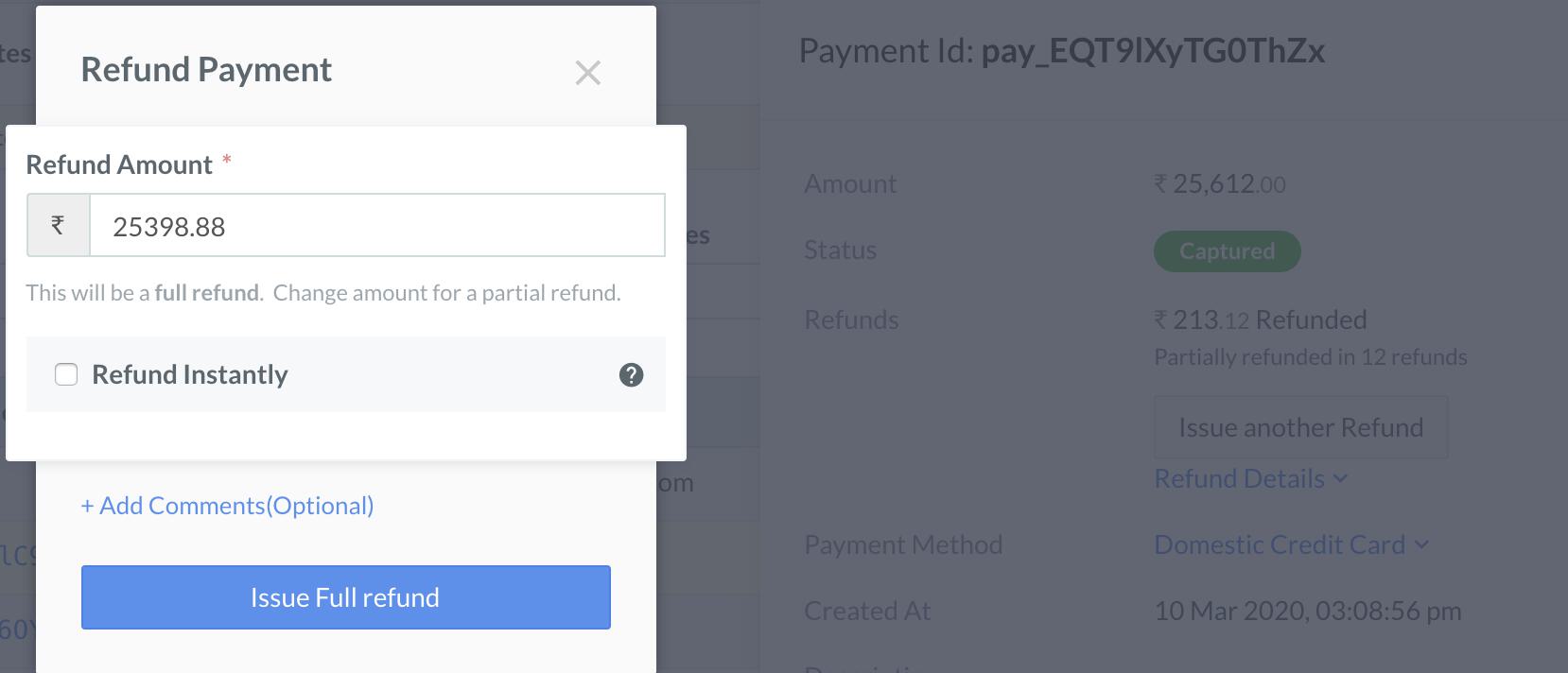
4. On the **Refund Payment** page, in the **amount** field, enter an amount lesser than the captured amount for issuing a partial refund.
By default, the entire amount will be refunded.
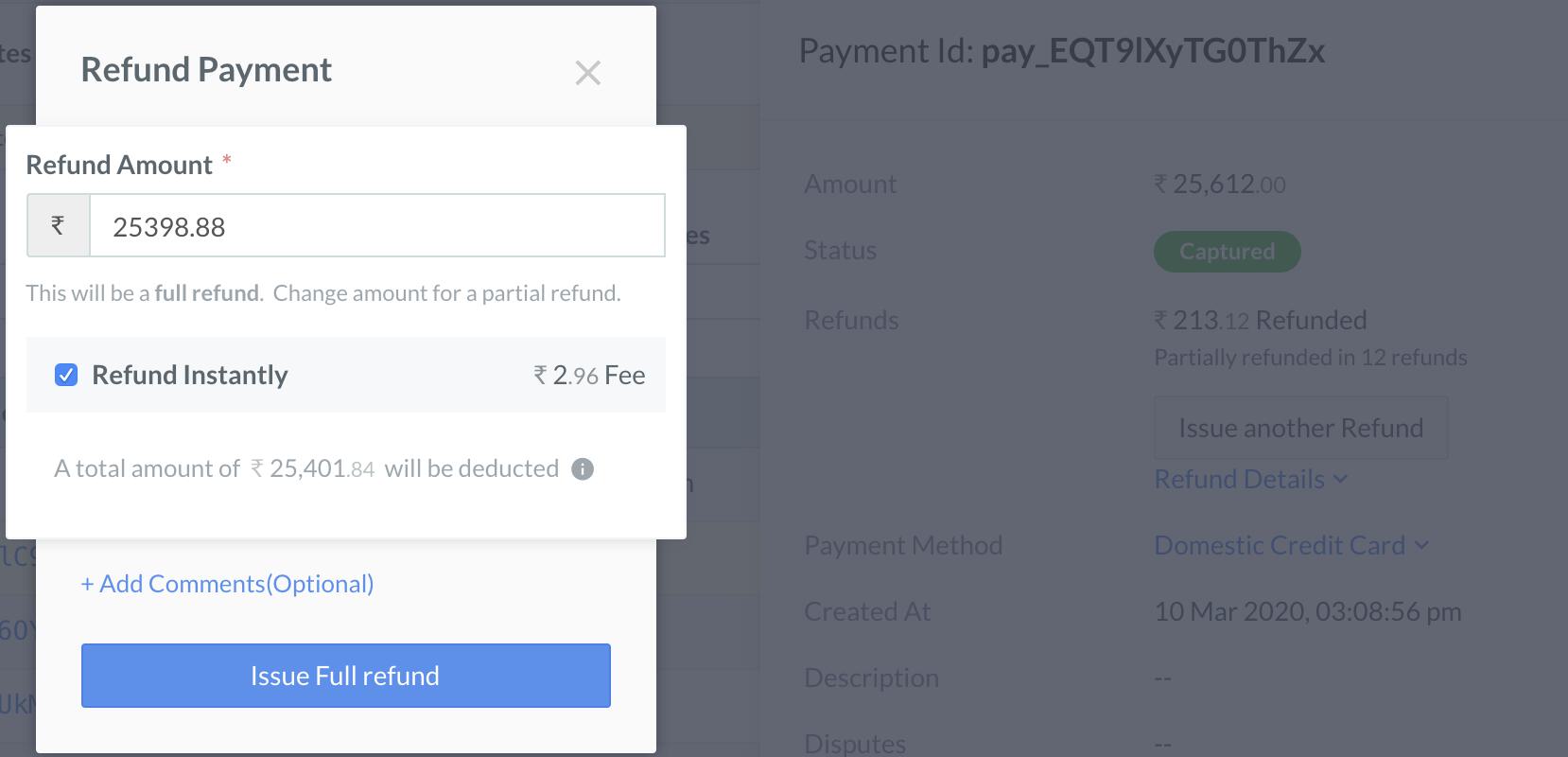
5. Look for the **Refund Instantly** check box.
* If you want to issue a normal refund, unselect the **Refund Instantly** check box.
* If you want to issue an [instant refund](/docs/payments/refunds/instant), select the **Refund Instantly** check box.
6. Review the fees that will be levied for the refund to be processed instantly.
7. Click the **Issue Full Refund** or **Issue Partial Refund** button, depending on the amount to be refunded.
### Issue Refunds Using API
To create a normal refund, use [Create a Normal Refund API](/docs/api/refunds/create-normal).
### Related Information
 * If you want to issue an [instant refund](/docs/payments/refunds/instant), select the **Refund Instantly** check box.
 6. Review the fees that will be levied for the refund to be processed instantly.
7. Click the **Issue Full Refund** or **Issue Partial Refund** button, depending on the amount to be refunded.
### Issue Refunds Using API
To create a normal refund, use [Create a Normal Refund API](/docs/api/refunds/create-normal).
### Related Information
6. Review the fees that will be levied for the refund to be processed instantly.
7. Click the **Issue Full Refund** or **Issue Partial Refund** button, depending on the amount to be refunded.
### Issue Refunds Using API
To create a normal refund, use [Create a Normal Refund API](/docs/api/refunds/create-normal).
### Related Information