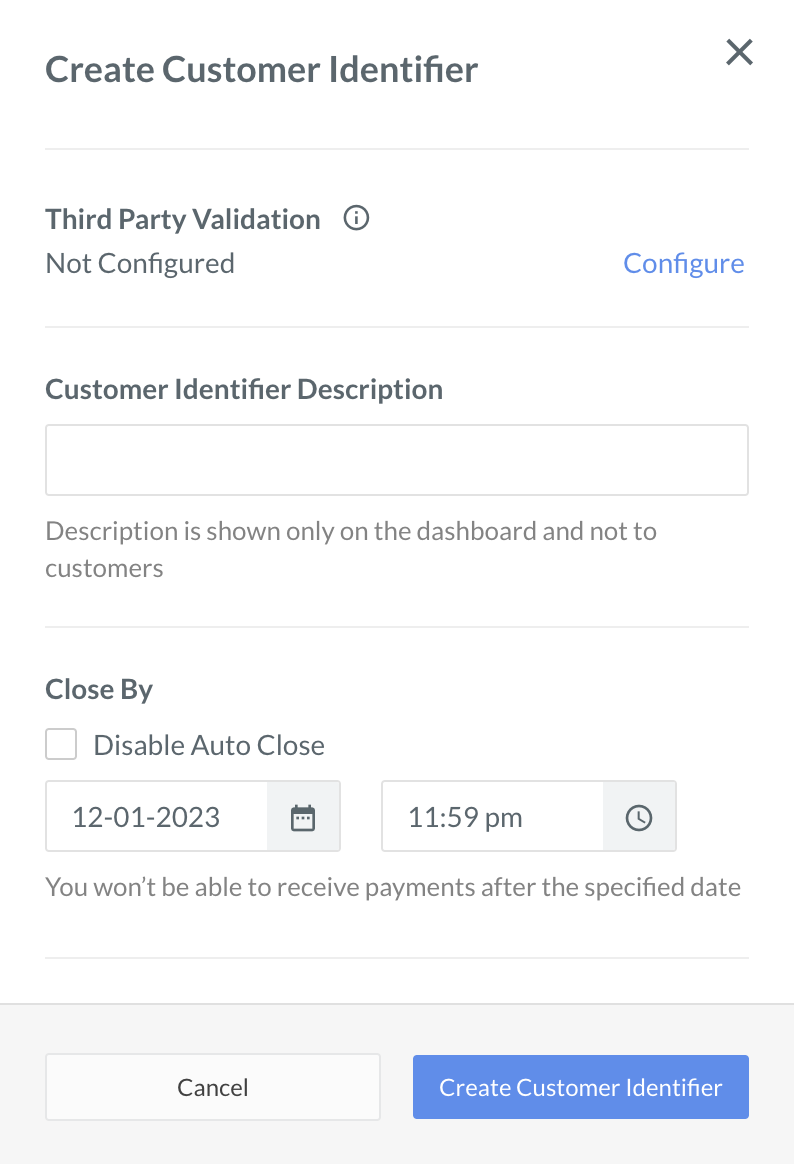
 ## Close Customer Identifiers Manually
To close Customer Identifiers manually:
1. Log in to the Dashboard and click **Smart Collect**.
2. Select the Customer Identifier id you wish to close from the Customer Identifier list.
## Close Customer Identifiers Manually
To close Customer Identifiers manually:
1. Log in to the Dashboard and click **Smart Collect**.
2. Select the Customer Identifier id you wish to close from the Customer Identifier list.
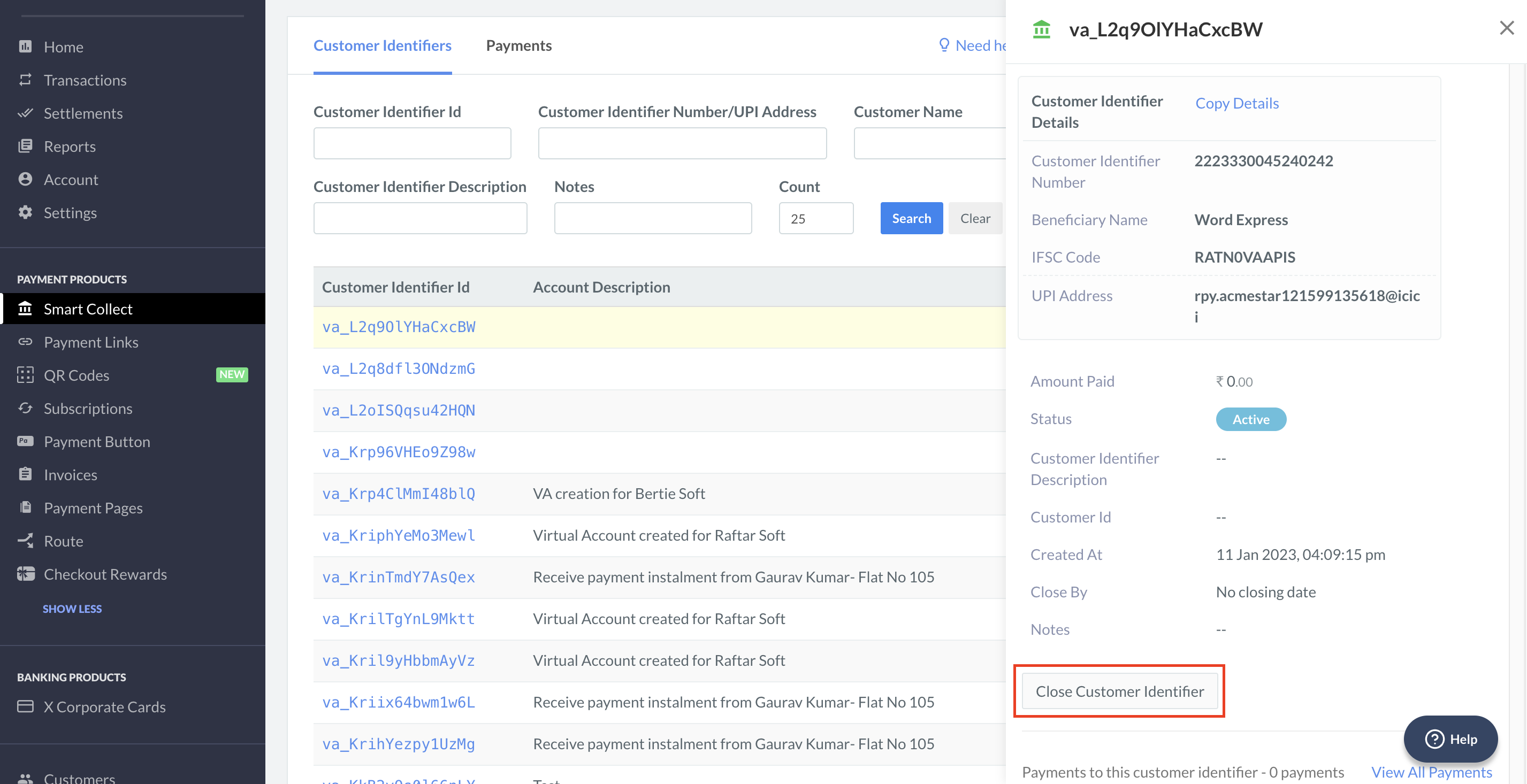
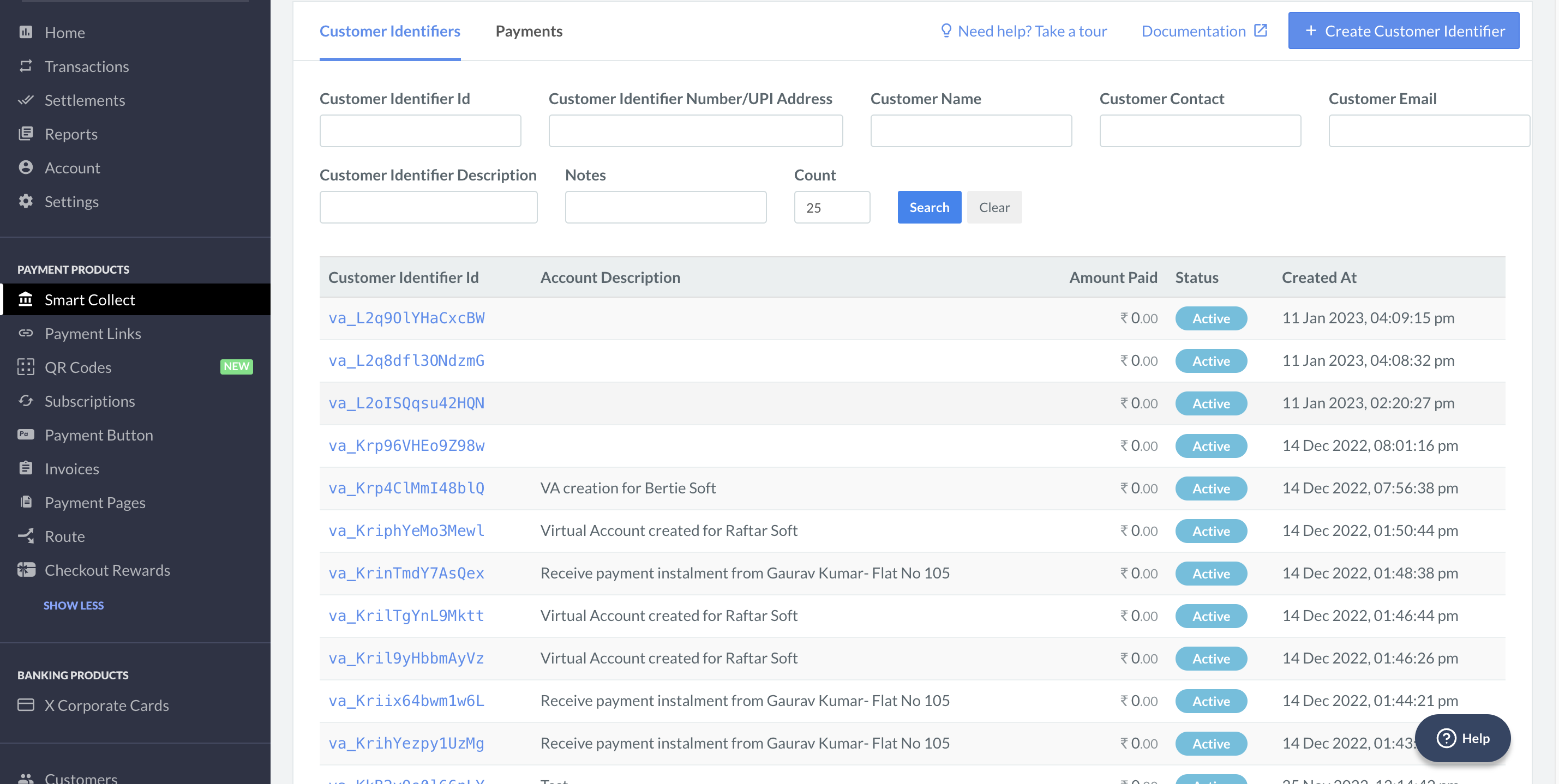 3. In the right pane that appears, click **Close Customer Identifier**.
 4. A dialog box appears to confirm the closing. Click **Yes**.
### Related Information
* [Create Customer Identifiers](/docs/payments/smart-collect/create)
* [Refund Payments](/docs/payments/smart-collect/refund)
* [Make Test Payments](/docs/payments/smart-collect/test-payments)
* [Search for a Customer Identifier](/docs/payments/smart-collect/search)
4. A dialog box appears to confirm the closing. Click **Yes**.
### Related Information
* [Create Customer Identifiers](/docs/payments/smart-collect/create)
* [Refund Payments](/docs/payments/smart-collect/refund)
* [Make Test Payments](/docs/payments/smart-collect/test-payments)
* [Search for a Customer Identifier](/docs/payments/smart-collect/search)