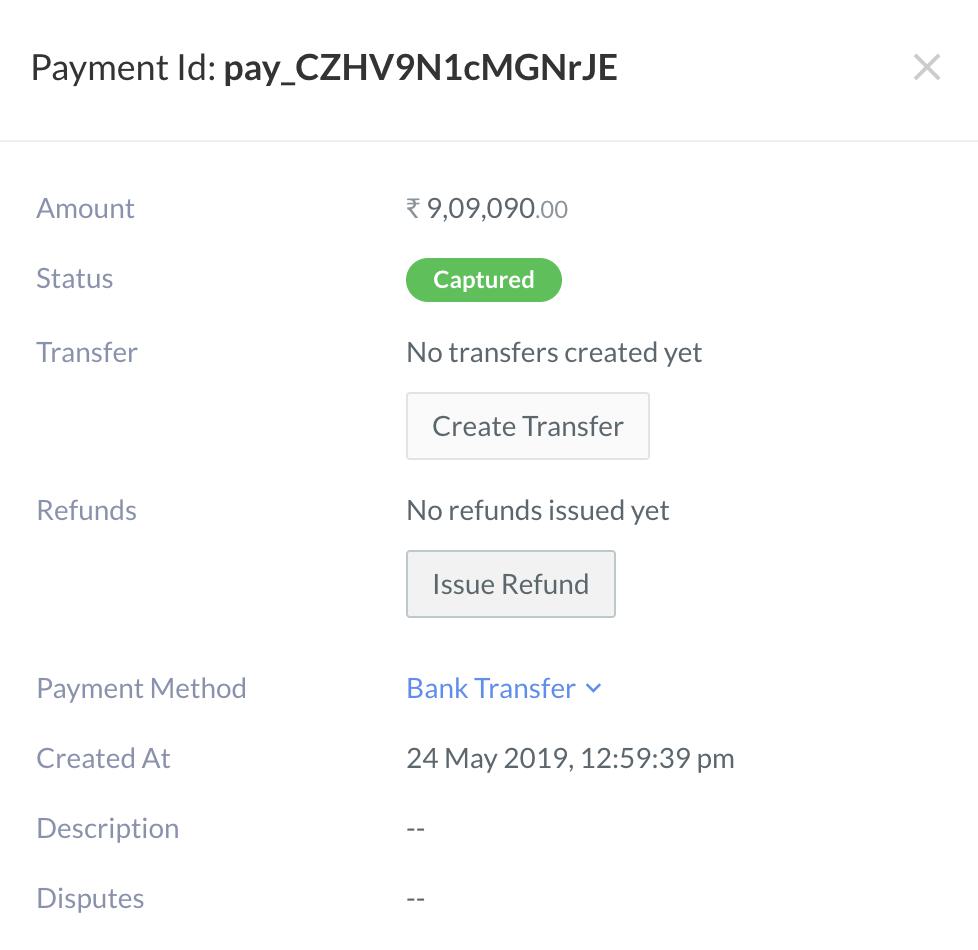
 3. A dialog box appears where the refund amount can be entered.
* Full Refund: Enter **Comments**, if any, and click the **Issue Full Refund** button.
3. A dialog box appears where the refund amount can be entered.
* Full Refund: Enter **Comments**, if any, and click the **Issue Full Refund** button.
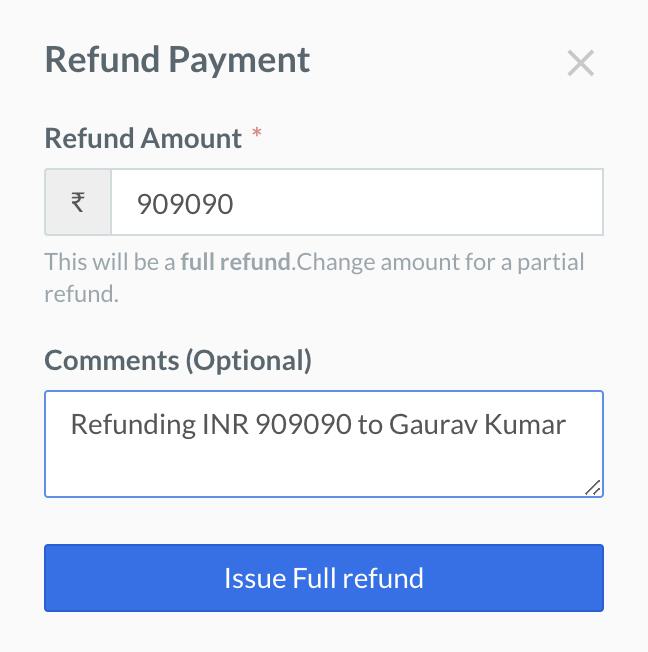 * Partial Refund: Enter the amount you want to refund. Enter **Comments**, if any, and click the **Issue Partial Refund** button.
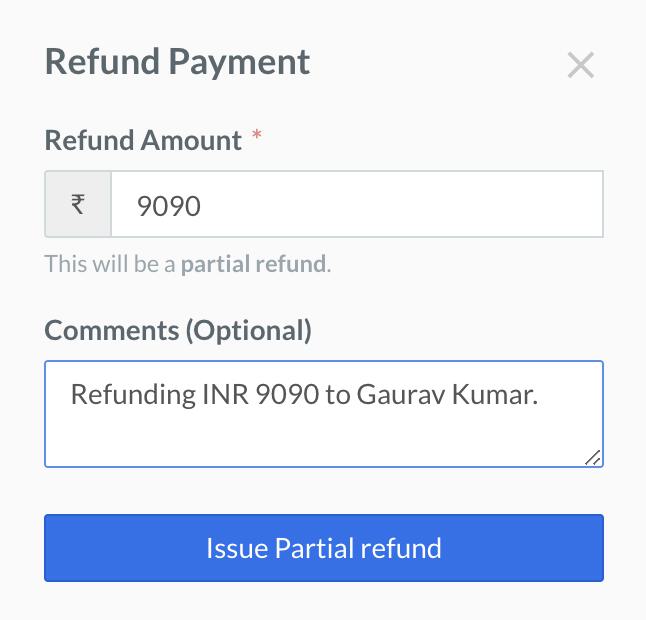 4. A confirmation dialog box appears. Click **Yes, Refund** to complete the process.
### Related Information
* [Create Customer Identifiers](/docs/payments/smart-collect/create)
* [Close Customer Identifiers](/docs/payments/smart-collect/close)
* [Make Test Payments](/docs/payments/smart-collect/test-payments)
* [Search for a Customer Identifier](/docs/payments/smart-collect/search)
4. A confirmation dialog box appears. Click **Yes, Refund** to complete the process.
### Related Information
* [Create Customer Identifiers](/docs/payments/smart-collect/create)
* [Close Customer Identifiers](/docs/payments/smart-collect/close)
* [Make Test Payments](/docs/payments/smart-collect/test-payments)
* [Search for a Customer Identifier](/docs/payments/smart-collect/search)