> ## Documentation Index
> Fetch the complete documentation index at: https://razorpay-881012b3.mintlify.site/llms.txt
> Use this file to discover all available pages before exploring further.
# Create and View Plans
> Create a Subscription Plan and view a list of created plans.
Available in🇮🇳 India🇸🇬 Singapore🇺🇸 United States
You must create a Plan before you create a Subscription.
**International Currency**
Create the plan in the currency you want to charge the customer. You can select any one of our [supported currencies](/docs/payments/international-payments#supported-currencies) to create a Plan.
## Create a Plan
You can create a Plan in two ways: [Dashboard](/docs/payments/subscriptions/create-plans#create-a-plan-from-dashboard) and [APIs](/docs/payments/subscriptions/create-plans#create-a-plan-using-apis)
**Watch Out!**
* Plans with `daily` frequency should have the interval set to a value greater than 7.
* Once a Plan is created, you cannot edit or delete it.
### Create a Plan From Dashboard
Watch this video to see how to create a Plan from the Dashboard.
To create a plan:
1. Log in to the Dashboard and click **Subscriptions** under **PAYMENT PRODUCTS** in the left menu.
2. Go to **Plans** and click **+ New Plan**. The **New Plan** window displays.
3. Enter the following details:
1. **Plan Name:** Name of the plan.
2. **Plan Description:** A brief description for the plan. This is an optional field.
3. **Billing Frequency:** How often should the customer be charged.
4. **Billing Amount:** Amount to be charged. Refer to the [supported currencies](/docs/payments/international-payments#supported-currencies) page for information on currencies.
5. **Internal Notes:** Any internal notes if required.
4. Click **Create Plan**.
### Create a Plan Using APIs
You can create a Subscription Plan using the [create a plan API](/docs/api/payments/subscriptions/create-plan).
## View Plan Details
You can view Plan details in two ways: [Dashboard](/docs/payments/subscriptions/create-plans#view-plan-details-using-dashboard) and [APIs](/docs/payments/subscriptions/create-plans#view-plan-details-using-api)
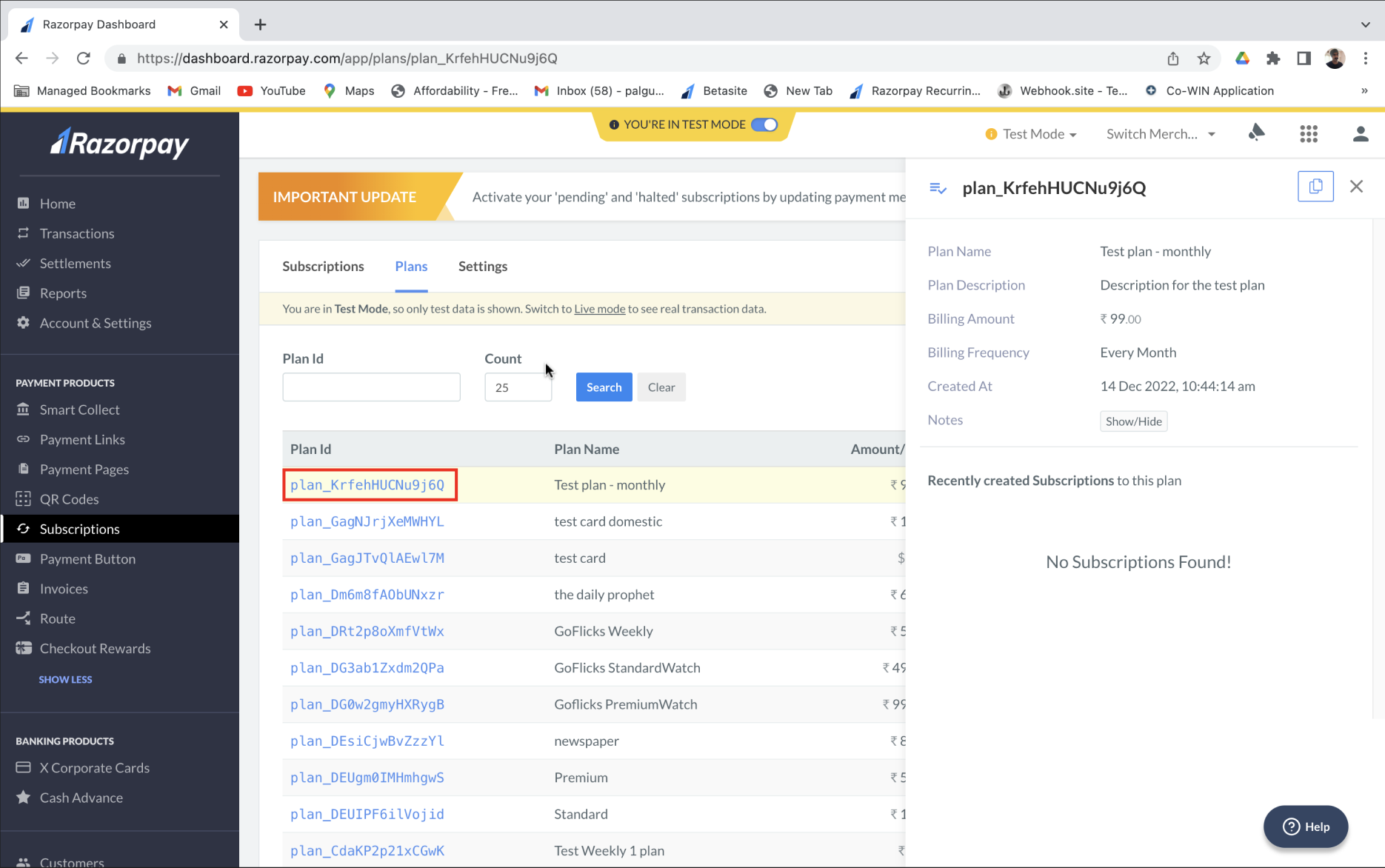
### View Plan Details Using Dashboard
To view Plan details:
1. Log in to the Dashboard and click **Subscriptions** under **PAYMENT PRODUCTS** in the left menu.
2. Go to **Plans** and click on the required **Plan Id** to view its details.
### View Plan Details Using API
* View all Plans using the [fetch all plans API](/docs/api/payments/subscriptions/fetch-all-plans).
* View a Plan with an id using the [fetch a plan by id API](/docs/api/payments/subscriptions-custom#fetch-a-plan-by-id).
### Related Information
* [Create Subscriptions via Links](/docs/payments/subscriptions/create-subscription-links)
* [Charge a Card Manually](/docs/payments/subscriptions/manually-charge-card)
* [Update a Subscription](/docs/payments/subscriptions/update)
* [Subscriptions Settings](/docs/payments/subscriptions/settings)
 ### View Plan Details Using API
* View all Plans using the [fetch all plans API](/docs/api/payments/subscriptions/fetch-all-plans).
* View a Plan with an id using the [fetch a plan by id API](/docs/api/payments/subscriptions-custom#fetch-a-plan-by-id).
### Related Information
* [Create Subscriptions via Links](/docs/payments/subscriptions/create-subscription-links)
* [Charge a Card Manually](/docs/payments/subscriptions/manually-charge-card)
* [Update a Subscription](/docs/payments/subscriptions/update)
* [Subscriptions Settings](/docs/payments/subscriptions/settings)
### View Plan Details Using API
* View all Plans using the [fetch all plans API](/docs/api/payments/subscriptions/fetch-all-plans).
* View a Plan with an id using the [fetch a plan by id API](/docs/api/payments/subscriptions-custom#fetch-a-plan-by-id).
### Related Information
* [Create Subscriptions via Links](/docs/payments/subscriptions/create-subscription-links)
* [Charge a Card Manually](/docs/payments/subscriptions/manually-charge-card)
* [Update a Subscription](/docs/payments/subscriptions/update)
* [Subscriptions Settings](/docs/payments/subscriptions/settings)