> ## Documentation Index
> Fetch the complete documentation index at: https://razorpay-881012b3.mintlify.site/llms.txt
> Use this file to discover all available pages before exploring further.

# 1. Build Integration

> A step-by-step guide on how to integrate OpenCart enabled site with Razorpay.

<div style={{display:"flex",flexWrap:"wrap",alignItems:"center",gap:"0.35rem 0.9rem",border:"1px solid rgba(128,128,128,0.28)",borderRadius:"0.5rem",padding:"0.45rem 0.75rem",margin:"0 0 1.25rem",fontSize:"0.875rem"}}>
  <span style={{fontWeight:600}}>Available in</span>
  <span>🇮🇳 India</span>
</div>

Follow the steps given below to integrate Razorpay Payment Gateway with your OpenCart enabled site using the Razorpay Subscription for OpenCart plugin.

## Integration Steps

Follow these steps to complete the integration:

### On Your OpenCart Site

1. [Install the Razorpay Subscriptions for OpenCart Plugin](/docs/payments/subscriptions/plugins/opencart/build-integration#step-1-install-razorpay-subscriptions-for-opencart-plugin).
2. [Configure OpenCart Settings](/docs/payments/subscriptions/plugins/opencart/build-integration#step-2-configure-opencart-settings).
3. [Create a Plan for Subscriptions product](/docs/payments/subscriptions/plugins/opencart/build-integration#step-3-create-a-plan-for-subscriptions-product).
4. [Test integration](/docs/payments/subscriptions/plugins/opencart/test-integration).

### On Razorpay Dashboard

1. [Enable Webhooks](/docs/payments/subscriptions/plugins/woocommerce/build-integration#subscribe-to-webhook-events).

#### Step 1: Install Razorpay Subscriptions for OpenCart Plugin

To install Razorpay Subscriptions for OpenCart plugin:

1. Download the latest source code ZIP file of the Razorpay OpenCart Subscriptions plugin from the repository on Github.
   1. [OpenCart 3](https://github.com/razorpay/razorpay-opencart/releases)
   2. [OpenCart 2](https://github.com/razorpay/razorpay-opencart/releases/tag/opencart2-3.0.0)
   3. [OpenCart 1.5](https://github.com/razorpay/razorpay-opencart/releases/tag/opencart1.5-1.0.0)

<Warning>
  **Watch Out!**

  Subscriptions is available only on [OpenCart 3](https://github.com/razorpay/razorpay-opencart/releases).
</Warning>

2. Copy all files/folders recursively to the OpenCart installation directory.

#### Step 2: Configure OpenCart Settings

1. Log in to  [OpenCart](https://www.opencart.com/).
2. Go to the **Admin Panel** → **Extensions** → **Payments** to install the Razorpay Payment Gateway extension.<br />
   <img src="https://razorpay.com/docs/build/browser/assets/images/opencart-rzp-extn.jpg" />
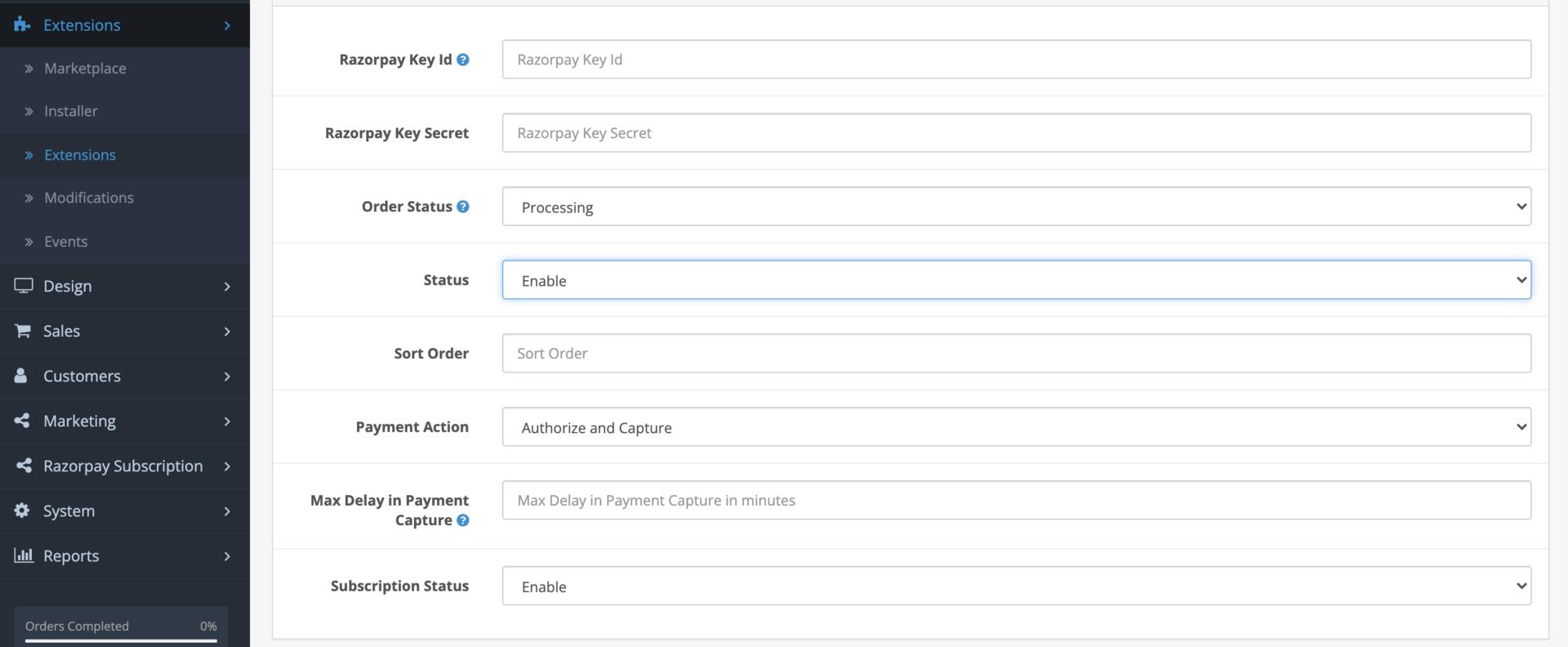
3. Click the edit icon and fill in the following field details.

| Field               | Description                                                                                                                                                                                                                                                                                                    |
| ------------------- | -------------------------------------------------------------------------------------------------------------------------------------------------------------------------------------------------------------------------------------------------------------------------------------------------------------- |
| Key ID              | Enter the Key ID generated from the Dashboard.                                                                                                                                                                                                                                                                 |
| Key Secret          | Enter the API Key Secret generated from the Dashboard.                                                                                                                                                                                                                                                         |
| Payment Action      | To automatically capture successful payments, select `Authorize and Capture` option in the drop-down menu. Select `Authorize` if you want to capture payments manually from the [Razorpay Dashboard](/docs/payments/payments/dashboard#manual-capture-of-payments) or using [API](/docs/api/payments/capture). |
| Subscription Status | Ensure the Subscription Status is enabled.                                                                                                                                                                                                                                                                     |
<Info>
  **Handy Tips**

  Webhook is auto-configured when you enter and save the API key ID and secret on the plugin settings page. You need to verify if webhooks are enabled on your Razorpay Dashboard.
</Info>

<img src="https://razorpay.com/docs/build/browser/assets/images/extn-config-settings.jpg" />

4. Click **Save** to save the extension settings.
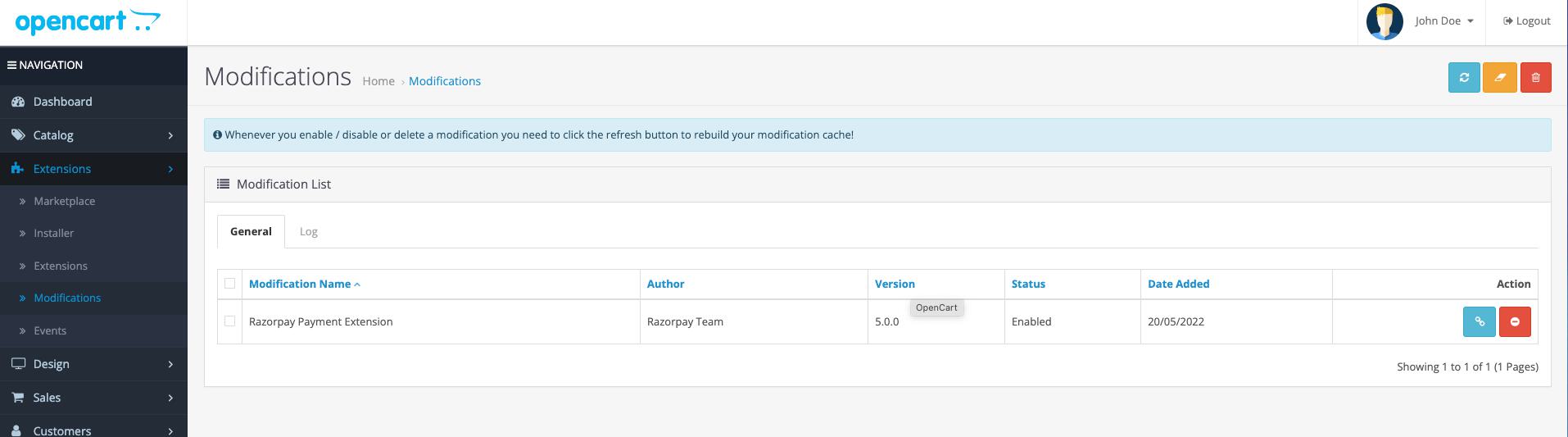
5. Go to **Admin Panel** → **Extensions** → **Modifications** and click the refresh button to rebuild your modification cache.

#### Step 3: Create a Plan for Subscriptions Product
<Warning>
  **Watch Out!**

  You can enable or disable plans only after creating them.
</Warning>

To create a Plan for Subscriptions product:

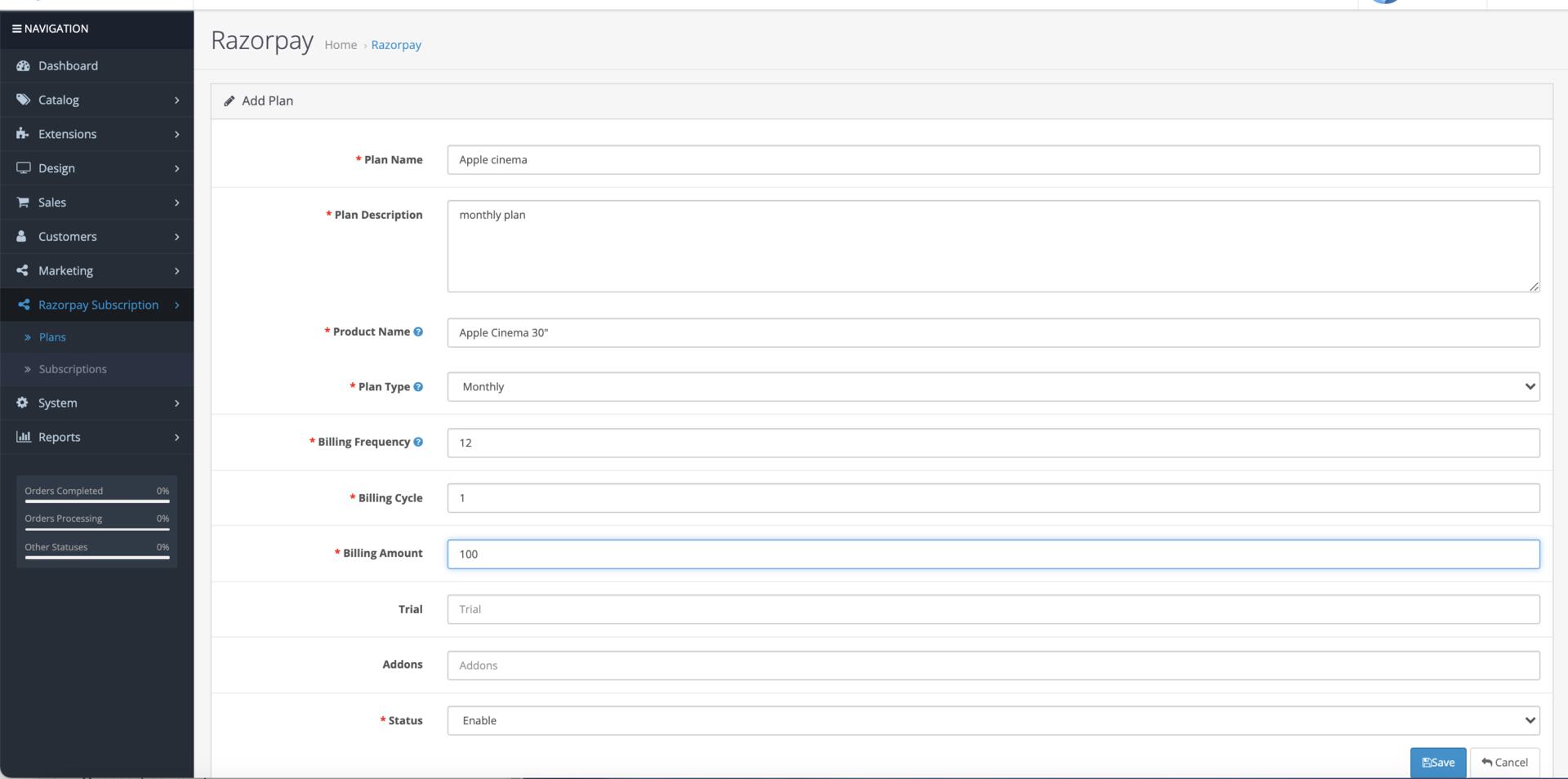
1. Go to the **Admin Panel** → **Razorpay Subscription**  → **Plans** to add a new Plan.
2. Click **Add new** to create a new Plan.
3. Enter the required details and click **Save** to save the Plan.<br />
   <img src="https://razorpay.com/docs/build/browser/assets/images/opencart-create-plan.jpg" />

### Next Steps

[Step 2: Test Integration](/docs/payments/subscriptions/plugins/opencart/test-integration)
