> ## Documentation Index
> Fetch the complete documentation index at: https://razorpay-881012b3.mintlify.site/llms.txt
> Use this file to discover all available pages before exploring further.
# 2. Test Integration
> Do test payments to make sure that your integration works.
Available in
🇮🇳 India
After the integration is complete, Razorpay will appear as a payment option on your web page/app. You need to make a test transaction to ensure that the integration is working as expected. You can start accepting actual payments from your customers once the test is successful.
## Buy a Product on Subscription
To buy a product on Subscription:
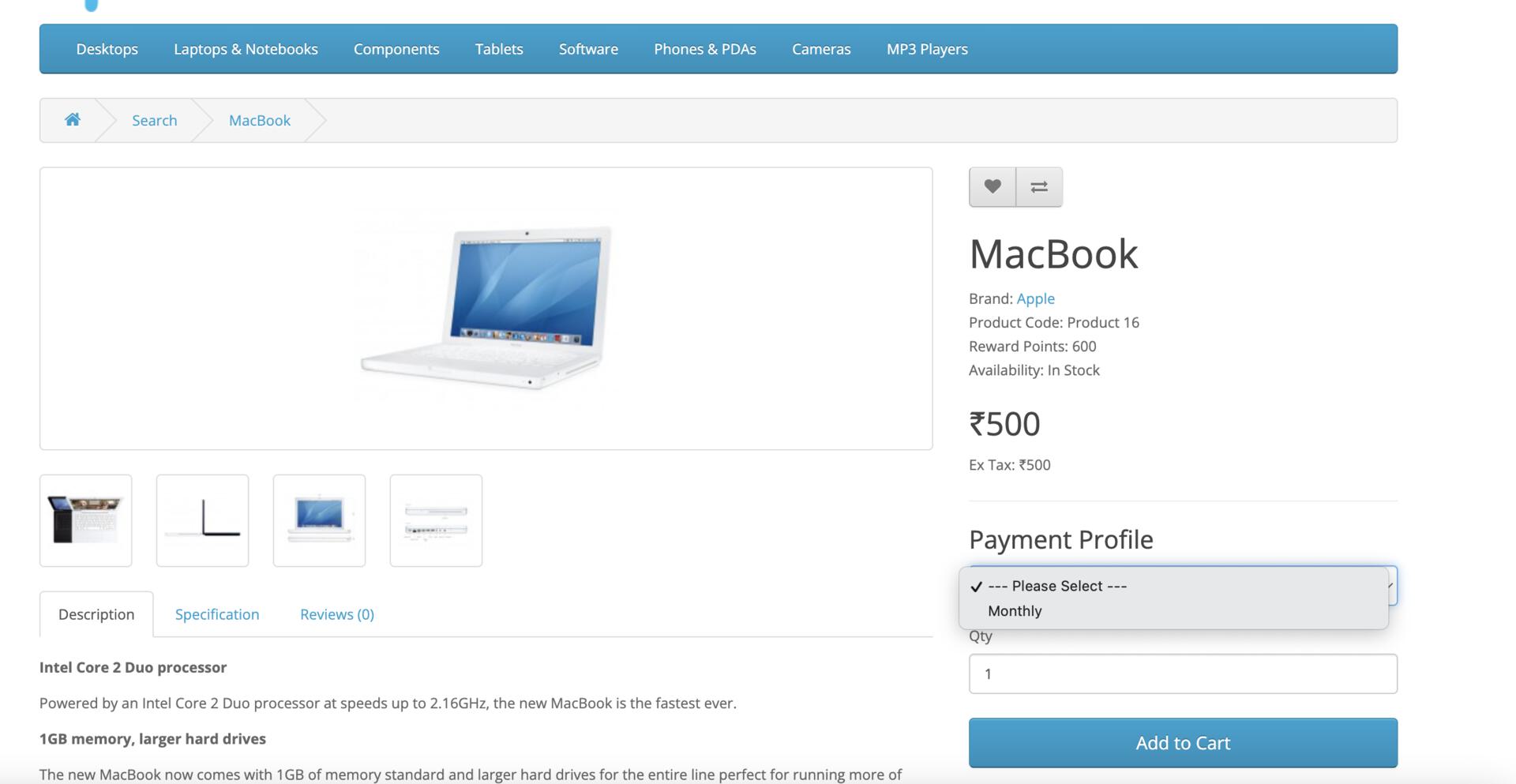
1. Select the recurring options of the product for which the recurring option has been enabled.
2. Click **Add to Cart**.
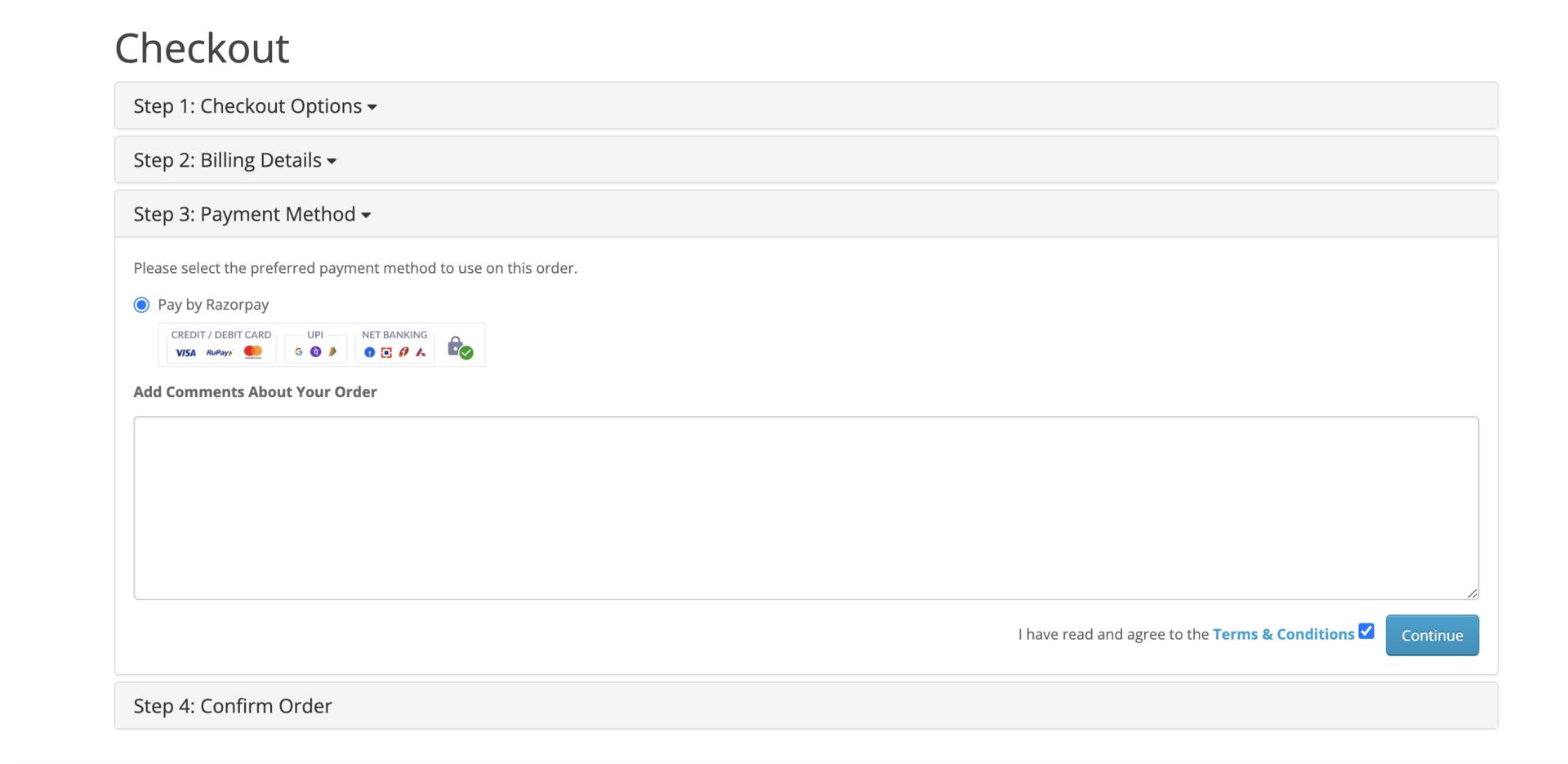
 3. Select **Pay by Razorpay** as your payment method and click **Continue**.
 4. Verify the details and click **Confirm Order**.
You can make test payments using one of the payment methods configured at the Checkout.
* No money is deducted from the customer's account as this is a simulated transaction.
* Ensure you have entered the API keys generated in the test mode in the Checkout code.
### Netbanking
You can select any of the listed banks. After choosing a bank, Razorpay will redirect to a mock page where you can make the payment a `success` or a `failure`. Since it is the test mode, we will not redirect you to the bank login portals.
### UPI
You can enter one of the following UPI IDs:
* `success@razorpay`: To make the payment successful.
* `failure@razorpay`: To fail the payment.
**Handy Tips**
You can use **Test Mode** to test UPI payments, and **Live Mode** for UPI Intent and QR payments.
### Wallet
You can select any of the listed wallets. After choosing a wallet, Razorpay will redirect to a mock page where you can make the payment a `success` or a `failure`. Since it is the test mode, we will not redirect you to the wallet login portals.
### Cards
You can use one of the test cards to make transactions in the test mode. Use any valid expiration date in the future and any random CVV to create a successful payment.
| Card Network | Domestic/International | Card Number |
| ------------ | ---------------------- | --------------------------------------------------------------------- |
| Mastercard | Domestic | 5267 3181 8797 5449 |
| Visa | Domestic | 4386 2894 0766 0153 |
| Mastercard | International | 5555 5555 5555 4444
4. Verify the details and click **Confirm Order**.
You can make test payments using one of the payment methods configured at the Checkout.
* No money is deducted from the customer's account as this is a simulated transaction.
* Ensure you have entered the API keys generated in the test mode in the Checkout code.
### Netbanking
You can select any of the listed banks. After choosing a bank, Razorpay will redirect to a mock page where you can make the payment a `success` or a `failure`. Since it is the test mode, we will not redirect you to the bank login portals.
### UPI
You can enter one of the following UPI IDs:
* `success@razorpay`: To make the payment successful.
* `failure@razorpay`: To fail the payment.
**Handy Tips**
You can use **Test Mode** to test UPI payments, and **Live Mode** for UPI Intent and QR payments.
### Wallet
You can select any of the listed wallets. After choosing a wallet, Razorpay will redirect to a mock page where you can make the payment a `success` or a `failure`. Since it is the test mode, we will not redirect you to the wallet login portals.
### Cards
You can use one of the test cards to make transactions in the test mode. Use any valid expiration date in the future and any random CVV to create a successful payment.
| Card Network | Domestic/International | Card Number |
| ------------ | ---------------------- | --------------------------------------------------------------------- |
| Mastercard | Domestic | 5267 3181 8797 5449 |
| Visa | Domestic | 4386 2894 0766 0153 |
| Mastercard | International | 5555 5555 5555 4444
5105 1051 0510 5100
5104 0600 0000 0008 |
| Visa | International | 4012 8888 8888 1881 |
### Next Steps
[Step 3: Go Live Checklist](/docs/payments/subscriptions/plugins/opencart/go-live-checklist)