> ## Documentation Index
> Fetch the complete documentation index at: https://razorpay-881012b3.mintlify.site/llms.txt
> Use this file to discover all available pages before exploring further.

# Manage Subscriptions

> Reactivate, cancel or put on hold an existing Razorpay Subscription plugin for WooCommerce and initiate refunds.

<div style={{display:"flex",flexWrap:"wrap",alignItems:"center",gap:"0.35rem 0.9rem",border:"1px solid rgba(128,128,128,0.28)",borderRadius:"0.5rem",padding:"0.45rem 0.75rem",margin:"0 0 1.25rem",fontSize:"0.875rem"}}>
  <span style={{fontWeight:600}}>Available in</span>
  <span>🇮🇳 India</span>
</div>

You can cancel a Subscriptions product. You can also refund the subscription amount to your customers. If you want to update a Subscriptions product, you need to create a new Subscription product.

## Update a Subscriptions Product

Razorpay Subscriptions plugin for WooCommerce does not support updating existing products. You must create a new subscription product for any changes.

<Warning>
  **Watch Out!**

  Once a customer's subscription is live, you cannot modify its details (including upgrades or downgrades).

  * **Modifying Existing Subscriptions**: If you modify an existing WooCommerce subscription product and process a test payment, it will be registered as a New Plan on the Razorpay Dashboard. Hence, you must:
    1. Cancel the customer's existing subscription.
    2. Create a new subscription product.
    3. Have the customer subscribe to the newly created plan.
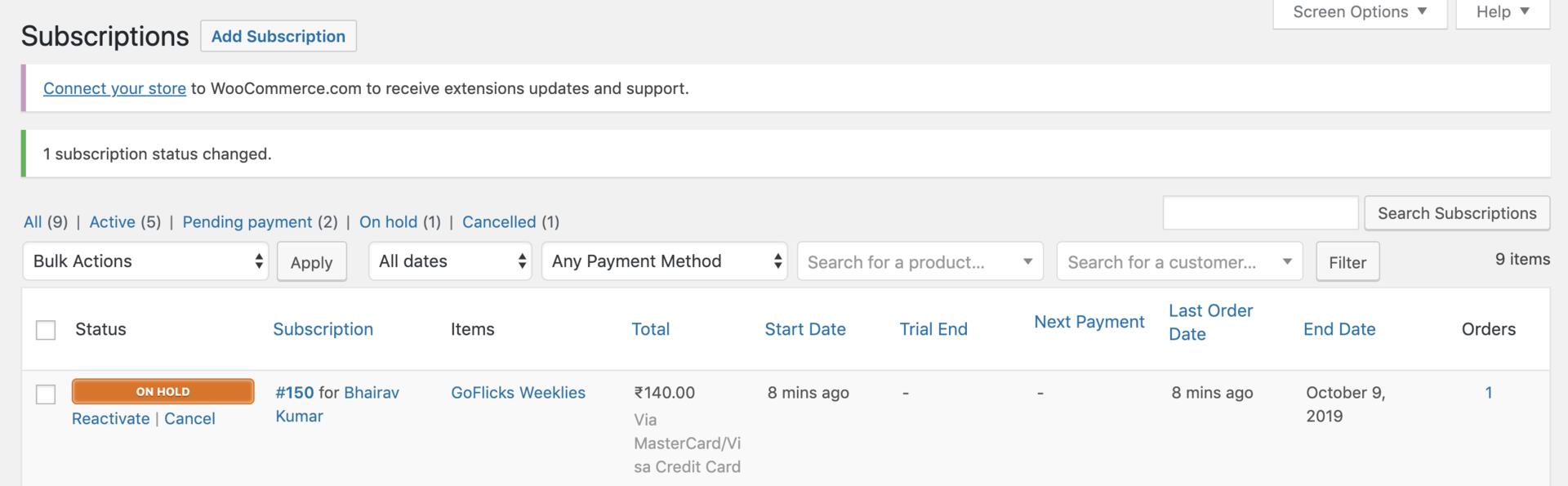
  * R**eactivating On-Hold Subscriptions**: For subscriptions that are on-hold, you can use the Reactivate option to resume service after successfully charging the customer's card. This updates the subscription status to Active on the Razorpay Dashboard.<br />

  The Reactivate button is only displayed when no payment is currently due.
</Warning>

<img src="https://razorpay.com/docs/build/browser/assets/images/rzp-subscriptions-plugin-rzp-subs-plugin-16.jpg" alt="Update Subscriptions product" />

## Cancel a Subscription

The `cancel` option is used to cancel the Subscription. You can cancel a Subscription:

* Immediately
* At the end of the current billing cycle

To cancel a Subscription:

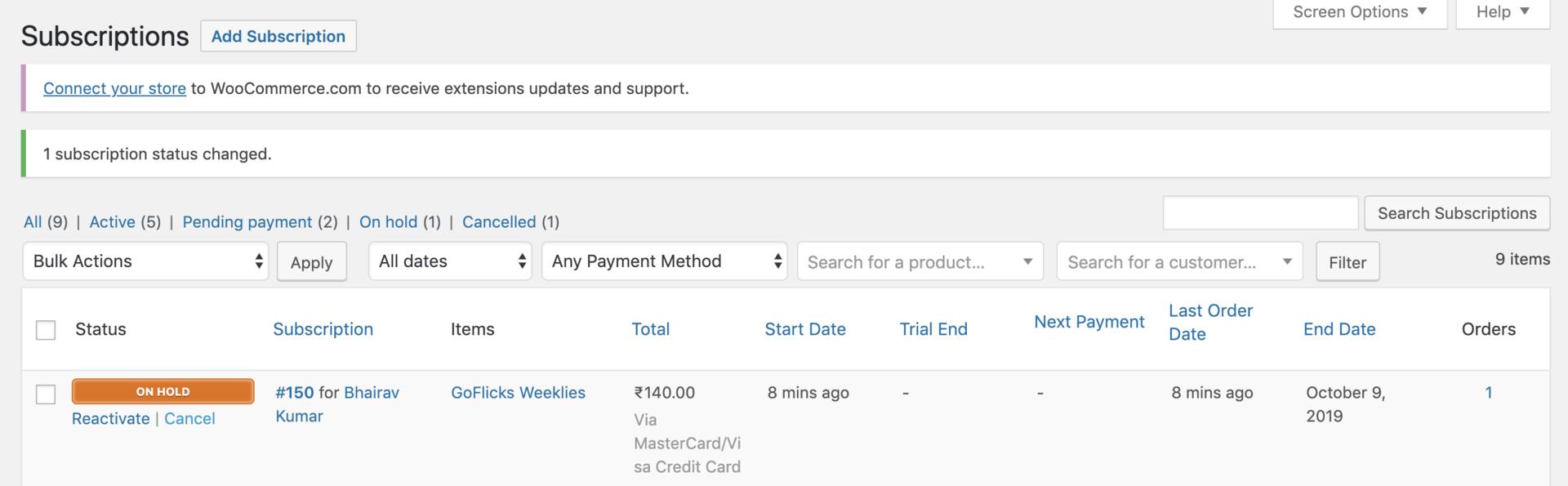
1. Navigate to **WooCommerce** → **Subscriptions**.
2. Hover over the subscription you want to put on hold and click **Cancel**.
<img src="https://razorpay.com/docs/build/browser/assets/images/rzp-subscriptions-plugin-rzp-subs-plugin-17.jpg" alt="Cancel a Subscription" />

<Warning>
  **Watch Out!**

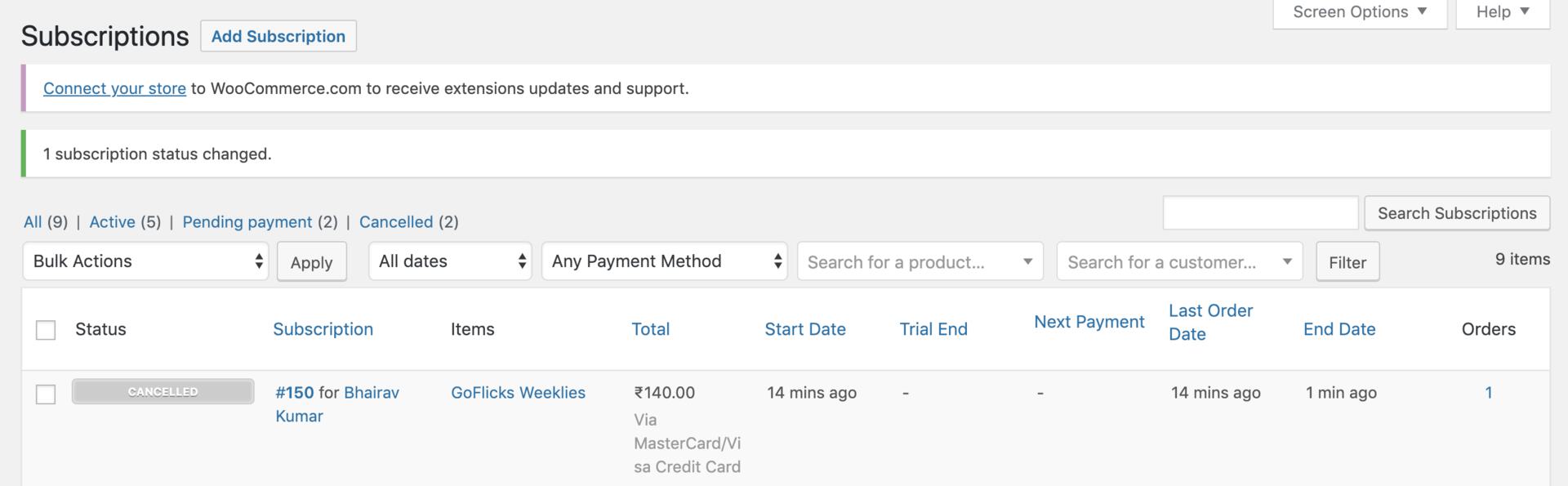
  After you cancel an existing Subscription, you cannot restart it.
</Warning>

<img src="https://razorpay.com/docs/build/browser/assets/images/rzp-subscriptions-plugin-rzp-subs-plugin-18.jpg" alt="WooCommerce Subscriptions after cancellation" />

## Refund Subscription Amount

* To refund the subscription amount to a customer, you need to do this manually from the [Dashboard](/docs/payments/payments/dashboard#issue-a-refund).
* You also need to mark the subscription as refunded on [WooCommerce in WordPress Dashboard](https://docs.woocommerce.com/document/woocommerce-refunds/#section-4) by selecting the **Refunded** option from the **Order Status** drop-down list.
