> ## Documentation Index
> Fetch the complete documentation index at: https://razorpay-881012b3.mintlify.site/llms.txt
> Use this file to discover all available pages before exploring further.
# Integrate Razorpay Trusted Business Widget on WooCommerce
> Enhance brand trust, boost conversions, and display Razorpay Trusted Business widget on your WooCommerce website's product page.
Available in
🇮🇳 India
Discover new features, updates and deprecations related to Razorpay Trusted Business Widget on WooCommerce (since Jan 2024).
Integrate Razorpay Trusted Business (RTB) widget into your WooCommerce website's product pages.
Download Plugin
## Get Started
Follow the [integration steps](#integration-steps) to integrate the RTB widget on your [WooCommerce](https://woo.com/) website.
## Prerequisites
* Sign up for a [Razorpay account](https://dashboard.razorpay.com/signup).
* Set up your [WooCommerce store](https://woo.com/).
## Integration Steps
Follow these steps to proceed with the integration:
Install the plugin.
Test the RTB widget.
Check the go-live checklist.
### 1. Build Integration
Follow the below steps to install the plugin:
**Handy Tips**
If you are an existing Razorpay user, you can directly begin the integration process from step 3.
1. [Sign up](https://dashboard.razorpay.com/signup?) for a Razorpay account.
2. Complete your KYC process. To confirm your successful activation or clarify any KYC queries, we will contact you via WhatsApp, SMS and email.
3. From the Wordpress Plugins list, [install](https://wordpress.org/plugins/woo-razorpay/) the latest Razorpay for WooCommerce plugin with RTB widget.
4. After you install the plugin, go to the plugin settings and enter the Razorpay [API Key](/docs/api/authentication#generate-api-keys) ID and secret. Click **save** to check eligibility for the RTB.
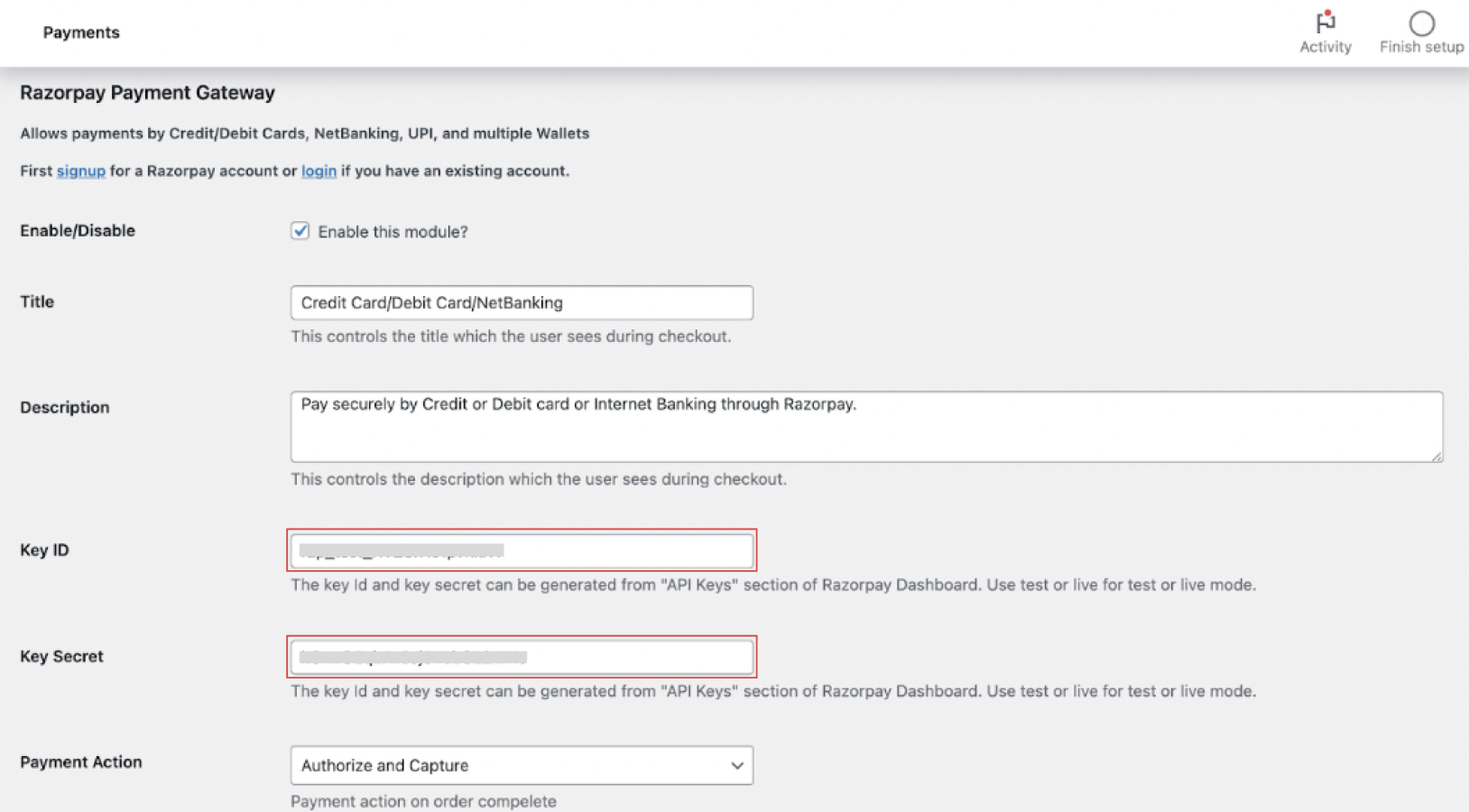 If you are eligible, the option to enable the RTB widget will appear. Select the checkbox against **Enable RTB Widget?** and click **Save changes**. If you are not eligible, refer to our [eligibility requirements](/docs/payments/payment-gateway/features/trusted-business#eligibility-requirements-for-razorpay-trusted-business-badge).
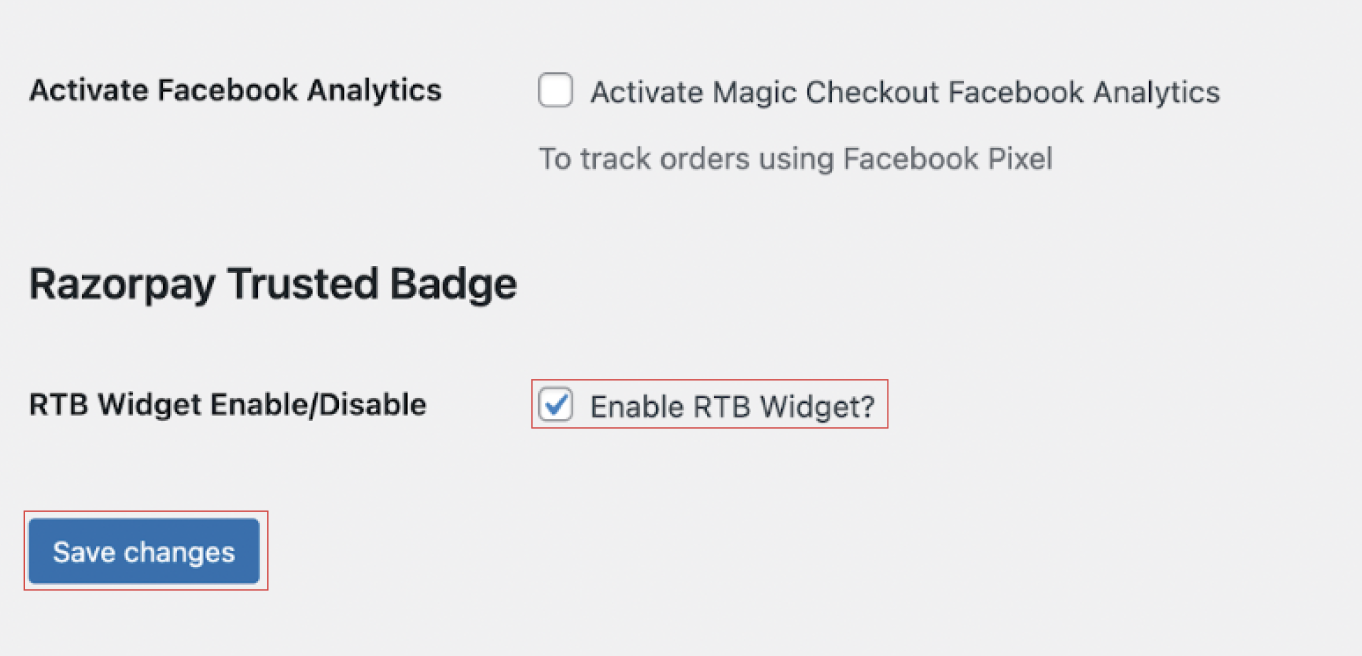 This completes your integration.
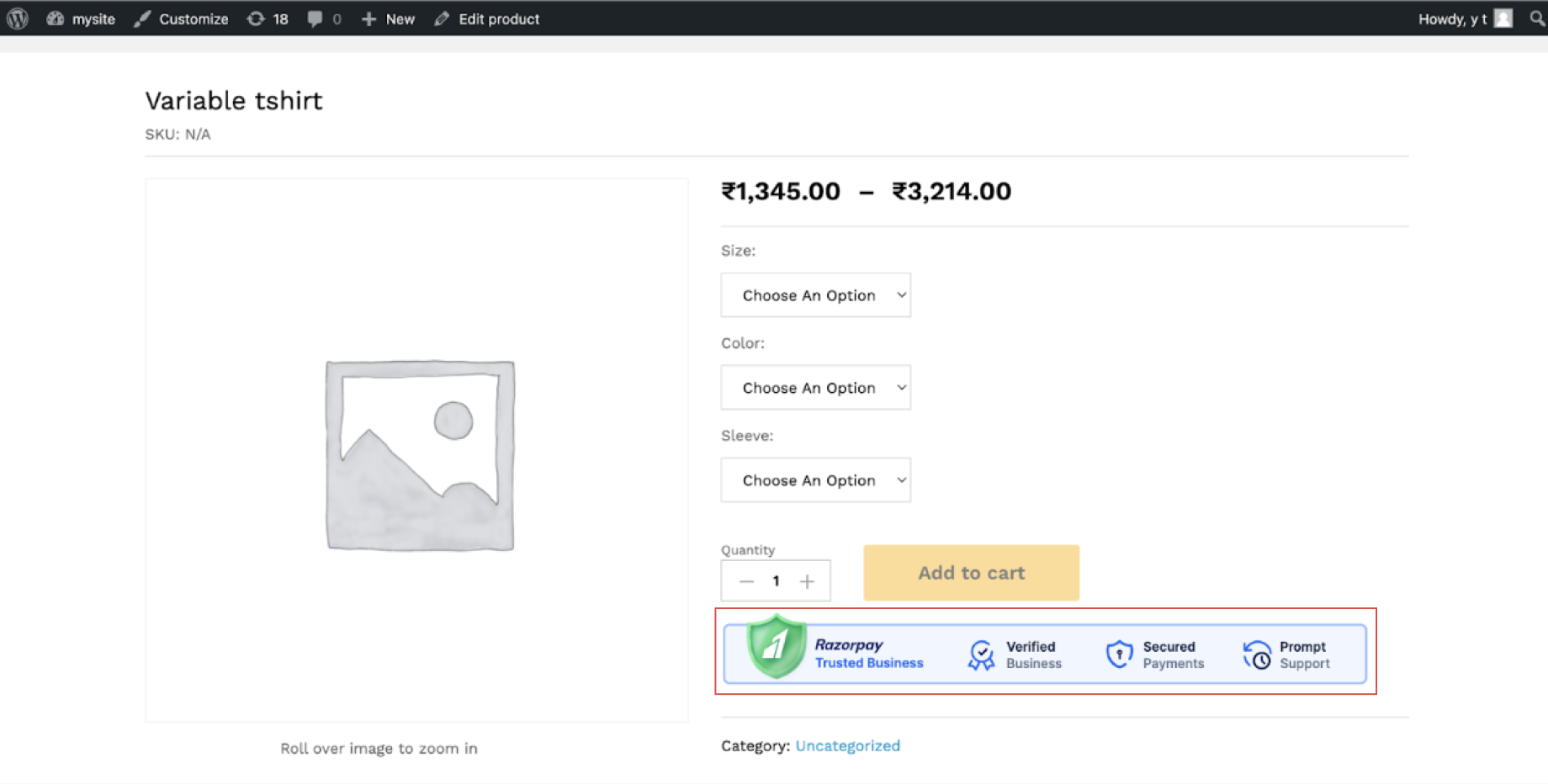
To verify the integration, visit your WooCommerce website and access any of your product pages. Preview the page to check how the RTB widget appears to your buyers.
This completes your integration.
To verify the integration, visit your WooCommerce website and access any of your product pages. Preview the page to check how the RTB widget appears to your buyers.
 ### 2. Test Integration
You can now preview and test the widget on the page where you integrated it. Follow the checklist:
* **Widget Rendering**: Confirm that the RTB widget renders correctly on the decided location of the desired page.
* **Widget Interaction**: Interact with the widget to verify that users can click the widget to access additional information on the RTB website.
* **Responsive Design**: Resize the browser window or access the page on different devices to test the widget's responsiveness.
* **Widget Loading**: Ensure the widget loads quickly and smoothly without causing any delays or disruptions on the page it is integrated.
### 3. Go-live Checklist
After previewing and testing the widget on your Wordpress Dashboard, you must replace the test mode API keys with the live mode API keys. You can generate the [live mode API keys](/docs/api/authentication#live-mode-api-keys) from the Dashboard.
Your customers can view the widget on your website. After they click the widget, it redirects them to the RTB website to access more information.
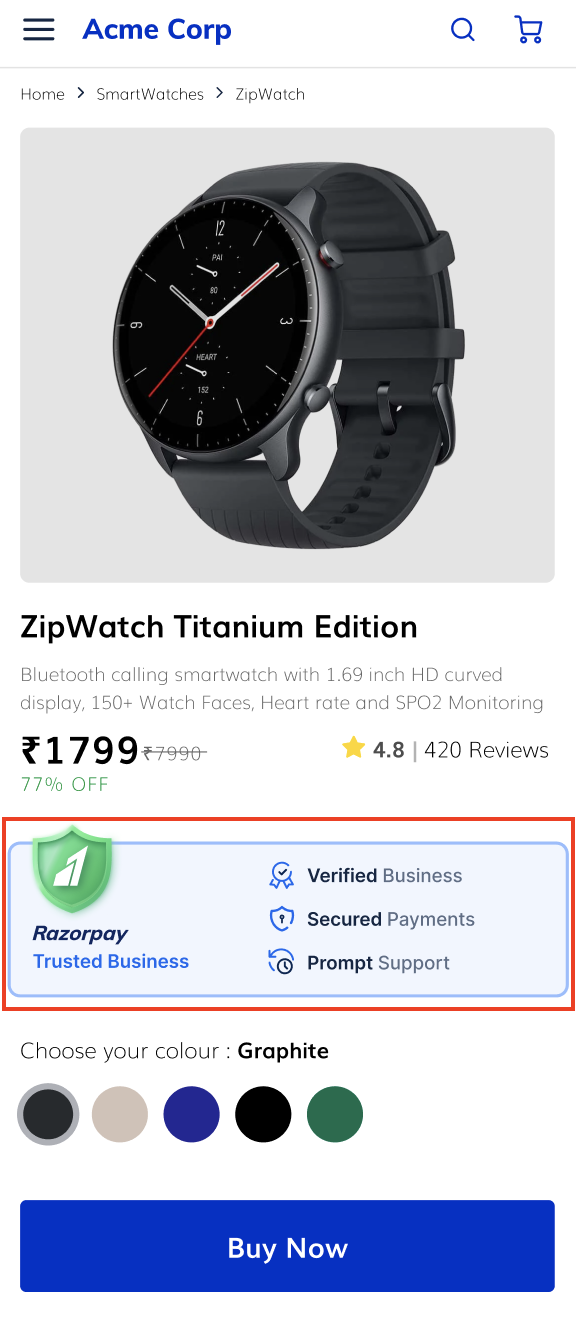
* Here is a glimpse of the default widget:
### 2. Test Integration
You can now preview and test the widget on the page where you integrated it. Follow the checklist:
* **Widget Rendering**: Confirm that the RTB widget renders correctly on the decided location of the desired page.
* **Widget Interaction**: Interact with the widget to verify that users can click the widget to access additional information on the RTB website.
* **Responsive Design**: Resize the browser window or access the page on different devices to test the widget's responsiveness.
* **Widget Loading**: Ensure the widget loads quickly and smoothly without causing any delays or disruptions on the page it is integrated.
### 3. Go-live Checklist
After previewing and testing the widget on your Wordpress Dashboard, you must replace the test mode API keys with the live mode API keys. You can generate the [live mode API keys](/docs/api/authentication#live-mode-api-keys) from the Dashboard.
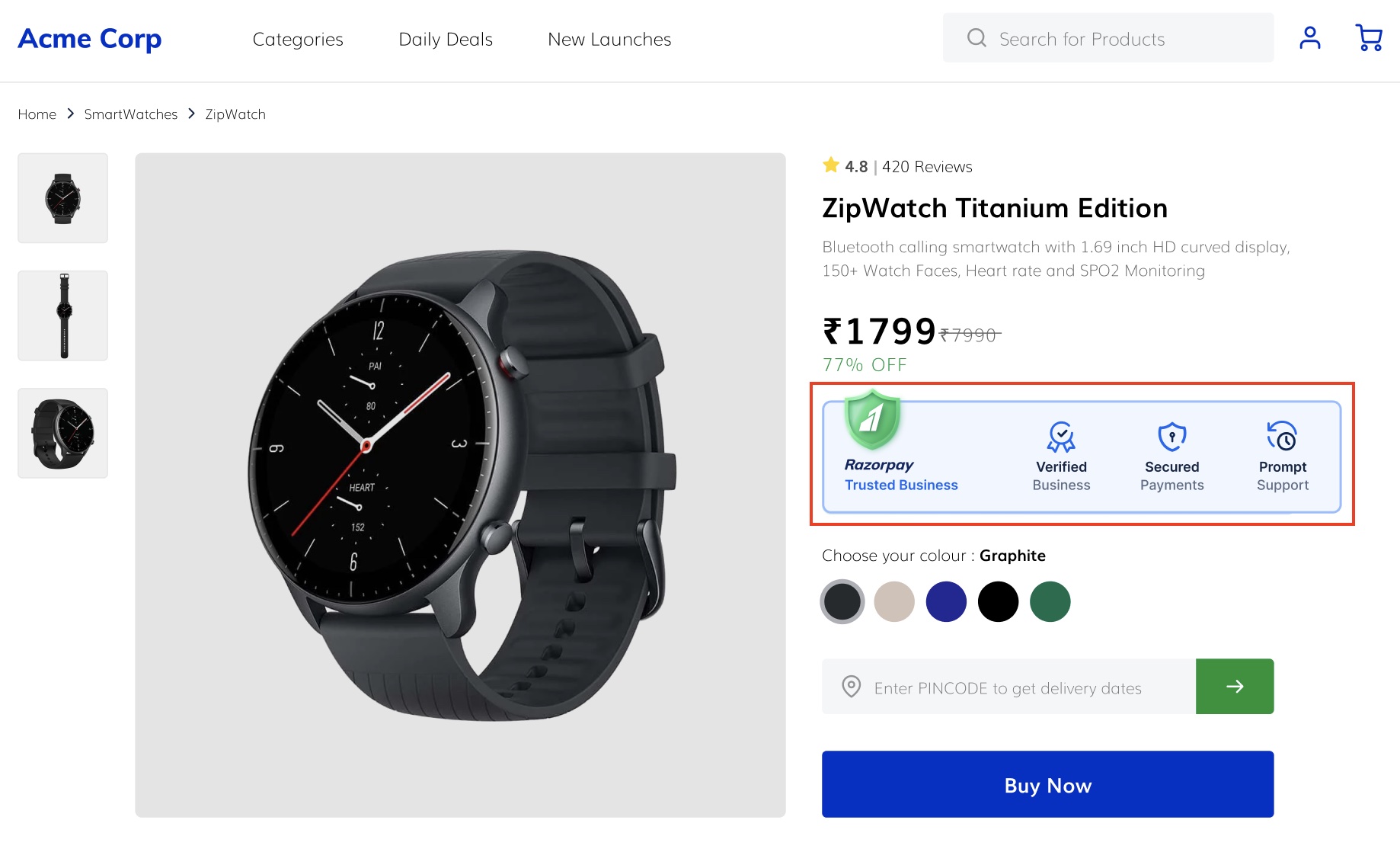
Your customers can view the widget on your website. After they click the widget, it redirects them to the RTB website to access more information.
* Here is a glimpse of the default widget:
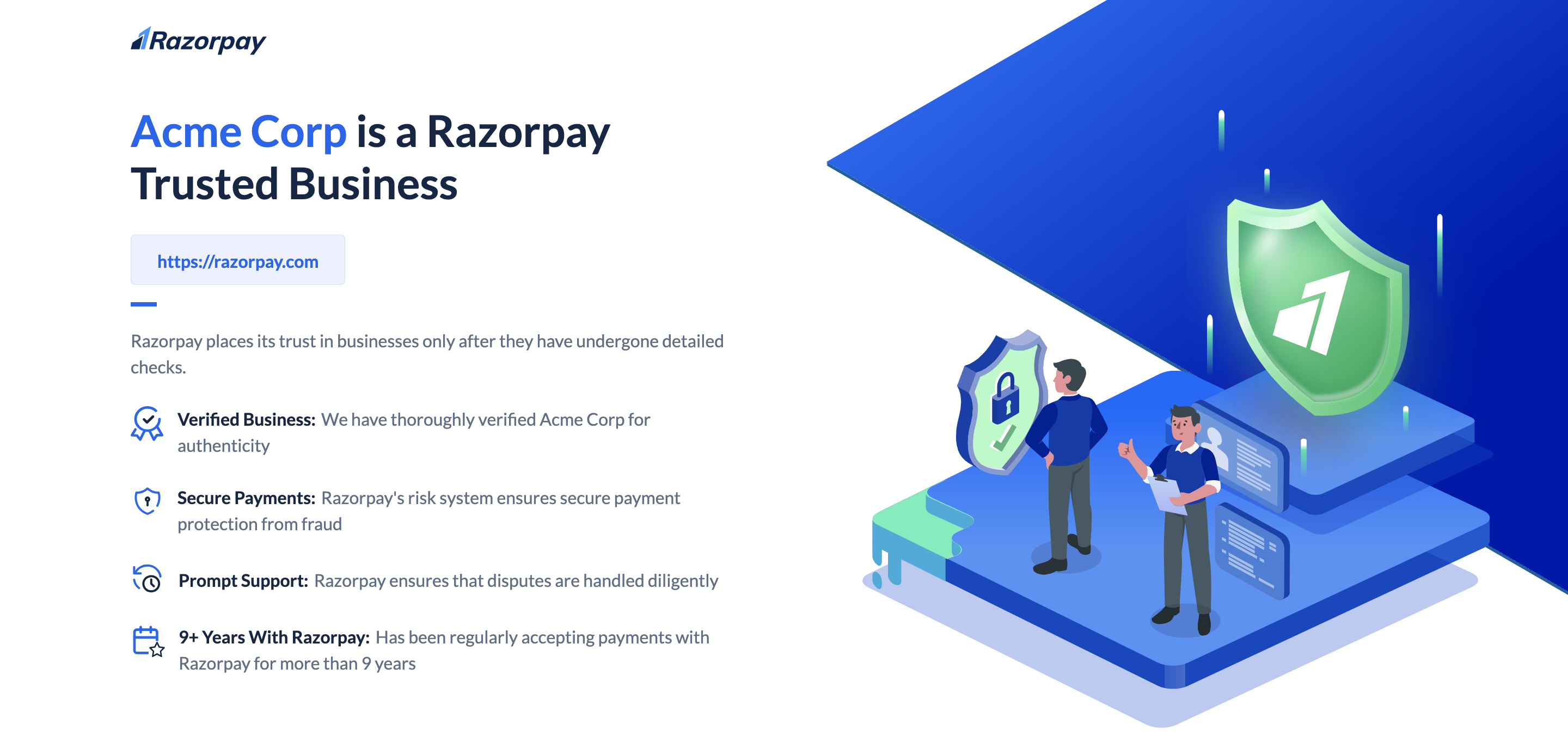
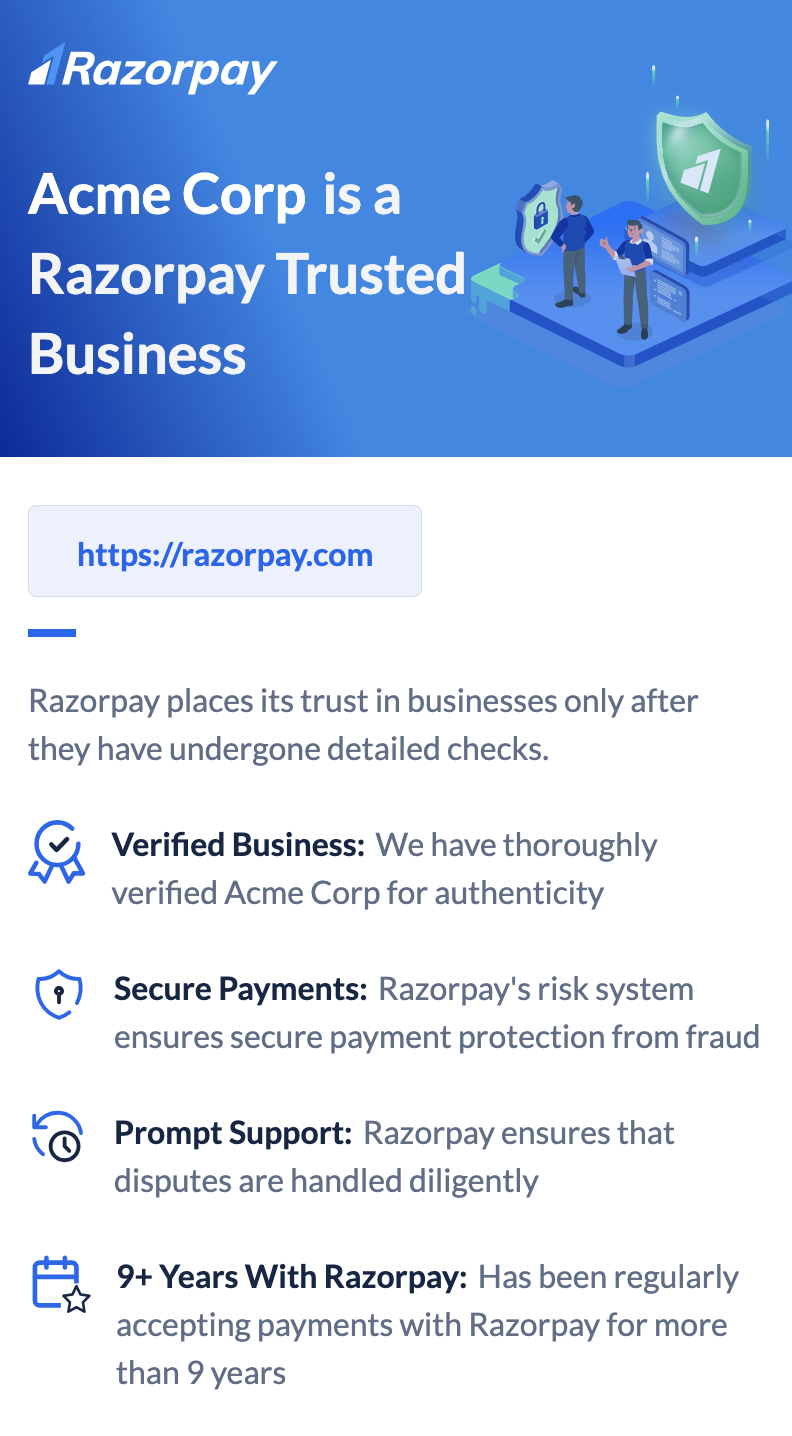
 * Here is a glimpse of the RTB webpage:
 ## Support
Queries: If you have queries, raise a ticket on the [Razorpay Support Portal](https://razorpay.com/support/).
## Support
Queries: If you have queries, raise a ticket on the [Razorpay Support Portal](https://razorpay.com/support/).