> ## Documentation Index
> Fetch the complete documentation index at: https://razorpay-881012b3.mintlify.site/llms.txt
> Use this file to discover all available pages before exploring further.

# Approvals Dashboard

> Check the actions available as an approver on the RazorpayX Payroll Dashboard.

<div style={{display:"flex",flexWrap:"wrap",alignItems:"center",gap:"0.35rem 0.9rem",border:"1px solid rgba(128,128,128,0.28)",borderRadius:"0.5rem",padding:"0.45rem 0.75rem",margin:"0 0 1.25rem",fontSize:"0.875rem"}}>
  <span style={{fontWeight:600}}>Available in</span>
  <span>🇮🇳 India</span>
</div>

When you log in to the [Payroll Dashboard](https://payroll.razorpay.com/dashboard) as an approver, you can access your pending requests in three ways:

1. On the Payroll Dashboard Home Page under:
   * **Quick Reminders**.
   * **ADMIN OPTIONS** → **Approvals** in the left menu.
2. Respective action pages. That is, if you have approvals pending for **Edit Payroll** action, requests needing approvals are indicated on the **Edit Payroll** page.

## Dashboard Actions

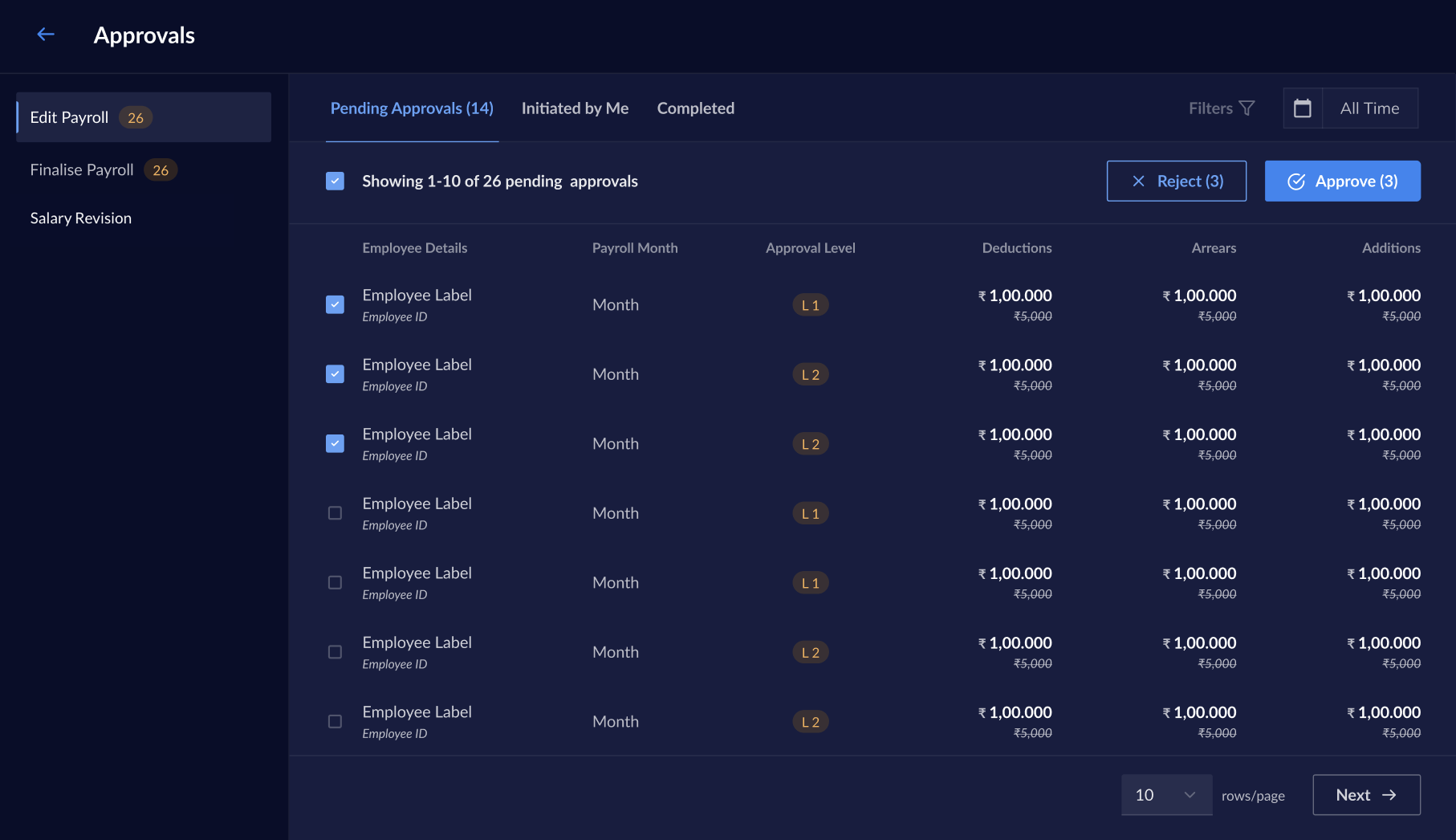
All your pending requests are available on the **Approvals** page. On this Dashboard, you can:

* Sort requests basis the dates you received them.
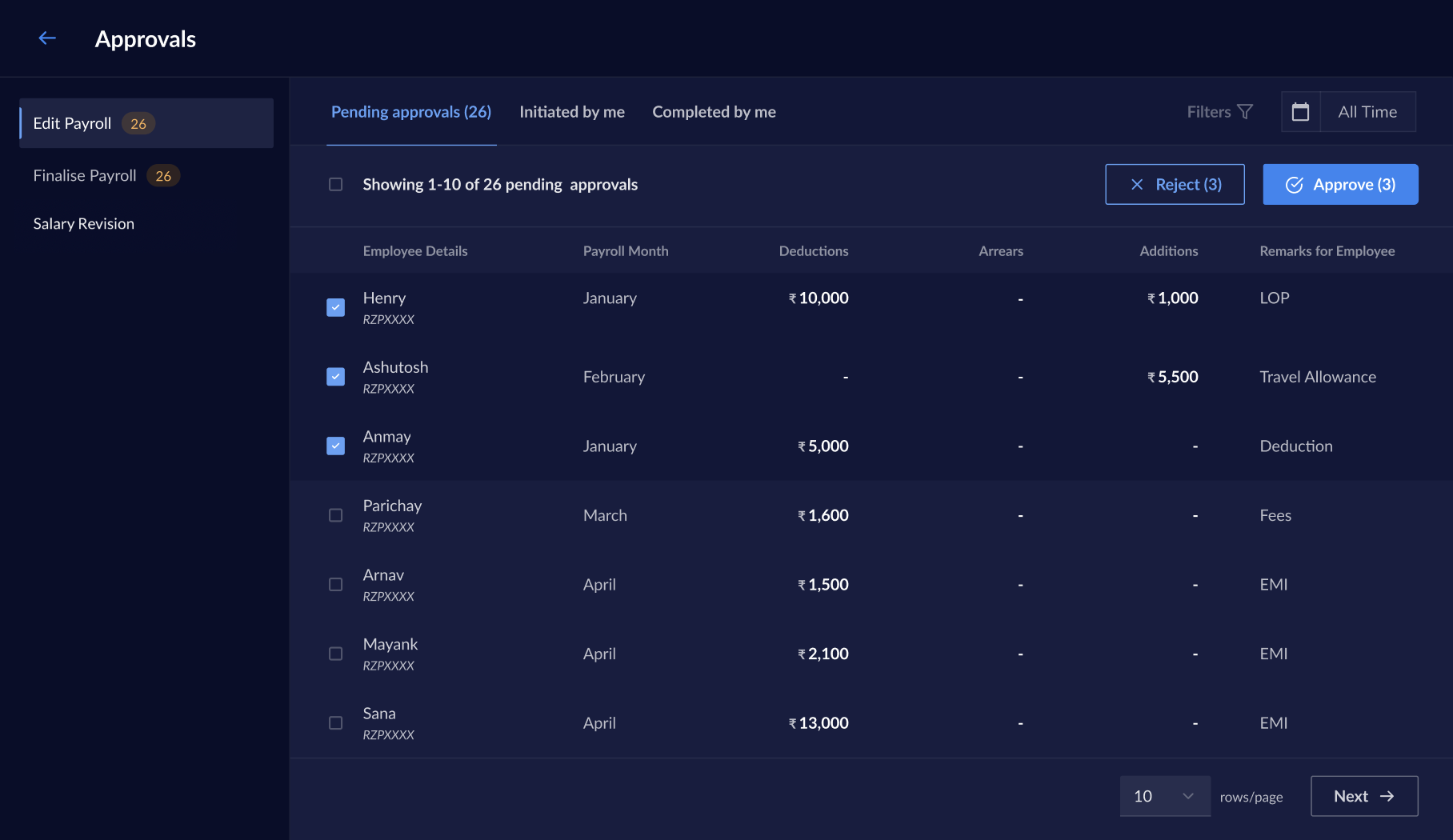
* Bulk select and approve/reject requests using the check box.
* Open the summary view to check the request and approval history.
* Provide remarks when approving/rejecting a request.
* Withdraw a request you have initiated.
* Check the following:
  * **Pending Approvals**: Approvals that require your review.
  * **Initiated by Me**: Approval requests initiated by you if you are the maker of that request.
  * **Completed**: Approval requests you have already taken action on.

<img src="https://razorpay.com/docs/build/browser/assets/images/x-xpayroll-approval-workflow-approva-overview.jpg" alt="Approval actions like bulk select and filters on the Razorpay Payroll Dashboard" width="800" />

You receive only those requests for which you are an approver via the Dashboard and email.

### Review Requests

To review requests:

1. Log in to the [Payroll Dashboard](https://payroll.razorpay.com/dashboard) as an approver.
2. Navigate to **ADMIN OPTIONS** → **Approvals** in the left menu.
3. On the **Approvals** page, view the requests sent to you, indicated by the number visible on the Dashboard.
4. You can either: <br />
<Tabs>
  <Tab title="Approve on hover">
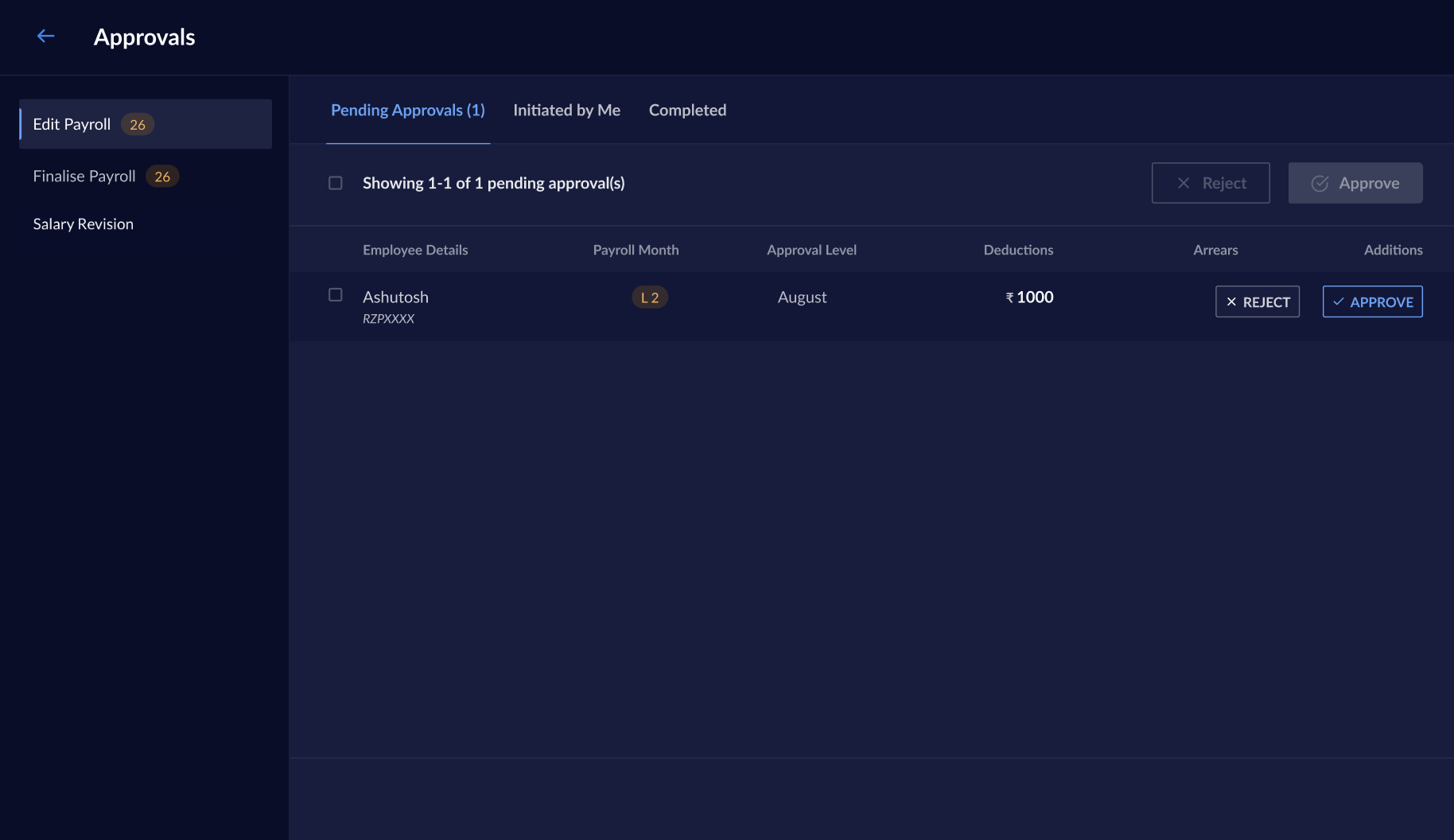
    Hover on the row and click APPROVE.

    <img src="https://razorpay.com/docs/build/browser/assets/images/x-xpayroll-approve-requests.jpg" alt="Approve requests on the Razorpay Payroll Dashboard" width="800" />
  </Tab>

  <Tab title="Approve in summary view">
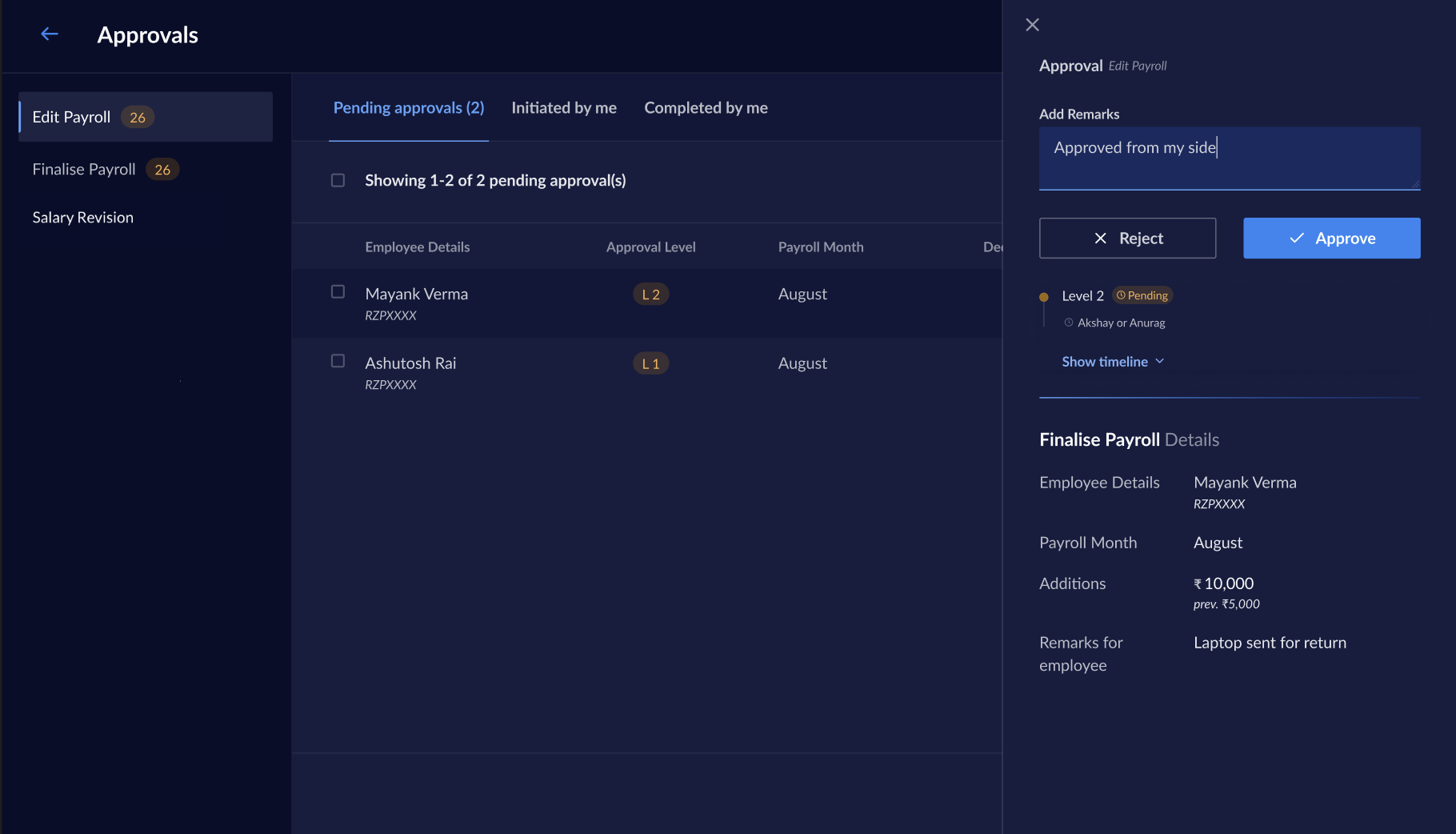
    Open the summary view and click **✓ Approve**.

    <img src="https://razorpay.com/docs/build/browser/assets/images/x-xpayroll-approve-requests-summary.jpg" alt="Approve requests on the Payroll Dashboard" width="800" />
  </Tab>
</Tabs>

You have successfully approved the request.

To reject requests:

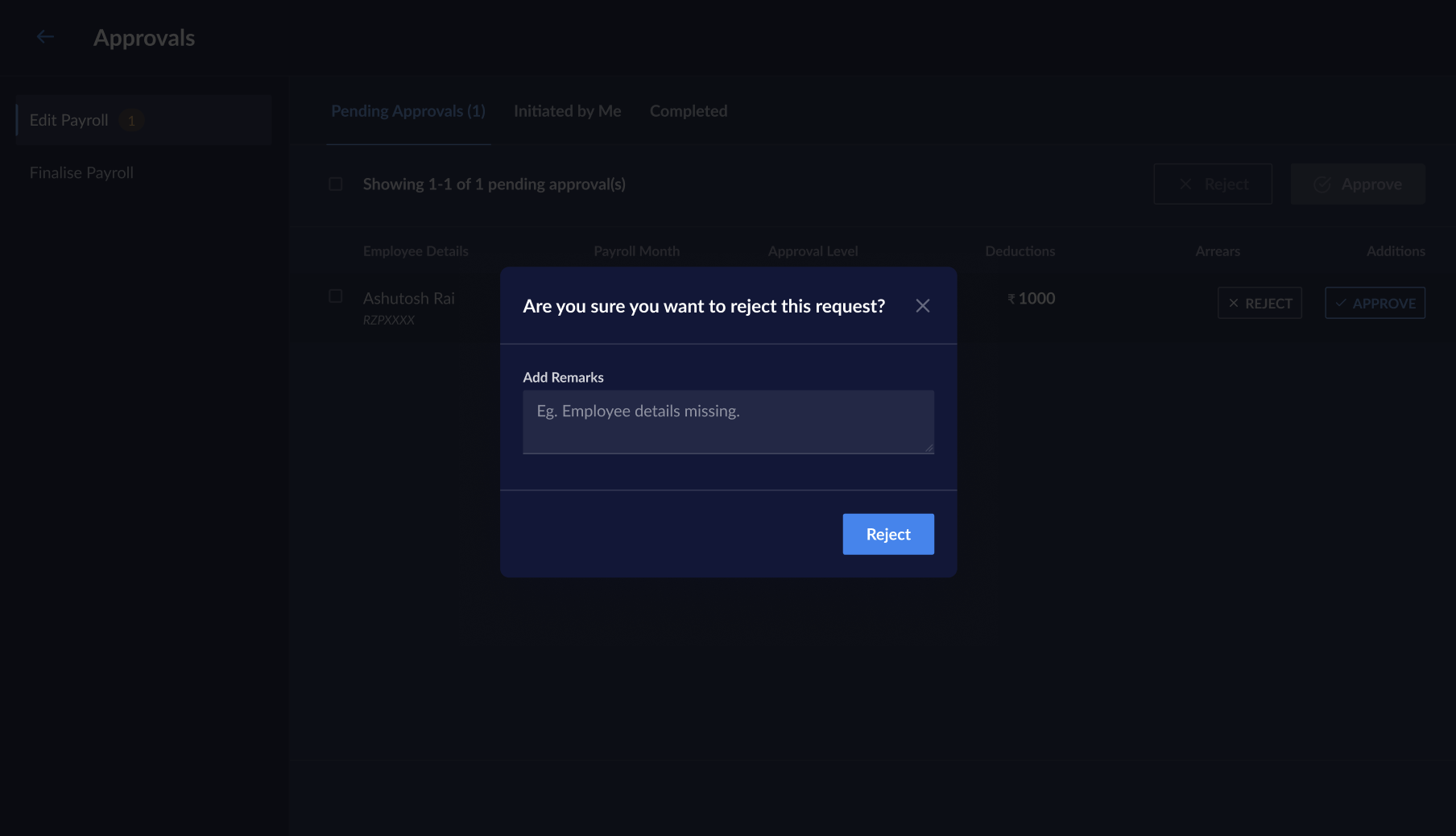
1. Click REJECT when you hover on the request or in the summary view.
2. Enter the remarks in the text box modal for the rejection and click **Reject**.
   <img src="https://razorpay.com/docs/build/browser/assets/images/x-xpayroll-approval-workflow-reject-request.jpg" alt="Reject an approval request on RazorpayX Payroll" width="800" />

You have successfully rejected the request.
<Info>
  **Handy Tips**

  You can also bulk approve/reject requests by selecting the check box at the top-left. Select and clear the check boxes against the requests and click the **Approve** or **Reject** button.

  <img src="https://razorpay.com/docs/build/browser/assets/images/x-xpayroll-approvals-bulk.jpg" alt="Summary view of approval request on Payroll Dashboard" width="800" />
</Info>

### Withdraw Requests

On the Approvals Dashboard, you can withdraw the requests you have created. This is only possible when you are an approver in a workflow.

<Warning>
  **Watch Out!**

  You cannot review and approve/reject the requests you have created as a maker. You can only withdraw the request.
</Warning>

To withdraw/revoke a request you have initiated:

1. Log in to the [Payroll Dashboard](https://payroll.razorpay.com/dashboard).
2. Navigate to **ADMIN OPTIONS** → **Approvals** in the left menu.
3. Select the Payroll action from the left menu and go to the **Initiated by Me** tab.
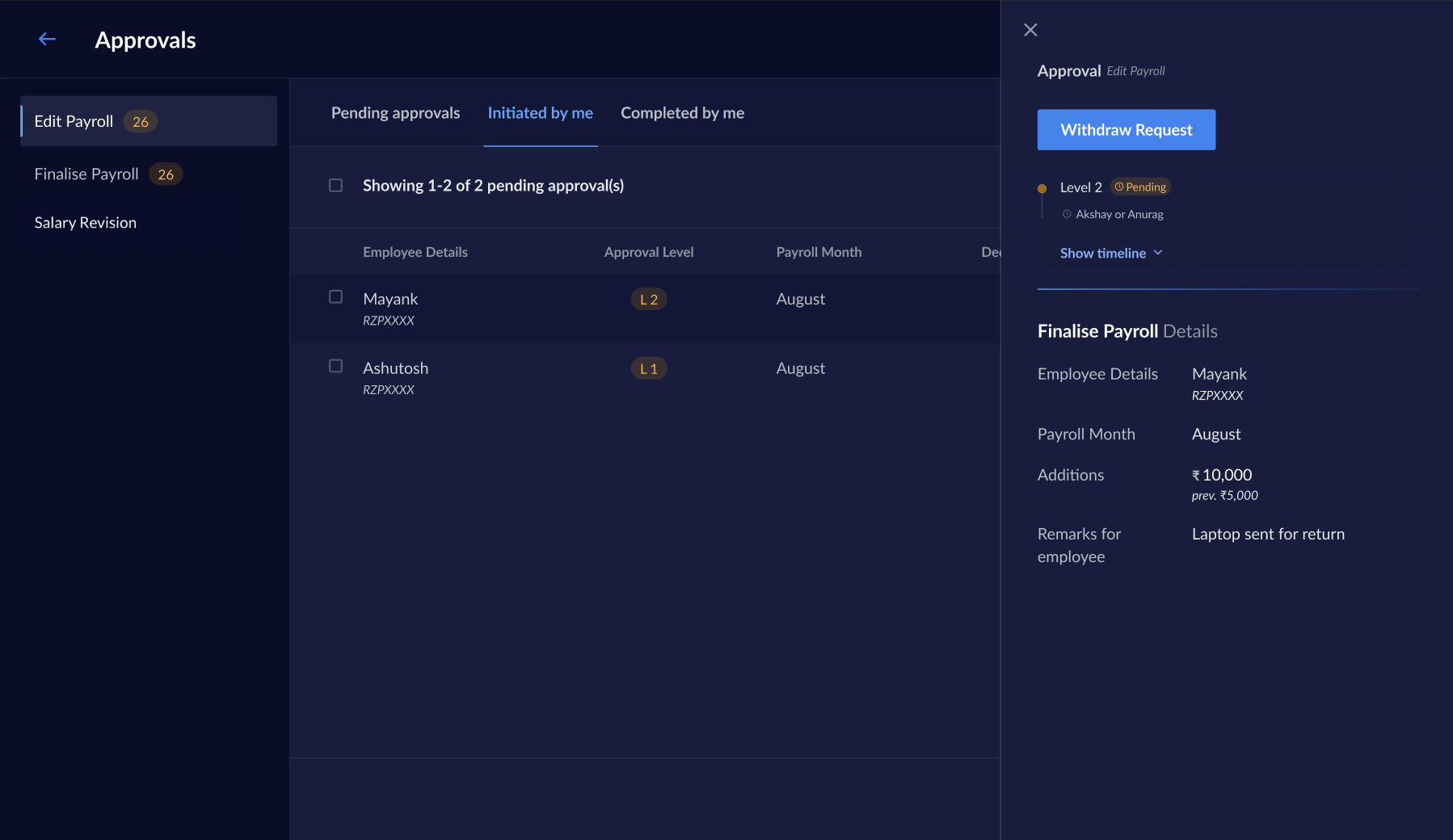
4. Review the request to withdraw. Hover on the request and click **WITHDRAW** or click **Withdraw Request** in the summary view.

   <img src="https://razorpay.com/docs/build/browser/assets/images/x-xpayroll-approvals-withdraw.jpg" alt="Withdraw requests on Payroll Dashboard" width="800" />

   You can also bulk-select and withdraw multiple requests.

You have successfully withdrawn the request you have created.

### Request Statuses

Following are the statuses of a request from the time it is created.

| Status      | Description                                                                       |
| ----------- | --------------------------------------------------------------------------------- |
| `Raised by` | This is the status after the maker creates a request.                             |
| `Approved`  | This is the status when you approve the request.                                  |
| `Pending`   | This is the status when a request awaits review from a second level of approvers. |
| `Rejected`  | This is the status when you reject the request.                                   |

The above statuses are available in the summary view of the request. You can also view them in the Audit Report under **Settings** on the [Payroll Dashboard](https://payroll.razorpay.com/dashboard).

### Related Information

* [Approvals Checklist](/docs/payroll/approval-workflow/checklist)
* [Salary Actions in Payroll](/docs/payroll/salary)