> ## Documentation Index
> Fetch the complete documentation index at: https://razorpay-881012b3.mintlify.site/llms.txt
> Use this file to discover all available pages before exploring further.
# RazorpayX Payroll Bulk One-Time Payment
> Learn how to add one-time adhoc earnings for multiple employees at once using RazorpayX Payroll's bulk one-time payment feature.
Available in
🇮🇳 India
The Bulk One-Time Payment feature in RazorpayX Payroll enables you to add one-time adhoc earnings, such as bonuses and incentives, for multiple employees at once. Instead of adding a one-time payment for each employee individually, you upload a single template and process the payments for your entire workforce in one operation, saving time and ensuring consistency.
**Handy Tips**
Bulk One-Time Payment is available for organisations on Payroll Engine 2.0 and needs to be enabled for your organisation. [Contact Payroll Support](mailto:xpayroll@razorpay.com) for assistance.
## Use Cases
Bulk one-time payments are beneficial when you want to pay adhoc earnings to a group of employees together, such as:
* A performance incentive or other bonuses like a retention or joining bonus.
* Remuneration for an ad hoc project.
**Watch Out!**
You must **NOT** use bulk one-time payments for the following:
* **Not for salary payouts**: Do not make salary payouts using one-time payments, such as running payroll for select employees, disbursing an employee's last salary, paying a skipped salary or clearing outstanding salary arrears. If any salary component is yet to be paid, add it to the immediate next payroll cycle.
* **Not for compliance payments**: PF, TDS, PT and other compliance components are a part of the payroll process, and you must process them in **Run Payroll**.
* **Not for paying Advance Salary**: The amount paid to employees using one-time payments gets added to their next gross pay and causes double entries and errors.
## Step-by-Step Bulk One-Time Payment Process
1. Log in to the [Payroll Dashboard](https://payroll.razorpay.com/dashboard).
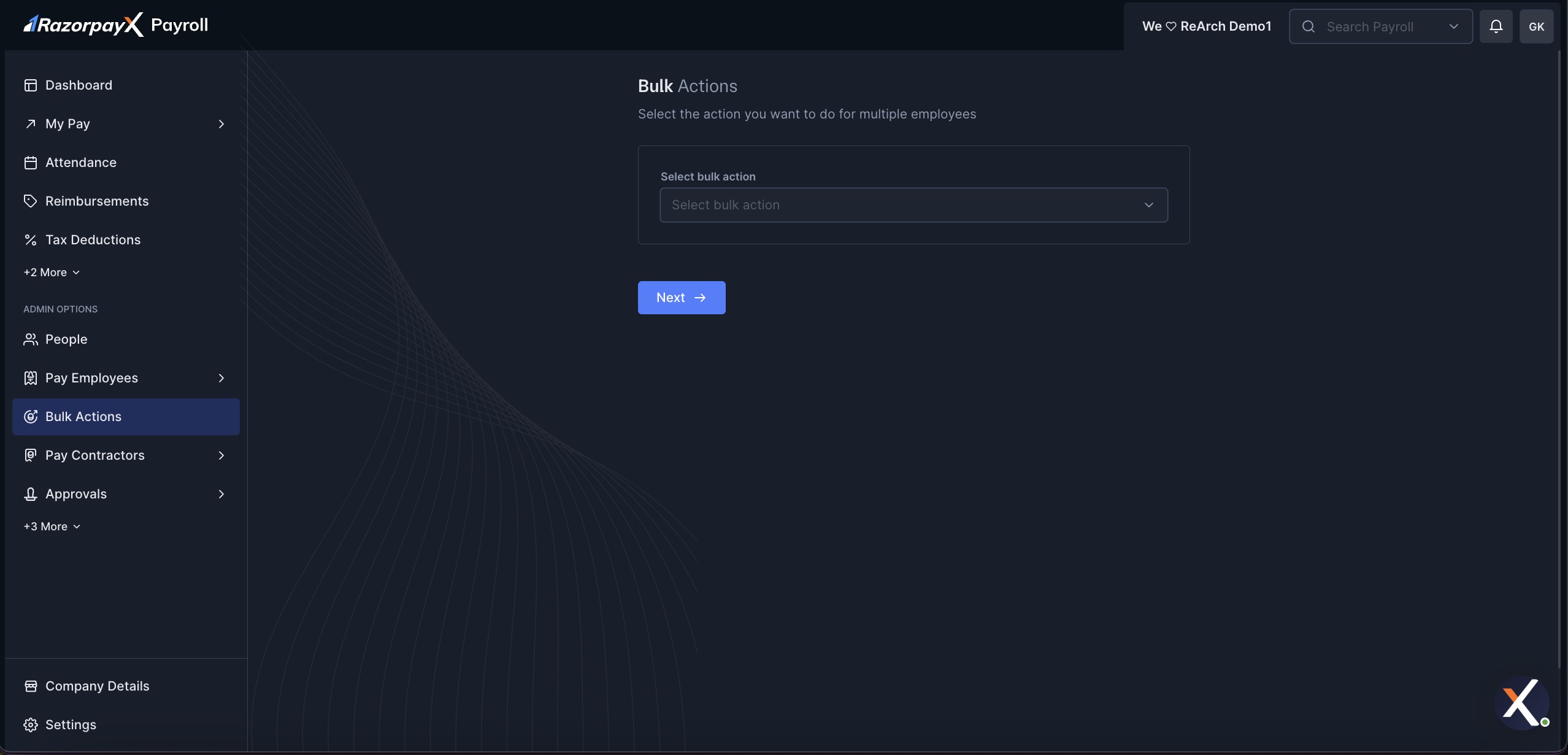
2. Navigate to the **Bulk Actions** section from the left navigation menu.
3. Under **Select bulk action**, select **One-Time Payment** from the drop-down menu.
4. Click **Next**.
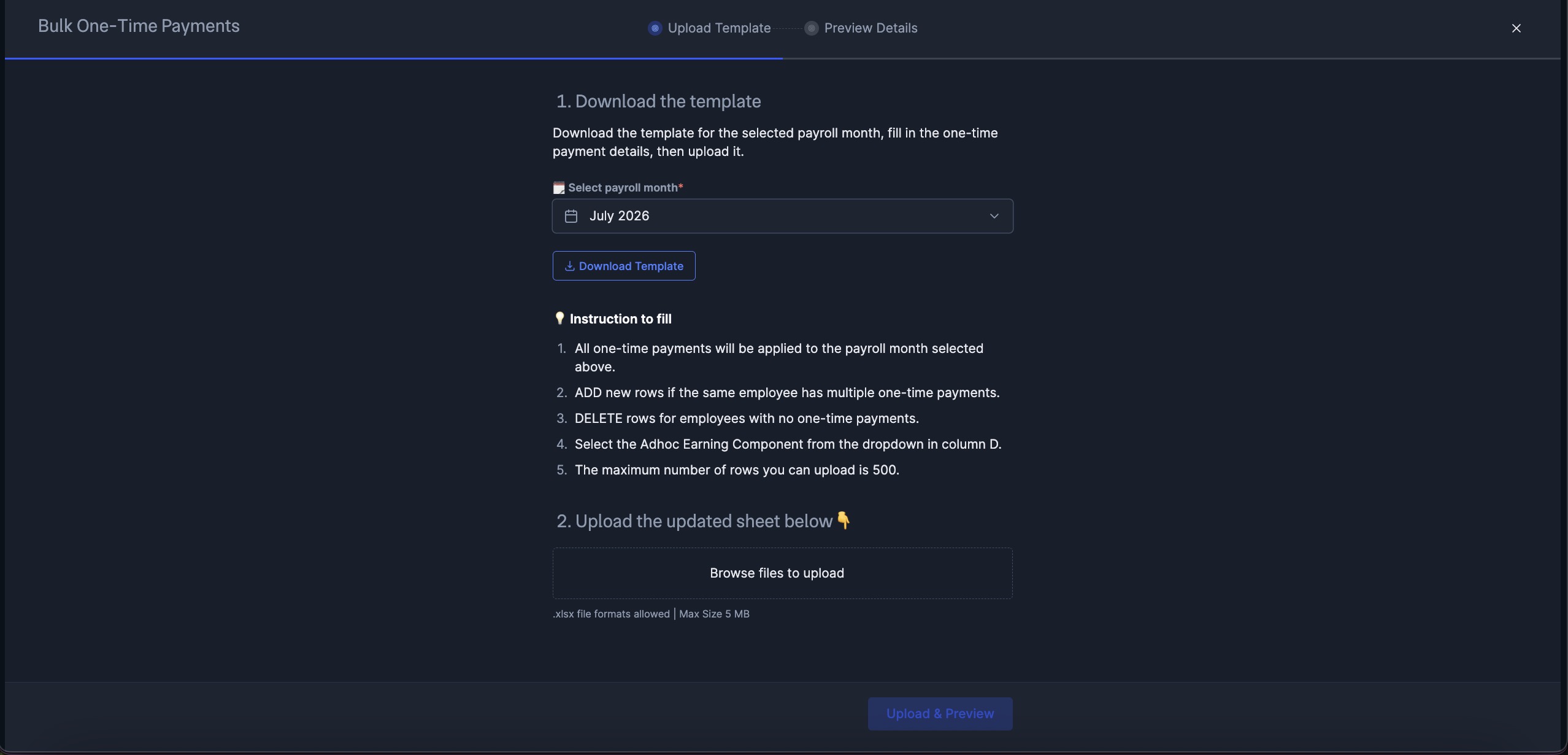
 In the **Bulk One-Time Payments** modal, on the **Upload Template** step:
1. Under **Select payroll month**, choose the payroll month to which the one-time payments should be applied.
2. Click the **Download Template** button to download the template for the selected payroll month.
3. Save the template to your local system.
In the **Bulk One-Time Payments** modal, on the **Upload Template** step:
1. Under **Select payroll month**, choose the payroll month to which the one-time payments should be applied.
2. Click the **Download Template** button to download the template for the selected payroll month.
3. Save the template to your local system.
 **Handy Tips**
All one-time payments in the template are applied to the payroll month you select here.
Open the downloaded template in Microsoft Excel or a compatible spreadsheet application and fill it in as per the instructions:
1. All one-time payments are applied to the payroll month selected in the previous step.
2. **ADD** new rows if the same employee has multiple one-time payments.
3. **DELETE** rows for employees with no one-time payments.
4. Select the **Adhoc Earning Component** from the dropdown in column D.
5. You can upload a maximum of 500 rows.
6. Save the file in .xlsx format.
1. Return to the **Bulk One-Time Payments** modal.
2. Under **Upload the updated sheet below**, click **Browse files to upload** and select your updated file.
3. Only the .xlsx file format is allowed, with a maximum size of 5MB.
4. Click **Upload & Preview** to proceed to the preview step.
1. On the **Preview Details** step, the system displays a preview of all the one-time payments to be processed.
2. Review the employee names, components and amounts for any errors or discrepancies.
3. After carefully reviewing all entries, confirm to process the payments.
4. Upon successful processing, a confirmation message appears.
**Handy Tips**
The preview stage is crucial for catching potential errors. Review all records carefully, especially when paying a large number of employees.
After completing the bulk one-time payment:
1. The one-time payments are applied to the payroll month you selected.
2. To check the history of all one-time payments, refer to the **Ledger** section.
3. The one-time payment reflects in the selected month's payslip for each employee. Tax is deducted as applicable based on the adhoc earning component selected.
### Related Information
* [One-time Payments](/docs/payroll/one-time-payments)
* [Salary](/docs/payroll/salary)
* [Run Payroll](/docs/payroll/run-payroll)
* [Exceptional Pay Cases](/docs/payroll/exceptional-cases)
**Handy Tips**
All one-time payments in the template are applied to the payroll month you select here.
Open the downloaded template in Microsoft Excel or a compatible spreadsheet application and fill it in as per the instructions:
1. All one-time payments are applied to the payroll month selected in the previous step.
2. **ADD** new rows if the same employee has multiple one-time payments.
3. **DELETE** rows for employees with no one-time payments.
4. Select the **Adhoc Earning Component** from the dropdown in column D.
5. You can upload a maximum of 500 rows.
6. Save the file in .xlsx format.
1. Return to the **Bulk One-Time Payments** modal.
2. Under **Upload the updated sheet below**, click **Browse files to upload** and select your updated file.
3. Only the .xlsx file format is allowed, with a maximum size of 5MB.
4. Click **Upload & Preview** to proceed to the preview step.
1. On the **Preview Details** step, the system displays a preview of all the one-time payments to be processed.
2. Review the employee names, components and amounts for any errors or discrepancies.
3. After carefully reviewing all entries, confirm to process the payments.
4. Upon successful processing, a confirmation message appears.
**Handy Tips**
The preview stage is crucial for catching potential errors. Review all records carefully, especially when paying a large number of employees.
After completing the bulk one-time payment:
1. The one-time payments are applied to the payroll month you selected.
2. To check the history of all one-time payments, refer to the **Ledger** section.
3. The one-time payment reflects in the selected month's payslip for each employee. Tax is deducted as applicable based on the adhoc earning component selected.
### Related Information
* [One-time Payments](/docs/payroll/one-time-payments)
* [Salary](/docs/payroll/salary)
* [Run Payroll](/docs/payroll/run-payroll)
* [Exceptional Pay Cases](/docs/payroll/exceptional-cases)