> ## Documentation Index
> Fetch the complete documentation index at: https://razorpay-881012b3.mintlify.site/llms.txt
> Use this file to discover all available pages before exploring further.

# Perquisites

> Configure and manage non-monetary benefits, their valuation and tax treatment in Payroll.

<div style={{display:"flex",flexWrap:"wrap",alignItems:"center",gap:"0.35rem 0.9rem",border:"1px solid rgba(128,128,128,0.28)",borderRadius:"0.5rem",padding:"0.45rem 0.75rem",margin:"0 0 1.25rem",fontSize:"0.875rem"}}>
  <span style={{fontWeight:600}}>Available in</span>
  <span>🇮🇳 India</span>
</div>

Perquisites management in Payroll handles all non-monetary benefits provided to employees, ensuring proper valuation and tax treatment as per Income Tax regulations. The system automates perquisite calculations, maintains compliance with tax laws and provides transparent reporting of taxable benefits.

<AccordionGroup>
  <Accordion title="Features">
    | Feature                            | Description                                                              | Example                                                                                                     |
    | ---------------------------------- | ------------------------------------------------------------------------ | ----------------------------------------------------------------------------------------------------------- |
    | **Automated Valuation**            | Automatic calculation of perquisite value as per Income Tax rules.       | Company car perquisite valued based on engine capacity and usage type automatically.                        |
    | **Tax Compliance**                 | Ensures proper tax treatment and reporting of perquisites in Form 16.    | Rent-free accommodation valued as per government rules and included in taxable income.                      |
    | **Employee Contribution Tracking** | Accounts for employee payments towards perquisites for net valuation.    | If employee pays ₹5,000 for company car, only net perquisite value is taxed.                                |
    | **Multiple Perquisite Types**      | Support for various perquisite categories with specific valuation rules. | Handle accommodation, vehicles, loans, stock options and other benefits with appropriate valuation methods. |
  </Accordion>
</AccordionGroup>

### Accessing Perquisites

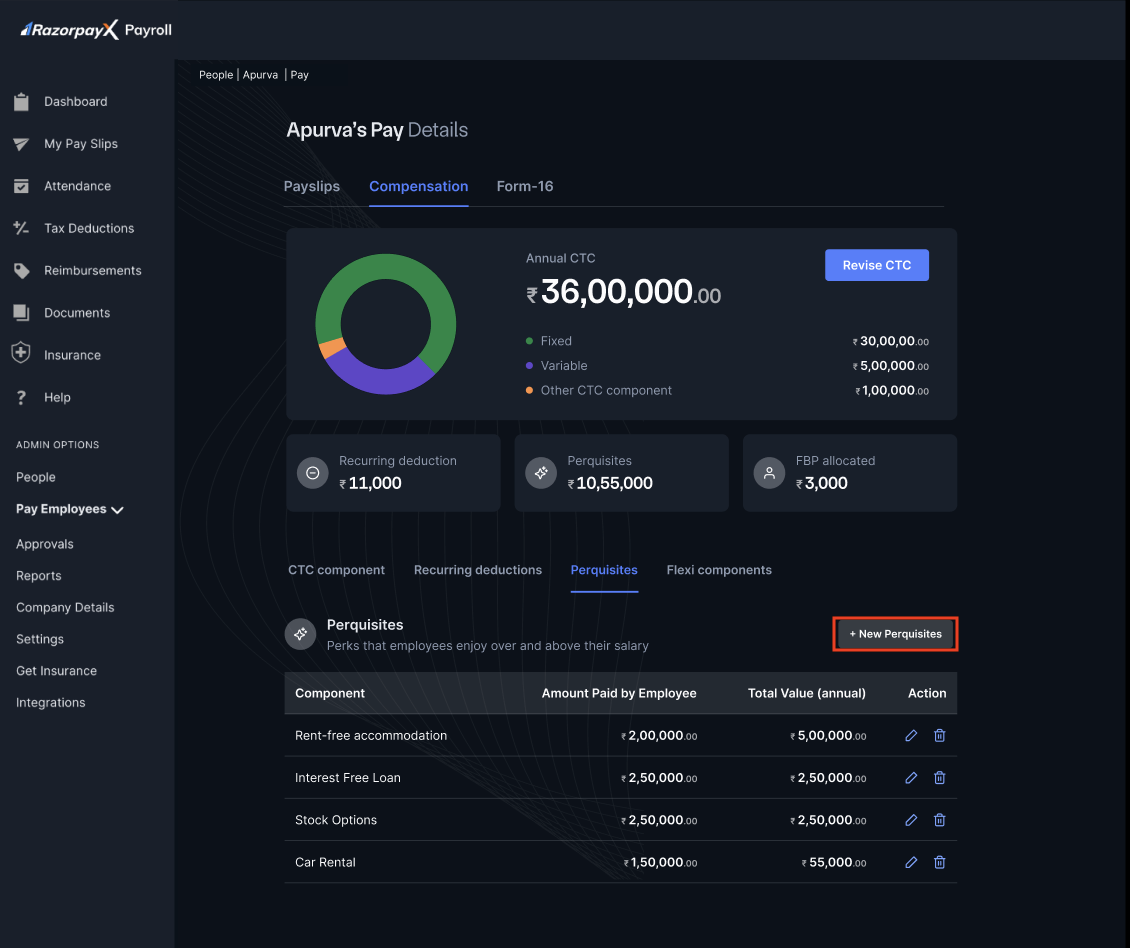
Navigate to **People → Employee's Name → Pay → Perquisites** to access the perquisites management interface. The dashboard displays all active perquisites with their taxable values.

The perquisites screen presents:

* **Active Perquisites List** - All current non-monetary benefits.
* **Perquisite Valuation** - Calculated value as per tax rules.
* **Employee Contribution** - Amount paid by employee.
* **Net Taxable Value** - Final taxable perquisite amount.

## Managing Perquisites

### Adding Perquisites

To add a new perquisite:

1. Click **Add Perquisites for Employees Name(here Employee's Name)**.

<img src="https://razorpay.com/docs/build/browser/assets/images/add-new-perq.jpg" alt="Compensation tab with Perquisites table and the New Perquisites button highlighted." width="800" />

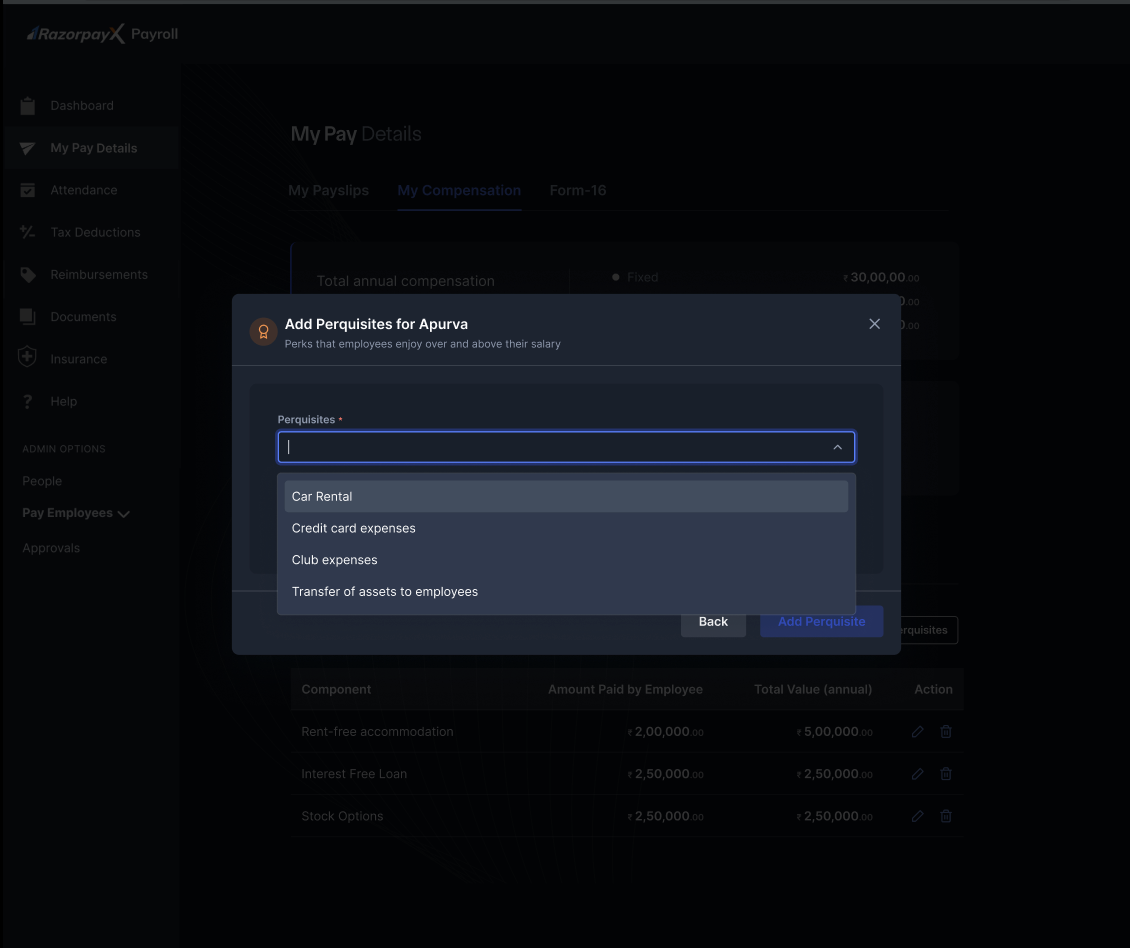
2. Select the perquisite type from the dropdown:
   * Rent-free accommodation
   * Interest-free loan
   * Stock options
   * Car rental
<img src="https://razorpay.com/docs/build/browser/assets/images/add-perq1.jpg" alt="Add Perquisites dialog with the perquisite type dropdown open." width="800" />

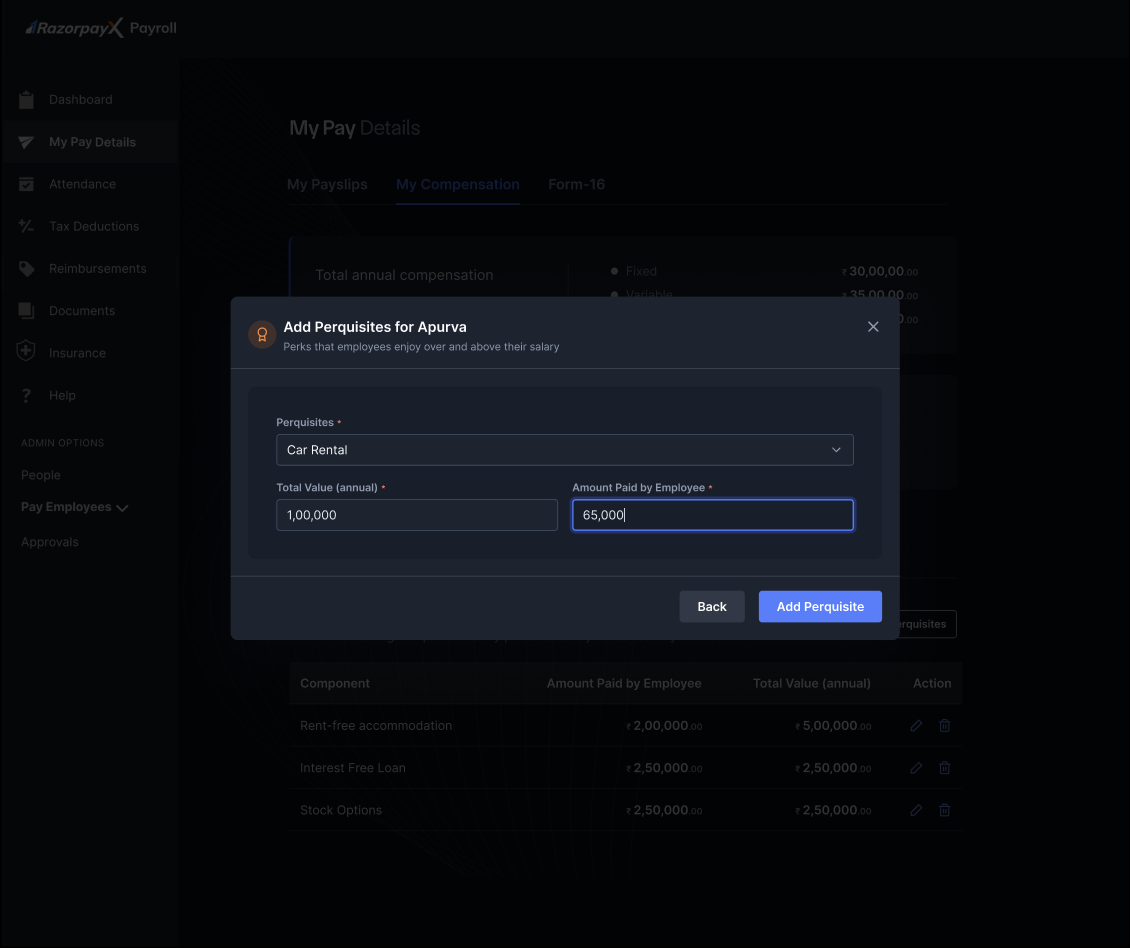
3. Enter the total value amount.
4. Specify the amount paid by the employee (if applicable).
<img src="https://razorpay.com/docs/build/browser/assets/images/add-perq2.jpg" alt="Add Perquisites dialog with Total Value and Amount Paid by Employee fields filled in." width="800" />

5. Click **Add Perquisites** to save.

### Editing Perquisites

To modify existing perquisites:

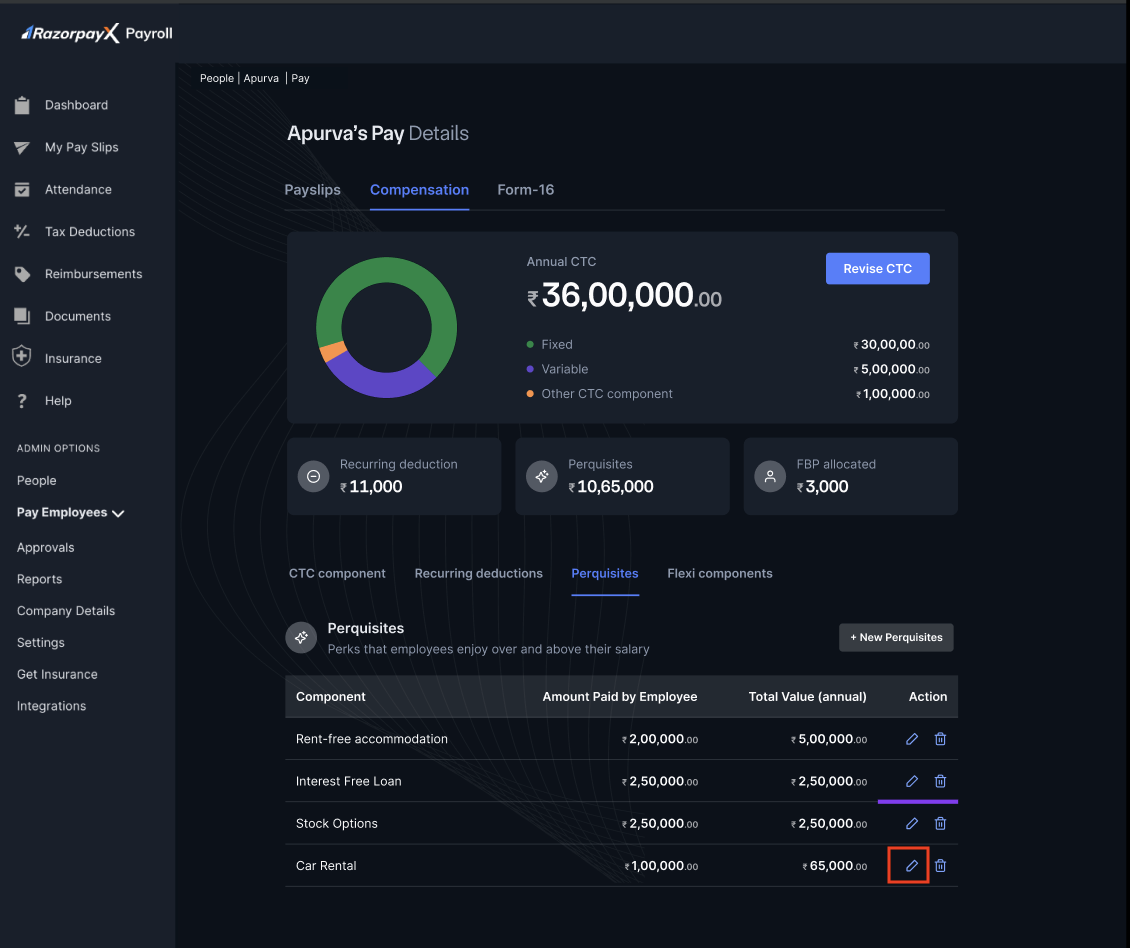
1. Click **Edit Perquisites for Employee's Name**.
2. Select the perquisite to modify.
3. Update the parameters:
   * Total value amount
   * Employee contribution
   * Perquisite period
4. Save the changes.
<img src="https://razorpay.com/docs/build/browser/assets/images/edit-perq.jpg" alt="Compensation tab with the edit icon highlighted next to a perquisite row." width="800" />

### Deleting Perquisites

To remove perquisites:

1. Click **Delete Perquisites**.
2. Review the perquisite details in the confirmation dialogue.
3. Click **Delete Perquisites** to confirm.
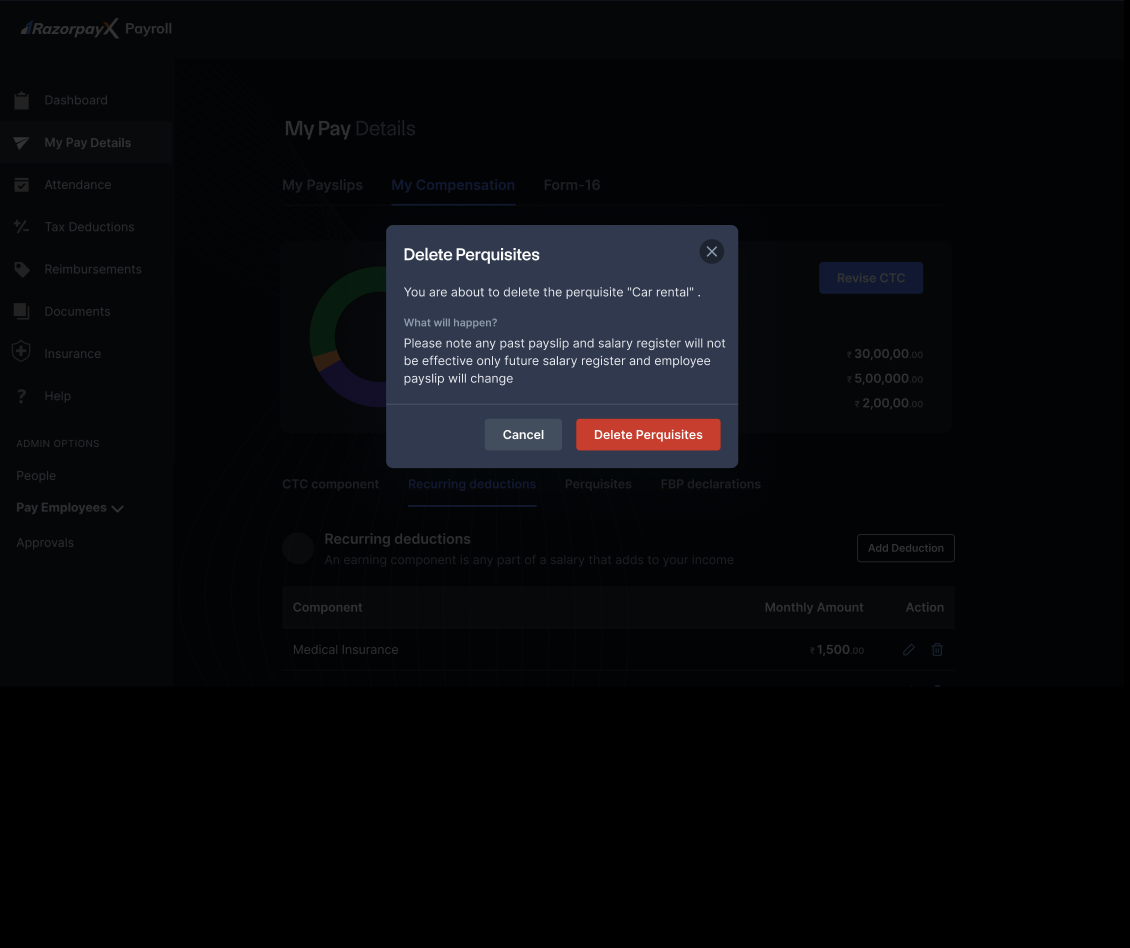
<img src="https://razorpay.com/docs/build/browser/assets/images/delete-perq.jpg" alt="Delete Perquisites confirmation dialog with perquisite name and impact note." width="800" />

### Tax Implications

Perquisites are valued as per Income Tax rules and may be:

* Fully taxable
* Partially taxable
* Exempt under specific conditions

The system automatically calculates the taxable value based on:

* Market value of the benefit
* Employee contribution
* Applicable tax rules

<Info>
  **Note**

  Perquisite valuation follows Income Tax Act provisions and is subject to change based on government notifications. The system automatically updates valuation rules as per latest tax regulations.
</Info>
