> ## Documentation Index
> Fetch the complete documentation index at: https://razorpay-881012b3.mintlify.site/llms.txt
> Use this file to discover all available pages before exploring further.
# Investment Declaration & Proof Upload
> Declare your investments and upload proofs as an employee using the RazorpayX Payroll Dashboard.
export const VideoCard = props => {
const {title, href, videoUrl, children} = props;
const css = `
.rzp-vcard {
display: flex;
flex-direction: column;
overflow: hidden;
border: 1px solid rgba(0, 0, 0, 0.08);
border-radius: 0.75rem;
background: #fff;
height: 100%;
}
.rzp-vcard-video {
position: relative;
width: 100%;
aspect-ratio: 16 / 9;
background: #000;
}
.rzp-vcard-video iframe {
position: absolute;
inset: 0;
width: 100%;
height: 100%;
border: 0;
display: block;
}
.rzp-vcard-body { padding: 1rem 1.15rem 1.15rem; }
.rzp-vcard-title {
margin: 0 0 0.4rem;
font-size: 1rem;
font-weight: 600;
line-height: 1.4;
color: #0f172a;
}
.rzp-vcard-title a { color: inherit; text-decoration: none; }
.rzp-vcard-title a:hover { color: #3395ff; }
.rzp-vcard-desc { font-size: 0.875rem; line-height: 1.6; color: #475569; }
.rzp-vcard-desc > :first-child { margin-top: 0; }
.rzp-vcard-desc > :last-child { margin-bottom: 0; }
:where(.dark) .rzp-vcard {
border-color: rgba(255, 255, 255, 0.12);
background: rgba(255, 255, 255, 0.03);
}
:where(.dark) .rzp-vcard-title { color: #f1f5f9; }
:where(.dark) .rzp-vcard-desc { color: #94a3b8; }
`;
return
{videoUrl ?
: null}
{title ?
{href ? {title} : title}
: null}
{children}
Available in
🇮🇳 India
Investment declaration and uploading proof of investments are critical tax-saving activities for employees.
* You can declare the investments planned for the year to your organisation. This happens when the declaration window is open.
* Basis your chosen tax regime, you can invest in tax-saving instruments such as insurance, PPS, NPS and more.
* Submit the proof of investments at the end of the year when the proof upload window is open.
You can submit income tax/investment proofs in January every year. Payroll also verifies and auto-calculates the TDS liability, only if your organisation has enabled it.
Watch the video to understand how to declare and upload proofs when the proof upload window opens.
Explore FAQs about all employee-facing features.
**Handy Tips**
Declare your investments for the year and then select your tax regime. Payroll automatically calculates your tax liability to simplify decision-making.
On the Payroll Dashboard, you can file your income tax declarations. Payroll supports the following tax declaration and filing features:
Select regime or request your manager to change your tax regime.
Declare and upload proofs for HRA, Section 80 investments, interest on home loan and LTA.
Check how to resolve failed declarations.
## Regime Changes
On the Payroll Dashboard, you can:
To select your tax regime:
1. Log in to the [Payroll Dashboard](https://payroll.razorpay.com/dashboard).
2. Navigate to [**Tax Deductions**](https://payroll.razorpay.com/taxDeductions) from the left menu.
3. On the **Tax Deductions FY** page, click **SWITCH REGIME** to change your tax regime.
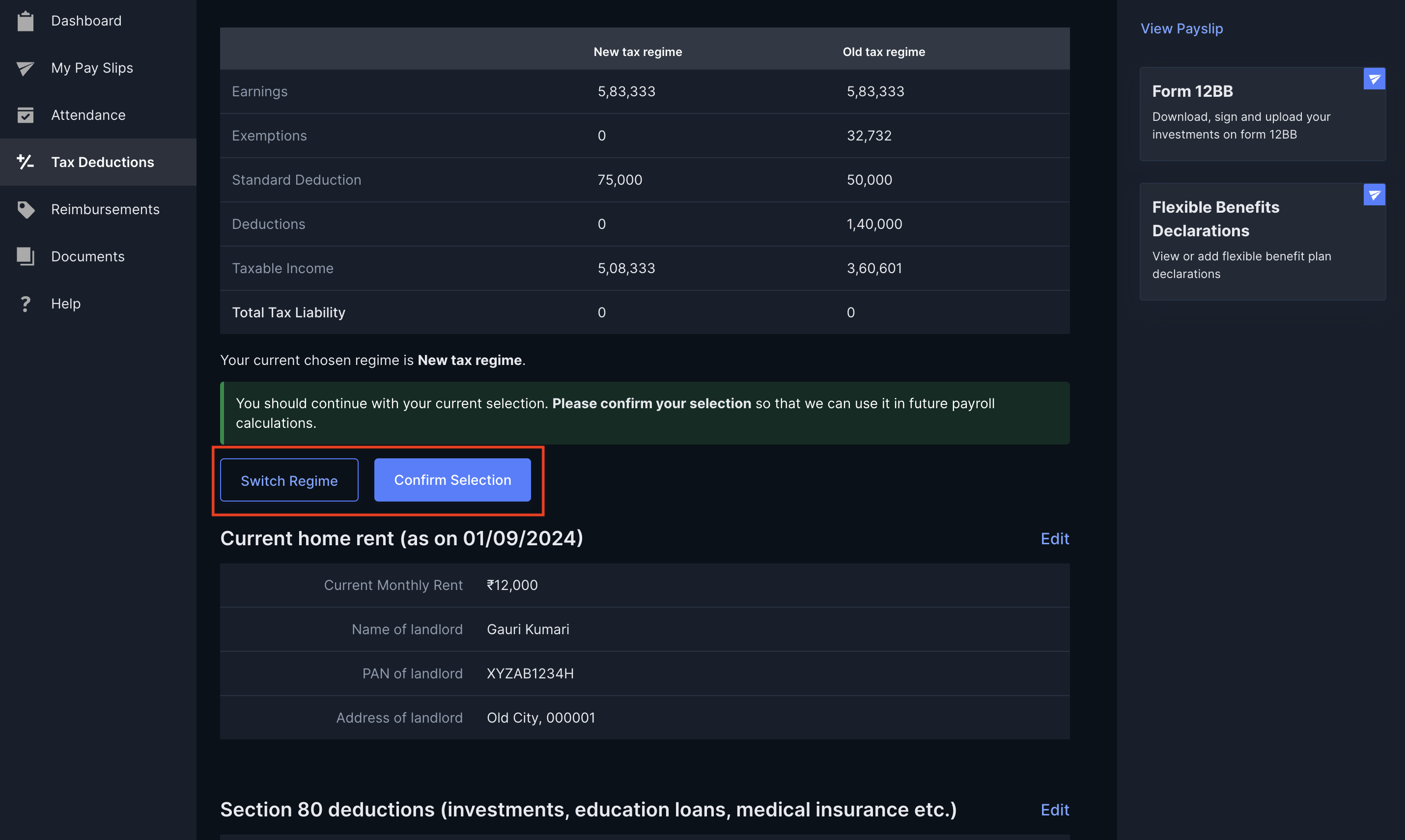 For your consideration, Payroll also suggests which regime you can choose based on your income and declarations.
4. Click **CONFIRM SELECTION** to finalise your tax regime.
You have successfully changed your tax regime. This is a one-time setting. Contact your HR/Administrator for further details.
Some organisations may have an approval mechanism. In such cases, the following message is displayed until your declarations are approved. Post-approval, the TDS is recalculated.
After you select a regime, you cannot change it by yourself in the middle of the year. Contact your HR to change your tax regime.
**Watch Out!**
* Ensure your payment details in the user profile are updated.
* You can make declarations only when the respective windows are open.
## Declare & Upload Proofs
To make income tax declarations:
1. Log in to the [Payroll Dashboard](https://payroll.razorpay.com/dashboard).
2. Navigate to [**Tax Deductions**](https://payroll.razorpay.com/taxDeductions) from the left menu.
For your consideration, Payroll also suggests which regime you can choose based on your income and declarations.
4. Click **CONFIRM SELECTION** to finalise your tax regime.
You have successfully changed your tax regime. This is a one-time setting. Contact your HR/Administrator for further details.
Some organisations may have an approval mechanism. In such cases, the following message is displayed until your declarations are approved. Post-approval, the TDS is recalculated.
After you select a regime, you cannot change it by yourself in the middle of the year. Contact your HR to change your tax regime.
**Watch Out!**
* Ensure your payment details in the user profile are updated.
* You can make declarations only when the respective windows are open.
## Declare & Upload Proofs
To make income tax declarations:
1. Log in to the [Payroll Dashboard](https://payroll.razorpay.com/dashboard).
2. Navigate to [**Tax Deductions**](https://payroll.razorpay.com/taxDeductions) from the left menu.
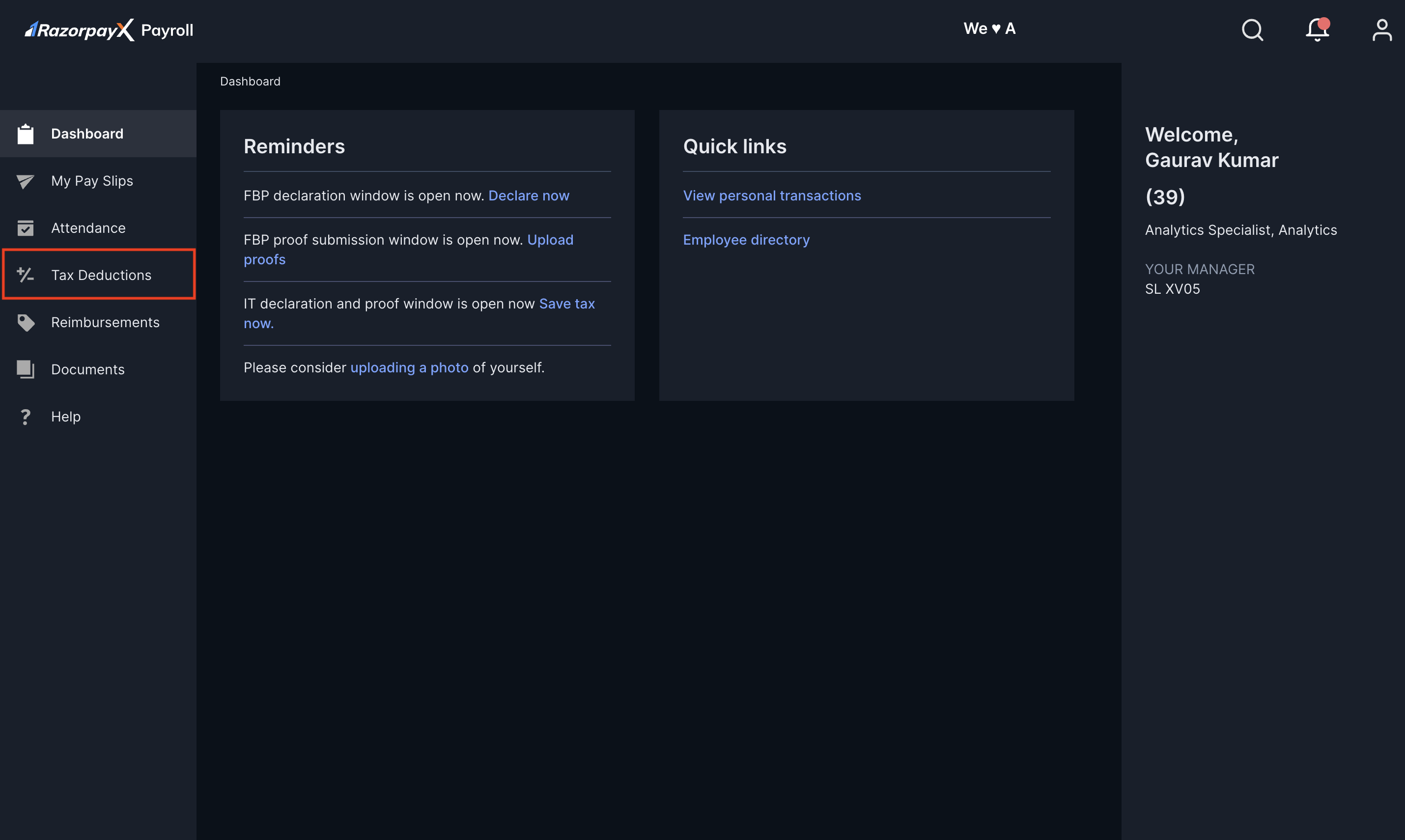 3. Check your tax liability based on each tax regime and preview your upcoming payslip in the right pane. Click **EDIT** against the respective sections to:
* Declare [investments](#investments) when the window is open.
* Upload the relevant proofs when the window is open.
### Investments
**Watch Out!**
Some investment options are unavailable if you choose the new tax regime.
You can declare the following investments on the Payroll Dashboard. Contact your HR/Manager to know when the respective windows open.
House Rent Allowance (HRA) is an Income Tax department-mandated expense allocated towards an employee's residential accommodation. Know more about [HRA](https://razorpay.com/payroll/learn/hra-calculation/).
To declare HRA:
1. Go to **Current home rent (as on date)** and click **EDIT**.
2. On the **Paying home rent?** page, click **+ADD ANOTHER HOUSE RENT**.
3. Enter the **Monthly Rent Amount**, **From** and **To Month**, **Landlord Name**, **Landlord PAN**, **Landlord Address**. Select the check box in **Metro** if you live in a Metro city.
3. Check your tax liability based on each tax regime and preview your upcoming payslip in the right pane. Click **EDIT** against the respective sections to:
* Declare [investments](#investments) when the window is open.
* Upload the relevant proofs when the window is open.
### Investments
**Watch Out!**
Some investment options are unavailable if you choose the new tax regime.
You can declare the following investments on the Payroll Dashboard. Contact your HR/Manager to know when the respective windows open.
House Rent Allowance (HRA) is an Income Tax department-mandated expense allocated towards an employee's residential accommodation. Know more about [HRA](https://razorpay.com/payroll/learn/hra-calculation/).
To declare HRA:
1. Go to **Current home rent (as on date)** and click **EDIT**.
2. On the **Paying home rent?** page, click **+ADD ANOTHER HOUSE RENT**.
3. Enter the **Monthly Rent Amount**, **From** and **To Month**, **Landlord Name**, **Landlord PAN**, **Landlord Address**. Select the check box in **Metro** if you live in a Metro city.
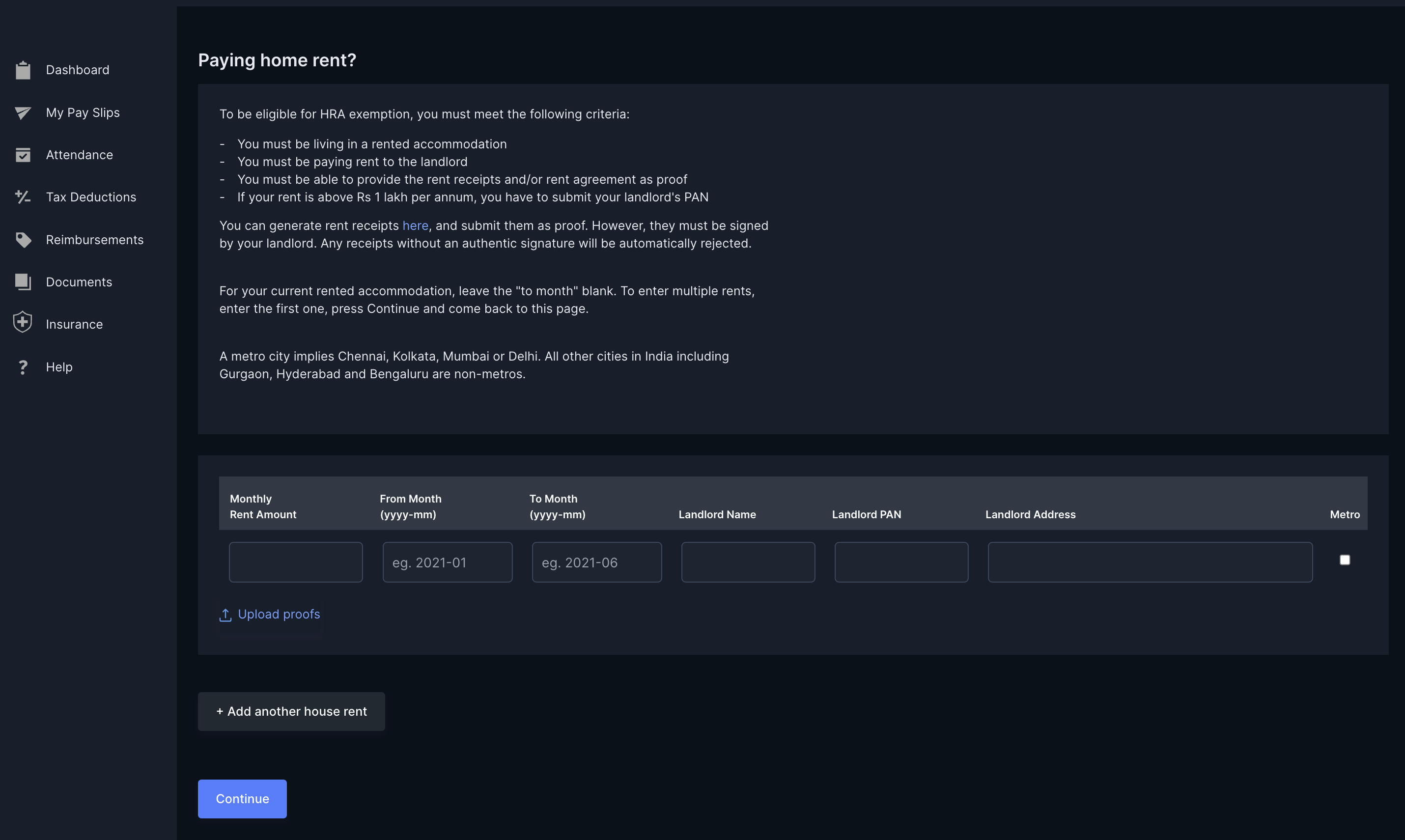 4. Click **Upload proofs** when the proof upload window is open. In the **Upload proofs** pop-up modal, click **Choose file(s)** and upload the rent receipts.
**Watch Out!**
Rent receipts must be signed by the landlord.
1. Click **CONTINUE**.
You have successfully uploaded proofs to claim HRA exemption.
Section 80 in the Income Tax Act of 1961 allows employees/taxpayers to reduce their taxable income by investing in tax-saving instruments. Know more about [Section 80 investments](https://razorpay.com/payroll/learn/section-80-80c-deductions-income-tax/).
To declare Section 80 investments:
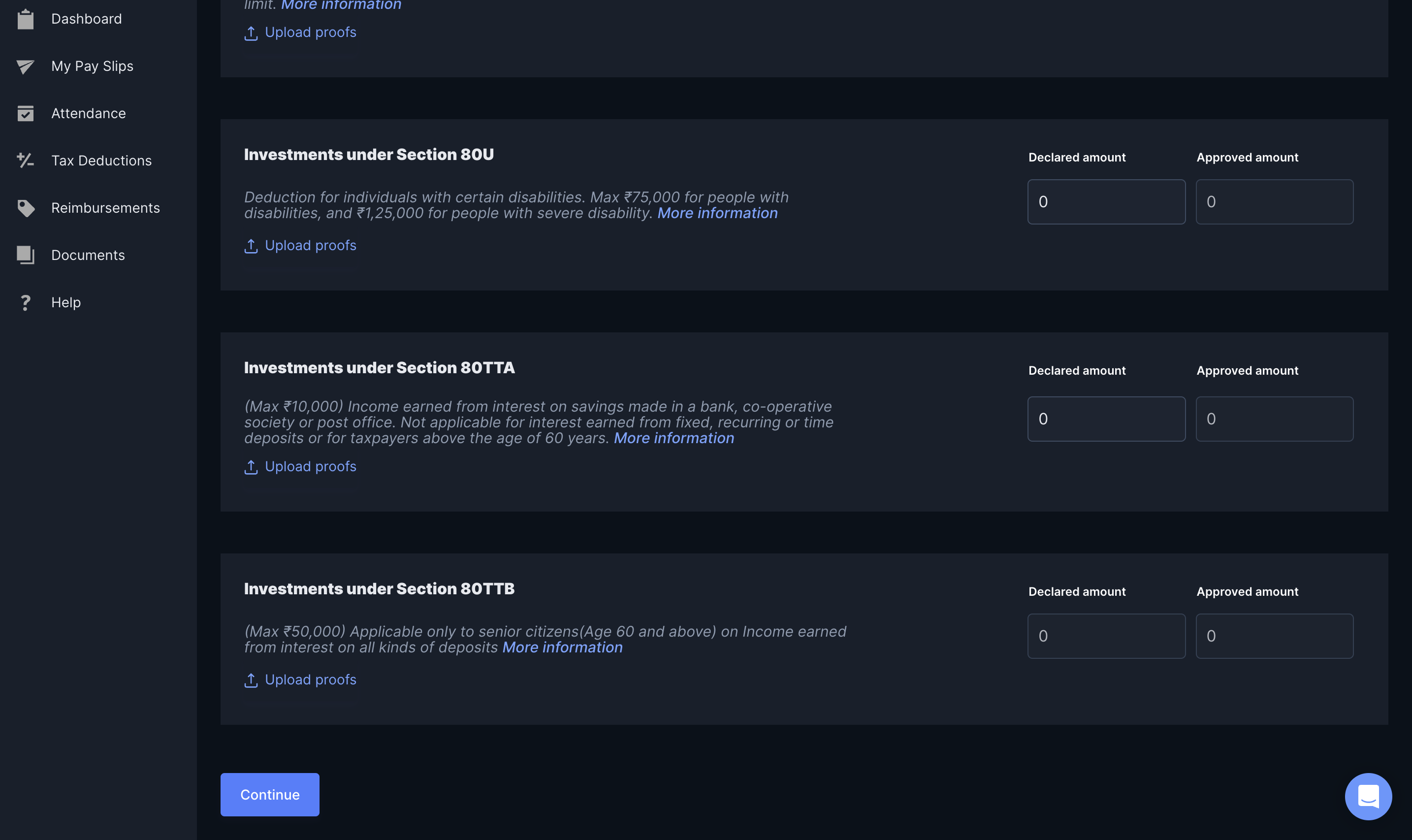
1. Go to [**Tax Deductions**](#declare-it-investments) and click **EDIT** against **Section 80 deductions**.
2. On the Section 80 deductions page, enter the **Declared amount**.
3. Click **CONTINUE**.
You have successfully declared your investments.
To upload proofs:
1. Go to [**Tax Deductions**](#declare-it-investments) and click **EDIT** against **Section 80 deductions**.
2. Click **Upload proofs** against the respective Section 80 deductions.
3. Click **CONTINUE**.
This successfully uploads proofs for the respective investments.
4. Click **Upload proofs** when the proof upload window is open. In the **Upload proofs** pop-up modal, click **Choose file(s)** and upload the rent receipts.
**Watch Out!**
Rent receipts must be signed by the landlord.
1. Click **CONTINUE**.
You have successfully uploaded proofs to claim HRA exemption.
Section 80 in the Income Tax Act of 1961 allows employees/taxpayers to reduce their taxable income by investing in tax-saving instruments. Know more about [Section 80 investments](https://razorpay.com/payroll/learn/section-80-80c-deductions-income-tax/).
To declare Section 80 investments:
1. Go to [**Tax Deductions**](#declare-it-investments) and click **EDIT** against **Section 80 deductions**.
2. On the Section 80 deductions page, enter the **Declared amount**.
3. Click **CONTINUE**.
You have successfully declared your investments.
To upload proofs:
1. Go to [**Tax Deductions**](#declare-it-investments) and click **EDIT** against **Section 80 deductions**.
2. Click **Upload proofs** against the respective Section 80 deductions.
3. Click **CONTINUE**.
This successfully uploads proofs for the respective investments.
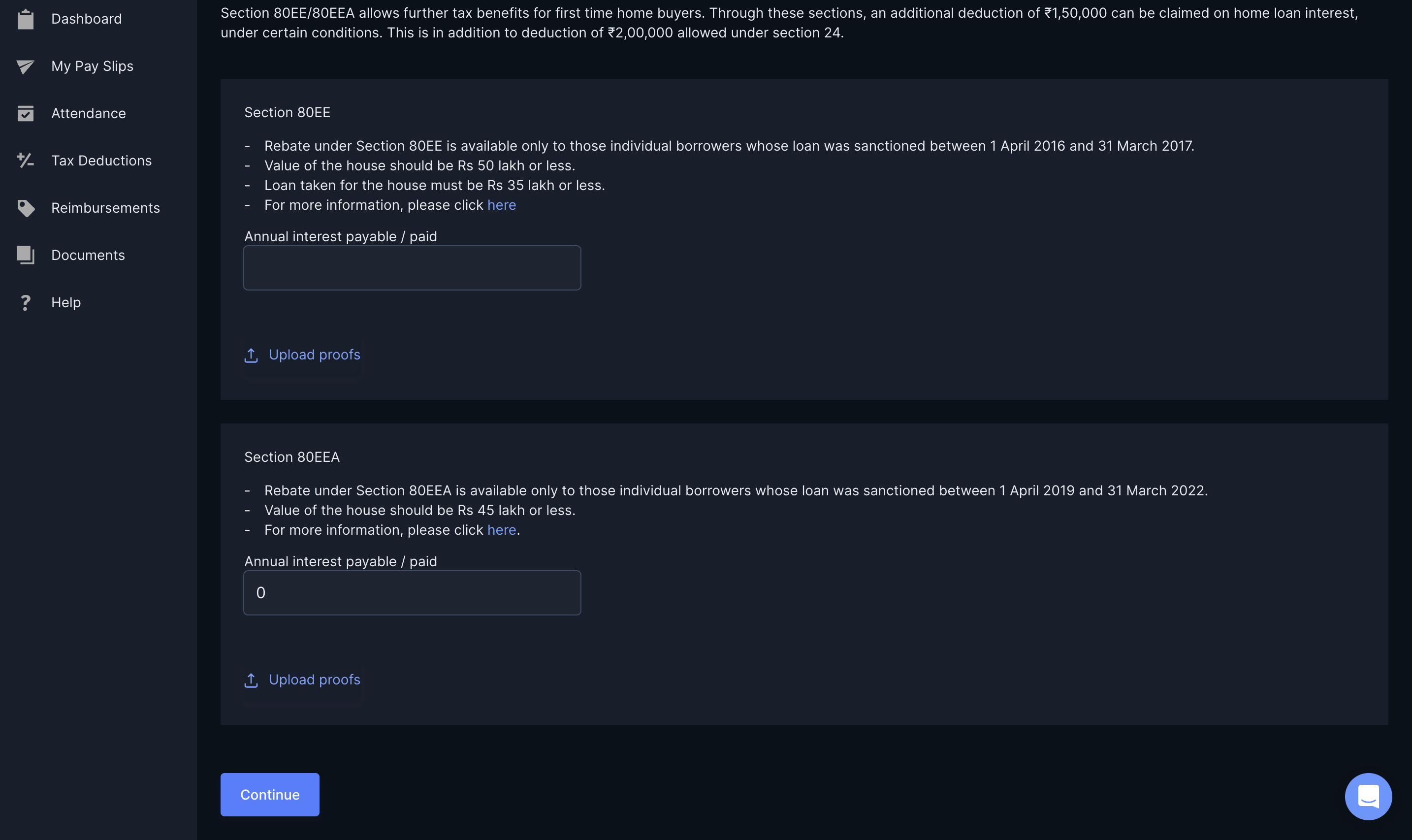
 To declare interest on home loan as a tax-saving instrument:
1. Go to [**Tax Deductions**](#declare-it-investments) and click **EDIT** against **Interest on home loan**.
2. Enter the amounts in the relevant heads on the **Deductions Under House Property** page.
3. When the proof upload window is open, click **Upload proofs** to upload the receipts/documents.
4. Click **CONTINUE**.
This successfully declares/uploads your proofs.
To declare interest on home loan as a tax-saving instrument:
1. Go to [**Tax Deductions**](#declare-it-investments) and click **EDIT** against **Interest on home loan**.
2. Enter the amounts in the relevant heads on the **Deductions Under House Property** page.
3. When the proof upload window is open, click **Upload proofs** to upload the receipts/documents.
4. Click **CONTINUE**.
This successfully declares/uploads your proofs.
 Leave Travel Allowance (LTA) is partially tax-exempt under certain conditions. Know more about [LTA exemption](https://razorpay.com/payroll/learn/income-tax-allowances-salaried-individuals-india/).
To avail Leave Travel Allowance (LTA), you must meet the following conditions:
* You must travel to domestic places. LTA does not cover international journeys. For example, Bengaluru to Mumbai is covered.
* LTA exemption does not apply to journeys planned but not yet undertaken. Exemption is only allowed on the actual expenses incurred.
* Two journeys are allowed in a block of four calendar years. The current block is Jan 1, 2022 - Dec 31, 2025.
* LTA covers the employee, their dependants and two children (born after Oct 1, 1998).
* LTA does not cover travel during official holidays or weekends. Only travel expenses undertaken during working days is exempt.
To add leave and travel declaration when the window is open:
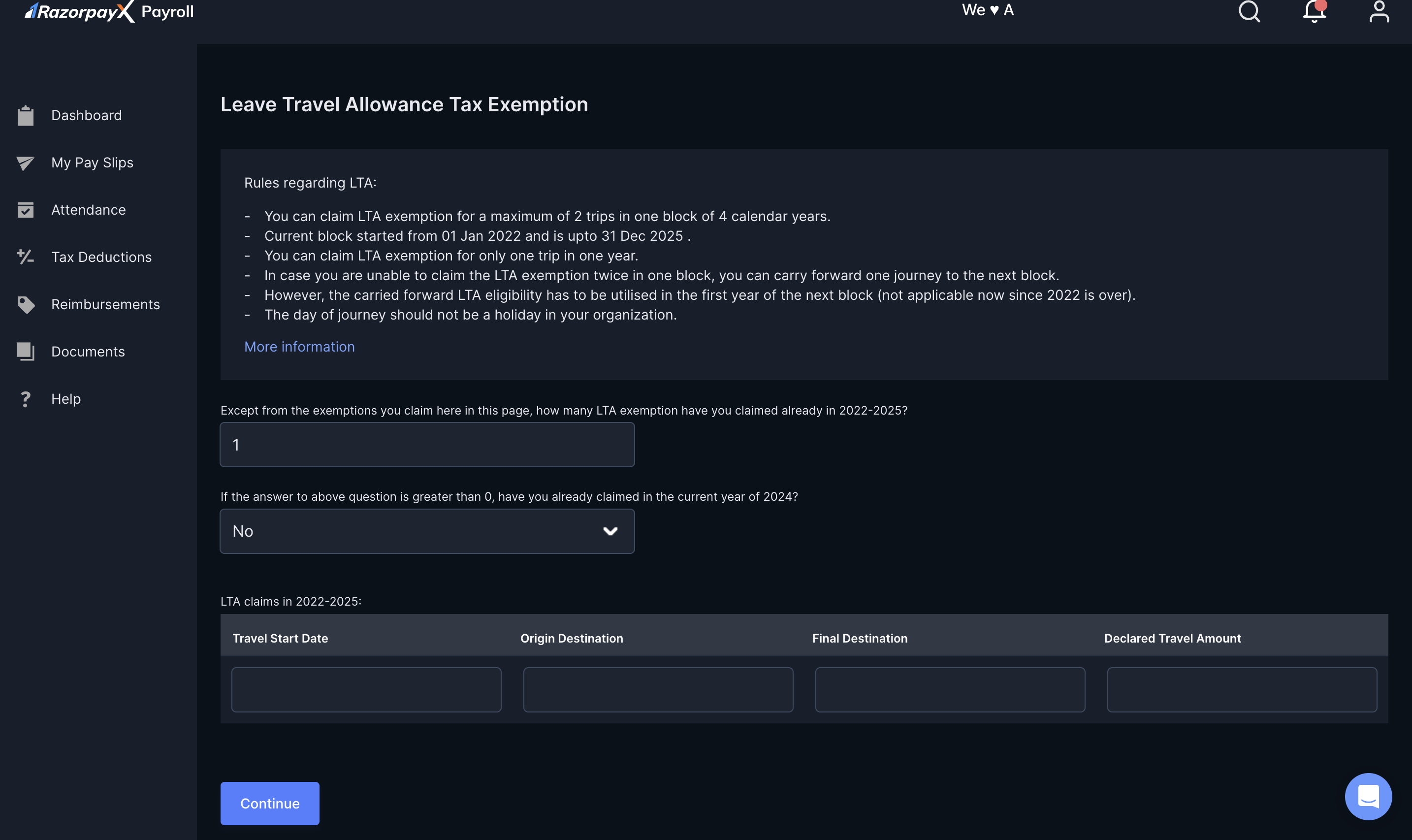
1. Enter the exemptions you already claimed for the current block in the text box.
2. If you already claimed exemptions, choose if you have claimed any exemption in the current financial year. Select **Yes** or **No** from the drop-down menu.
 * If you selected **Yes**, you cannot claim exemptions for the current financial year.
* If you selected **No**:
1. Choose the **Travel Start Date** from the calendar pop-up modal.
2. Enter the **Origin Destination** and the **Final Destination**. Enter the names of domestic cities only. For example, Bengaluru, Chennai, Mumbai.
3. Enter an amount in the **Declared Travel Amount** text box.
4. Click **CONTINUE**.
This successfully updates your LTA exemptions. When the proof upload window opens, you can upload the travel receipts and make a portion of your salary tax-free.
See how to [declare flexible benefits and add proofs](/docs/payroll/employees/declarations/flexible-benefits).
## Manage Investments
Following are some ways in which you can manage your investments as well as the proof upload process.
Sometimes, you may receive an email from Payroll indicating changes or removal of your tax declarations. This happens because:
* You have not uploaded any investment proofs for your tax declaration before the due date.
* The amount in the proofs uploaded does not match your declarations.
To resolve this:
1. Navigate to [**Tax Deductions**](https://payroll.razorpay.com/taxDeductions) on your Dashboard.
2. Upload the correct proofs.
Your organisation's Payroll administrators must approve the corrected proofs. Payroll then updates your tax declarations.
You must pay tax on your annual income if it exceeds a specific limit. When you earn more, you pay more tax. Following are some ways by which you can reduce your tax liability:
* **House Rent**:
* If you selected **Yes**, you cannot claim exemptions for the current financial year.
* If you selected **No**:
1. Choose the **Travel Start Date** from the calendar pop-up modal.
2. Enter the **Origin Destination** and the **Final Destination**. Enter the names of domestic cities only. For example, Bengaluru, Chennai, Mumbai.
3. Enter an amount in the **Declared Travel Amount** text box.
4. Click **CONTINUE**.
This successfully updates your LTA exemptions. When the proof upload window opens, you can upload the travel receipts and make a portion of your salary tax-free.
See how to [declare flexible benefits and add proofs](/docs/payroll/employees/declarations/flexible-benefits).
## Manage Investments
Following are some ways in which you can manage your investments as well as the proof upload process.
Sometimes, you may receive an email from Payroll indicating changes or removal of your tax declarations. This happens because:
* You have not uploaded any investment proofs for your tax declaration before the due date.
* The amount in the proofs uploaded does not match your declarations.
To resolve this:
1. Navigate to [**Tax Deductions**](https://payroll.razorpay.com/taxDeductions) on your Dashboard.
2. Upload the correct proofs.
Your organisation's Payroll administrators must approve the corrected proofs. Payroll then updates your tax declarations.
You must pay tax on your annual income if it exceeds a specific limit. When you earn more, you pay more tax. Following are some ways by which you can reduce your tax liability:
* **House Rent**:
Provide your rent information on the **Tax Deductions** page in Payroll. If you pay more than ₹8,333 per month as rent, provide the landlord's name, address and PAN number.
* **Make Investments**:
Make investments that have tax benefits and deductions. You can enter an amount in the specific Payroll section even if you have yet to make any investments. However, ensure you have made those investments by the end of the financial year.
* **Interest on Home Loan**:
You can get a deduction of up to 2 lakhs on the interest paid on a home loan.
Update the above information on your Payroll Dashboard to avail tax deductions and benefits.
### Related Information
* [Section 80 Investments](https://razorpay.com/learn/section-80-80c-deductions-income-tax/)
* [Tax Declaration](https://razorpay.com/learn/how-to-make-tax-declaration-form12bb/)