> ## Documentation Index
> Fetch the complete documentation index at: https://razorpay-881012b3.mintlify.site/llms.txt
> Use this file to discover all available pages before exploring further.
# Instant Reimbursements
> Get immediate reimbursement for your office expenses through RazorpayX Payroll's instant reimbursement feature.
Available in
🇮🇳 India
Get reimbursed promptly for your eligible expenses without waiting through lengthy approval cycles. The system validates your submitted proofs immediately using OCR technology and processes eligible reimbursements automatically based on your company settings.
## How Instant Reimbursements Work
Once you submit your reimbursement request:
* The system immediately validates your submitted receipts and proofs using OCR technology.
* Eligible reimbursements are approved automatically based on your company's settings.
* Reimbursement amounts are processed instantly, subject to company-defined thresholds.
* You'll receive the funds in your linked account without waiting for manual approvals.
## Claim Instant Reimbursements
To claim an instant reimbursement:
1. Log in to the [Payroll Dashboard](https://payroll.razorpay.com/dashboard).
2. Navigate to the **Reimbursements** section.
3. Click on **Claim a Reimbursement.**
4. Select the type of reimbursement (Travel, Food, Fuel and so on).
5. Enter the expense date.
6. Provide a description of the expense (optional if not made compulsory in settings by the administrator).
7. Enter the amount spent.
8. Upload supporting documents or images (required if attachments are made compulsory in the settings by the administrator).
9. Click **Request Reimbursement** to submit.
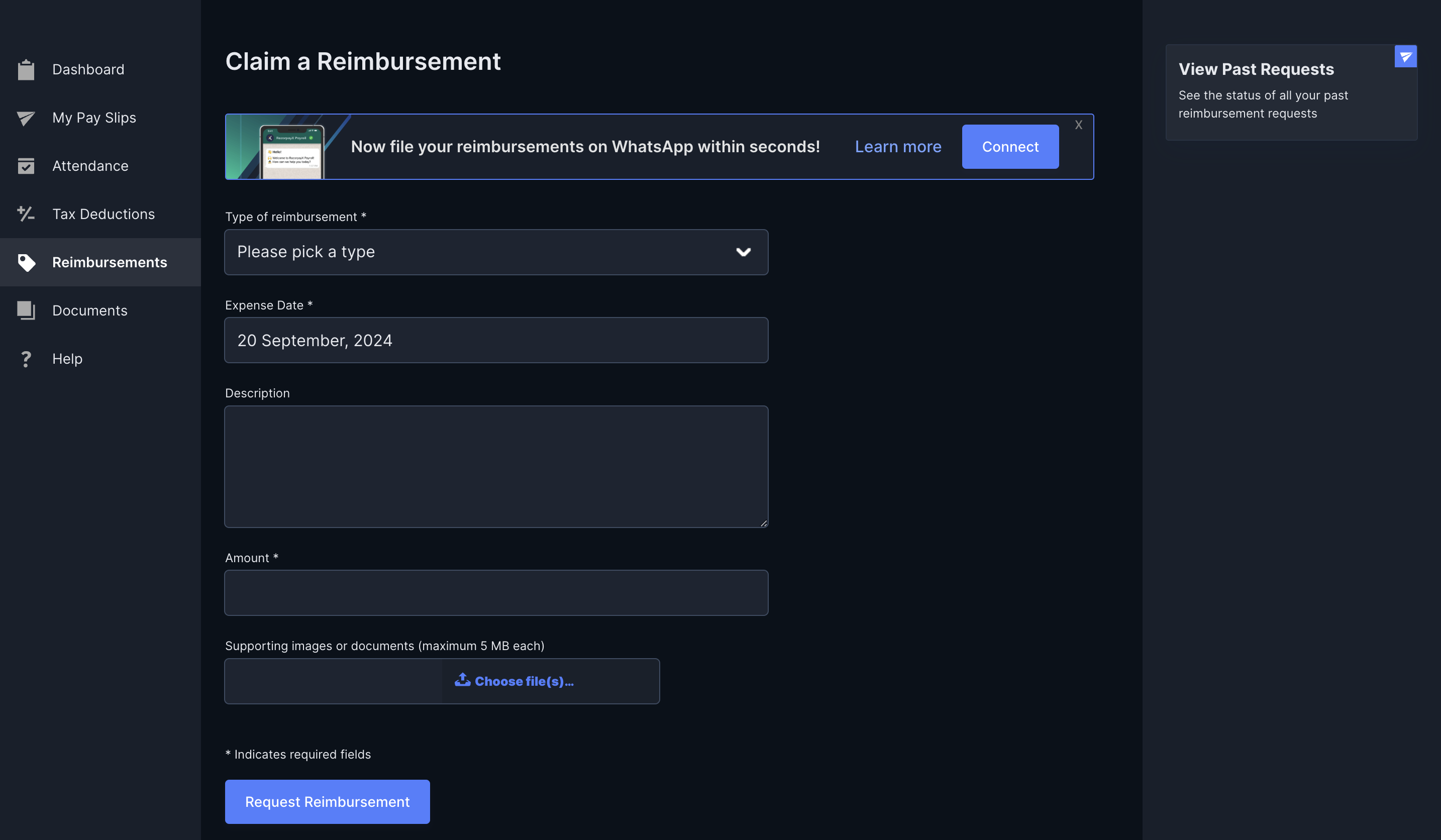 After submission, your reimbursement request is automatically approved.
You can click **View Past Requests** to track your instant reimbursement requests made in the past. The approved amount shall be credited with your next salary, though instant reimbursements might be processed faster as per company policy.
### Related Information
* [Employee Dashboard](/docs/payroll/employees)
* [IT Declarations](/docs/payroll/employees/declarations)
After submission, your reimbursement request is automatically approved.
You can click **View Past Requests** to track your instant reimbursement requests made in the past. The approved amount shall be credited with your next salary, though instant reimbursements might be processed faster as per company policy.
### Related Information
* [Employee Dashboard](/docs/payroll/employees)
* [IT Declarations](/docs/payroll/employees/declarations)