> ## Documentation Index
> Fetch the complete documentation index at: https://razorpay-881012b3.mintlify.site/llms.txt
> Use this file to discover all available pages before exploring further.
# Reimbursements
> Reimburse office expenses through your employer on the RazorpayX Payroll Dashboard.
Available in
🇮🇳 India
You can request reimbursements or avail imprest for expenses on the Payroll Dashboard. You receive the reimbursement payments either:
* As a one-time payment.
* Together with your monthly salary.
**Handy Tips**
You can also claim reimbursements via [WhatsApp](/docs/payroll/employees/whatsapp-integration).
**Available Now!**
Watch the video on to how to [claim reimbursements](/docs/payroll/video-tutorials#claim-reimbursements).
## Apply for Reimbursements
To apply for reimbursements:
1. Log in to the [Payroll Dashboard](https://payroll.razorpay.com/dashboard).
2. Navigate to **Reimbursements** in the left menu.
3. On the Claim a Reimbursement page:
1. Select the **Type of Reimbursement** from the drop-down menu.
2. Choose the **Expense Date** from the calendar.
3. Provide a **Description** for your reimbursement claim. This is optional but recommended.
4. Enter the **Amount** to claim as reimbursement.
5. Attach any **Supporting images or files**. Select **Choose file(s)** and upload files, each up to 5MB.
**Watch Out!**
To upload multiple files as reimbursement proofs, select all the files and upload them together. If you upload a single file and reupload another file, the older file is overwritten.
1. Click **REQUEST REIMBURSEMENT**.
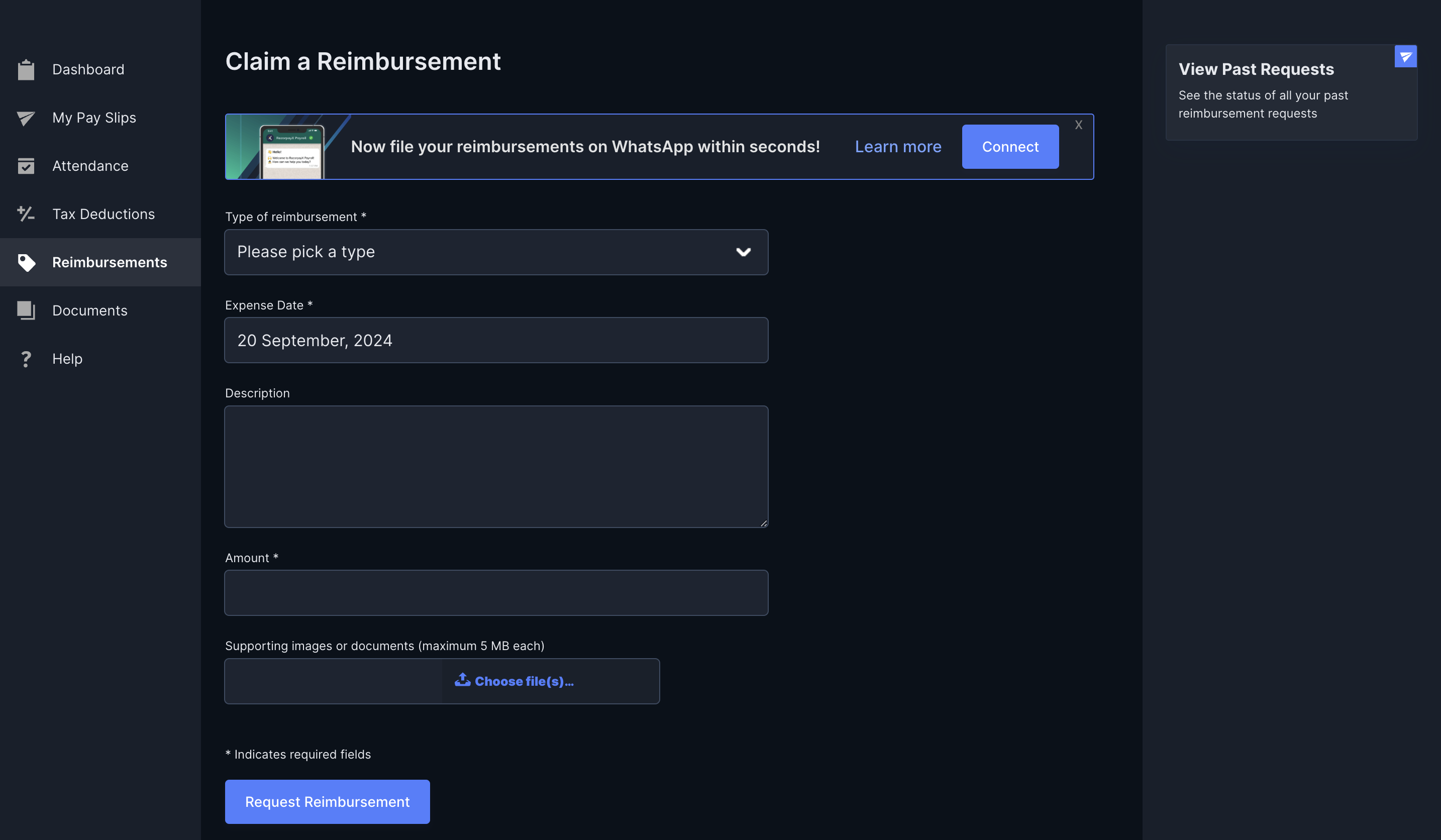 You have successfully requested reimbursements from your employer. Once your manager approves the request, Payroll processes the reimbursement as chosen by your employer. You can click **View Past Requests** to view your past requests and their status.
### Related Information
* [Employee Dashboard](/docs/payroll/employees)
* [WhatsApp Integration](/docs/payroll/integrations/whatsapp)
* [IT Declarations](/docs/payroll/employees/declarations)
You have successfully requested reimbursements from your employer. Once your manager approves the request, Payroll processes the reimbursement as chosen by your employer. You can click **View Past Requests** to view your past requests and their status.
### Related Information
* [Employee Dashboard](/docs/payroll/employees)
* [WhatsApp Integration](/docs/payroll/integrations/whatsapp)
* [IT Declarations](/docs/payroll/employees/declarations)