> ## Documentation Index
> Fetch the complete documentation index at: https://razorpay-881012b3.mintlify.site/llms.txt
> Use this file to discover all available pages before exploring further.

# Integrate with WhatsApp

> Connect WhatsApp with Payroll for Payslips and Reimbursements.

<div style={{display:"flex",flexWrap:"wrap",alignItems:"center",gap:"0.35rem 0.9rem",border:"1px solid rgba(128,128,128,0.28)",borderRadius:"0.5rem",padding:"0.45rem 0.75rem",margin:"0 0 1.25rem",fontSize:"0.875rem"}}>
  <span style={{fontWeight:600}}>Available in</span>
  <span>🇮🇳 India</span>
</div>

You can claim reimbursements and get monthly payslips right in your WhatsApp account. There are two ways to integrate WhatsApp with Payroll:

## Method 1

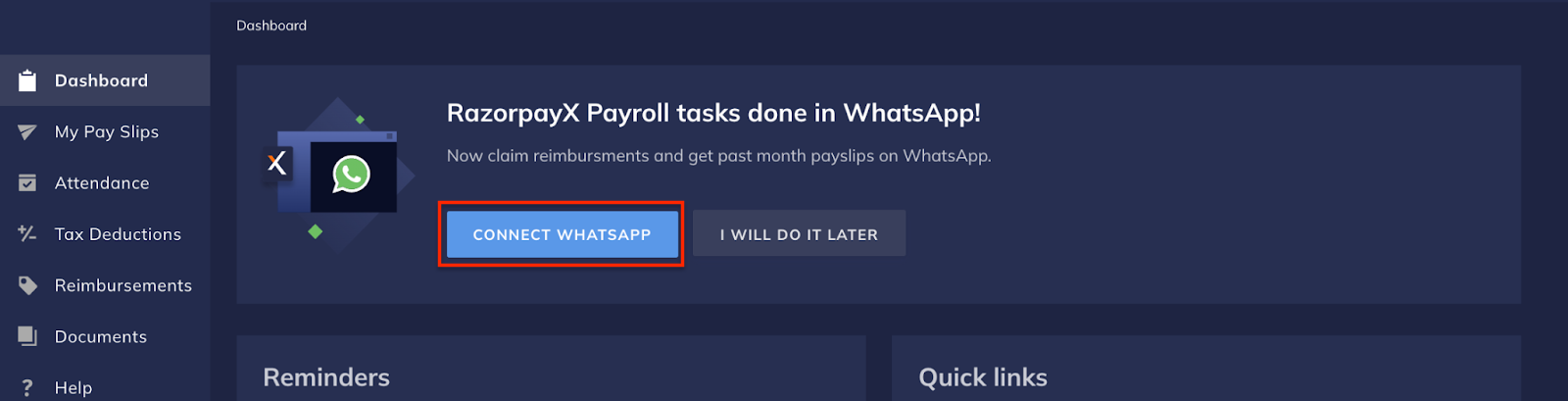
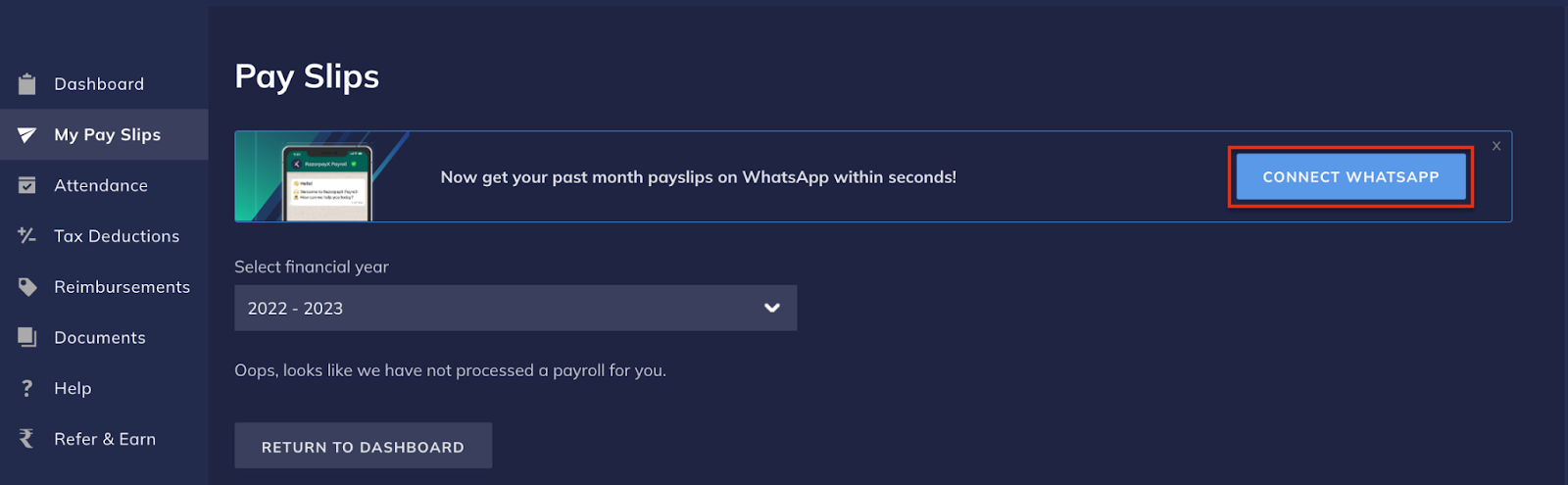
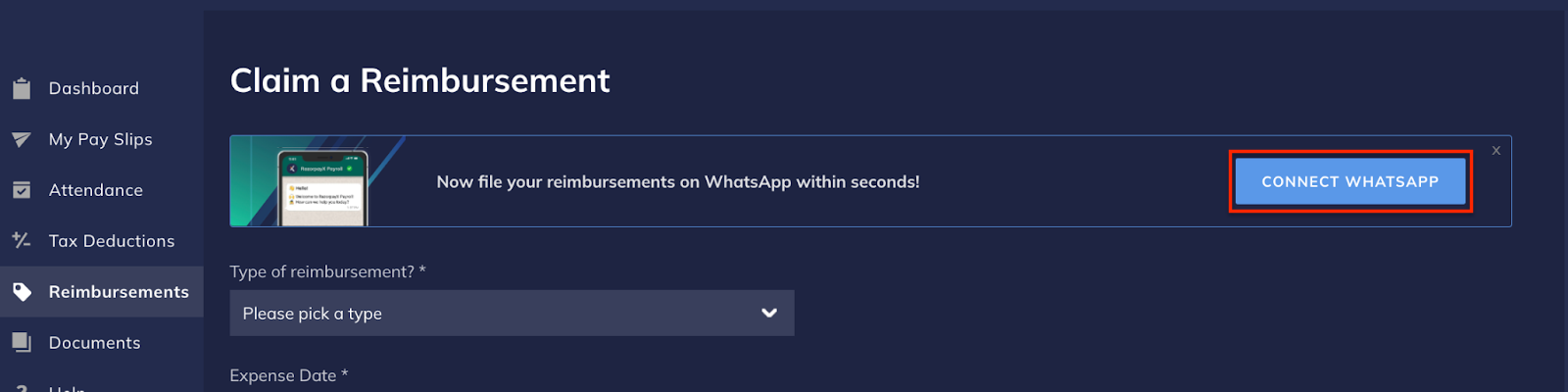
Click **CONNECT WHATSAPP** on the Dashboard banner or from the **My Payslips** and **Reimbursements** page. Shown below are three places from which you can connect Payroll with WhatsApp.

<Tabs>
  <Tab title="From Payroll Dashboard">
    The prompt to connect Payroll with WhatsApp is available on your Payroll Dashboard.

    <img src="https://razorpay.com/docs/build/browser/assets/images/xpayroll-whatsapp-1.jpg" alt="Connect WhatsApp with Payroll" width="800" />
  </Tab>

  <Tab title="From My Pay Slips tab">
    Go to **My Pay Slips** to explore the integration.

    <img src="https://razorpay.com/docs/build/browser/assets/images/xpayroll-whatsapp-2.jpg" alt="Connect WhatsApp with Payslips" width="800" />
  </Tab>

  <Tab title="From Reimbursements tab">
    You can connect WhatsApp with Payroll from the **Reimbursements** tab as well.

    <img src="https://razorpay.com/docs/build/browser/assets/images/xpayroll-whatsapp-3.jpg" alt="Connect WhatsApp with reimbursements" width="800" />
  </Tab>
</Tabs>

## Method 2

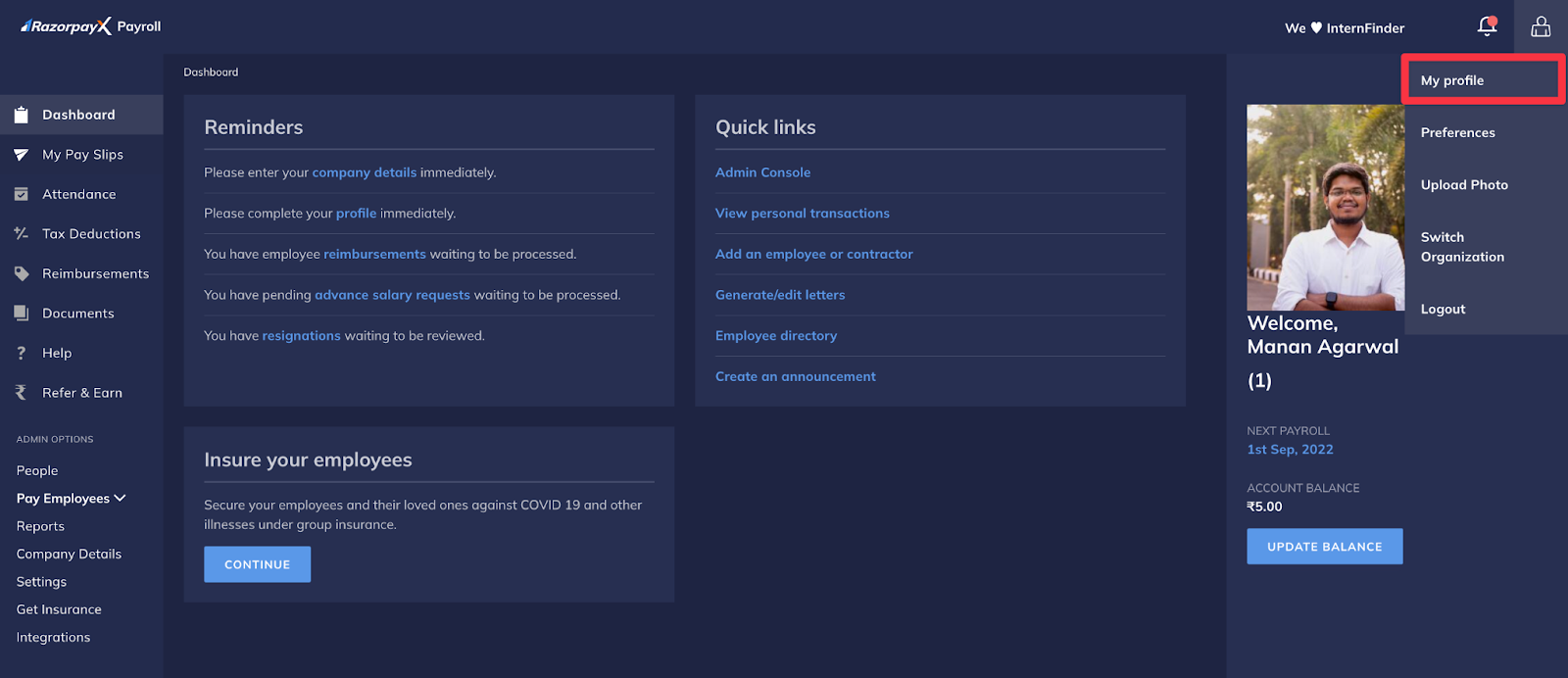
If the dashboard banner is not available, follow the steps given below to integrate WhatsApp with RazorpayX Payroll:

1. Navigate to **My Profile**.

   <img src="https://razorpay.com/docs/build/browser/assets/images/xpayroll-whatsapp-4.jpg" alt="Payroll- My Profile" width="800" />

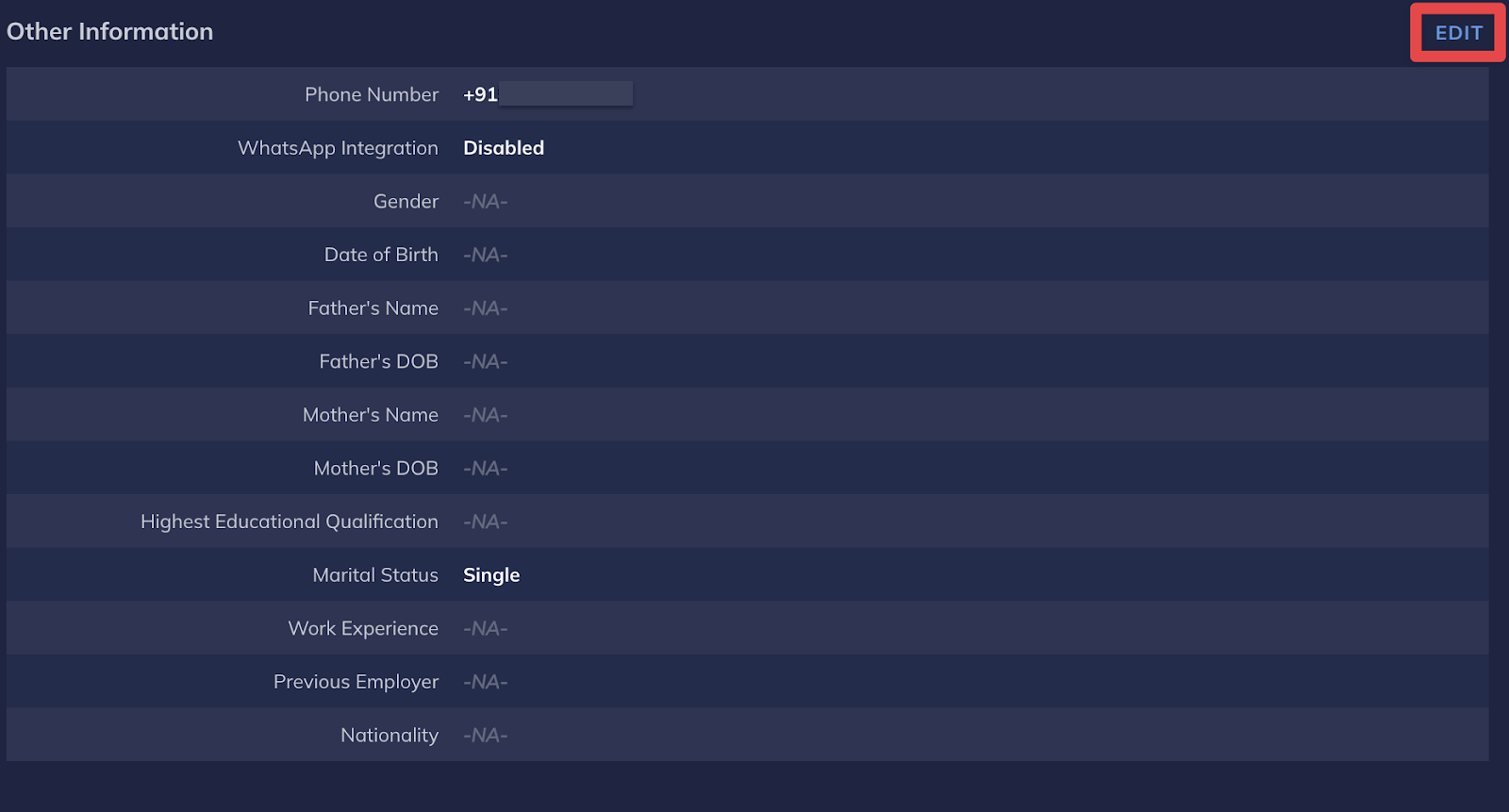
2. Click **Edit** next to Other Information.
   <img src="https://razorpay.com/docs/build/browser/assets/images/xpayroll-whatsapp-5.jpg" alt="Payroll- My Profile- Edit" width="800" />

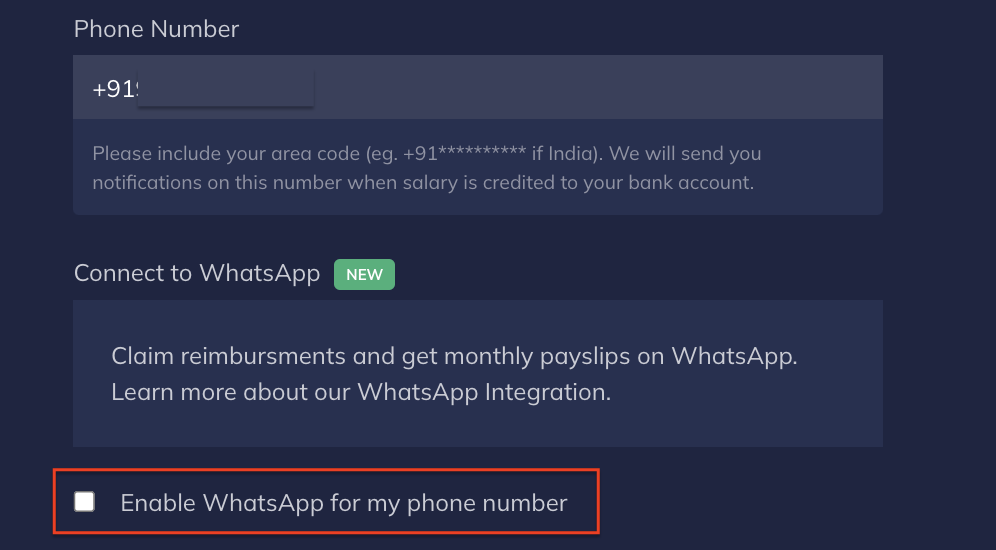
3. Select the checkbox under Connect to WhatsApp.
   <img src="https://razorpay.com/docs/build/browser/assets/images/xpayroll-whatsapp-6.jpg" alt="Connect WhatsApp with Payroll" width="800" />

To disconnect WhatsApp, deselect the same checkbox under **Connect to WhatsApp**.

### Related Information

* [Integrations](/docs/payroll/integrations)
