> ## Documentation Index
> Fetch the complete documentation index at: https://razorpay-881012b3.mintlify.site/llms.txt
> Use this file to discover all available pages before exploring further.
# Salary Structures
> Standardise compensation with Payroll's Salary Structures for consistency & scalability.
Available in
🇮🇳 India
When managing payroll, organisations need consistent salary frameworks across employee groups, some require basic structures, while others need complex multi-component setups. In Payroll, you can create both simple and advanced salary structures to match your organisation's compensation strategy.
Salary Structures in Payroll is a template-based system that standardises employee compensation packages. It enables you to create reusable salary templates with predefined component breakdowns that can be applied to multiple employees. It also ensures consistency in salary calculations and simplifies payroll management.
| Feature | Description | Example |
| ------------------------------- | ------------------------------------------------------------------------------------------------------------- | --------------------------------------------------------------------------------------------------------------------------------------------------------------------------------------------------------------------------- |
| **Template-Based Structures** | Admins can create reusable salary templates with predefined component distributions for consistency.
| Earlier, each employee's salary was configured individually, leading to inconsistencies. Now, admins create a 'Sales Team Structure' template and apply it to all sales employees, ensuring uniform component distribution. |
| **Percentage-Based Components** | Components can be defined as percentages of CTC.
| HR teams manually recalculated allowances for every salary revision. Now, with Basic set at 50% of CTC, the system displays an alert to adjust amounts when CTC changes, eliminating faulty calculations. |
| **Residual Component Handling** | System automatically calculates balancing amounts to ensure components total to 100% of CTC.
| Finance teams struggled to balance salary components to match exact CTC. Now, the 'Other Allowance' component helps them adjust the residual, ensuring components always total correctly i.e. 100%. |
| **Preview and Validation** | Test structures with sample CTCs before implementation to verify calculations.
| Errors in component calculations were discovered only after payroll execution. Now, admins preview structures with test CTCs (like ₹12,00,000) to validate monthly breakdowns before applying to employees. |
A Create New Structure option allows you to build a salary template from scratch with custom component distributions.
By creating new structures, you can design compensation packages tailored to specific roles, departments or employee levels while maintaining standardisation. You also get to test calculations before implementation.
To create a new salary structure:
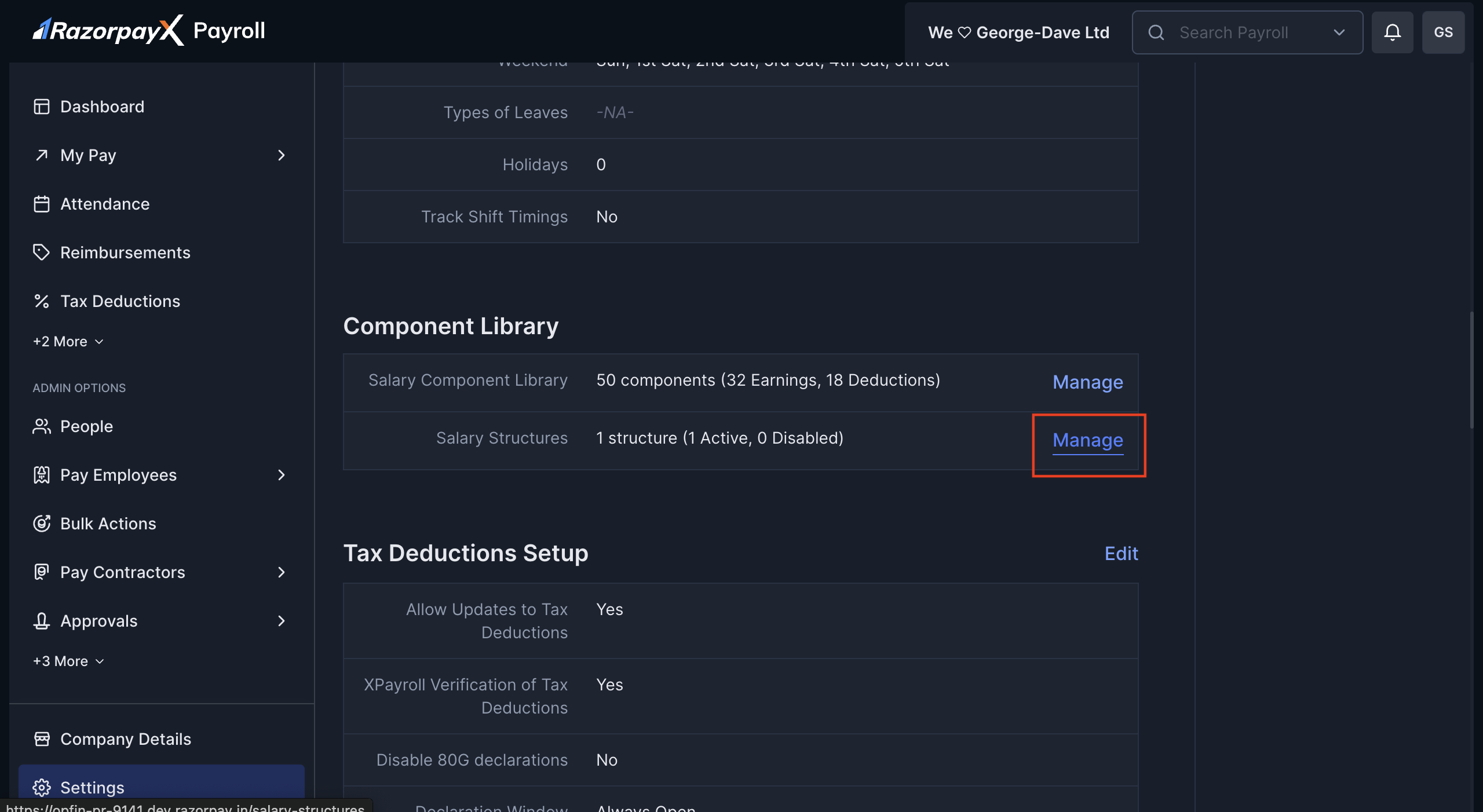
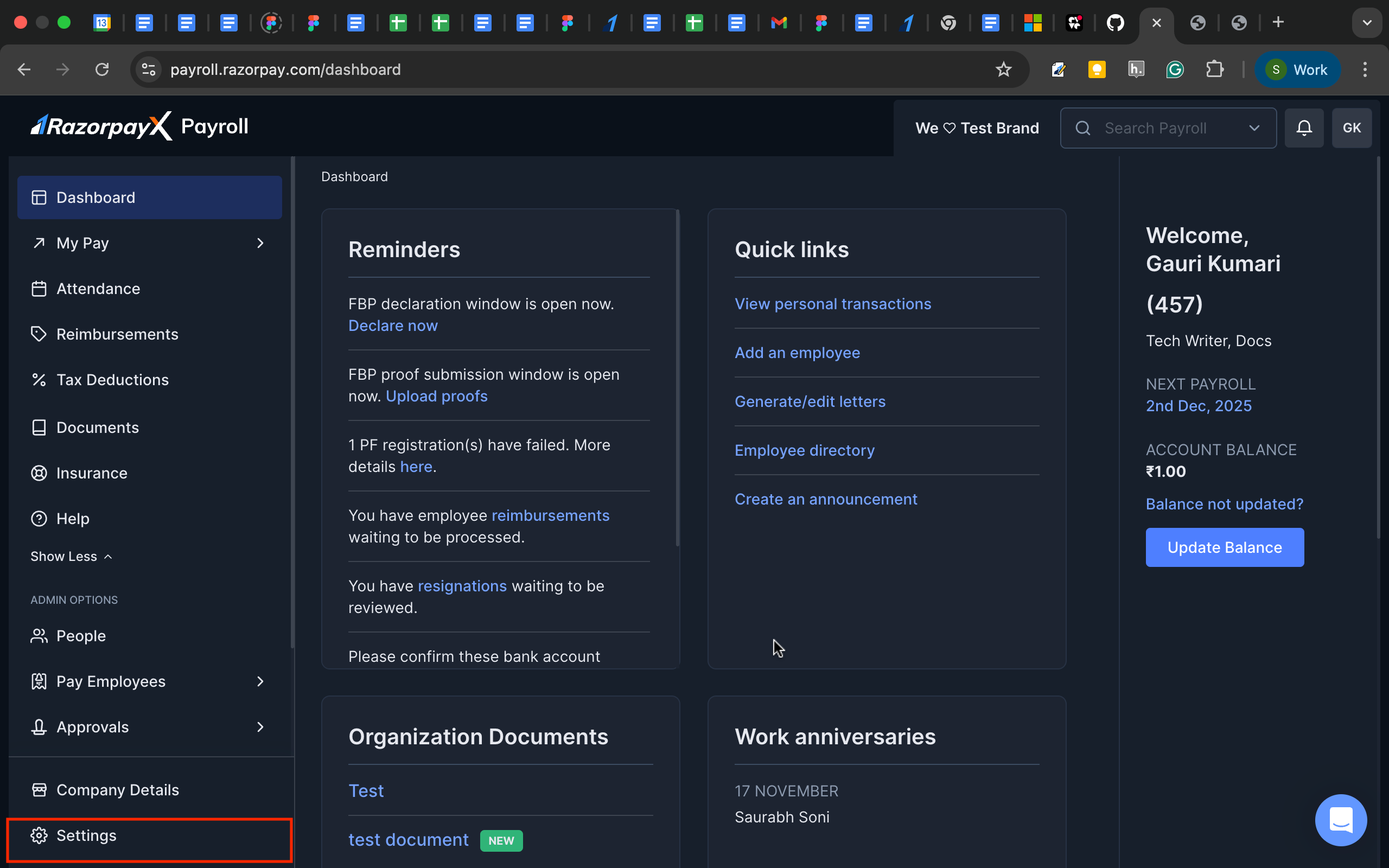
1. Navigate to **Settings → Salary Structures→ Manage**.
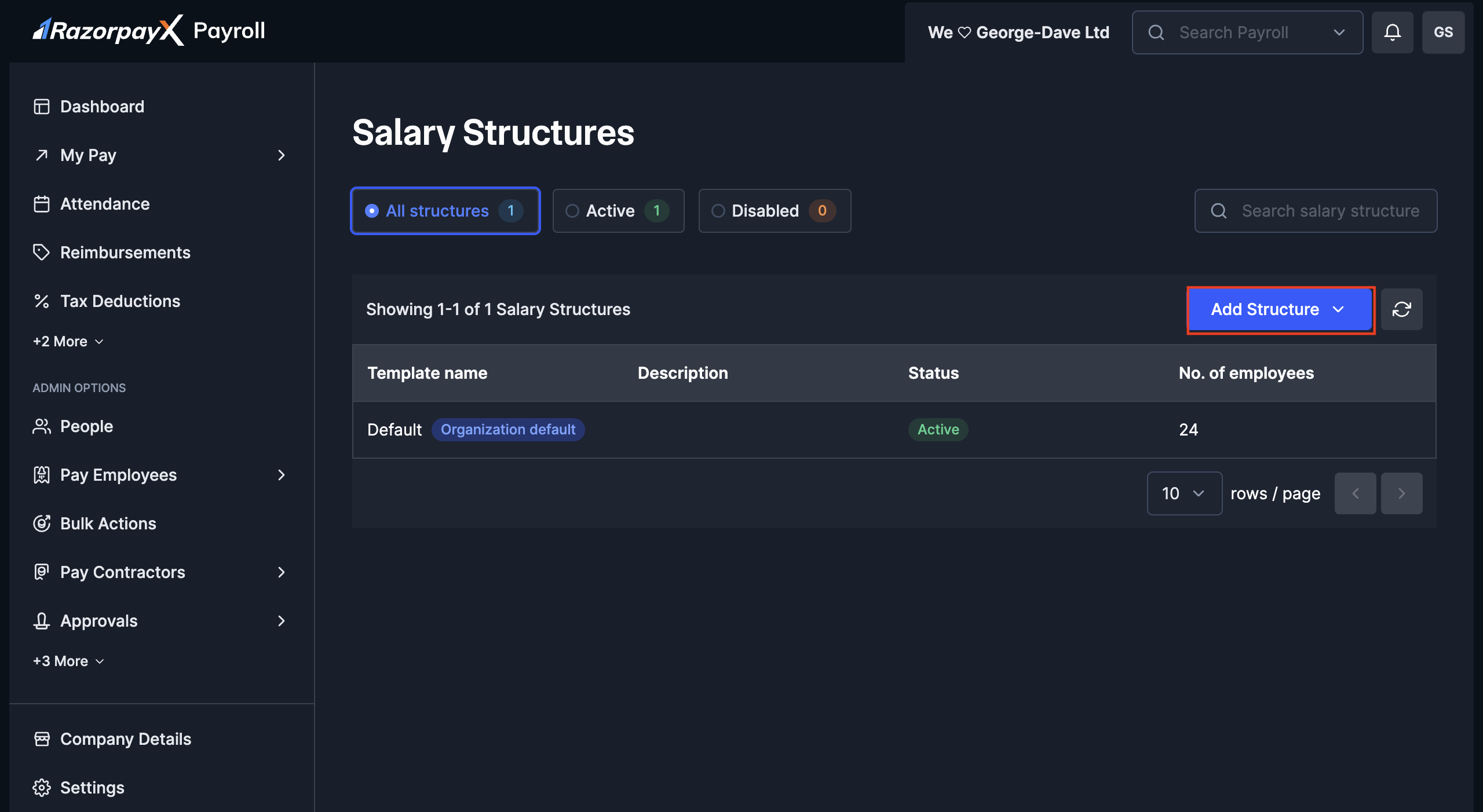
 2. Click **Add Structure** button in the top-right corner.
3. Select **Create new** from the dropdown menu.
2. Click **Add Structure** button in the top-right corner.
3. Select **Create new** from the dropdown menu.
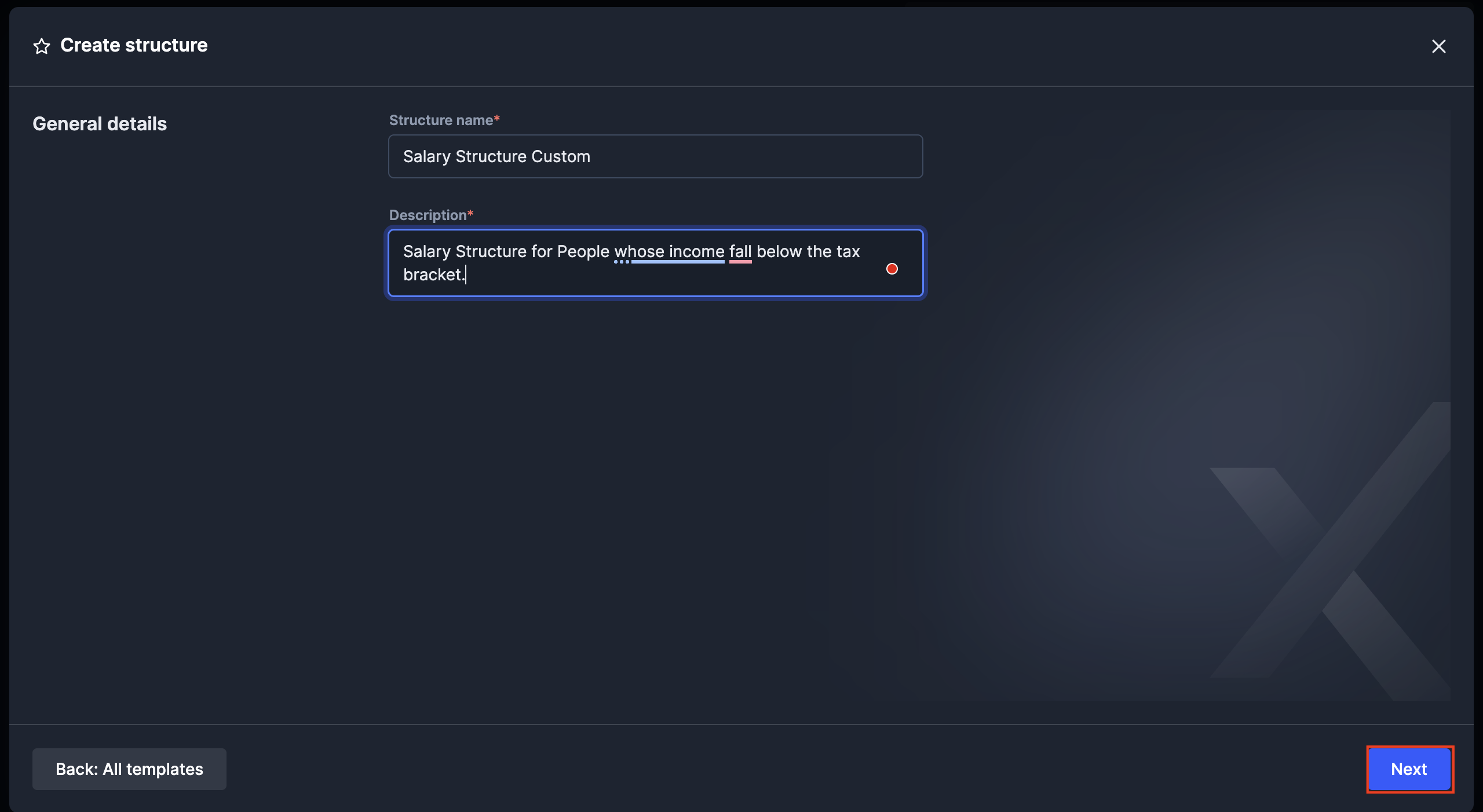
 4. Fill in the **General details**:
* Enter a **Structure name** (must be unique across all structures).
* Add a **Description** to explain the structure's purpose (for example, 'Salary structure for employees whose income falls below the tax bracket').
* Click **Next** to proceed.
4. Fill in the **General details**:
* Enter a **Structure name** (must be unique across all structures).
* Add a **Description** to explain the structure's purpose (for example, 'Salary structure for employees whose income falls below the tax bracket').
* Click **Next** to proceed.
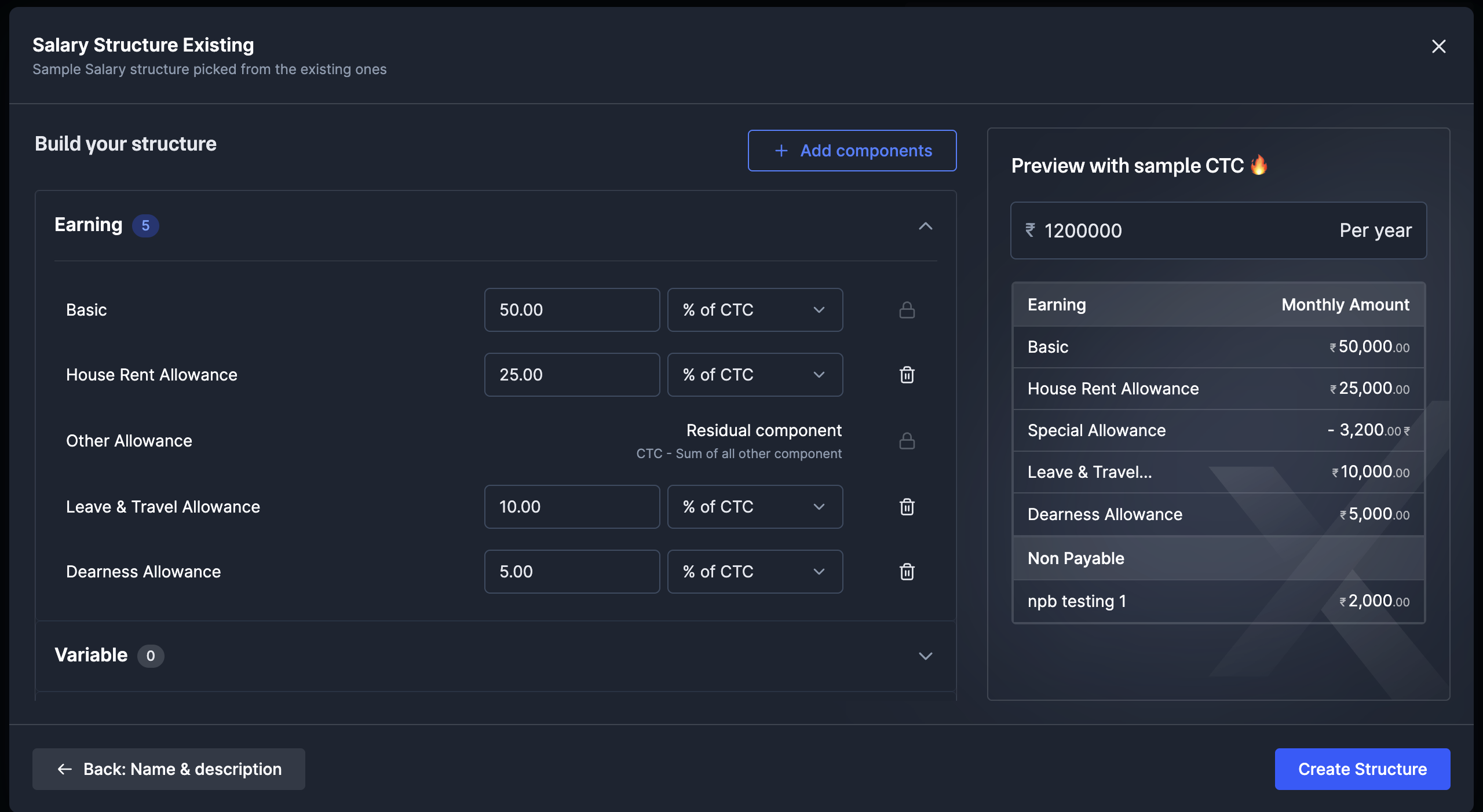
 5. **Build your structure**:
* The page displays existing components with input fields for values.
* Enter percentages or amounts for each component (for example, Basic: 50%, HRA: 25%).
* Components marked as "Residual component" auto-calculate to balance the CTC.
5. **Build your structure**:
* The page displays existing components with input fields for values.
* Enter percentages or amounts for each component (for example, Basic: 50%, HRA: 25%).
* Components marked as "Residual component" auto-calculate to balance the CTC.
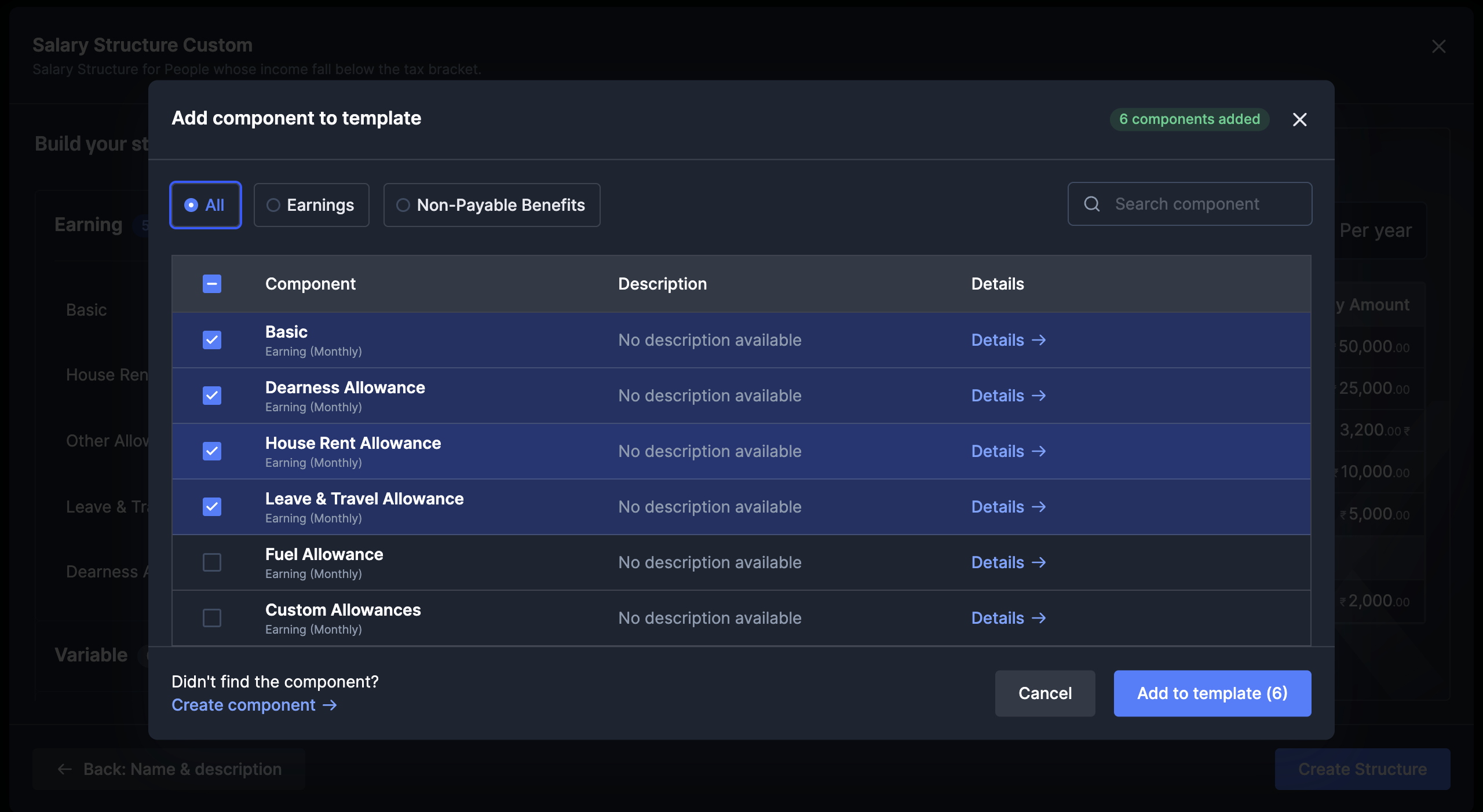
 6. **Add additional components**:
* Click **Add components** to include more salary elements.
* Select from **All**, **Earnings** or **Non-Payable Benefits** tabs.
* Check the components you want to add.
* Click **Add to template** to include selected components.
6. **Add additional components**:
* Click **Add components** to include more salary elements.
* Select from **All**, **Earnings** or **Non-Payable Benefits** tabs.
* Check the components you want to add.
* Click **Add to template** to include selected components.
 7. **Preview with sample CTC**:
* Enter a test amount (for example, ₹12,00,000 per year).
* View the monthly breakdown for each component.
* Verify calculations are correct.
8. **Create the structure**:
* Review all components and their distributions.
* Click **Create Structure** to save the template.
To modify a salary structure:
1. Navigate to **Salary Structures**.
2. Locate the structure you want to edit.
3. Click on the structure name to view details.
4. Click **Edit** to modify components.
5. Make necessary changes to component values.
6. Click **Save Structure** to apply changes.
To disable a salary structure:
1. Follow steps 1-3 from the modification process.
2. Click the **Disable** button.
**Watch Out!**
If employees are currently assigned to this structure, it cannot be disabled until they are reassigned to a different structure.
Create from Existing Structure allows you to duplicate and modify an existing salary template for new requirements.
Duplicating structures saves time when creating variations of existing templates. You can maintain consistency while adjusting specific components for different employee groups.
To create from an existing structure:
1. Navigate to **Settings → Salary Structures**.
7. **Preview with sample CTC**:
* Enter a test amount (for example, ₹12,00,000 per year).
* View the monthly breakdown for each component.
* Verify calculations are correct.
8. **Create the structure**:
* Review all components and their distributions.
* Click **Create Structure** to save the template.
To modify a salary structure:
1. Navigate to **Salary Structures**.
2. Locate the structure you want to edit.
3. Click on the structure name to view details.
4. Click **Edit** to modify components.
5. Make necessary changes to component values.
6. Click **Save Structure** to apply changes.
To disable a salary structure:
1. Follow steps 1-3 from the modification process.
2. Click the **Disable** button.
**Watch Out!**
If employees are currently assigned to this structure, it cannot be disabled until they are reassigned to a different structure.
Create from Existing Structure allows you to duplicate and modify an existing salary template for new requirements.
Duplicating structures saves time when creating variations of existing templates. You can maintain consistency while adjusting specific components for different employee groups.
To create from an existing structure:
1. Navigate to **Settings → Salary Structures**.
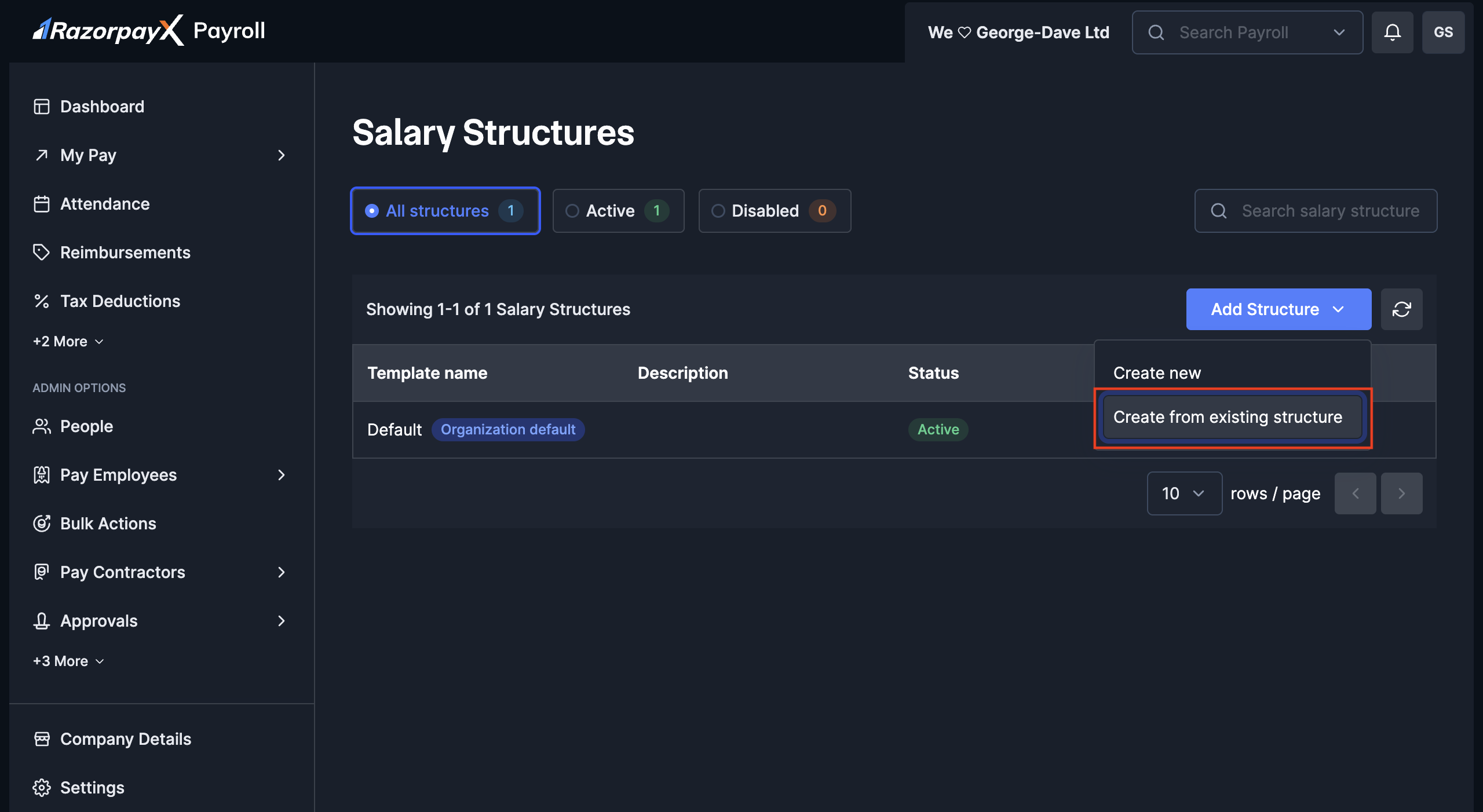
 2. Click **Add Structure** button.
3. Select **Create from existing structure** from the dropdown.
2. Click **Add Structure** button.
3. Select **Create from existing structure** from the dropdown.
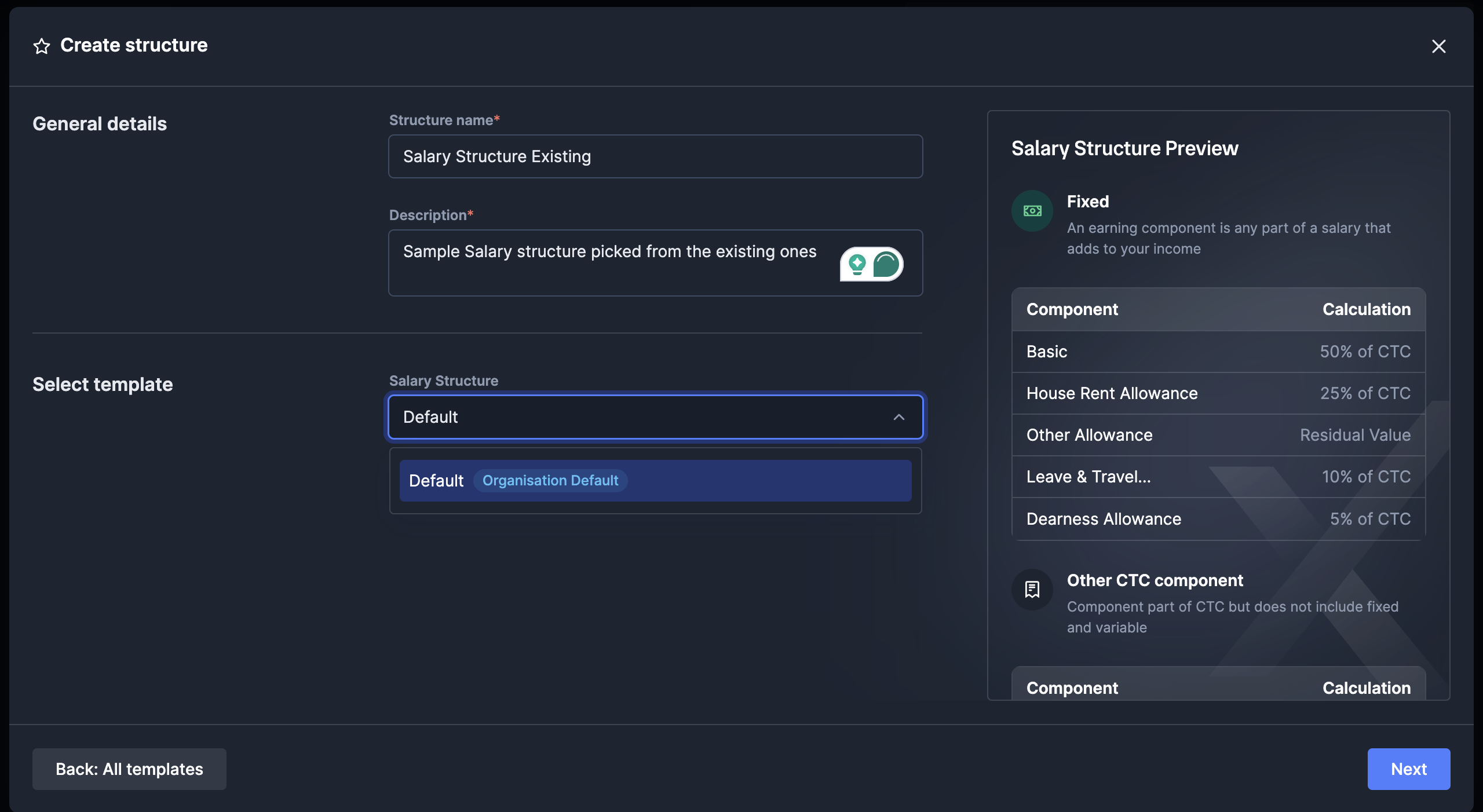
 4. Fill in the **General details**:
* Enter a **Structure name** (for example, 'Salary Structure Existing').
* Add a **Description** (for example, 'Sample salary structure picked from the existing ones').
5. **Select template**:
* Choose from the **Salary Structure** dropdown.
* Select an existing structure (for example, 'Default - Organisation Default').
* The preview shows the selected template's component breakdown.
* Review components like Basic (50% of CTC), HRA (25% of CTC) and so on.
4. Fill in the **General details**:
* Enter a **Structure name** (for example, 'Salary Structure Existing').
* Add a **Description** (for example, 'Sample salary structure picked from the existing ones').
5. **Select template**:
* Choose from the **Salary Structure** dropdown.
* Select an existing structure (for example, 'Default - Organisation Default').
* The preview shows the selected template's component breakdown.
* Review components like Basic (50% of CTC), HRA (25% of CTC) and so on.
 6. Click **Next** to proceed to structure building.
7. **Modify the structure**:
* All components from the selected template are pre-filled.
* Adjust percentages or amounts as needed.
* Add or remove components using **Add components** button.
* Preview calculations with sample CTC.
8. **Create the structure**:
* Verify all modifications.
* Click **Create Structure** to save the new template.
To manage duplicated structures:
1. View all structures in the main **Salary Structures** page.
2. Use filters to sort by **Active** or **Disabled** status.
3. Check the **No. of employees** column to see usage.
4. Click **Manage** links to edit or disable structures.
**Pro Tip!**
When creating from existing structures, the system preserves all tax configurations and compliance settings from the original template, ensuring consistency.
## Managing Salary Structures
Once you've created salary structures, you can view and manage them from the central dashboard. Payroll provides comprehensive tools to track structure usage and maintain templates.
The Salary Structures page displays:
1. **Template name** - Unique identifier for each structure.
2. **Description** - Brief explanation of the structure's purpose.
3. **Status** - Active or Disabled state.
4. **No. of employees** - Count of employees using this structure.
Use the filter tabs to view:
* **All structures** - Complete list showing 1 structure (1 Active, 0 Disabled).
* **Active** - Only currently usable templates.
* **Disabled** - Archived structures no longer in use.
Search for specific structures using the search bar by entering template names or descriptions.
## Applying Structures to Employees
To assign a salary structure to employees:
1. Navigate to **People → Employee Management**.
2. Select the employee to update.
3. Click **Edit Salary Details**.
4. Choose **Salary Structure** from the dropdown.
5. The system automatically applies component distributions.
6. Override specific amounts if needed while maintaining structure percentages.
7. **Save** the changes.
The selected structure will determine the employee's salary breakdown in all future payroll cycles.
**Watch Out!**
* Each structure must have a unique name across the organisation.
* Components from the library maintain their original tax treatments.
* Changes to active structures don't affect existing employee assignments.
* Disabled structures remain in the system for historical reference.
* The preview feature uses the current tax rules for calculations.
* Residual components ensure mathematical accuracy in salary distribution.
Watch the video below to understand how Salary Structures work:
6. Click **Next** to proceed to structure building.
7. **Modify the structure**:
* All components from the selected template are pre-filled.
* Adjust percentages or amounts as needed.
* Add or remove components using **Add components** button.
* Preview calculations with sample CTC.
8. **Create the structure**:
* Verify all modifications.
* Click **Create Structure** to save the new template.
To manage duplicated structures:
1. View all structures in the main **Salary Structures** page.
2. Use filters to sort by **Active** or **Disabled** status.
3. Check the **No. of employees** column to see usage.
4. Click **Manage** links to edit or disable structures.
**Pro Tip!**
When creating from existing structures, the system preserves all tax configurations and compliance settings from the original template, ensuring consistency.
## Managing Salary Structures
Once you've created salary structures, you can view and manage them from the central dashboard. Payroll provides comprehensive tools to track structure usage and maintain templates.
The Salary Structures page displays:
1. **Template name** - Unique identifier for each structure.
2. **Description** - Brief explanation of the structure's purpose.
3. **Status** - Active or Disabled state.
4. **No. of employees** - Count of employees using this structure.
Use the filter tabs to view:
* **All structures** - Complete list showing 1 structure (1 Active, 0 Disabled).
* **Active** - Only currently usable templates.
* **Disabled** - Archived structures no longer in use.
Search for specific structures using the search bar by entering template names or descriptions.
## Applying Structures to Employees
To assign a salary structure to employees:
1. Navigate to **People → Employee Management**.
2. Select the employee to update.
3. Click **Edit Salary Details**.
4. Choose **Salary Structure** from the dropdown.
5. The system automatically applies component distributions.
6. Override specific amounts if needed while maintaining structure percentages.
7. **Save** the changes.
The selected structure will determine the employee's salary breakdown in all future payroll cycles.
**Watch Out!**
* Each structure must have a unique name across the organisation.
* Components from the library maintain their original tax treatments.
* Changes to active structures don't affect existing employee assignments.
* Disabled structures remain in the system for historical reference.
* The preview feature uses the current tax rules for calculations.
* Residual components ensure mathematical accuracy in salary distribution.
Watch the video below to understand how Salary Structures work: