> ## Documentation Index
> Fetch the complete documentation index at: https://razorpay-881012b3.mintlify.site/llms.txt
> Use this file to discover all available pages before exploring further.
# One-time Payments
> Explore the use cases and taxes applied to make one-time Payments in RazorpayX Payroll.
Available in
🇮🇳 India
With Payroll, you can make one-time payments to your employees outside the monthly payroll process.
## Use Cases
One-time payments are beneficial when your employee is:
* Remunerated for an ad hoc project.
* Receives a performance incentive or other bonuses like a retention/joining bonus.
**Watch Out!**
You must **NOT** use one-time payments for the following:
* **Not for salary payouts**: Do not make salary payouts such as the following using one-time payments:
* Run payroll for just one employee.
* Disburse your employee's last salary.
* Pay employee's skipped salary.
* Clear any outstanding salary arrears.
If any salary component is yet to be paid to your employee, add it to the immediate next payroll cycle.
* **Not for compliance payments**: PF, TDS, PT and other compliance components are a part of the payroll process, and you must process them in **Run Payroll**.
* **Not for paying Advance Salary**: The amount paid to employees using one-time payments gets added to their next gross pay and causes double entries and errors.
## Make One-time Payments
To make one-time payments:
1. Log in to the [Payroll Dashboard](https://payroll.razorpay.com/dashboard).
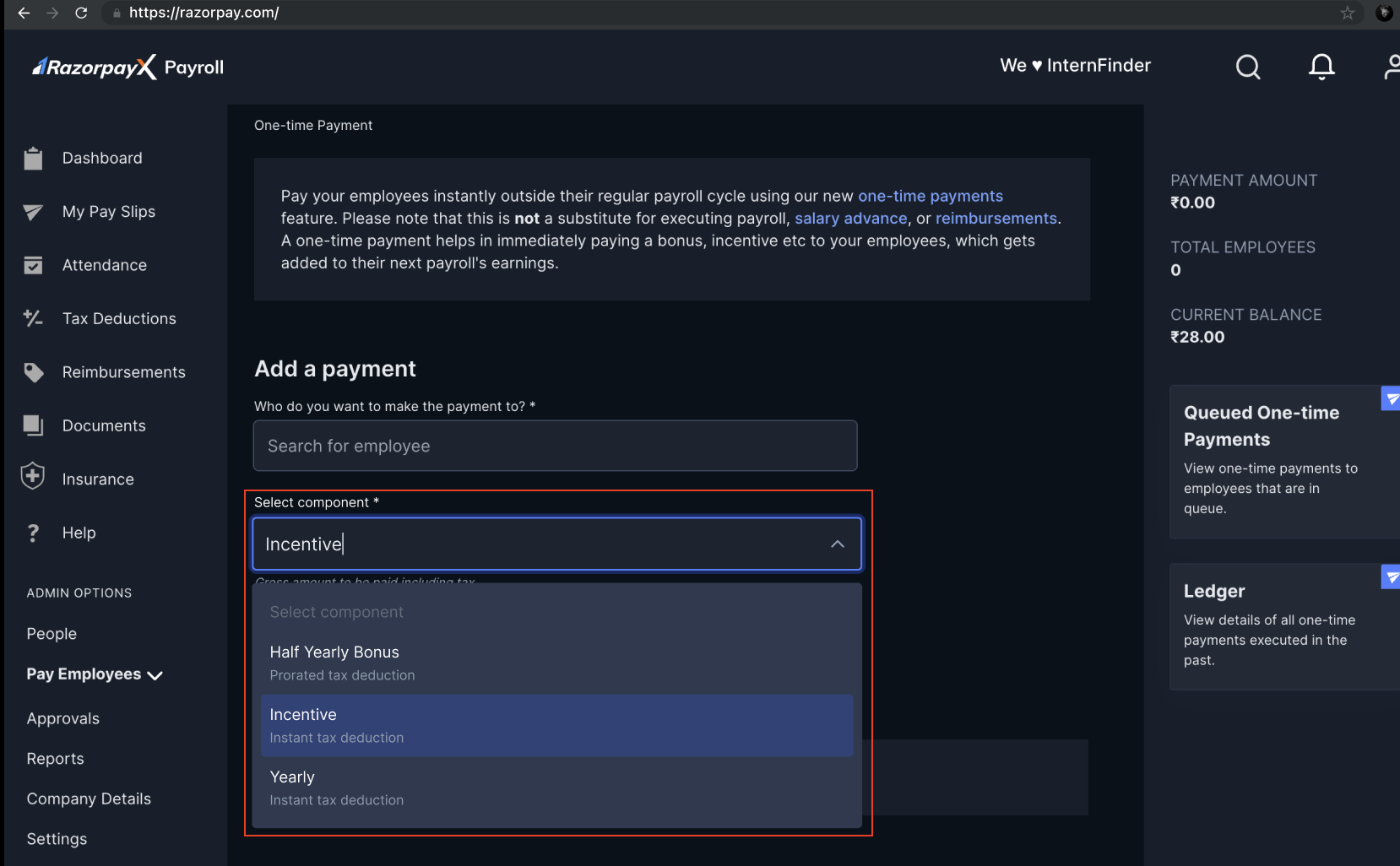
2. Select the employee from the drop-down menu under **Who do you want to make the payment to?**
3. Select Component:
* **Half Yearly Bonus:** Prorated Tax deduction
* **Incentive:** Instant tax deduction
* **Yearly:** Instant tax deduction
 **Watch Out!**
* **Prorated Tax Deduction**: Tax is spread across remaining months of the financial year, reducing immediate tax impact on employees.
* **Instant Tax Deduction**: Full applicable tax is deducted immediately in the same payment cycle.
4. Add the amount payable in the **Total Amount** field.
* You can view the status of the one-time payment on the queue bar displayed on the screen or in the bottom right under the **Queued One-time payments** section.
* To check the history of all one-time payments, click on the **Ledger** section on the page.
* The one-time payment will reflect in the upcoming month's payslip for the employee. Tax is deducted as applicable if you have selected to deduct tax in the future payroll.
### Related Information
* [Salary](/docs/payroll/salary)
* [Run Payroll](/docs/payroll/run-payroll)
* [Exceptional Pay Cases](/docs/payroll/exceptional-cases)
**Watch Out!**
* **Prorated Tax Deduction**: Tax is spread across remaining months of the financial year, reducing immediate tax impact on employees.
* **Instant Tax Deduction**: Full applicable tax is deducted immediately in the same payment cycle.
4. Add the amount payable in the **Total Amount** field.
* You can view the status of the one-time payment on the queue bar displayed on the screen or in the bottom right under the **Queued One-time payments** section.
* To check the history of all one-time payments, click on the **Ledger** section on the page.
* The one-time payment will reflect in the upcoming month's payslip for the employee. Tax is deducted as applicable if you have selected to deduct tax in the future payroll.
### Related Information
* [Salary](/docs/payroll/salary)
* [Run Payroll](/docs/payroll/run-payroll)
* [Exceptional Pay Cases](/docs/payroll/exceptional-cases)