> ## Documentation Index
> Fetch the complete documentation index at: https://razorpay-881012b3.mintlify.site/llms.txt
> Use this file to discover all available pages before exploring further.
# Salary Setup
> Explore all the salary features in RazorpayX Payroll. Optimise your salary structure and make changes as per your requirement.
Available in
🇮🇳 India
On Payroll, you can automate paying your employees accurately and effortlessly. All payments are made directly to the employees' bank accounts and are systematically recorded in the [Salary Register](/docs/payroll/account#confirm-salary-components).
## Payroll Salary Actions
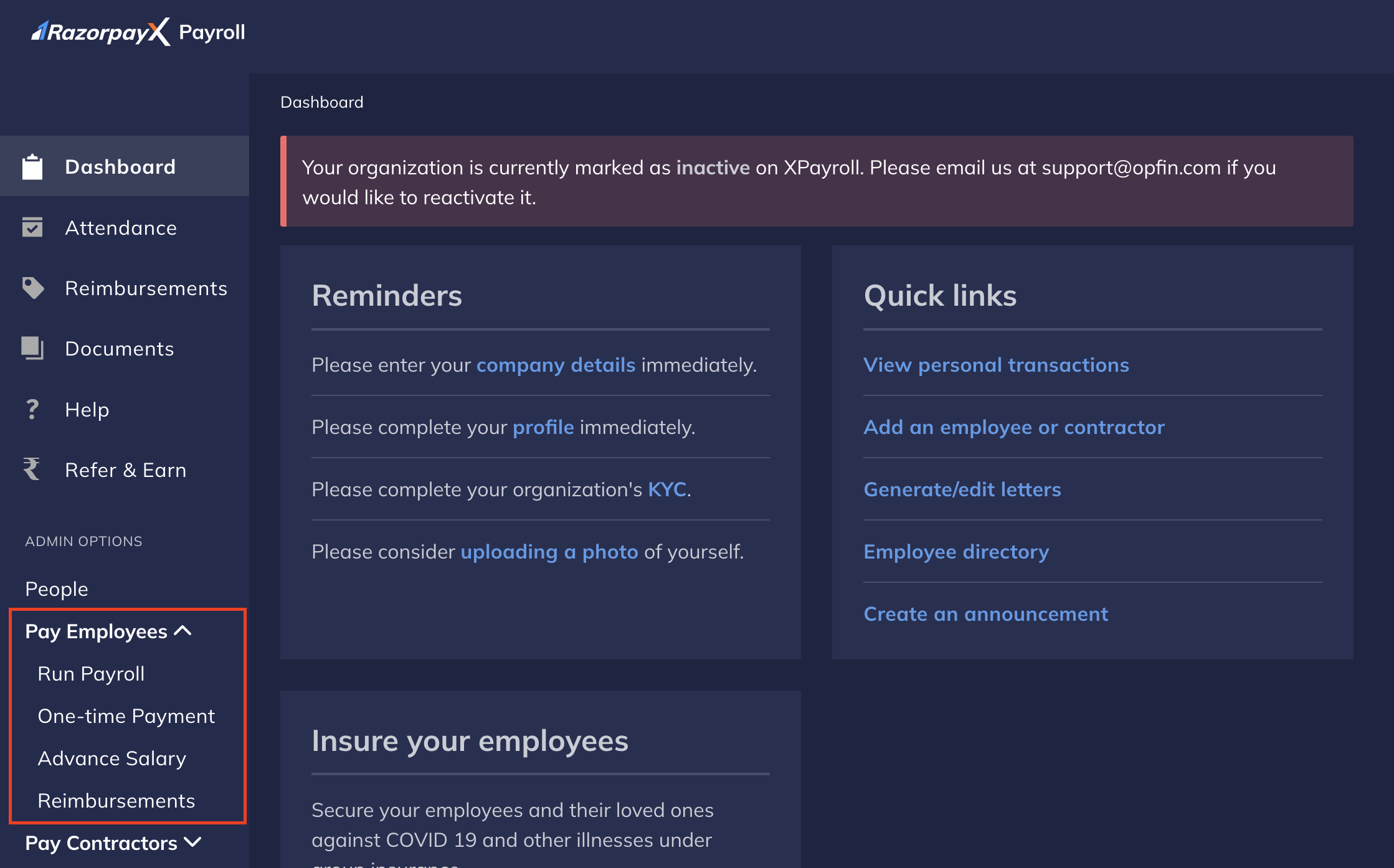
With Payroll, salary disbursals are timely, precise and efficient. It can pay your employees in the following ways:
* Execute monthly payroll using [Run Payroll](/docs/payroll/run-payroll).
* Make [one-time payments](/docs/payroll/one-time-payments), as necessary.
* Approve and pay [Reimbursements](/docs/payroll/reimbursements).
* Approve and pay Advance Salary.
* Create [bonuses](/docs/payroll/bonus) and add clawbacks.
* Grant [employee loans](/docs/payroll/loans) at the time of need.
* Provide [flexible benefits](/docs/payroll/component-library/flexible-benefits) to employees.
All of these options are available in the **Pay Employees** drop-down menu on your [Payroll Dashboard](https://payroll.razorpay.com/dashboard).
 ## Setup Salary Structure
To pay salaries to your employees, you must first set up your salary structure for your organisation and configure flexible benefits for your employees. Know more about setting up a [default salary structure](/docs/payroll/account#setup-default-salary-structure).
Learn how to set up the salary structure for your employees in Payroll.
Configure organisation-wide default salary structure templates for efficient employee onboarding.
Configure recurring deductions and understand how they affect take-home salary.
Process salary revisions with different effective dates and manage compensation changes.
A typical salary structure in Payroll consists of the following components:
* **Fixed Components**: These include basic salary, HRA and other fixed allowances that remain constant throughout the year.
* **Variable Components**: These are performance-linked components that may vary based on achievement of targets.
* **Perquisites**: These are benefits provided by the employer like car rental, accommodation and interest-free loans.
* **Deductions**: These include statutory deductions like PF, PT, ESI as well as voluntary deductions.
* **Flexible Benefits**: These allow employees to choose benefits according to their needs within a predefined limit.
Understanding these components is essential for creating effective compensation structures that balance employee satisfaction with compliance requirements.
Cost to Company (CTC) is the total amount the organisation spends on an employee, while take-home salary is what the employee actually receives after all deductions.
* **CTC includes**:
* Fixed components (Basic, HRA, Special Allowance and so on)
* Variable components
* Employer contributions to PF, ESI, gratuity and so on.
* Value of perquisites provided
* Flexible benefits allocated
* **Take-home salary is CTC minus**:
* Employee's PF contribution
* Professional Tax
* Income Tax deducted at source (TDS)
* Other recurring deductions
* ESI (if applicable)
Payroll automatically calculates both CTC and take-home salary based on the configuration you set up.
Salary revisions can be implemented for various reasons including promotions, annual increments or performance-based hikes. The process includes:
* Planning the revision structure (percentage increase, component-wise adjustment)
* Setting the effective date for the revision
* Updating the salary structure in the system
* Communicating the changes to the employee
Payroll maintains historical salary data, allowing you to track all revisions over time for audit and reference purposes.
## Setup Compensation
Setting up an employee's compensation requires configuring various components that make up the total CTC.
**Watch Out!**
* Ensure compliance with minimum wage regulations when setting up basic salary.
* Basic salary typically constitutes 40-50% of the total fixed CTC as per best practices.
* Review applicable tax implications before finalising the compensation structure.
To set up an employee's salary:
1. Log into the [Payroll Dashboard](https://payroll.razorpay.com/dashboard).
2. Navigate to **People** from the left menu.
3. Select the employee for whom you want to set up the salary.
4. Click on the **Compensation** tab.
5. Click **EDIT** to modify the compensation details.
6. In the **Annual CTC** field, enter the total cost to company.
7. Configure the breakdown of fixed components:
* Basic Salary
* House Rent Allowance (HRA)
* Special Allowance
* Other allowances as applicable
8. If there are variable components, specify the terms and conditions for variable pay.
9. Click **CONTINUE** to save the compensation structure.
The salary structure is now set up for the employee and reflects in their payslips.
## Salary Revision
Salary revisions allow you to update an employee's compensation with proper tracking and effective dates.
**Watch Out!**
* Carefully select the effective date for salary revisions to ensure correct payroll processing.
* Any salary revision reflects in payslips generated after the effective date.
* For revisions effective in the middle of a month, pro-rated calculations will be applied.
When you need to implement a salary revision immediately:
1. Log in to the [Payroll Dashboard](https://payroll.razorpay.com/dashboard).
2. Navigate to **People** from the left menu.
3. Open the employee's profile and navigate to their **Compensation** tab.
4. Click **Revise CTC** button to initiate the revision process.
5. In the revision form:
* Enter the new **Annual CTC** amount.
* Adjust the breakdown of components as required.
* Leave the effective date field empty for immediate implementation.
6. Click **CONTINUE** to proceed.
7. Review the changes and click **CONFIRM** to apply the revision.
The new salary structure is immediately effective and is used for the next payroll cycle.
For salary revisions effective from a specific date in the current month:
1. Log in to the [Payroll Dashboard](https://payroll.razorpay.com/dashboard).
2. Navigate to **People** from the left menu.
3. Open the employee's profile and navigate to their **Compensation** tab.
4. Click **Revise CTC** button.
5. In the revision form:
* Enter the new **Annual CTC** amount.
* Adjust the breakdown of components as required.
* Set the **Effective From** date to the specific date in the current month.
6. Click **CONTINUE** to proceed.
7. Review the changes and click **CONFIRM** to apply the revision.
The system automatically calculates pro-rated salary based on the old structure up to the effective date and the new structure from the effective date onwards.
To schedule a salary revision effective from a future date:
1. Log in to the [Payroll Dashboard](https://payroll.razorpay.com/dashboard).
2. Navigate to **People** from the left menu.
3. Open the employee's profile and navigate to their **Compensation** tab.
4. Click **Revise CTC** button.
5. In the revision form:
* Enter the new **Annual CTC** amount.
* Adjust the breakdown of components as required.
* Set the **Effective From** date to a future date.
6. Click **CONTINUE** to proceed.
7. Review the changes and click **CONFIRM** to schedule the revision.
The system maintains the current salary structure until the effective date, after which the new structure automatically comes into effect.
If you need to cancel a scheduled salary revision or revert a recent revision:
1. Log in to the [Payroll Dashboard](https://payroll.razorpay.com/dashboard).
2. Navigate to **People** from the left menu.
3. Open the employee's profile and navigate to their **Compensation** tab.
4. Locate the salary revision entry and click the delete icon.
5. In the confirmation dialog:
* Review the information about what will happen after removal.
* Click **CONFIRM** to remove the revision or **CANCEL** to go back.
**Watch Out!**
* Removing a salary revision reverts the compensation to the previous structure.
* If payroll has already been processed using the revised salary, removing the revision may require additional adjustments.
After removal, the system uses the previous salary structure for future payroll calculations.
### Related Information
* [Default Salary Structure](/docs/payroll/account#setup-default-salary-structure)
* [Salary Component Library](/docs/payroll/component-library)
* [Flexi Components](/docs/payroll/component-library/flexible-benefits)
* [Salary Structures](/docs/payroll/multiple-salary-structure)
* [Reimbursements](/docs/payroll/reimbursements)
* [Attendance](/docs/payroll/attendance)
* [Conveyance Allowance](https://razorpay.com/payroll/learn/conveyance-allowance/)
## Setup Salary Structure
To pay salaries to your employees, you must first set up your salary structure for your organisation and configure flexible benefits for your employees. Know more about setting up a [default salary structure](/docs/payroll/account#setup-default-salary-structure).
Learn how to set up the salary structure for your employees in Payroll.
Configure organisation-wide default salary structure templates for efficient employee onboarding.
Configure recurring deductions and understand how they affect take-home salary.
Process salary revisions with different effective dates and manage compensation changes.
A typical salary structure in Payroll consists of the following components:
* **Fixed Components**: These include basic salary, HRA and other fixed allowances that remain constant throughout the year.
* **Variable Components**: These are performance-linked components that may vary based on achievement of targets.
* **Perquisites**: These are benefits provided by the employer like car rental, accommodation and interest-free loans.
* **Deductions**: These include statutory deductions like PF, PT, ESI as well as voluntary deductions.
* **Flexible Benefits**: These allow employees to choose benefits according to their needs within a predefined limit.
Understanding these components is essential for creating effective compensation structures that balance employee satisfaction with compliance requirements.
Cost to Company (CTC) is the total amount the organisation spends on an employee, while take-home salary is what the employee actually receives after all deductions.
* **CTC includes**:
* Fixed components (Basic, HRA, Special Allowance and so on)
* Variable components
* Employer contributions to PF, ESI, gratuity and so on.
* Value of perquisites provided
* Flexible benefits allocated
* **Take-home salary is CTC minus**:
* Employee's PF contribution
* Professional Tax
* Income Tax deducted at source (TDS)
* Other recurring deductions
* ESI (if applicable)
Payroll automatically calculates both CTC and take-home salary based on the configuration you set up.
Salary revisions can be implemented for various reasons including promotions, annual increments or performance-based hikes. The process includes:
* Planning the revision structure (percentage increase, component-wise adjustment)
* Setting the effective date for the revision
* Updating the salary structure in the system
* Communicating the changes to the employee
Payroll maintains historical salary data, allowing you to track all revisions over time for audit and reference purposes.
## Setup Compensation
Setting up an employee's compensation requires configuring various components that make up the total CTC.
**Watch Out!**
* Ensure compliance with minimum wage regulations when setting up basic salary.
* Basic salary typically constitutes 40-50% of the total fixed CTC as per best practices.
* Review applicable tax implications before finalising the compensation structure.
To set up an employee's salary:
1. Log into the [Payroll Dashboard](https://payroll.razorpay.com/dashboard).
2. Navigate to **People** from the left menu.
3. Select the employee for whom you want to set up the salary.
4. Click on the **Compensation** tab.
5. Click **EDIT** to modify the compensation details.
6. In the **Annual CTC** field, enter the total cost to company.
7. Configure the breakdown of fixed components:
* Basic Salary
* House Rent Allowance (HRA)
* Special Allowance
* Other allowances as applicable
8. If there are variable components, specify the terms and conditions for variable pay.
9. Click **CONTINUE** to save the compensation structure.
The salary structure is now set up for the employee and reflects in their payslips.
## Salary Revision
Salary revisions allow you to update an employee's compensation with proper tracking and effective dates.
**Watch Out!**
* Carefully select the effective date for salary revisions to ensure correct payroll processing.
* Any salary revision reflects in payslips generated after the effective date.
* For revisions effective in the middle of a month, pro-rated calculations will be applied.
When you need to implement a salary revision immediately:
1. Log in to the [Payroll Dashboard](https://payroll.razorpay.com/dashboard).
2. Navigate to **People** from the left menu.
3. Open the employee's profile and navigate to their **Compensation** tab.
4. Click **Revise CTC** button to initiate the revision process.
5. In the revision form:
* Enter the new **Annual CTC** amount.
* Adjust the breakdown of components as required.
* Leave the effective date field empty for immediate implementation.
6. Click **CONTINUE** to proceed.
7. Review the changes and click **CONFIRM** to apply the revision.
The new salary structure is immediately effective and is used for the next payroll cycle.
For salary revisions effective from a specific date in the current month:
1. Log in to the [Payroll Dashboard](https://payroll.razorpay.com/dashboard).
2. Navigate to **People** from the left menu.
3. Open the employee's profile and navigate to their **Compensation** tab.
4. Click **Revise CTC** button.
5. In the revision form:
* Enter the new **Annual CTC** amount.
* Adjust the breakdown of components as required.
* Set the **Effective From** date to the specific date in the current month.
6. Click **CONTINUE** to proceed.
7. Review the changes and click **CONFIRM** to apply the revision.
The system automatically calculates pro-rated salary based on the old structure up to the effective date and the new structure from the effective date onwards.
To schedule a salary revision effective from a future date:
1. Log in to the [Payroll Dashboard](https://payroll.razorpay.com/dashboard).
2. Navigate to **People** from the left menu.
3. Open the employee's profile and navigate to their **Compensation** tab.
4. Click **Revise CTC** button.
5. In the revision form:
* Enter the new **Annual CTC** amount.
* Adjust the breakdown of components as required.
* Set the **Effective From** date to a future date.
6. Click **CONTINUE** to proceed.
7. Review the changes and click **CONFIRM** to schedule the revision.
The system maintains the current salary structure until the effective date, after which the new structure automatically comes into effect.
If you need to cancel a scheduled salary revision or revert a recent revision:
1. Log in to the [Payroll Dashboard](https://payroll.razorpay.com/dashboard).
2. Navigate to **People** from the left menu.
3. Open the employee's profile and navigate to their **Compensation** tab.
4. Locate the salary revision entry and click the delete icon.
5. In the confirmation dialog:
* Review the information about what will happen after removal.
* Click **CONFIRM** to remove the revision or **CANCEL** to go back.
**Watch Out!**
* Removing a salary revision reverts the compensation to the previous structure.
* If payroll has already been processed using the revised salary, removing the revision may require additional adjustments.
After removal, the system uses the previous salary structure for future payroll calculations.
### Related Information
* [Default Salary Structure](/docs/payroll/account#setup-default-salary-structure)
* [Salary Component Library](/docs/payroll/component-library)
* [Flexi Components](/docs/payroll/component-library/flexible-benefits)
* [Salary Structures](/docs/payroll/multiple-salary-structure)
* [Reimbursements](/docs/payroll/reimbursements)
* [Attendance](/docs/payroll/attendance)
* [Conveyance Allowance](https://razorpay.com/payroll/learn/conveyance-allowance/)