> ## Documentation Index
> Fetch the complete documentation index at: https://razorpay-881012b3.mintlify.site/llms.txt
> Use this file to discover all available pages before exploring further.
# Verify Tax Proofs
> Check how to manually verify investment proofs in RazorpayX Payroll.
Available in
🇮🇳 India
Tax proofs verification begins after the proof upload window closes. Ensure that your employees have submitted their proofs on time.
**Watch Out!**
Tax verification depends on your verification settings.
* If you chose **Let XPayroll Verify**, Payroll verifies the proofs for your employees. We update you once the activity is complete.
* **Let Organisation Verify**: You must carry out the verification by yourself.
## Accept Proofs
To accept proof of investments for the investments declared by your employees, the proof upload window must be open. However, the duration of the proof upload window depends on your **Verification Settings**.
You can verify employee's tax proofs only if you have selected **Let Organisation Verify** in **General Settings** → **Verification Settings**. You can also check the verification status.
To check the verification status:
1. Log in to the [Payroll Dashboard](https://payroll.razorpay.com/dashboard).
2. Navigate to **ADMIN OPTIONS** → **Reports** → **Tax Deductions**.
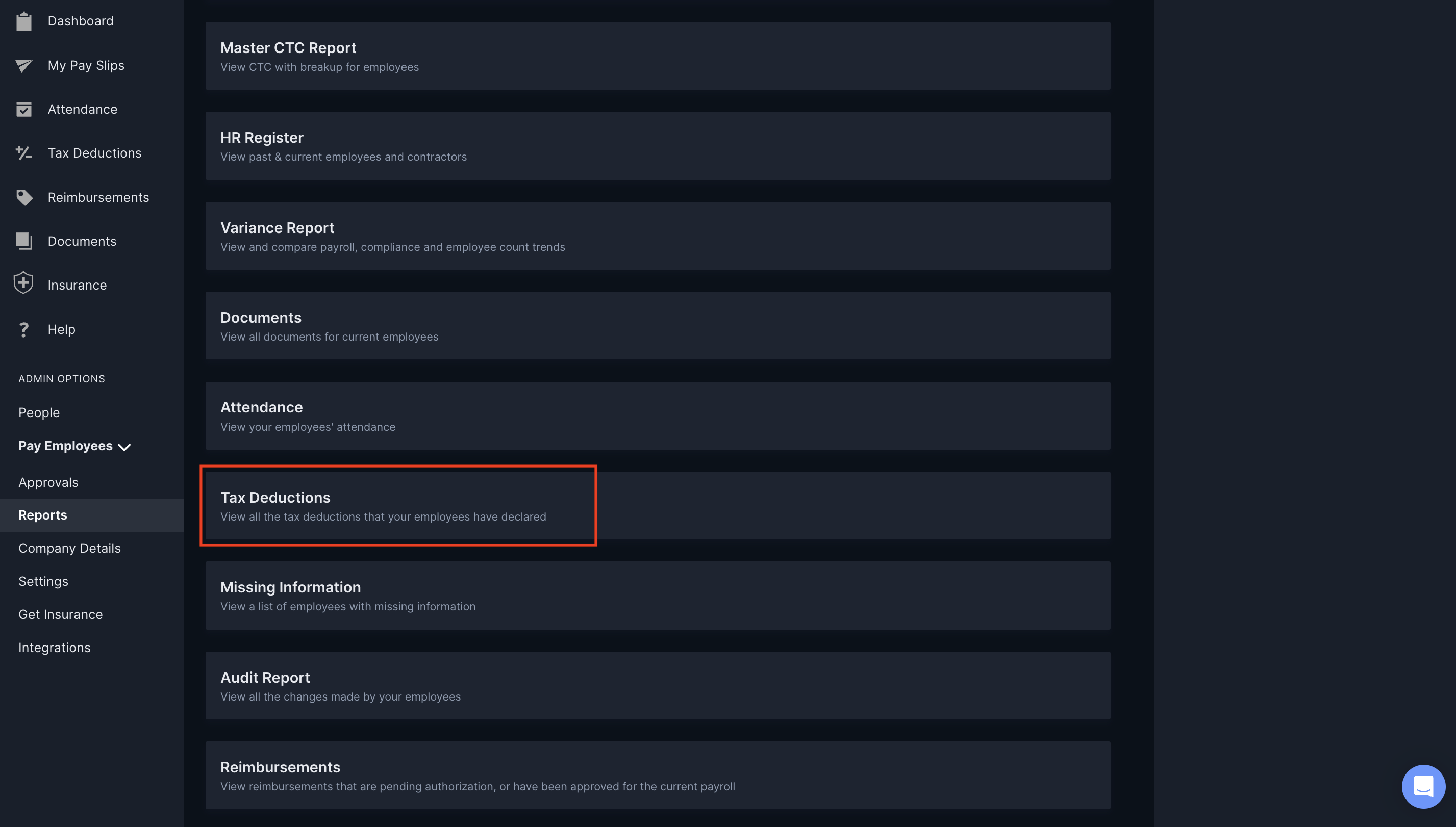 3. In the **Proof Verification Status** column, you can check if the employees' proofs are verified.
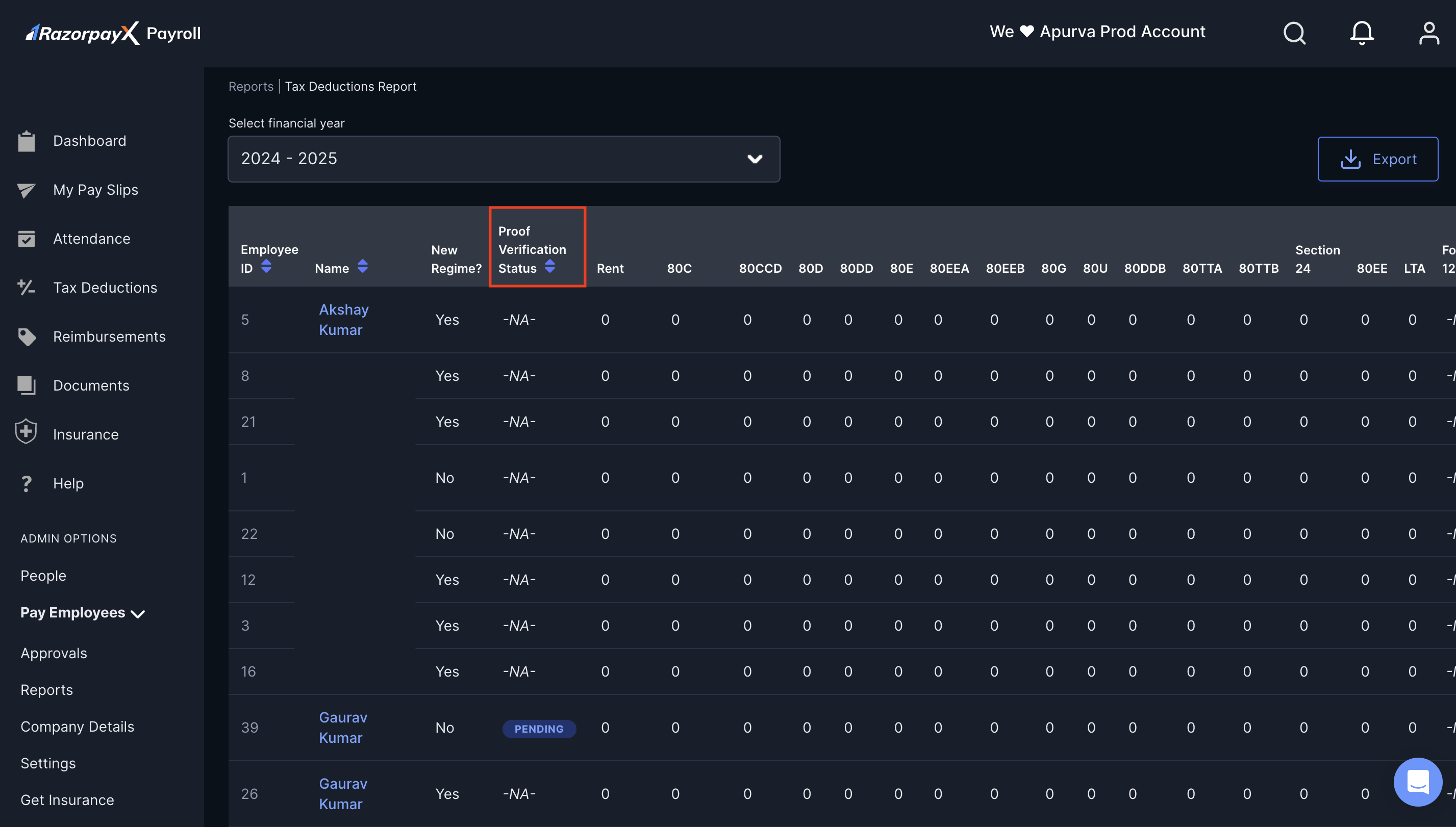 To verify the investment proofs manually:
1. Log in to the [Payroll Dashboard](https://payroll.razorpay.com/dashboard).
2. Navigate to **ADMIN OPTIONS** → **Reports** → **Tax Deductions**.
3. In the **Proof Verification Status** column, you can check if the employees' proofs are verified.
4. To verify the employee's pending proofs, click on **PENDING**.
This opens the investment pages where the proofs are yet to be verified. To verify the proofs:
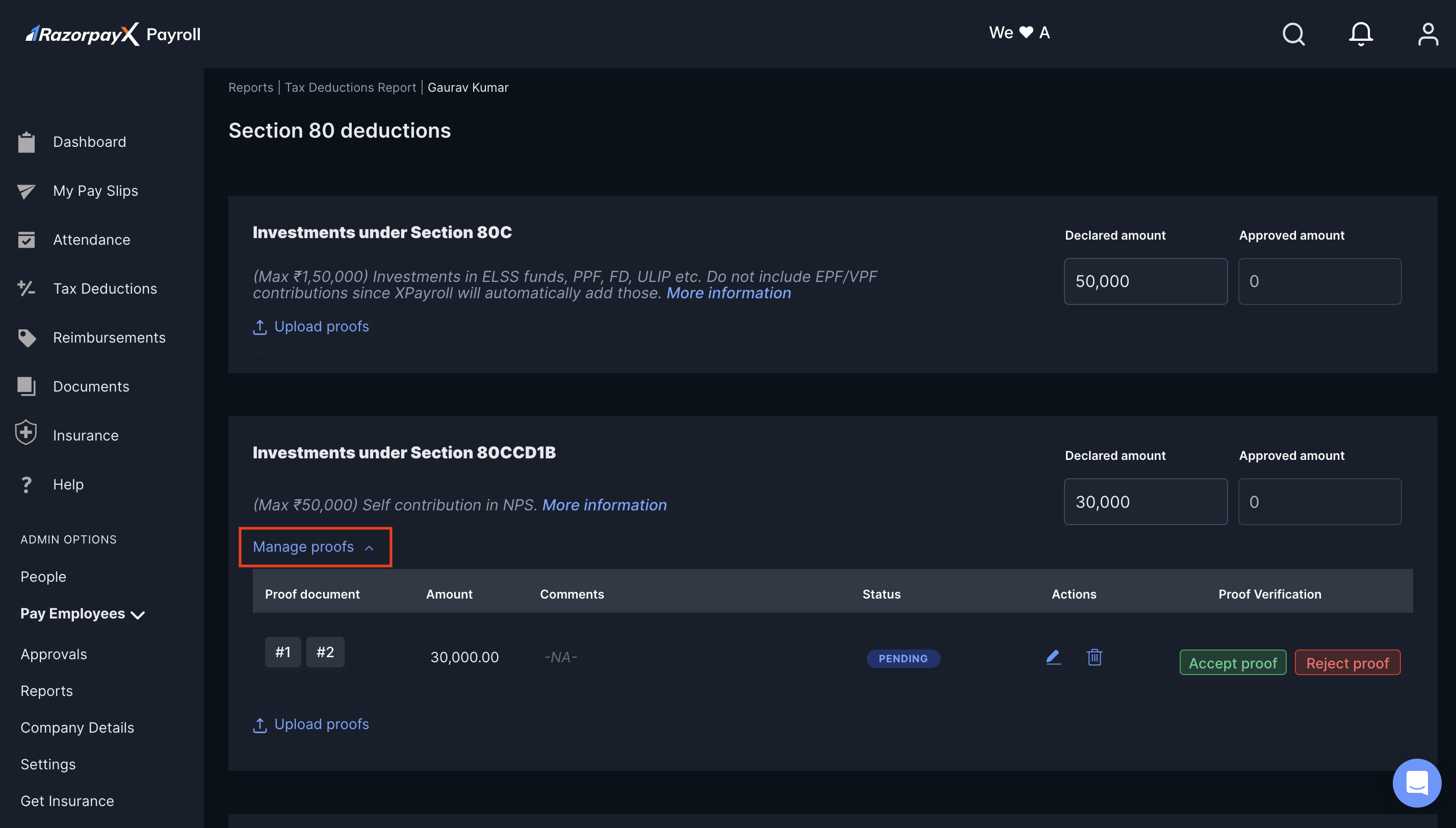
1. Click **Manage proofs**.
2. Check the attachments in the **Proof Document** column. Click to view them in a new tab.
3. Review the amount and comments. Click **Accept proof** or **Reject proof**.
To verify the investment proofs manually:
1. Log in to the [Payroll Dashboard](https://payroll.razorpay.com/dashboard).
2. Navigate to **ADMIN OPTIONS** → **Reports** → **Tax Deductions**.
3. In the **Proof Verification Status** column, you can check if the employees' proofs are verified.
4. To verify the employee's pending proofs, click on **PENDING**.
This opens the investment pages where the proofs are yet to be verified. To verify the proofs:
1. Click **Manage proofs**.
2. Check the attachments in the **Proof Document** column. Click to view them in a new tab.
3. Review the amount and comments. Click **Accept proof** or **Reject proof**.
 4. In the pop-up modal, modify the amount as approved according to the proof submitted. Provide comments, if any.
**Handy Tips**
Click **Undo verification** to undo proof verification.
1. Click **Continue**.
This successfully approves the proofs for one investment. Repeat the process across all the investments.
* After you verify the HRA proofs and click **Continue**, Payroll automatically moves to the next pending proof. For example, after HRA, you verify the Section 80 deductions.
* As there are many Section 80 deductions, clicking **Continue** moves you to the next pending proof within Section 80 deductions until the last proof is verified.
* You can also click **Next Deduction** to skip verifying the current proof.
4. In the pop-up modal, modify the amount as approved according to the proof submitted. Provide comments, if any.
**Handy Tips**
Click **Undo verification** to undo proof verification.
1. Click **Continue**.
This successfully approves the proofs for one investment. Repeat the process across all the investments.
* After you verify the HRA proofs and click **Continue**, Payroll automatically moves to the next pending proof. For example, after HRA, you verify the Section 80 deductions.
* As there are many Section 80 deductions, clicking **Continue** moves you to the next pending proof within Section 80 deductions until the last proof is verified.
* You can also click **Next Deduction** to skip verifying the current proof.
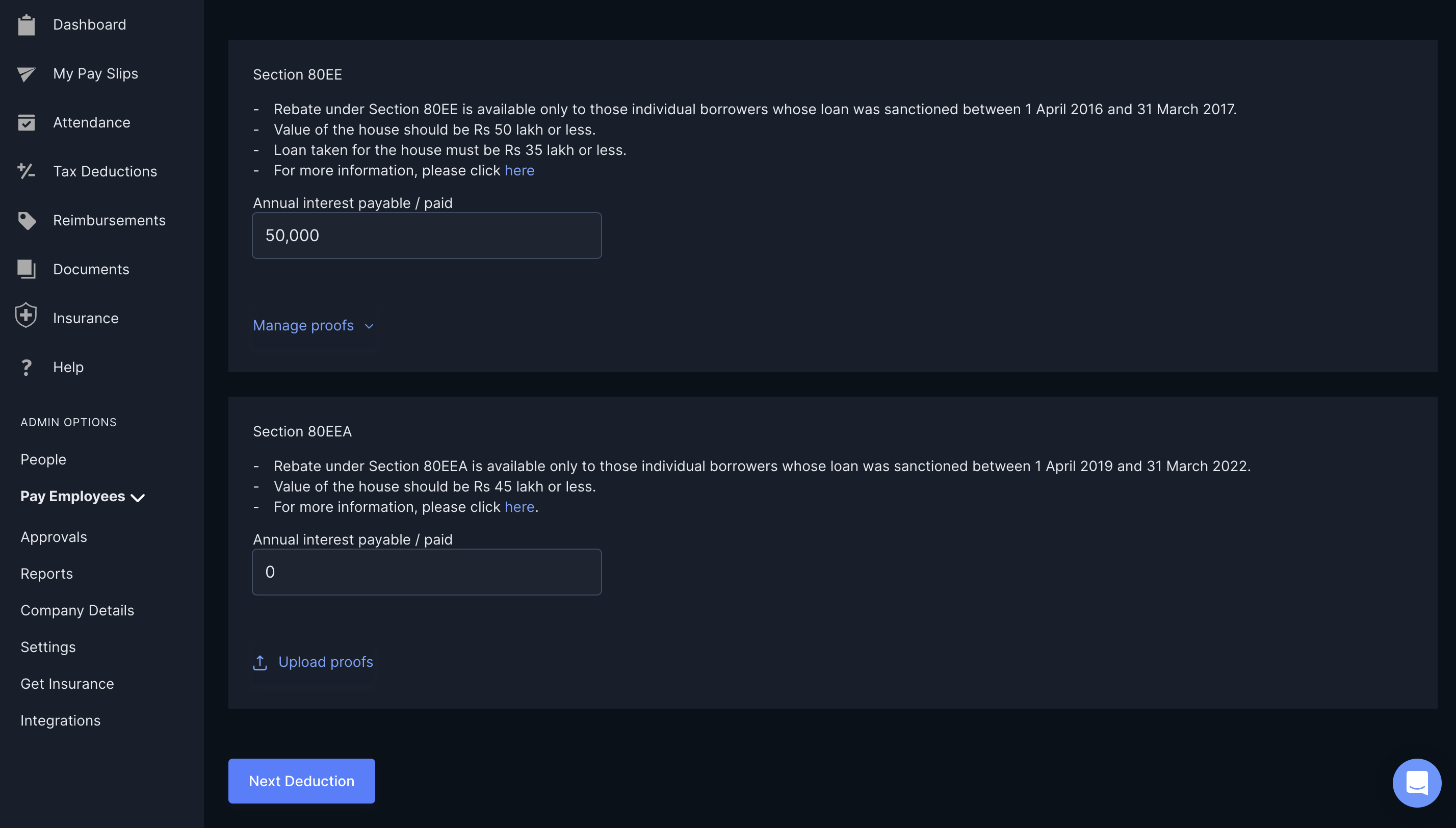 * The **Proof Verification Status** remains in the `PENDING` status until you verify all the proofs the employee has uploaded. The status moves to **COMPLETED** when you verfiy all the proofs.
If you select **Let Payroll Verify**, Payroll will verify the investment proofs uploaded by your employees. You can check the verification status on the Dashboard.
To check the verification status:
1. Log in to the [Payroll Dashboard](https://payroll.razorpay.com/dashboard).
2. Navigate to **ADMIN OPTIONS** → **Reports** → **Tax Deductions**.
3. In the **Proof Verification Status** column, you can check if the employees' proofs are verified.
After we verify the proofs, we update the [Calculate Tax on Basis Of](/docs/payroll/tax-deductions-setup#calculate-tax-on-basis-of) to **Declaration with verified proofs** to complete the proof verification activity.
**Handy Tips**
Form 12BB is available for your employees on their dashboard under Tax Deductions. However, filling this form is non-mandatory.
## Request Verification Delay
Payroll verifies all the tax proofs submitted in January. However, some organisations that chose **Let Payroll Verify** might prefer to verify the tax proofs much later. To request a delay:
1. Log in to the [Payroll Dashboard](https://payroll.razorpay.com/dashboard).
2. Go to **Settings** → **Tax Deductions Setup**.
3. Select **Let Organisation Verify**.
This ensures that we exclude you from the regular cycle of verifications.
**Watch Out!**
We do not recommend requesting delay as a change (usually a reduction) in an employee's declaration increases their TDS.
As a best practice, we optimise TDS deductions by deducting the tax over multiple months than in a single month. This ensures your employees receive a steady net take-home pay.
To re-start verifying investment proofs:
1. Log in to the [Payroll Dashboard](https://payroll.razorpay.com/dashboard).
2. Navigate to **Settings** → **Tax Deductions Setup**.
3. Select **Let Payroll Verify** in **Opt for Verification**.
4. [Contact Support](/docs/payroll/plans#contact-support) and request to start verification.
Note that we do this on a best efforts basis, and we do not guarantee it.
### Post-Verification
After verifying the investment proofs, you can disable the **Allow employees to update their tax deductions** to disallow any investments and proof-related changes.
If you chose **Let Payroll Verify**, we update the [Calculate Tax on Basis Of](/docs/payroll/tax-deductions-setup#calculate-tax-on-basis-of) to **Declaration with verified proofs** to complete the proof verification activity.
### Related Information
* [Statutory Compliance](/docs/payroll/statutory-compliance)
* [Enable Compliance in Account Setup](/docs/payroll/administrator#welcome-mail-from-xpayroll)
* The **Proof Verification Status** remains in the `PENDING` status until you verify all the proofs the employee has uploaded. The status moves to **COMPLETED** when you verfiy all the proofs.
If you select **Let Payroll Verify**, Payroll will verify the investment proofs uploaded by your employees. You can check the verification status on the Dashboard.
To check the verification status:
1. Log in to the [Payroll Dashboard](https://payroll.razorpay.com/dashboard).
2. Navigate to **ADMIN OPTIONS** → **Reports** → **Tax Deductions**.
3. In the **Proof Verification Status** column, you can check if the employees' proofs are verified.
After we verify the proofs, we update the [Calculate Tax on Basis Of](/docs/payroll/tax-deductions-setup#calculate-tax-on-basis-of) to **Declaration with verified proofs** to complete the proof verification activity.
**Handy Tips**
Form 12BB is available for your employees on their dashboard under Tax Deductions. However, filling this form is non-mandatory.
## Request Verification Delay
Payroll verifies all the tax proofs submitted in January. However, some organisations that chose **Let Payroll Verify** might prefer to verify the tax proofs much later. To request a delay:
1. Log in to the [Payroll Dashboard](https://payroll.razorpay.com/dashboard).
2. Go to **Settings** → **Tax Deductions Setup**.
3. Select **Let Organisation Verify**.
This ensures that we exclude you from the regular cycle of verifications.
**Watch Out!**
We do not recommend requesting delay as a change (usually a reduction) in an employee's declaration increases their TDS.
As a best practice, we optimise TDS deductions by deducting the tax over multiple months than in a single month. This ensures your employees receive a steady net take-home pay.
To re-start verifying investment proofs:
1. Log in to the [Payroll Dashboard](https://payroll.razorpay.com/dashboard).
2. Navigate to **Settings** → **Tax Deductions Setup**.
3. Select **Let Payroll Verify** in **Opt for Verification**.
4. [Contact Support](/docs/payroll/plans#contact-support) and request to start verification.
Note that we do this on a best efforts basis, and we do not guarantee it.
### Post-Verification
After verifying the investment proofs, you can disable the **Allow employees to update their tax deductions** to disallow any investments and proof-related changes.
If you chose **Let Payroll Verify**, we update the [Calculate Tax on Basis Of](/docs/payroll/tax-deductions-setup#calculate-tax-on-basis-of) to **Declaration with verified proofs** to complete the proof verification activity.
### Related Information
* [Statutory Compliance](/docs/payroll/statutory-compliance)
* [Enable Compliance in Account Setup](/docs/payroll/administrator#welcome-mail-from-xpayroll)