> ## Documentation Index
> Fetch the complete documentation index at: https://razorpay-881012b3.mintlify.site/llms.txt
> Use this file to discover all available pages before exploring further.
# About Tax Deducted at Source (TDS)
> Explore TDS charges and processes in RazorpayX Payroll.
Available in
🇮🇳 India
Tax Deducted at Source (TDS) is an indirect tax that salaried employees and other eligible entities pay to the Income Tax department of India, as per the Section 192 of the Income Tax Act, 1961.
Explore the following tax related settings availble on the Payroll Dashboard.
View the TDS filing information on the Payroll Dashboard.
View the TDS deductions applicable on Razorpay charges.
Know how to access employees' and contractors' Form 16 and 16A respectively.
Check how the TDS deductions affect an employee's bonus payout.
## Prerequisites
Before you set up TDS automation on Payroll, verify the following:
[TRACES](https://www.tdscpc.gov.in/app/login.xhtml) registration is required by Payroll to download your employees' and contractors' Form 16/16A data.
If your organisation is currently not registered on TRACES, [contact support](/docs/x/support#razorpayx-payroll) after Payroll has completed filing TDS returns for any quarter.
The TDS Deductor is responsible for paying TDS on behalf of your organisation and employees. As such, the Income Tax department requires some information about the TDS Deductor.
To update your TDS Deductor details:
1. Log in to the [Payroll Dashboard](https://payroll.razorpay.com/dashboard) → **Settings** in the left menu.
2. Go to **TDS Filing Setup**.
3. Navigate to the **TDS Deductor Details** and enter the details.
If you do not have an existing TDS Deductor account, follow [these steps](https://www.incometax.gov.in/iec/foportal/help/taxdeductor/registration) to register.
## Tax Regimes
In a company, TDS is deducted from the employee's salary income as per their annual earnings in lakhs. It depends on factors like:
* Income/TDS from previous employer(s), if any.
* Each month's earnings in the current financial year.
* Perquisites (if any).
* Exemptions like professional tax, HRA, flexible benefits and so on.
* Income tax deductions under different sections like Section 80C, Section 24 and more.
* Income tax regime.
* This deduction is based on the tax regime that the employee has chosen.
* The employer is responsible for filing TDS, while the employee manages the tax returns.
The TDS deduction happens according to the employees' chosen tax regime. The employer files the TDS deductions and the employee manages the tax returns.
In some cases, you can allow employees to change their tax regime after the initial selection.
To change employee's regime:
1. Log in to the [Payroll Dashboard](https://payroll.razorpay.com/dashboard).
2. Navigate to **People** and open the particular employee's profile.
3. Click **View Tax Deductions** from the right pane → **Reverse Regime Selection**.
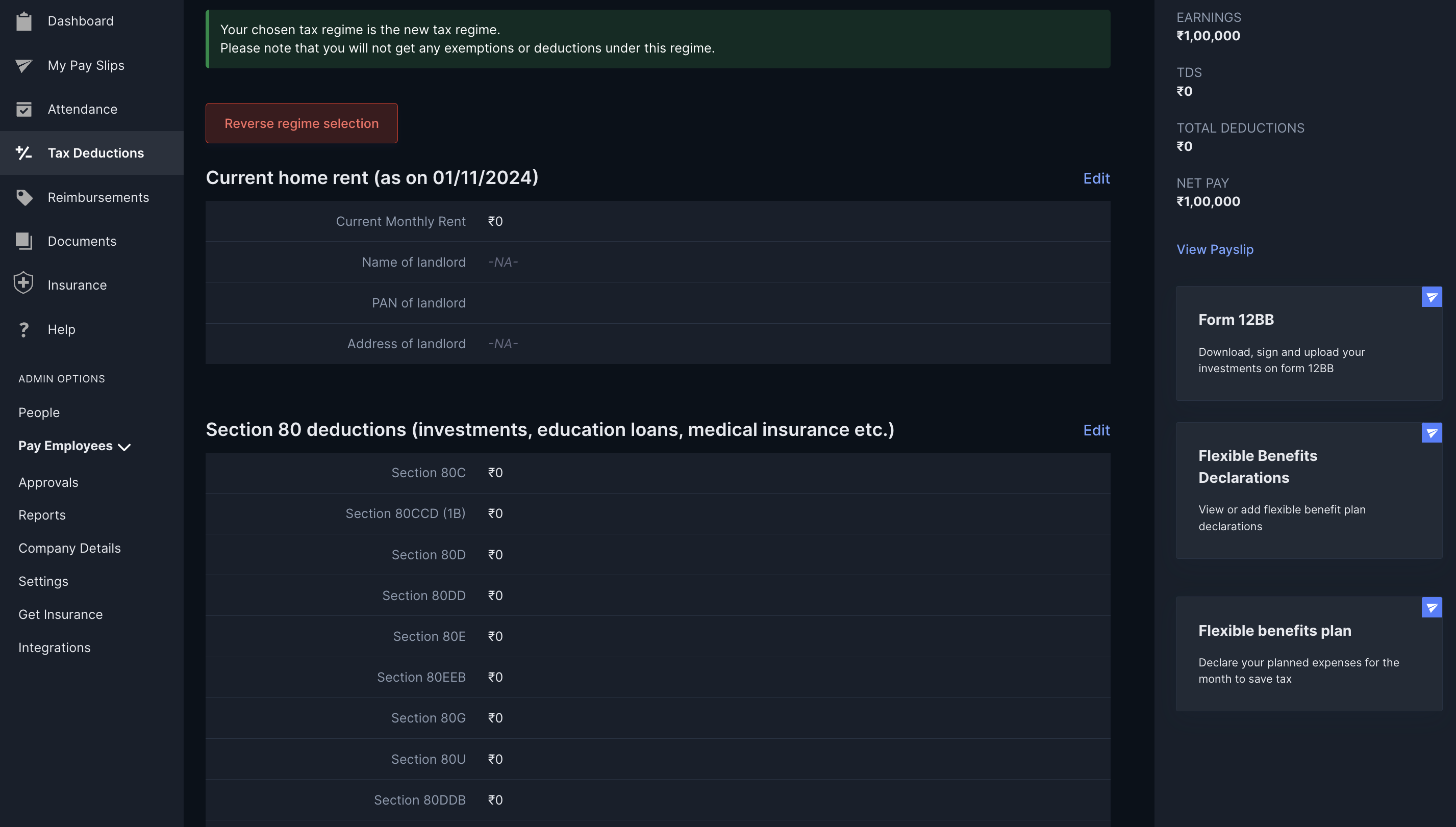 4. In the **Reverse tax regime selection** pop-up modal, click **Reverse selection**.
This successfully reverses the tax regime for the employee. You can select the regime or allow the employee select the regime from [Tax Deductions](/docs/payroll/employees/declarations) on their dashboard.
Individuals are required to pay income tax on their total annual earnings to the government. The tax payable is categorised into slabs according to the individuals incomes
There are two available regimes that employees can choose to pay tax.
| Income Tax Slabs (FY 24-25) | Income Tax Rate |
| --------------------------- | --------------- |
| Upto 2,50,000 | Nil |
| 2,51,001 - 5,00,000 | 5% |
| 5,00,001 - 10,00,000 | 20% |
| Above 10,00,001 | 30% |
| Income Tax Slabs (FY 24-25) | Income Tax Rate | Comments |
| --------------------------- | --------------- | ------------------------------------------------- |
| Upto 3,00,000 | Nil | NA |
| 3,00,001 - 7,00,000 | 5% | Tax rebate under section (u/s) 87A upto ₹7 lakhs. |
| 7,00,001 - 10,00,000 | 10% | NA |
| 10,00,001 - 12,00,000 | 15% | NA |
| 12,00,001 - 15,00,000 | 20% | NA |
| Above 15,00,000 | 30% | NA |
Know more about [Income Tax Regimes and Budget Changes](https://razorpay.com/learn/budget-2024-tax-highlights/).
## Form 16 & 16A
Know how Payroll handles Form 16 and 16A on the Dashboard.
Employee's Form 16 is available after the financial year ends and the TDS Q4 filing is completed, that is, starting June of any year.
For Payroll to generate Form 16 for your employees, ensure that we are handling your 24Q filing.
1. Log in to the [Payroll Dashboard](https://payroll.razorpay.com/dashboard).
2. Go to **Settings** in the left menu → **TDS Filing Setup**.
3. Select the **Automatically File 24Q** check box. We usually enable this setting by default.
Once the Form 16s are available to us, we upload all employees' **unsigned Form 16s** on the Payroll Dashboard in **My Pay Slips**. Know more about [Payslips and Form 16](/docs/payroll/employees/payslips-form16).
By default, we upload Form 16s without any digital signature as we do not have access to the employees' digital signatures.
* We email the unsigned Form 16s at your registered email address.
* Sign the forms with a tool like [emSigner](https://www.emsigner.com/Areas/Home/form16) and email them back to us.
* [Contact support](/docs/payroll/plans#contact-support) to upload the signed Form 16s on the Payroll Dashboard for your employees to access them.
Like the employee's Form 16, Contractor's TDS certificate is called Form 16A and is provided with the Form 26AS.
Payroll does not provide Form 16A by default. If the contractor requests their Form 16A from your organisation, [contact support](mailto:xpayroll@razorpay.com) and provide the following details:
* The contractor's name/PAN.
* Quarter for which the form is required (Form 16A are generated for each quarter).
You can avail Form 16A from Payroll's support team only when:
* You have used Payroll when making payments to your contractor.
* You have filed the 26Q TDS returns for that quarter using Payroll.
As per your request, we send the Form 16A at your registered email address. Post that, you can forward the form to your contractor.
**Watch Out!**
Changing an employee's TDS prevents Payroll from filing Q4 returns and generating Form 16s for all employees. We recommend you do not change TDS unless absolutely necessary.
We **do not** recommend changing an employee's TDS deductions. However, if it is absolutely necessary, follow the given steps.
1. Log in to the [Payroll Dashboard](https://payroll.razorpay.com/dashboard).
2. Finalise payroll for the specific month for which you want to make the modification.
3. Write to us at [xpayroll@razorpay.com](mailto:xpayroll@razorpay.com). Do mention:
* The Employee ID.
* The payroll month.
* The current and the revised TDS values.
## Miscellaneous TDS Charges
TDS can apply on One-time Payments, Razorpay charges, bonus provided, taxable column in Custom Salary Structure and more.
TDS applies to Razorpay charges only when the amount is greater than ₹30,000. However, TDS calculations depend on whether Payroll handles your 26Q filings.
To check this:
1. Log in to the [Payroll Dashboard](https://payroll.razorpay.com/dashboard).
2. Go to **Settings** → **TDS Filing Setup** → **Edit**.
View your current settings.
You must pay the TDS separately and share the TDS certificate (Form 16A) with the [support team](/docs/payroll/plans#contact-support). Payroll verifies this TDS amount and credits it to your Payroll account.
The only way to pay TDS in this case will be to switch to an annual plan. Here, you can make a contractor payment to Razorpay from within Payroll, and Payroll then deducts and pay the TDS automatically on your behalf.
On one-time payments, you can choose whether you want to pay TDS at the time of making the payment, or club it as a part of your monthly payroll activity.
Know more about [TDS on One-time payments](/docs/payroll/tds#tds-on-one-time-payments).
For Custom Salary Structure, you can set your organisation's salary structure components to be taxable or not, and allow employees to avail felxible benefits.
Know more about [Custom Salary Structure](/docs/payroll/run-payroll#setup-salary-structures).
When you pay a bonus (as a one-time payment or as a Payroll cycle [addition](/docs/payroll/run-payroll#additions-and-deductions)), specifically in the middle of the financial year, the employee's TDS liability increases.
**Example**:
Consider the example where an employee's earnings in a year are expected as ₹12,00,000.
* Total TDS for the entire year = ₹1,79,400.
* It gets distributed in equal amounts, leading to:
* An in-hand pay = ₹85,050
* TDS = ₹14,950.
Assume a bonus of ₹1,00,000 is given to the employee.
* Total earnings = ₹13,00,000.
* Total TDS on this = ₹2,10,600 (an increase of ₹31,200).
This additional liability of ₹31,200 is included in the same month as the bonus, and the employee's in-hand salary becomes:
* 2,00,000-(14,950 + 31,200) = ₹1,53,850.
This is done because if additional TDS liability is not deducted, the employee's in-hand salary for the remaining months of the year drops greatly. That happens since they are paying more TDS every following month even though the bonus was only given for one month.
## File TDS and Returns
Know how Payroll handles TDS filings and returns.
You can automate TDS filing (for employees and contractors) on the Payroll Dashboard. To enable the automation:
1. Log in to the [Payroll Dashboard](https://payroll.razorpay.com/dashboard).
2. Go to **Settings** → **TDS Filing Setup**.
3. Select the check box for the relevant returns:
* **Automatically file 24Q**
* **Automatically file 26Q**
You have successfully automated the TDS returns for employees (24Q) and contractors (26Q).
**Handy Tips**
If you want to take care of the current filing yourself, you can choose the FY quarter from when the filing should start.
TDS returns are filed by the following dates:
| Quarter | Due date for filing TDS return |
| ---------------------------- | ------------------------------ |
| Q1 (1 April - 30 June) | 31 July |
| Q2 (1 July - 30 September) | 31 October |
| Q3 (1 October - 31 December) | 31 January (of next year) |
| Q4 (1 January - 31 March) | 31 May |
Payroll starts the filing process a week before the due date. During this period, you can view the TDS filing data under **Reports** → **TDS** → **View TDS Filings**. You can also view the acknowledgment in the **View TDS Filings** tab.
After we receive the acknowledgment, you can view it on your [Payroll Dashboard](https://payroll.razorpay.com/dashboard). You also receive an email confirming that your filing is completed.
**Watch Out!**
Payroll does not file nil TDS returns. If there was no TDS deducted for your company for an entire quarter, it implies that the TDS filing is not done.
After we make your TDS payments, you can view your TDS challans on both the Income Tax portal as well as the Payroll Dashboard.
1. Log in to the [Payroll Dashboard](https://payroll.razorpay.com/dashboard).
2. Go to **ADMIN OPTIONS** → **Reports** → **TDS**.
CIN (Challan Identification Number) and Debit Advice (containing the bank transaction reference no.) are available here. Payroll uploads your challan by the 28th of the current month.
To view the challan information on the Income Tax portal:
1. Log in to [IT Portal](https://www.incometax.gov.in/iec/foportal/).
2. Go to **e-File** → **E-Pay Tax** → **Payment History**.
3. Under the **Actions** tab, click on the 3 dot menu against the required challan and click **Download**.
New TDS/TCS section codes are now in effect. Refer to the [new TDS/TCS section codes](/docs/payroll/tax-verifications/tax-codes) for the complete reference.
### Related Information
* [Statutory Compliance](/docs/payroll/statutory-compliance)
* [Provident Fund](/docs/payroll/provident-fund)
* [Salary](/docs/payroll/salary)
* [Salary Exceptional Cases](/docs/payroll/exceptional-cases)
4. In the **Reverse tax regime selection** pop-up modal, click **Reverse selection**.
This successfully reverses the tax regime for the employee. You can select the regime or allow the employee select the regime from [Tax Deductions](/docs/payroll/employees/declarations) on their dashboard.
Individuals are required to pay income tax on their total annual earnings to the government. The tax payable is categorised into slabs according to the individuals incomes
There are two available regimes that employees can choose to pay tax.
| Income Tax Slabs (FY 24-25) | Income Tax Rate |
| --------------------------- | --------------- |
| Upto 2,50,000 | Nil |
| 2,51,001 - 5,00,000 | 5% |
| 5,00,001 - 10,00,000 | 20% |
| Above 10,00,001 | 30% |
| Income Tax Slabs (FY 24-25) | Income Tax Rate | Comments |
| --------------------------- | --------------- | ------------------------------------------------- |
| Upto 3,00,000 | Nil | NA |
| 3,00,001 - 7,00,000 | 5% | Tax rebate under section (u/s) 87A upto ₹7 lakhs. |
| 7,00,001 - 10,00,000 | 10% | NA |
| 10,00,001 - 12,00,000 | 15% | NA |
| 12,00,001 - 15,00,000 | 20% | NA |
| Above 15,00,000 | 30% | NA |
Know more about [Income Tax Regimes and Budget Changes](https://razorpay.com/learn/budget-2024-tax-highlights/).
## Form 16 & 16A
Know how Payroll handles Form 16 and 16A on the Dashboard.
Employee's Form 16 is available after the financial year ends and the TDS Q4 filing is completed, that is, starting June of any year.
For Payroll to generate Form 16 for your employees, ensure that we are handling your 24Q filing.
1. Log in to the [Payroll Dashboard](https://payroll.razorpay.com/dashboard).
2. Go to **Settings** in the left menu → **TDS Filing Setup**.
3. Select the **Automatically File 24Q** check box. We usually enable this setting by default.
Once the Form 16s are available to us, we upload all employees' **unsigned Form 16s** on the Payroll Dashboard in **My Pay Slips**. Know more about [Payslips and Form 16](/docs/payroll/employees/payslips-form16).
By default, we upload Form 16s without any digital signature as we do not have access to the employees' digital signatures.
* We email the unsigned Form 16s at your registered email address.
* Sign the forms with a tool like [emSigner](https://www.emsigner.com/Areas/Home/form16) and email them back to us.
* [Contact support](/docs/payroll/plans#contact-support) to upload the signed Form 16s on the Payroll Dashboard for your employees to access them.
Like the employee's Form 16, Contractor's TDS certificate is called Form 16A and is provided with the Form 26AS.
Payroll does not provide Form 16A by default. If the contractor requests their Form 16A from your organisation, [contact support](mailto:xpayroll@razorpay.com) and provide the following details:
* The contractor's name/PAN.
* Quarter for which the form is required (Form 16A are generated for each quarter).
You can avail Form 16A from Payroll's support team only when:
* You have used Payroll when making payments to your contractor.
* You have filed the 26Q TDS returns for that quarter using Payroll.
As per your request, we send the Form 16A at your registered email address. Post that, you can forward the form to your contractor.
**Watch Out!**
Changing an employee's TDS prevents Payroll from filing Q4 returns and generating Form 16s for all employees. We recommend you do not change TDS unless absolutely necessary.
We **do not** recommend changing an employee's TDS deductions. However, if it is absolutely necessary, follow the given steps.
1. Log in to the [Payroll Dashboard](https://payroll.razorpay.com/dashboard).
2. Finalise payroll for the specific month for which you want to make the modification.
3. Write to us at [xpayroll@razorpay.com](mailto:xpayroll@razorpay.com). Do mention:
* The Employee ID.
* The payroll month.
* The current and the revised TDS values.
## Miscellaneous TDS Charges
TDS can apply on One-time Payments, Razorpay charges, bonus provided, taxable column in Custom Salary Structure and more.
TDS applies to Razorpay charges only when the amount is greater than ₹30,000. However, TDS calculations depend on whether Payroll handles your 26Q filings.
To check this:
1. Log in to the [Payroll Dashboard](https://payroll.razorpay.com/dashboard).
2. Go to **Settings** → **TDS Filing Setup** → **Edit**.
View your current settings.
You must pay the TDS separately and share the TDS certificate (Form 16A) with the [support team](/docs/payroll/plans#contact-support). Payroll verifies this TDS amount and credits it to your Payroll account.
The only way to pay TDS in this case will be to switch to an annual plan. Here, you can make a contractor payment to Razorpay from within Payroll, and Payroll then deducts and pay the TDS automatically on your behalf.
On one-time payments, you can choose whether you want to pay TDS at the time of making the payment, or club it as a part of your monthly payroll activity.
Know more about [TDS on One-time payments](/docs/payroll/tds#tds-on-one-time-payments).
For Custom Salary Structure, you can set your organisation's salary structure components to be taxable or not, and allow employees to avail felxible benefits.
Know more about [Custom Salary Structure](/docs/payroll/run-payroll#setup-salary-structures).
When you pay a bonus (as a one-time payment or as a Payroll cycle [addition](/docs/payroll/run-payroll#additions-and-deductions)), specifically in the middle of the financial year, the employee's TDS liability increases.
**Example**:
Consider the example where an employee's earnings in a year are expected as ₹12,00,000.
* Total TDS for the entire year = ₹1,79,400.
* It gets distributed in equal amounts, leading to:
* An in-hand pay = ₹85,050
* TDS = ₹14,950.
Assume a bonus of ₹1,00,000 is given to the employee.
* Total earnings = ₹13,00,000.
* Total TDS on this = ₹2,10,600 (an increase of ₹31,200).
This additional liability of ₹31,200 is included in the same month as the bonus, and the employee's in-hand salary becomes:
* 2,00,000-(14,950 + 31,200) = ₹1,53,850.
This is done because if additional TDS liability is not deducted, the employee's in-hand salary for the remaining months of the year drops greatly. That happens since they are paying more TDS every following month even though the bonus was only given for one month.
## File TDS and Returns
Know how Payroll handles TDS filings and returns.
You can automate TDS filing (for employees and contractors) on the Payroll Dashboard. To enable the automation:
1. Log in to the [Payroll Dashboard](https://payroll.razorpay.com/dashboard).
2. Go to **Settings** → **TDS Filing Setup**.
3. Select the check box for the relevant returns:
* **Automatically file 24Q**
* **Automatically file 26Q**
You have successfully automated the TDS returns for employees (24Q) and contractors (26Q).
**Handy Tips**
If you want to take care of the current filing yourself, you can choose the FY quarter from when the filing should start.
TDS returns are filed by the following dates:
| Quarter | Due date for filing TDS return |
| ---------------------------- | ------------------------------ |
| Q1 (1 April - 30 June) | 31 July |
| Q2 (1 July - 30 September) | 31 October |
| Q3 (1 October - 31 December) | 31 January (of next year) |
| Q4 (1 January - 31 March) | 31 May |
Payroll starts the filing process a week before the due date. During this period, you can view the TDS filing data under **Reports** → **TDS** → **View TDS Filings**. You can also view the acknowledgment in the **View TDS Filings** tab.
After we receive the acknowledgment, you can view it on your [Payroll Dashboard](https://payroll.razorpay.com/dashboard). You also receive an email confirming that your filing is completed.
**Watch Out!**
Payroll does not file nil TDS returns. If there was no TDS deducted for your company for an entire quarter, it implies that the TDS filing is not done.
After we make your TDS payments, you can view your TDS challans on both the Income Tax portal as well as the Payroll Dashboard.
1. Log in to the [Payroll Dashboard](https://payroll.razorpay.com/dashboard).
2. Go to **ADMIN OPTIONS** → **Reports** → **TDS**.
CIN (Challan Identification Number) and Debit Advice (containing the bank transaction reference no.) are available here. Payroll uploads your challan by the 28th of the current month.
To view the challan information on the Income Tax portal:
1. Log in to [IT Portal](https://www.incometax.gov.in/iec/foportal/).
2. Go to **e-File** → **E-Pay Tax** → **Payment History**.
3. Under the **Actions** tab, click on the 3 dot menu against the required challan and click **Download**.
New TDS/TCS section codes are now in effect. Refer to the [new TDS/TCS section codes](/docs/payroll/tax-verifications/tax-codes) for the complete reference.
### Related Information
* [Statutory Compliance](/docs/payroll/statutory-compliance)
* [Provident Fund](/docs/payroll/provident-fund)
* [Salary](/docs/payroll/salary)
* [Salary Exceptional Cases](/docs/payroll/exceptional-cases)