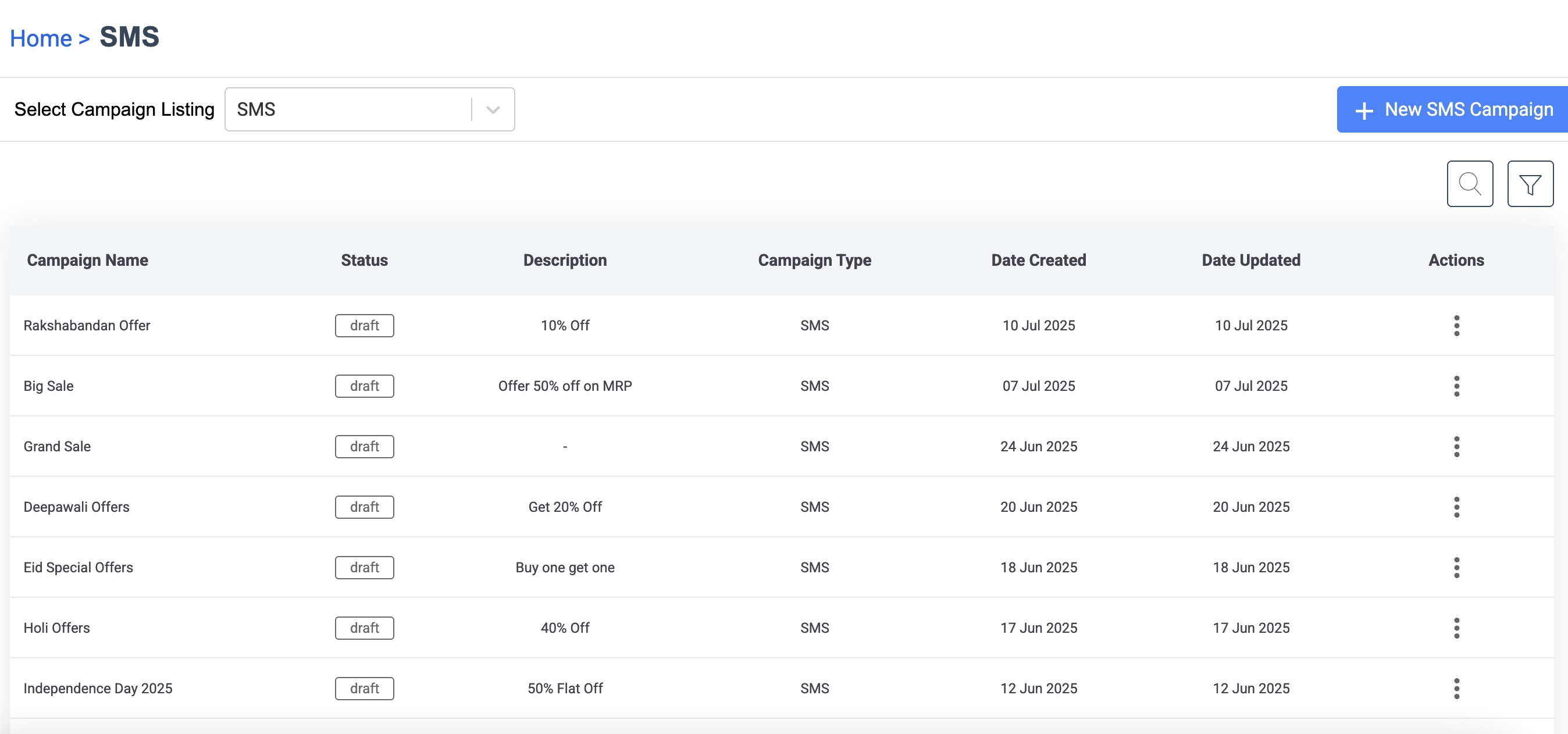
 ## Create New SMS Campaign
To create a new SMS Campaign:
1. Click **+ New SMS Campaign**.
The **SMS - New Campaign** page appears.
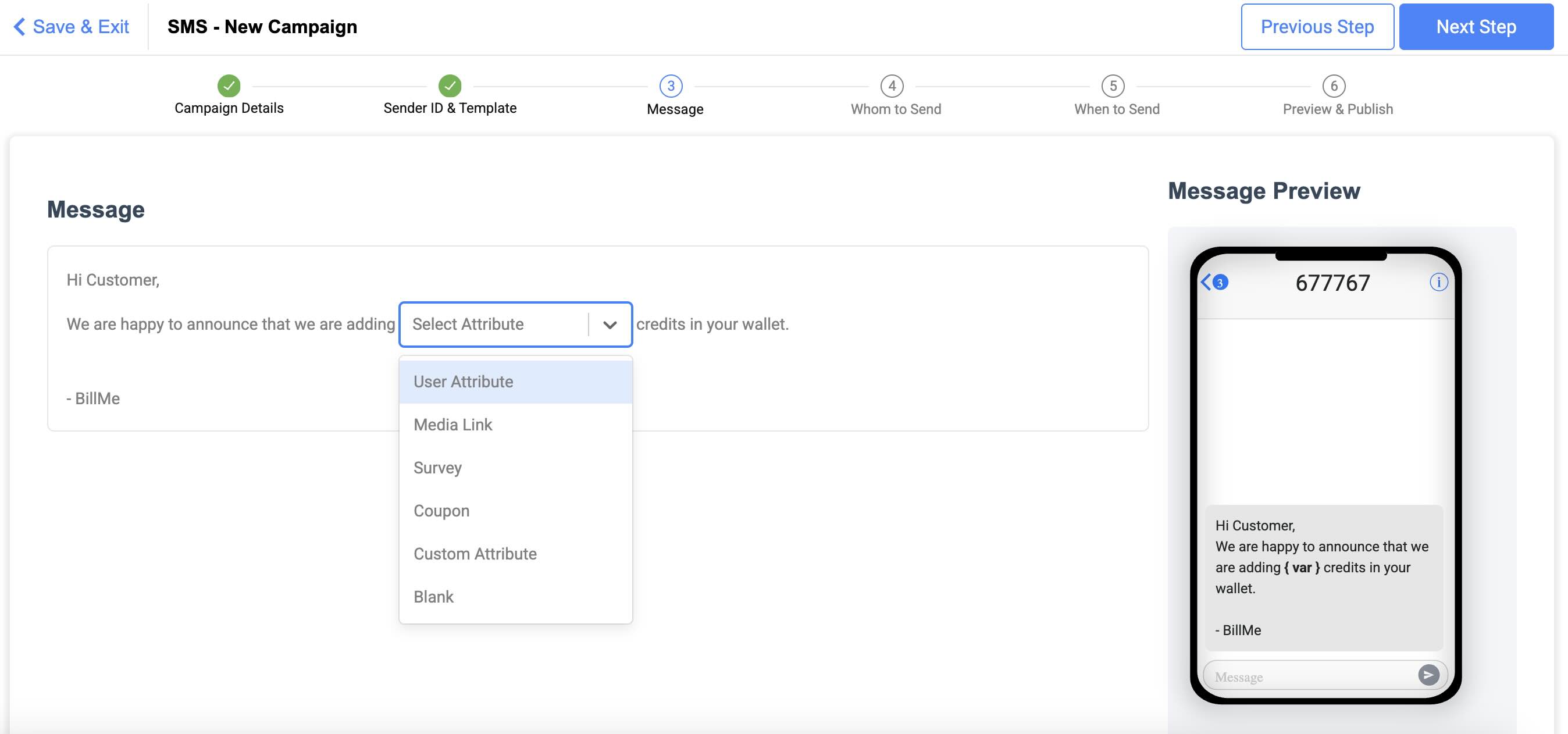
2. Enter the Campaign Name and Description, select your Company and Content Type and click **Next Step**.
Content Type can be:
* Promotional: Select for SMS Campaigns with promotions and ads.
* Service Explicit: Select to communicate service information such as activation or expiry of a service.
## Create New SMS Campaign
To create a new SMS Campaign:
1. Click **+ New SMS Campaign**.
The **SMS - New Campaign** page appears.
2. Enter the Campaign Name and Description, select your Company and Content Type and click **Next Step**.
Content Type can be:
* Promotional: Select for SMS Campaigns with promotions and ads.
* Service Explicit: Select to communicate service information such as activation or expiry of a service.
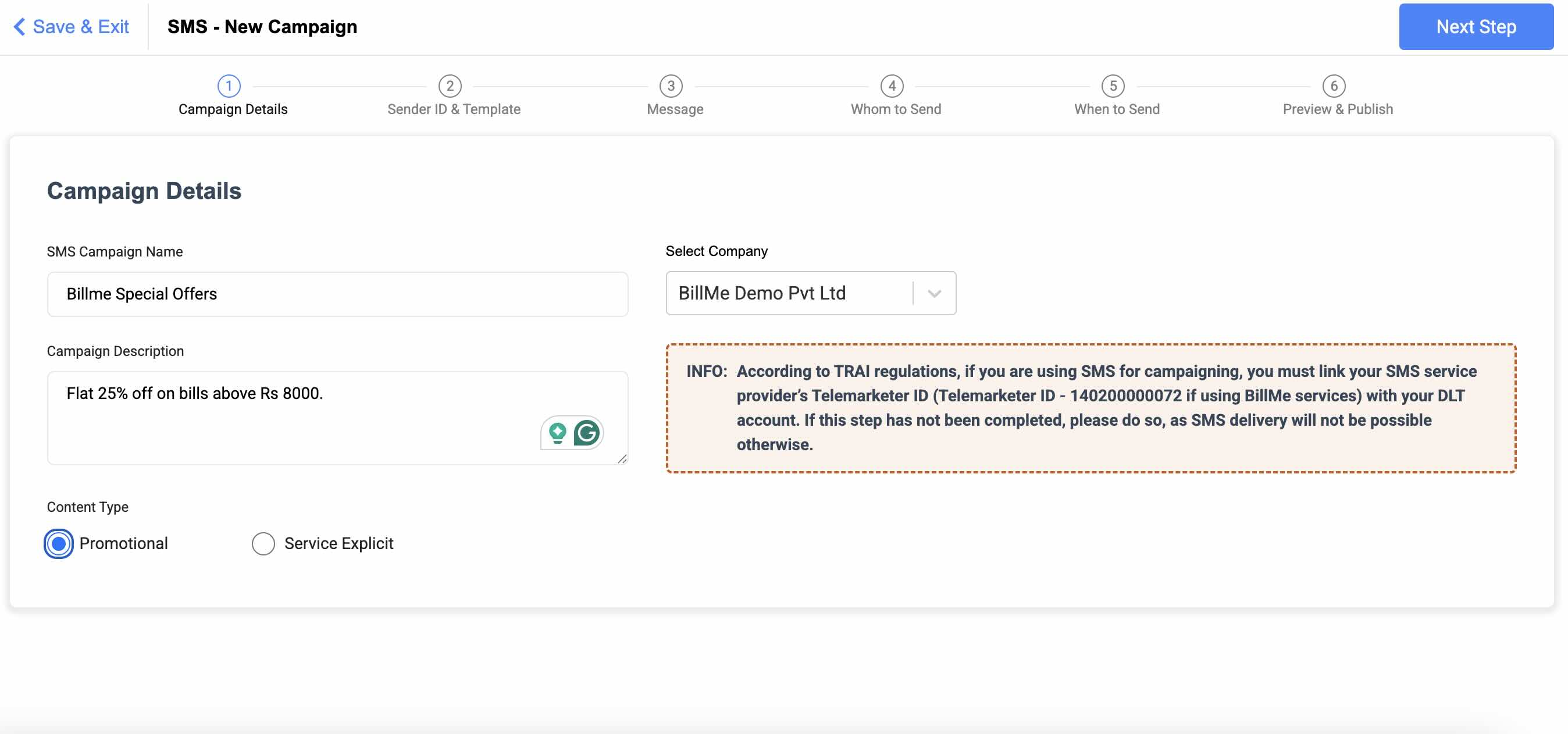 3. Select or upload **Sender ID** and **Template**. Click **Next Step**.
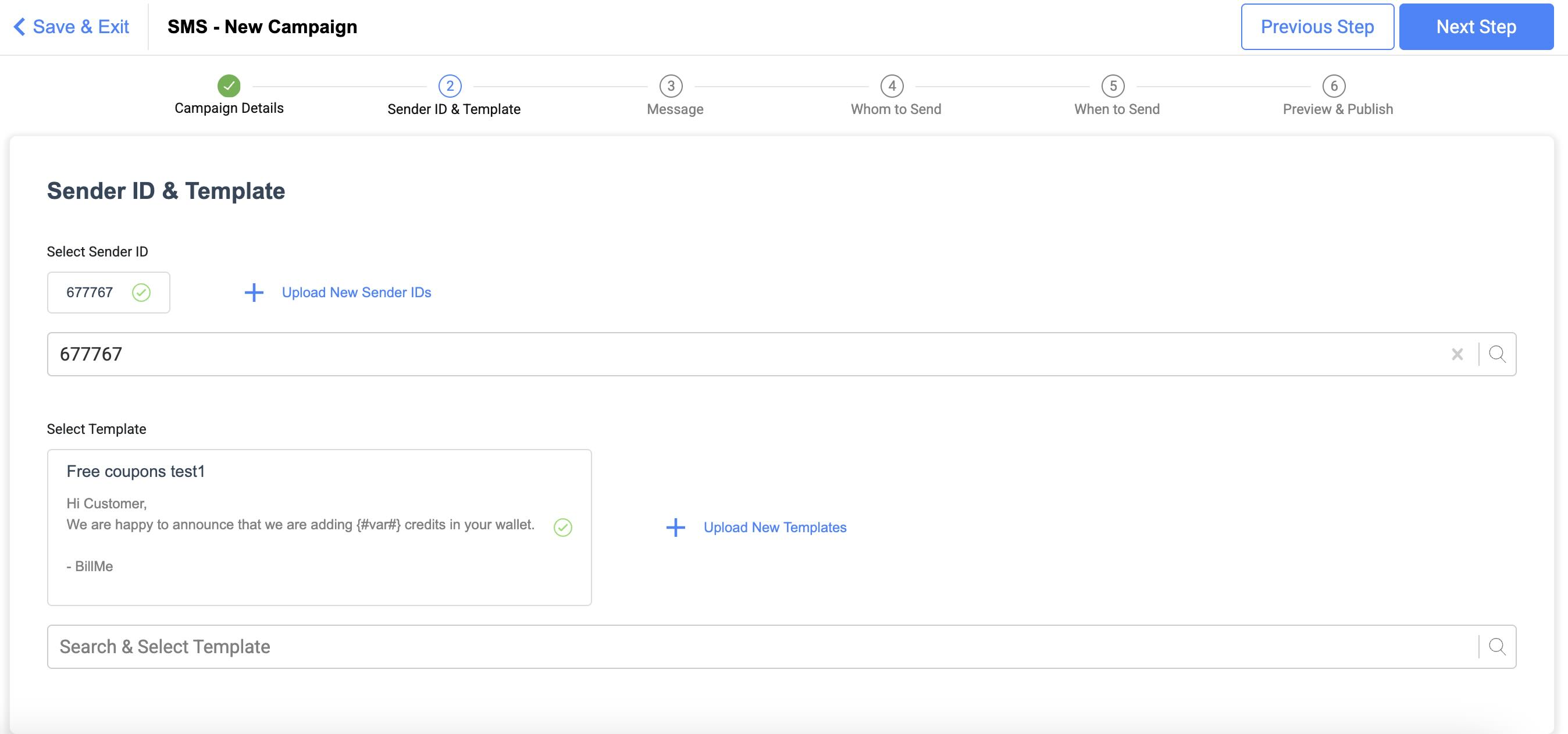 4. Enter the message and select the variable attributes if any. Click **Next Step**.
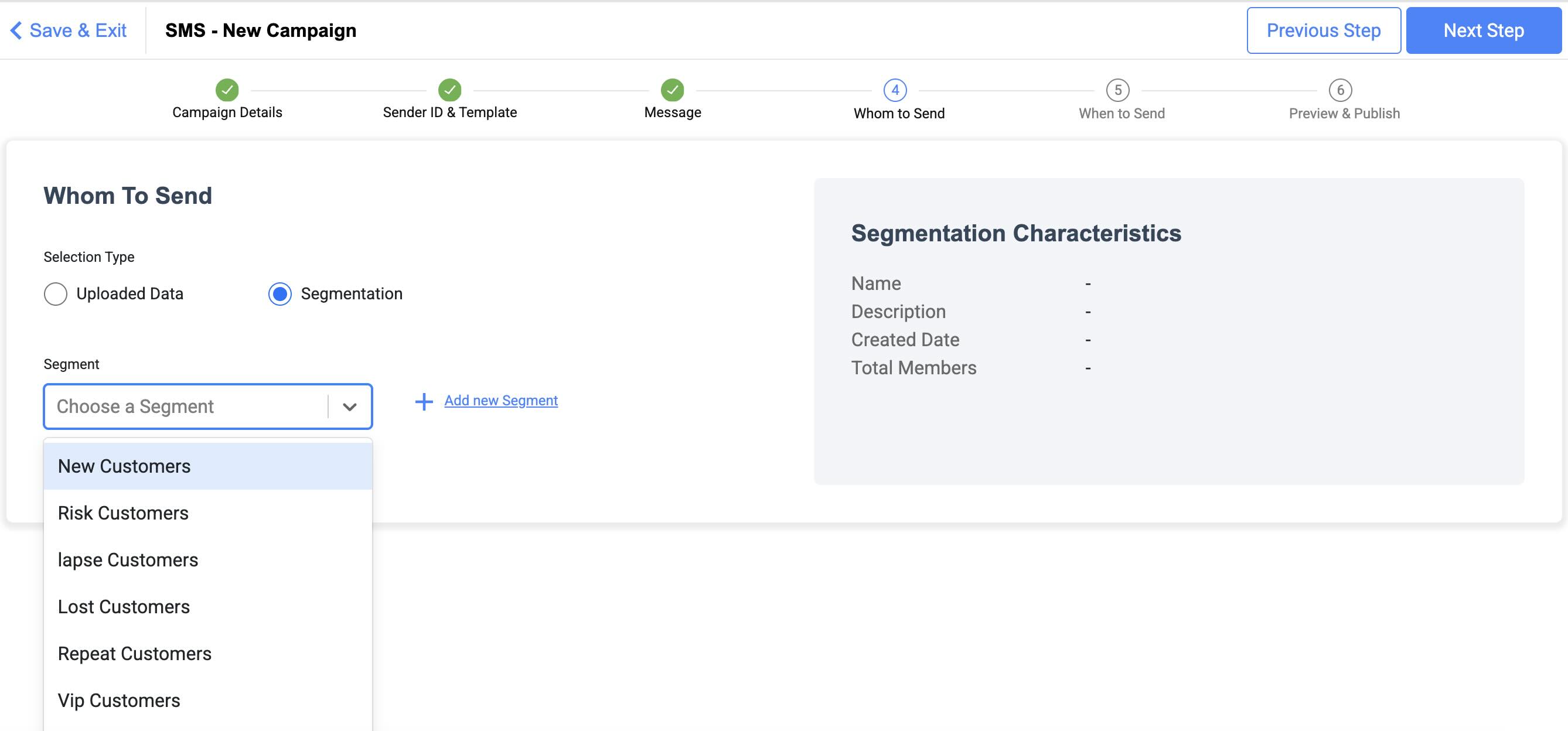
 5. Select **Whom To Send** on this page and click **Next Step**. You can:
1. Select **Uploaded Data** and add/upload the list of receivers for the SMS Campaigns.
2. Select **Segmentation** and choose a specific customer segment for the SMS Campaigns. You can also add and select a new customer segment.
5. Select **Whom To Send** on this page and click **Next Step**. You can:
1. Select **Uploaded Data** and add/upload the list of receivers for the SMS Campaigns.
2. Select **Segmentation** and choose a specific customer segment for the SMS Campaigns. You can also add and select a new customer segment.
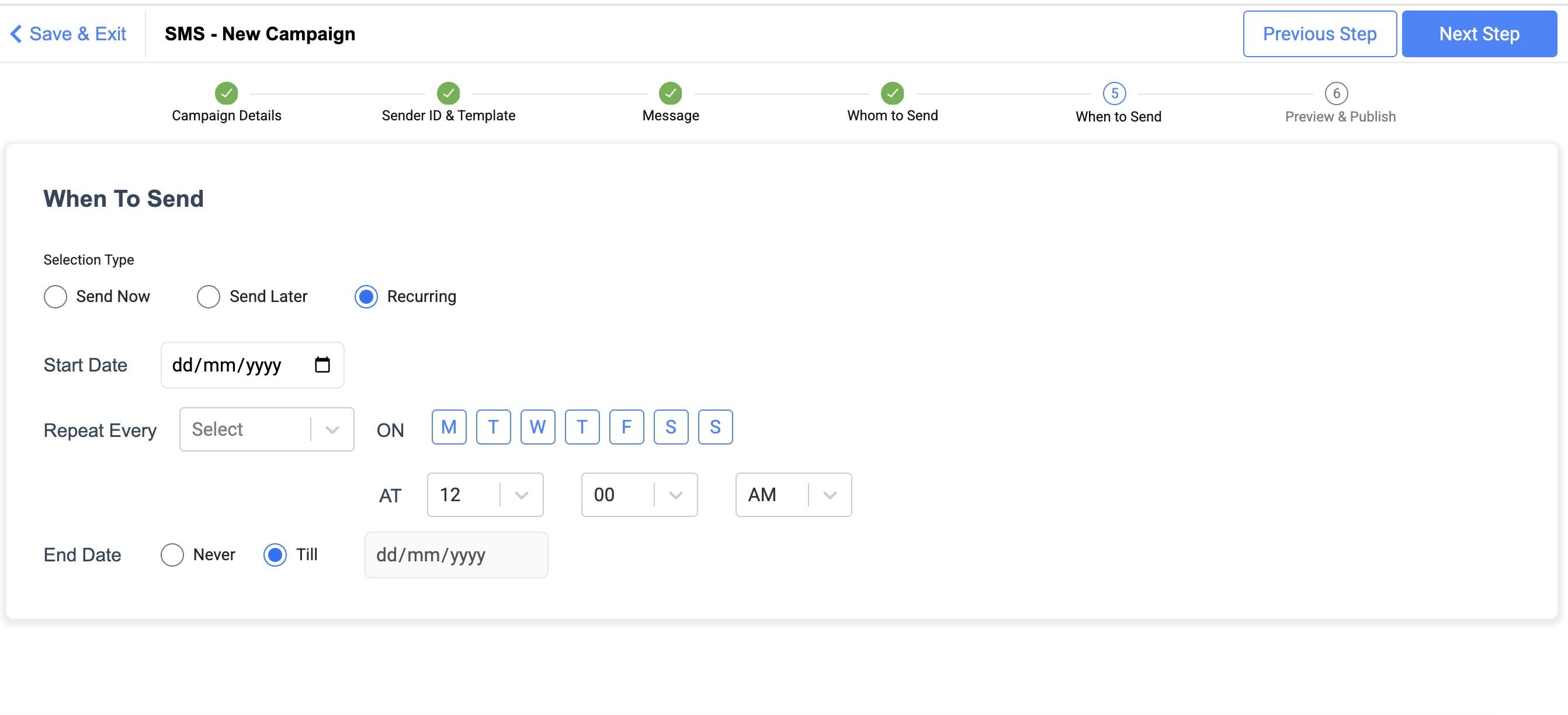
 6. Select **When To Send** on this page. You have the option to select **Send Now**, **Send Later** and **Recurring**. Configure the timelines and click **Next Step**.
 7. Preview the SMS Campaign and test it on a valid phone number. You can only test it once. Click **Publish** to publish the campaign.
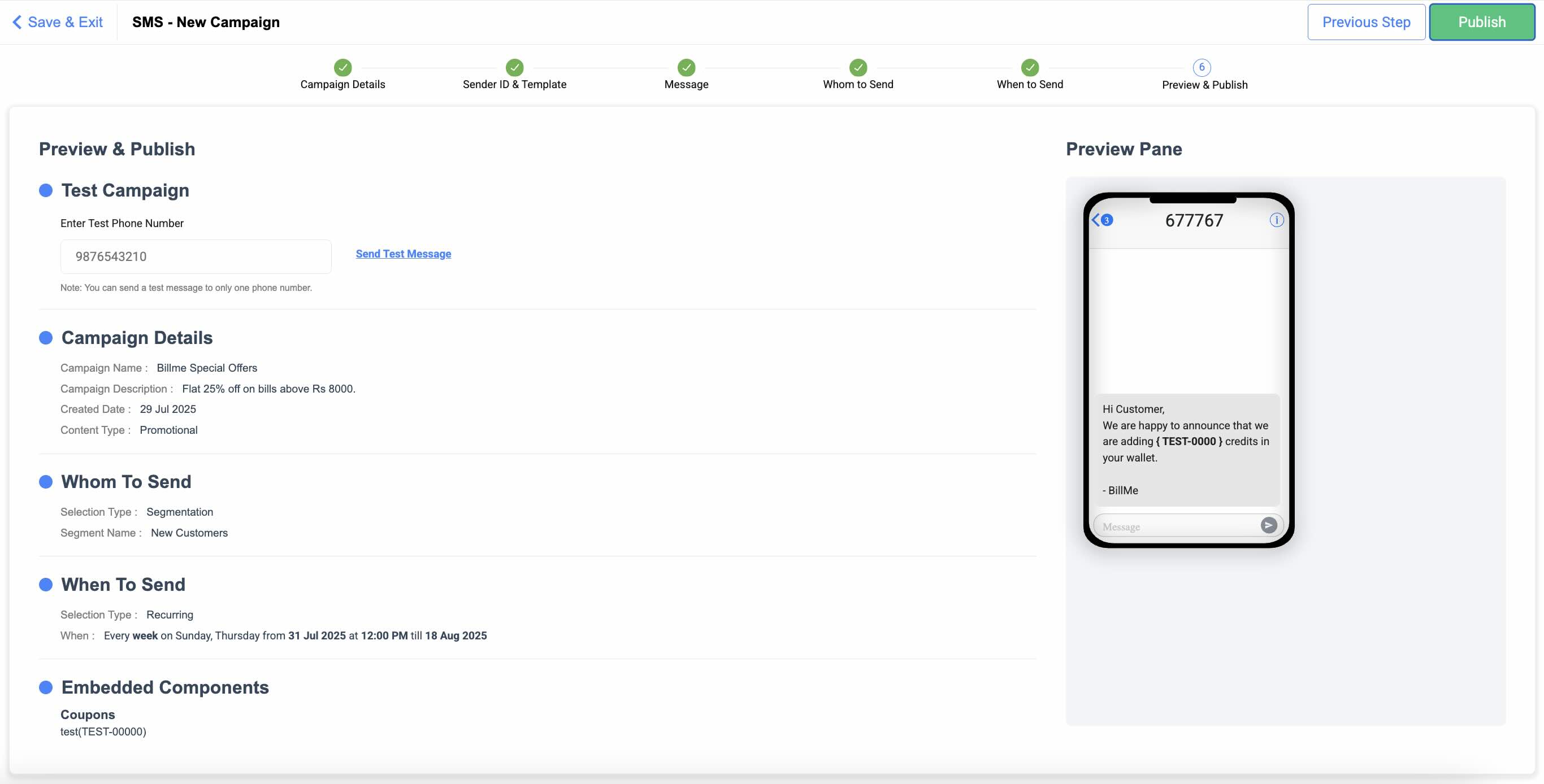 The Published Campaign appears on the list of campaigns.