> ## Documentation Index
> Fetch the complete documentation index at: https://razorpay-881012b3.mintlify.site/llms.txt
> Use this file to discover all available pages before exploring further.
# Settings
> Configure Bill Explicit Settings, DLT Settings and Consumer Profiling, as per your business needs.
Available in
🇮🇳 India
The **Settings** page on the **Billme Dashboard** enables you to configure settings such as Bill Explicit Settings, DLT Settings and Consumer Profiling, as per your requirements.
You can manage default configurations that apply across your Billme account or store using the **Settings** page.
## Bill Explicit
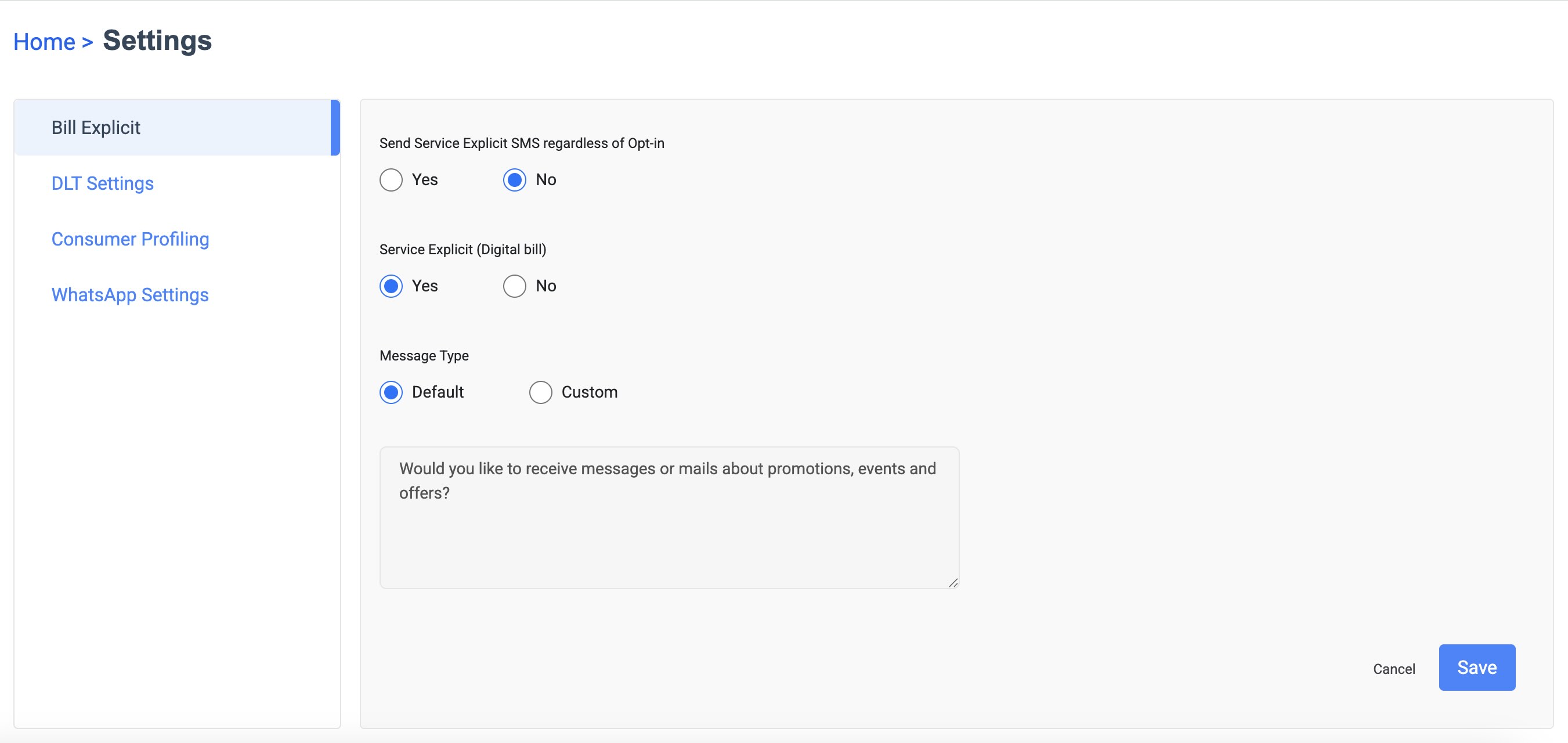
You can configure billing notifications from this page. You can also add default or custom messages to be sent with the bill.
 ## DLT Settings
DLT stands for Distributed Ledger Technology. To comply with **TRAI** regulations, you must upload sender id and templates on DLT Settings page and get them approved before proceeding with **SMS campaigns**.
### Sender IDs
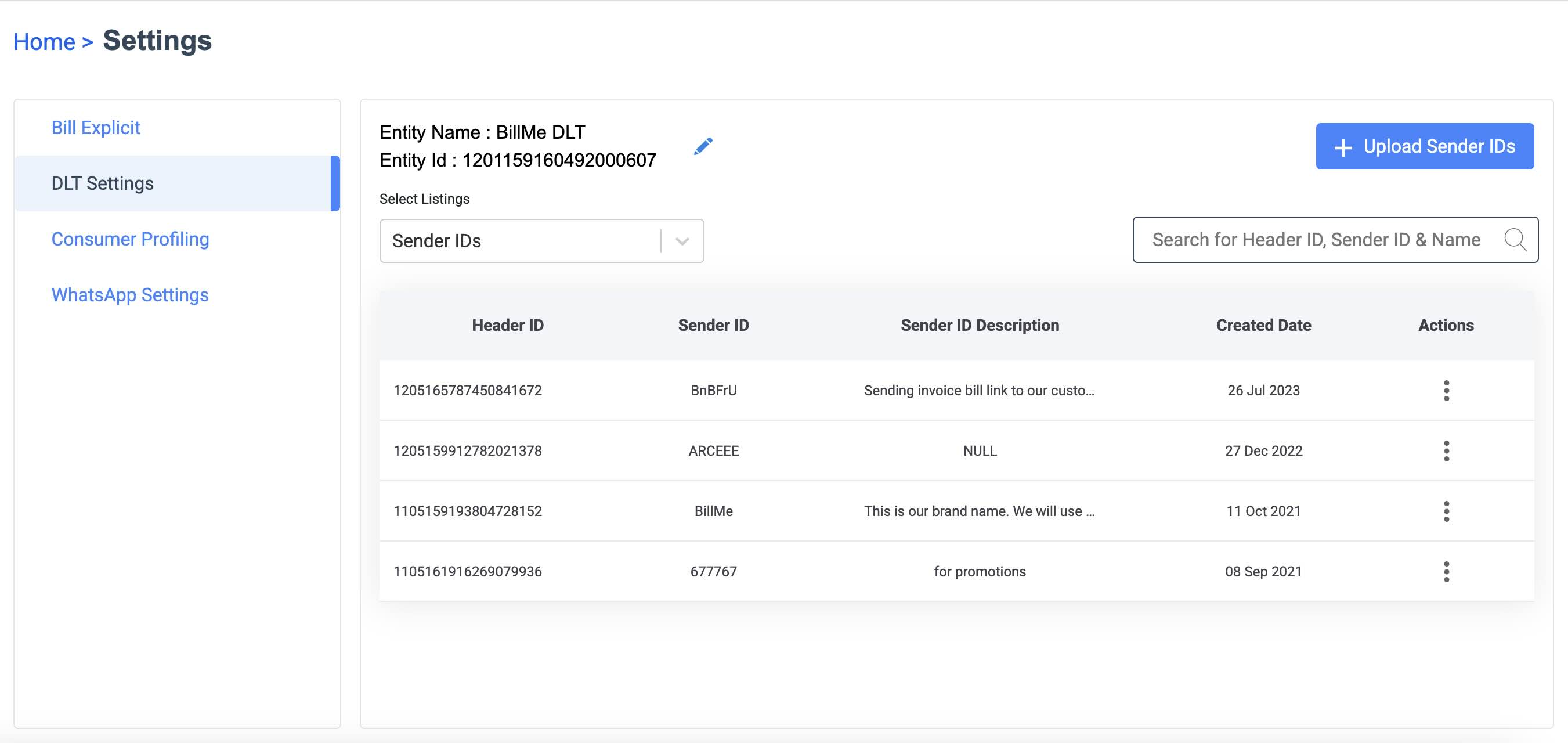
You can upload, search, view and delete Sender id. You can see following details:
* Header ID
* Sender ID
* Sender ID Description
* Created Date
## DLT Settings
DLT stands for Distributed Ledger Technology. To comply with **TRAI** regulations, you must upload sender id and templates on DLT Settings page and get them approved before proceeding with **SMS campaigns**.
### Sender IDs
You can upload, search, view and delete Sender id. You can see following details:
* Header ID
* Sender ID
* Sender ID Description
* Created Date
 ### Templates
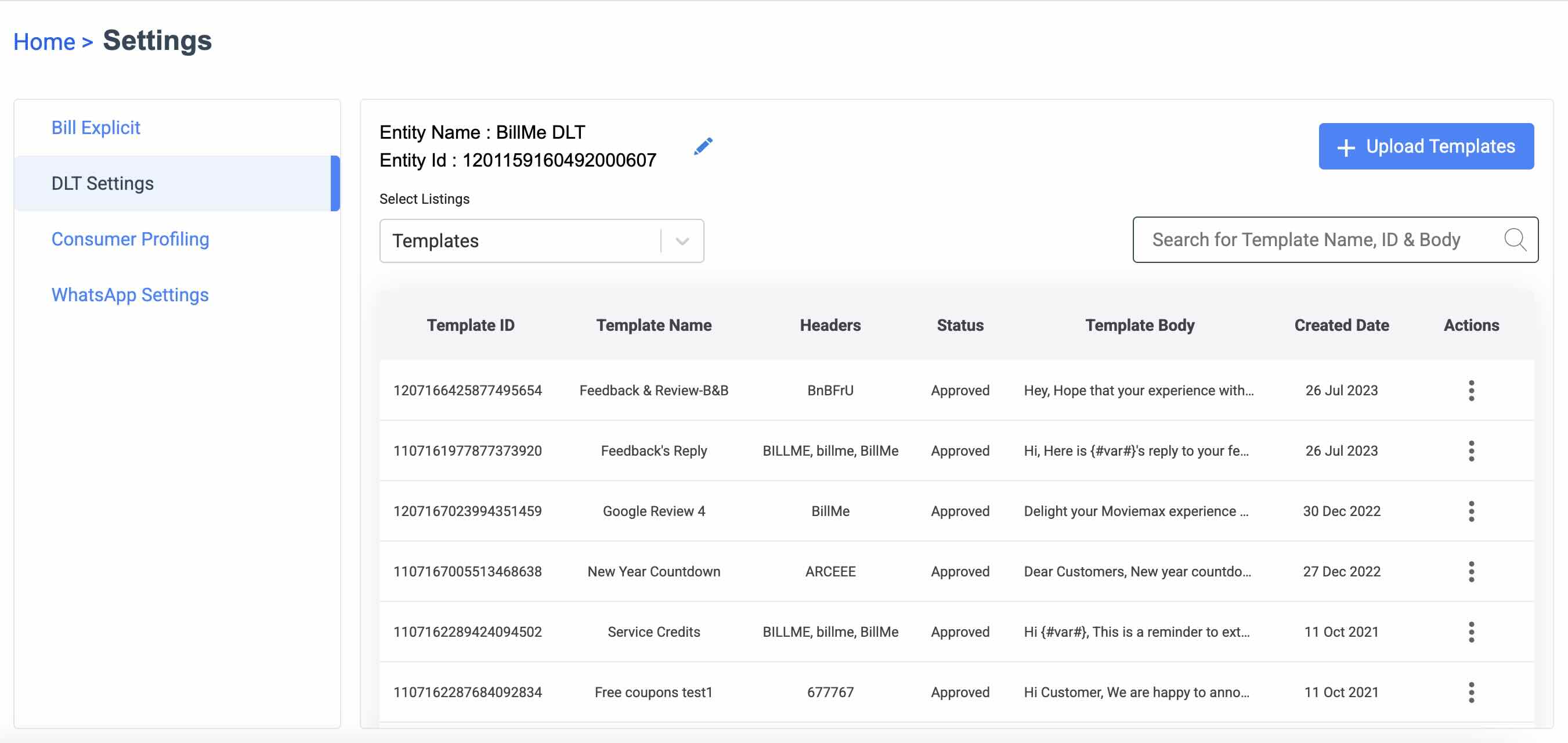
You can upload, search, view and delete an SMS template on this page.
On the **DLT Settings** page, click the **Select Listings** dropdown and Select **Templates**.
The **Templates** table appears with the following details:
* Template ID
* Template Name
* Headers
* Status
* Template body
* Created Date
### Templates
You can upload, search, view and delete an SMS template on this page.
On the **DLT Settings** page, click the **Select Listings** dropdown and Select **Templates**.
The **Templates** table appears with the following details:
* Template ID
* Template Name
* Headers
* Status
* Template body
* Created Date
 ## Consumer Profiling
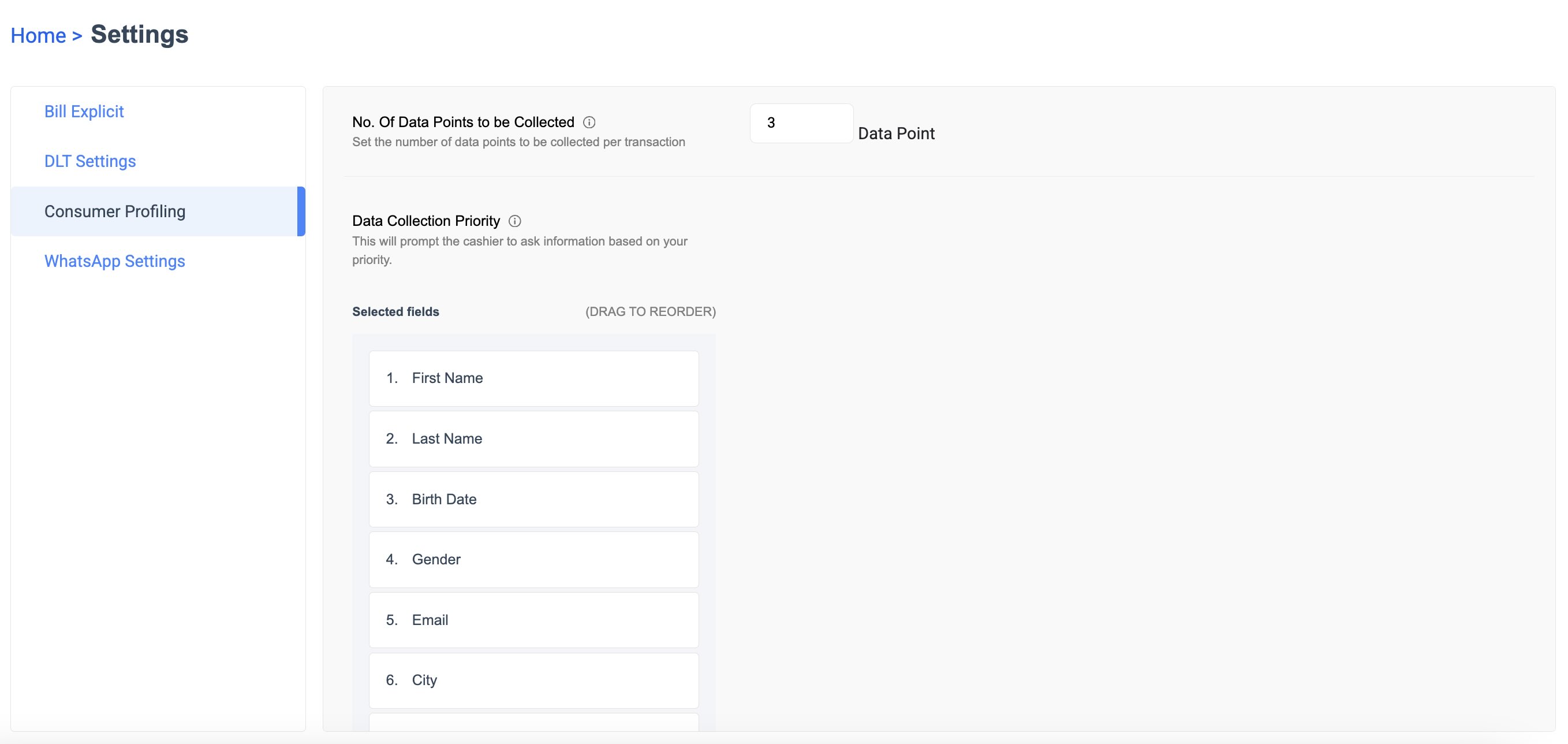
You can configure the fields for collection of customer data. You can also specify the number of fields.
## Consumer Profiling
You can configure the fields for collection of customer data. You can also specify the number of fields.