> ## Documentation Index
> Fetch the complete documentation index at: https://razorpay-881012b3.mintlify.site/llms.txt
> Use this file to discover all available pages before exploring further.
# Set up a Razorpay Account
> Set up a Razorpay account, submit your KYC using CKYC/Video KYC and start using the various Razorpay Payments and Banking Plus products.
Available in
🇮🇳 India
🇸🇬 Singapore
🇺🇸 United States
Sign up for a Razorpay account to start accepting customer payments using our products.
[Set up an account](/docs/sg/payments/set-up#1-sign-up) to use Razorpay products to accept customer payments.
You can also [set up multiple accounts](/docs/sg/payments/set-up#create-multiple-account/) with the same mobile number and email id.
Submit your KYC documents to get your account verified and get the payments settled in your account.
**Assisted Onboarding**
Hire a dedicated onboarding manager for an additional fee to assist you through your onboarding journey. The onboarding manager will provide end-to-end assistance, from sign-up and KYC document submission to verification and account activation. Know more about [Assisted Onboarding](/docs/sg/payments/set-up#assisted-onboarding/).
## 1. Sign Up
To set up a Razorpay Account, go to the [Razorpay website](https://razorpay.com/) and click **Sign Up**. Follow these steps for a smooth sign up process:
Provide your contact details to get started:
1. Enter your **Mobile Number**.
2. Click **Send OTP**.
3. Enter the **OTP** sent to your mobile number. If you did not receive the OTP, click **Resend OTP**.
4. Click **Submit OTP**.
5. Enter your **Name** and click **Continue**.
Provide the following business details:
1. Enter your **Brand Name**. This should be the name of your business that your customers recognise.
2. Click **Continue**.
Provide details to receive account updates:
1. Enter your **email id** to receive account updates on your email and click **Send OTP**.
2. Enter the **OTP** sent to your email id and click **Continue**.
You can start accepting payments from customers once your KYC is completed.
**After Your Account is Created**
* You can accept payments using a [range of products after KYC completion](/docs/sg/payments#product-suite).
* You can access the **Test** mode on the Dashboard to test and experience the products offered by Razorpay. Test mode does not involve actual money transactions.
* You have to generate separate API keys for Live and Test modes. Know more about [API Keys](/docs/sg/api/authentication#generate-api-keys).
## 2. Submit KYC Details
Upon creating an account, you can start accepting payments from customers once your KYC is completed. The operations team will subsequently contact you to activate your account.
**After Successful Activation**
* Accept payments without any amount limits.
* Razorpay will automatically settle payments in your bank account as per your [settlement cycle](/docs/sg/payments/settlements#settlement-cycle).
* Request for [other payment methods](/docs/sg/payments/payment-methods#view-payment-methods).
## Set Up Multiple Accounts
As a business owner, you may need different accounts for different kinds of work.
However, it is challenging to obtain a new mobile number each time you want to set up an account. With Multi-Account, you can set up different accounts using the same mobile number and email id as your existing account.
#### Example
Assume Alex is a Singaporean business owner who has an account with Razorpay using Mobile Number: `+6591119111` and Email Id: `alex.lim@example.com`.
Alex uses **Multi-Account** feature to set up another account. Razorpay will use the same number and email id as shown above to set up the other account. This will work in a similar way in your respective country.
1. Go to the [website](https://razorpay.com/) and click **Sign Up**.
2. Enter your mobile number or email id and click **Continue**.
3. Enter the OTP sent to your registered mobile number and click **Verify**.
4. All the accounts linked to the entered number/email is are displayed. Click **Create a new account**.
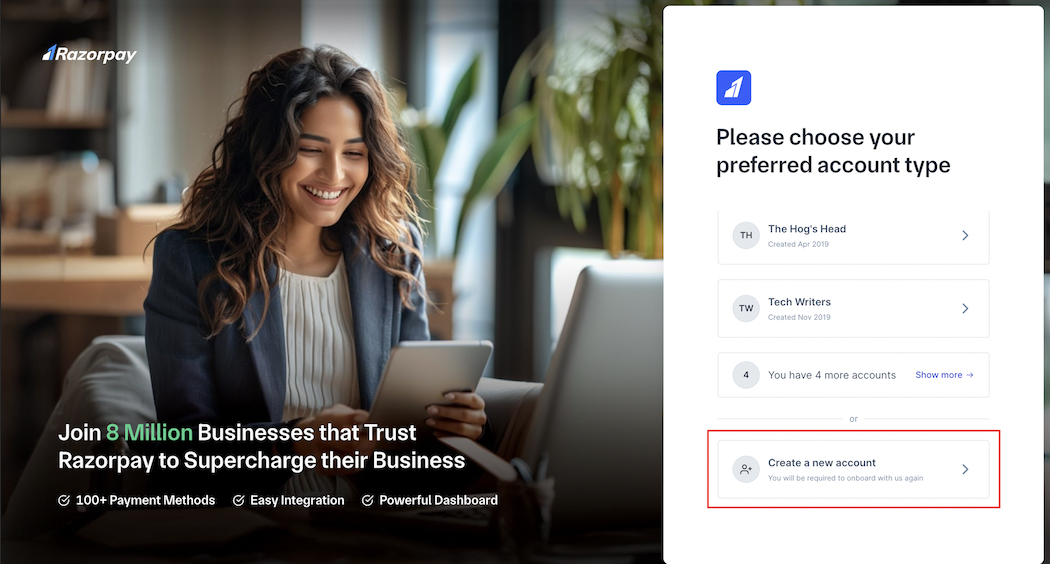 5. Select the country and click **Verify**.
6. Your existing number and email id is already registered with the new account. Enter your name and continue with [Sign Up](/docs/sg/payments/set-up#platform-details) and [KYC](/docs/sg/payments/set-up#2-submit-kyc-details).
1. Log in to the Dashboard.
2. Click the profile icon → **Switch Merchant**.
3. Click **Create A New Account**.
5. Select the country and click **Verify**.
6. Your existing number and email id is already registered with the new account. Enter your name and continue with [Sign Up](/docs/sg/payments/set-up#platform-details) and [KYC](/docs/sg/payments/set-up#2-submit-kyc-details).
1. Log in to the Dashboard.
2. Click the profile icon → **Switch Merchant**.
3. Click **Create A New Account**.
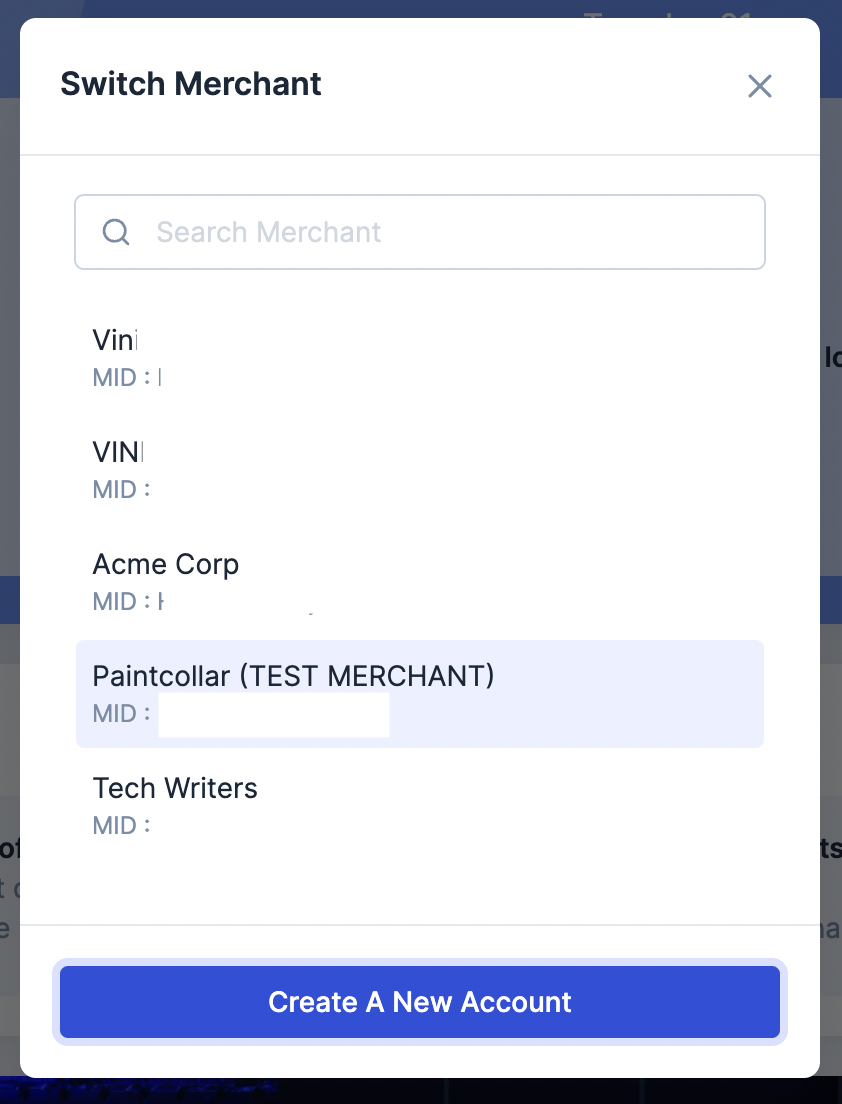 4. Select the country and click **Verify**.
5. Your existing number and email id is already registered with the new account. Enter your name and continue with [Sign Up](/docs/sg/payments/set-up#platform-details) and [KYC](/docs/sg/payments/set-up#2-submit-kyc-details).
**Watch Out!**
If your mobile number is already linked to multiple user accounts with different email ids, you cannot use the **Multi-Account** feature to set up multiple accounts using that number. In this case, use another mobile number or sign up using your email id.
* Account 1: Mobile Number: `+6581118111` | Email Id: `alex.lim@example.com`
* Account 2: Mobile Number: `+6581118111` | Email Id: `alex.lim+99@example.com`
If Alex tries to use the **Multi-Account** feature to make another account, Razorpay will block the creation of a new account. This will work similarly in your respective country.
## Assisted Onboarding
* **Dedicated onboarding manager**: Receive personalised support with a dedicated onboarding manager assigned to you within **1 hour**.
* **Swift account activation**: Get your account activated within 8 business hours and start accepting payments via Razorpay.
* **End-to-end assistance**: Receive comprehensive support until you complete your first transaction, addressing any queries throughout the process.
1. On the [Razorpay sign-up page](https://razorpay.com/), sign up using your mobile number.
2. Click **Know more** under **Hire an onboarding manager for faster account set up!**. Complete the payment.
4. Select the country and click **Verify**.
5. Your existing number and email id is already registered with the new account. Enter your name and continue with [Sign Up](/docs/sg/payments/set-up#platform-details) and [KYC](/docs/sg/payments/set-up#2-submit-kyc-details).
**Watch Out!**
If your mobile number is already linked to multiple user accounts with different email ids, you cannot use the **Multi-Account** feature to set up multiple accounts using that number. In this case, use another mobile number or sign up using your email id.
* Account 1: Mobile Number: `+6581118111` | Email Id: `alex.lim@example.com`
* Account 2: Mobile Number: `+6581118111` | Email Id: `alex.lim+99@example.com`
If Alex tries to use the **Multi-Account** feature to make another account, Razorpay will block the creation of a new account. This will work similarly in your respective country.
## Assisted Onboarding
* **Dedicated onboarding manager**: Receive personalised support with a dedicated onboarding manager assigned to you within **1 hour**.
* **Swift account activation**: Get your account activated within 8 business hours and start accepting payments via Razorpay.
* **End-to-end assistance**: Receive comprehensive support until you complete your first transaction, addressing any queries throughout the process.
1. On the [Razorpay sign-up page](https://razorpay.com/), sign up using your mobile number.
2. Click **Know more** under **Hire an onboarding manager for faster account set up!**. Complete the payment.
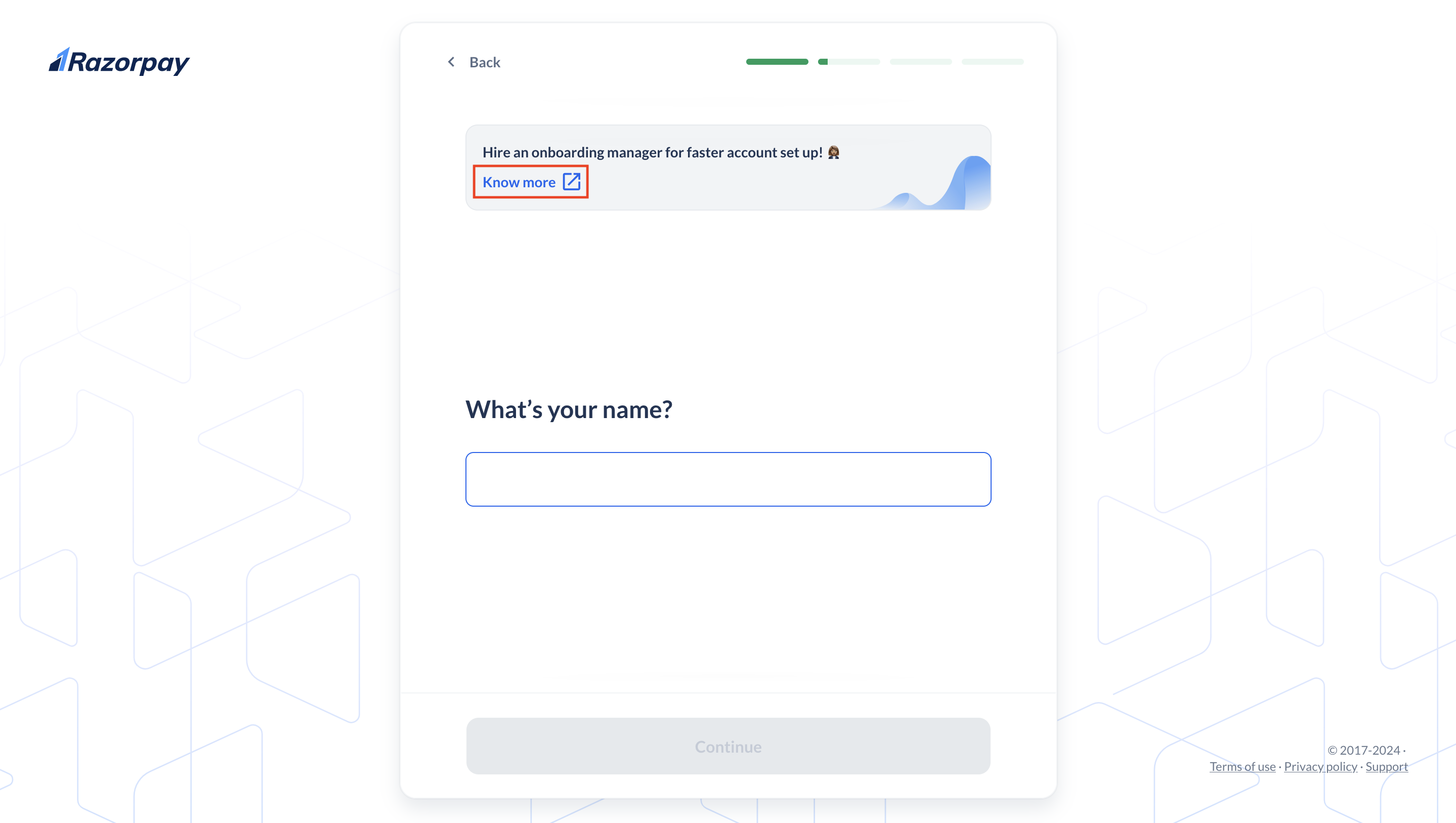 An onboarding manager will be assigned to you within 1 hour to help you set up your account.
### Related Information
* [KYC Documents](/docs/sg/payments/business-types-kyc-documents)
* [Frequently Asked Questions (FAQs)](/docs/sg/payments/faqs)
An onboarding manager will be assigned to you within 1 hour to help you set up your account.
### Related Information
* [KYC Documents](/docs/sg/payments/business-types-kyc-documents)
* [Frequently Asked Questions (FAQs)](/docs/sg/payments/faqs)