> ## Documentation Index
> Fetch the complete documentation index at: https://razorpay-881012b3.mintlify.site/llms.txt
> Use this file to discover all available pages before exploring further.

# Create Payment Links on WhatsApp

> Add the Payment Links WhatsApp bot on your Smartphone.

<div style={{display:"flex",flexWrap:"wrap",alignItems:"center",gap:"0.35rem 0.9rem",border:"1px solid rgba(128,128,128,0.28)",borderRadius:"0.5rem",padding:"0.45rem 0.75rem",margin:"0 0 1.25rem",fontSize:"0.875rem"}}>
  <span style={{fontWeight:600}}>Available in</span>
  <span>🇮🇳 India</span>
  <span>🇺🇸 United States</span>
</div>

Install the Razorpay WhatsApp Bot for Payment Links and accept payments from your customers by creating and sharing Payment Links to them directly from WhatsApp.

## Installation and Configuration

<Info>
  **Handy Tips**

  If you lose all your contacts or misplace your mobile phone, you can recover access to the WhatsApp bot by following this process:
  Send a text message saying `Create 100` to this phone number: `+91 6364900106`. Please ensure you send this message from your number registered on WhatsApp.
</Info>

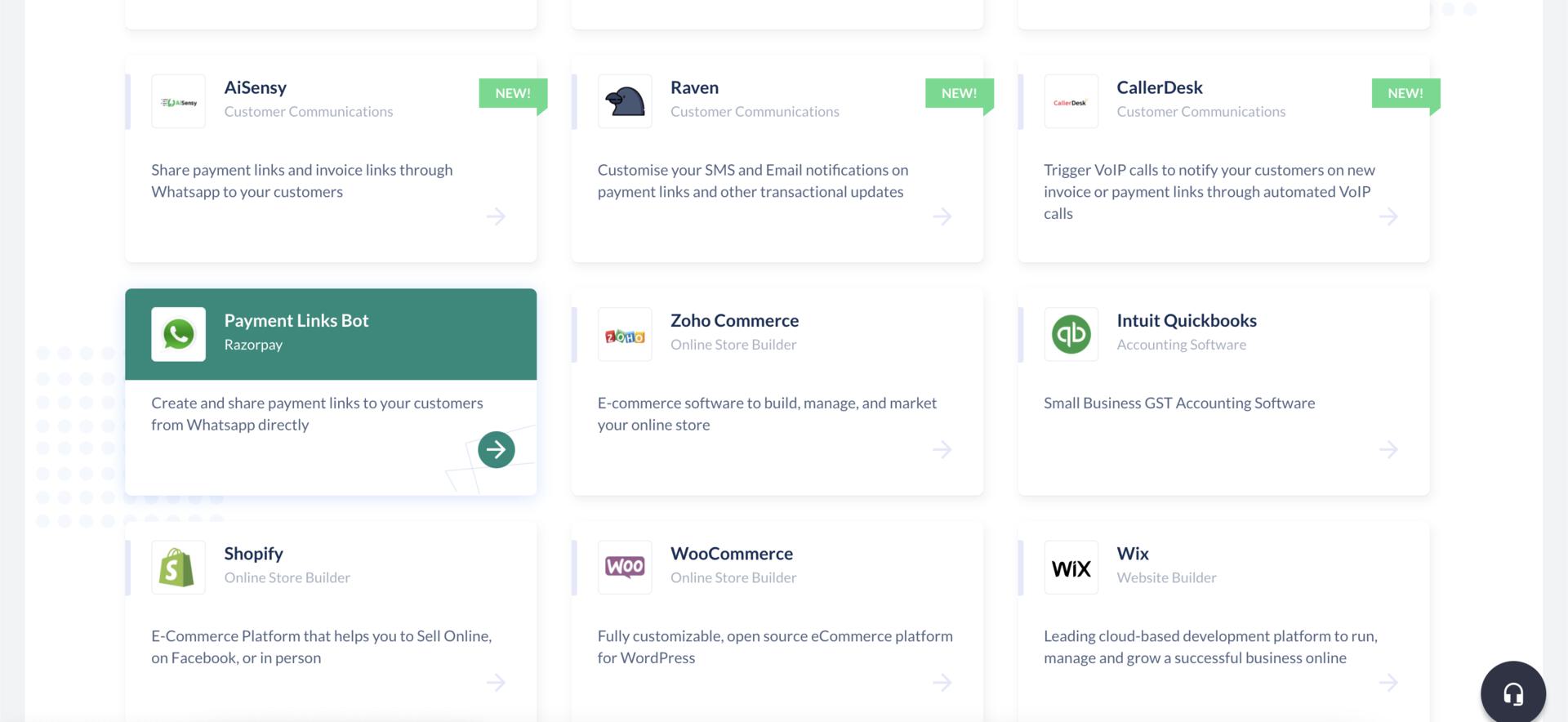
1. Log in to the Dashboard and navigate to the **App Store**.
2. Select the **Payment Links Bot**.
   <img src="https://razorpay.com/docs/build/browser/assets/images/pl-app-store-whatsapp-bot.jpg" alt="Select Payment Links Bot" width="800" />
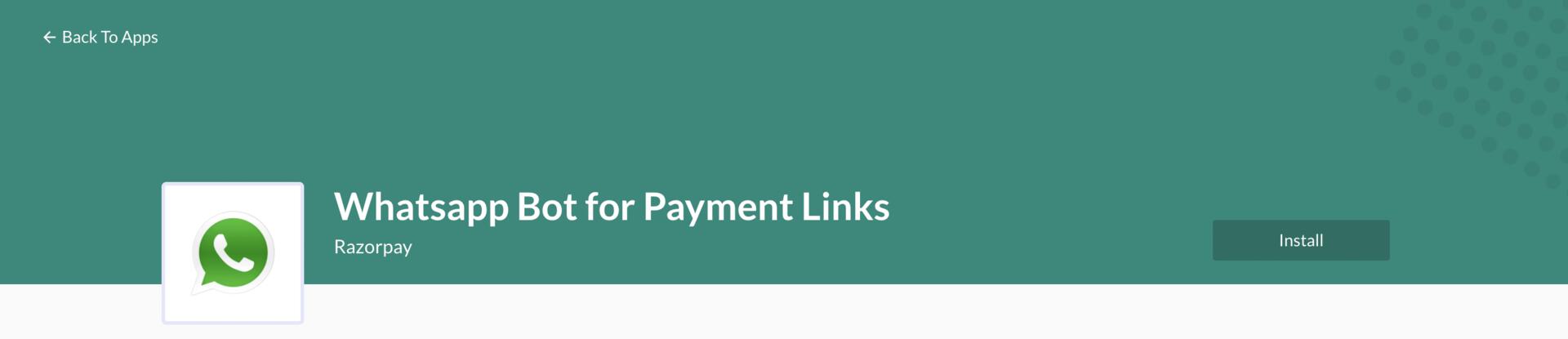
3. Click **Install**.
   <img src="https://razorpay.com/docs/build/browser/assets/images/pl-whatsapp-bot-install.jpg" alt="Install Payment Links Bot" width="800" />
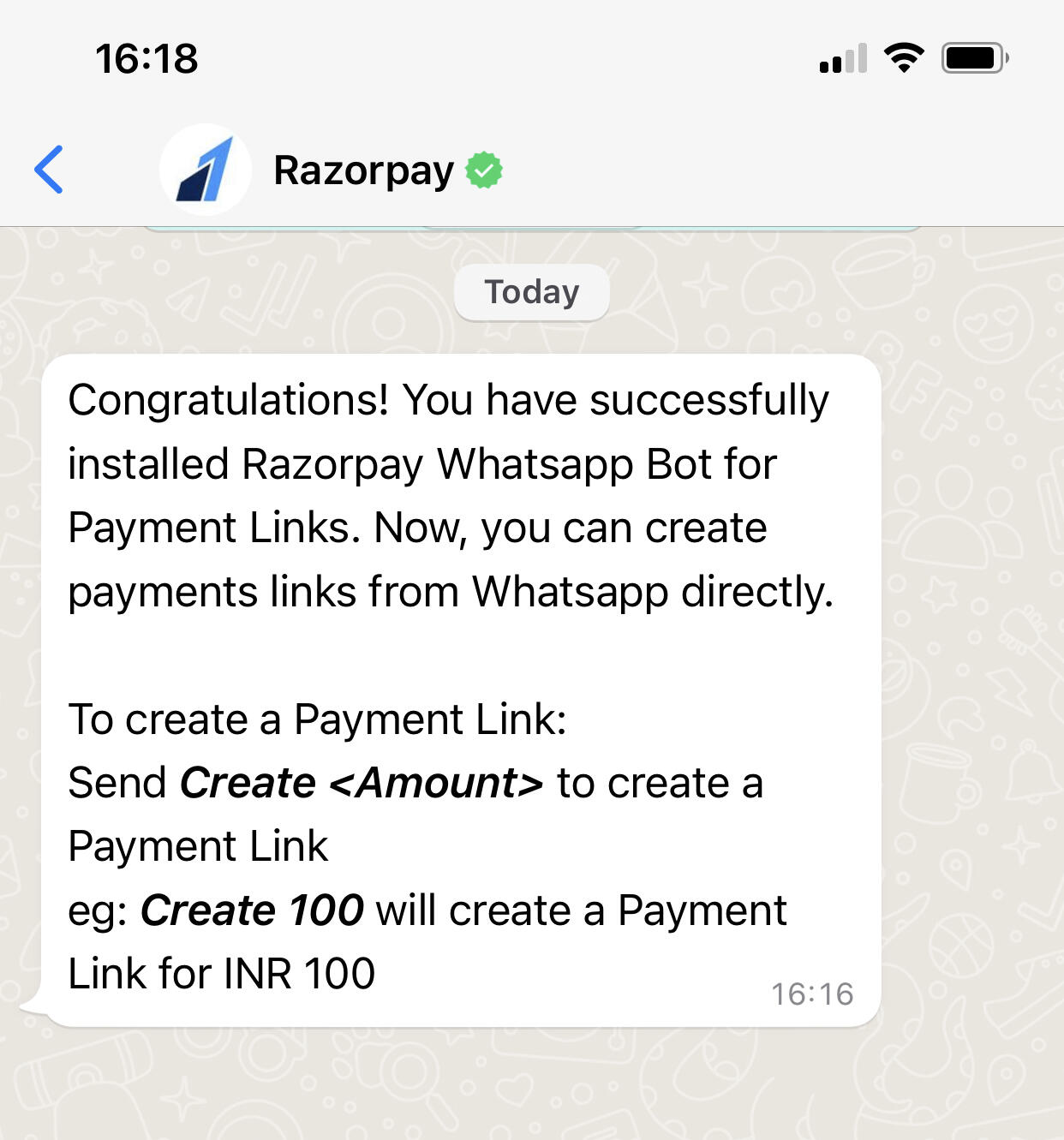
4. You will receive a welcome message on the mobile number which is associated with your Razorpay Admin account.
   <img src="https://razorpay.com/docs/build/browser/assets/images/pl-whatsapp-welcome.jpg" alt="Install Payment Links Bot" width="300" />
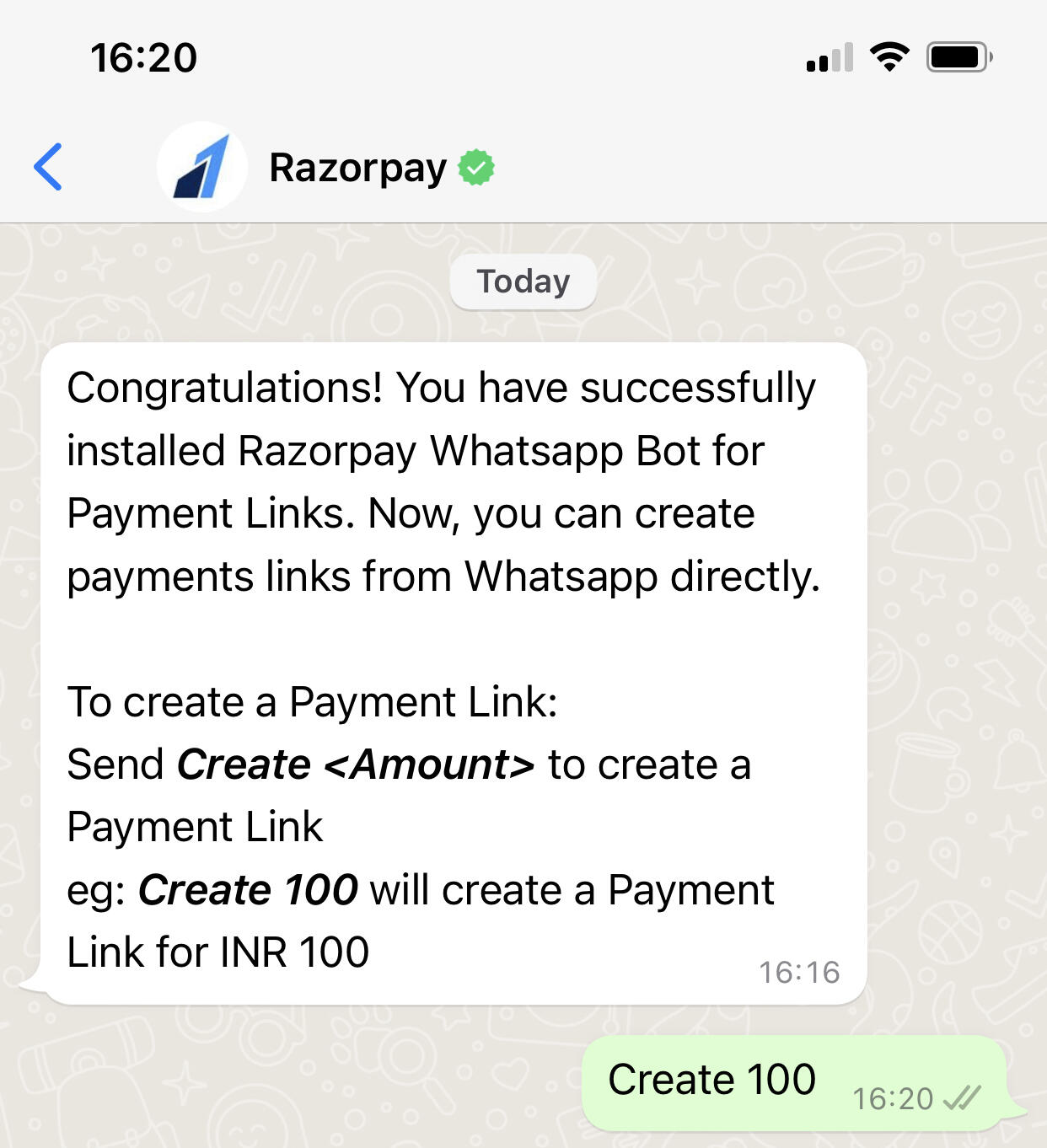
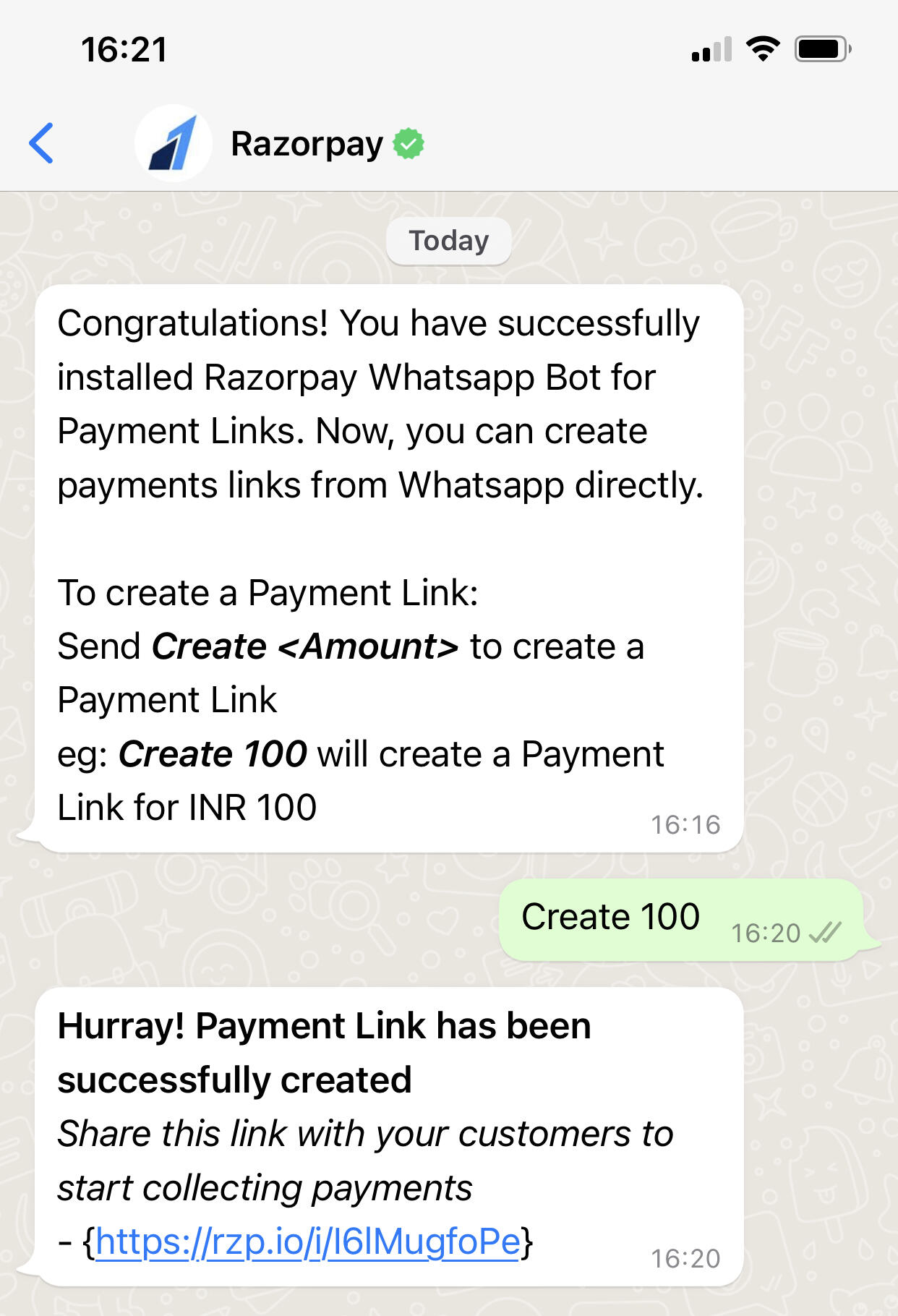
5. To create a Payment Link, Send `Create <Amount>`. Eg. Send `Create 100` to create a Payment Link of INR 100.
   <img src="https://razorpay.com/docs/build/browser/assets/images/pl-whatsapp-create.jpg" alt="Install Payment Links Bot" width="300" />
6. You will receive the Payment Link from Razorpay which can now be shared with your customers.
   <img src="https://razorpay.com/docs/build/browser/assets/images/pl-whatsapp-result.jpg" alt="Install Payment Links Bot" width="300" />