> ## Documentation Index
> Fetch the complete documentation index at: https://razorpay-881012b3.mintlify.site/llms.txt
> Use this file to discover all available pages before exploring further.
# Set Up and Edit Payments Webhooks
> Set up and edit Payments Webhooks from the Razorpay Dashboard.
Available in🇮🇳 India🇸🇬 Singapore🇺🇸 United States
You can [set up](#set-up-webhooks), [edit](#edit-a-webhook), [enable/disable](#enabledisable-a-webhook) and [delete](#delete-a-webhook) webhooks from the Dashboard.
## Set Up Webhooks
Watch this video to see how to set up a webhook.
To set up webhooks:
1. Log in to the Dashboard and navigate to **Accounts & Settings**.
2. Click **Webhooks** under **Website and app settings**.
3. Click the **+ Add New Webhook** button.
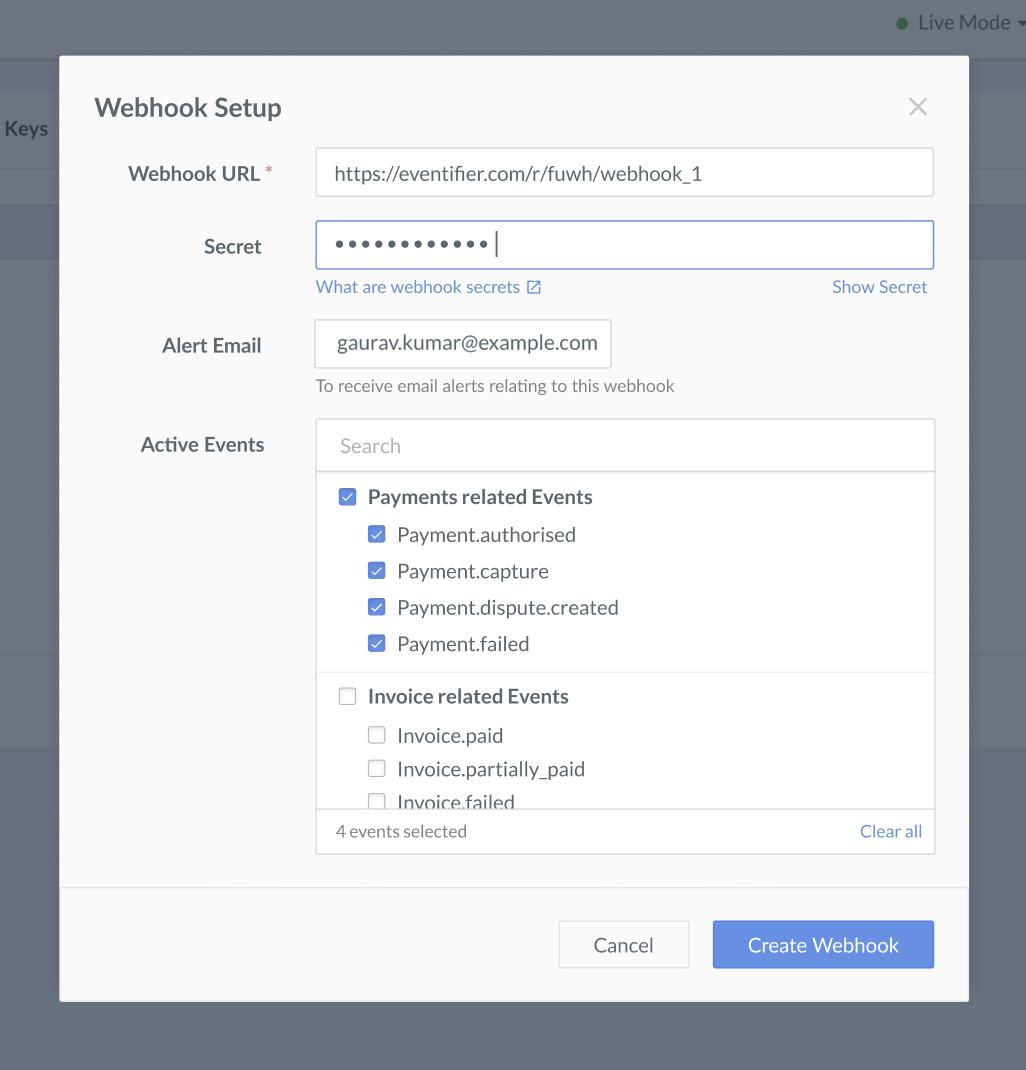
4. In the **Webhook Setup** pop-up page:
* Enter the **URL** where you want to receive the webhook payload when an event is triggered. We recommend using an HTTPS URL.
**Handy Tips**
* You can set up to **30 URLs** to receive Webhook notifications. Webhooks can only be delivered to public URLs.
* If your URL contains `razorpay` as a domain, you will not be able to add the URL and will receive an error.
* If you attempt to save a localhost endpoint as part of a webhook setup, you will notice an error. Know more about [testing Webhooks on an application running on localhost](/docs/webhooks/validate-test#application-running-on-localhost).
* Enter a **Secret** for the webhook endpoint. The secret is used to validate that the webhook is from Razorpay. Do not expose the secret publicly. Know more about [how to validate webhooks](/docs/webhooks/validate-test).
**Handy Tips**
* When setting up the webhook, specify a secret. Use this secret to validate that the webhook is from Razorpay. Entering the secret is optional but recommended. The secret should never be exposed publicly.
* The webhook secret does not need to be the Razorpay API key secret.
* In the **Alert Email** field, enter the email address to which the notifications should be sent in case of webhook failure. You will receive webhook related notifications like failures, deactivation and so on.
* Select the required events from the list of **Active Events**.
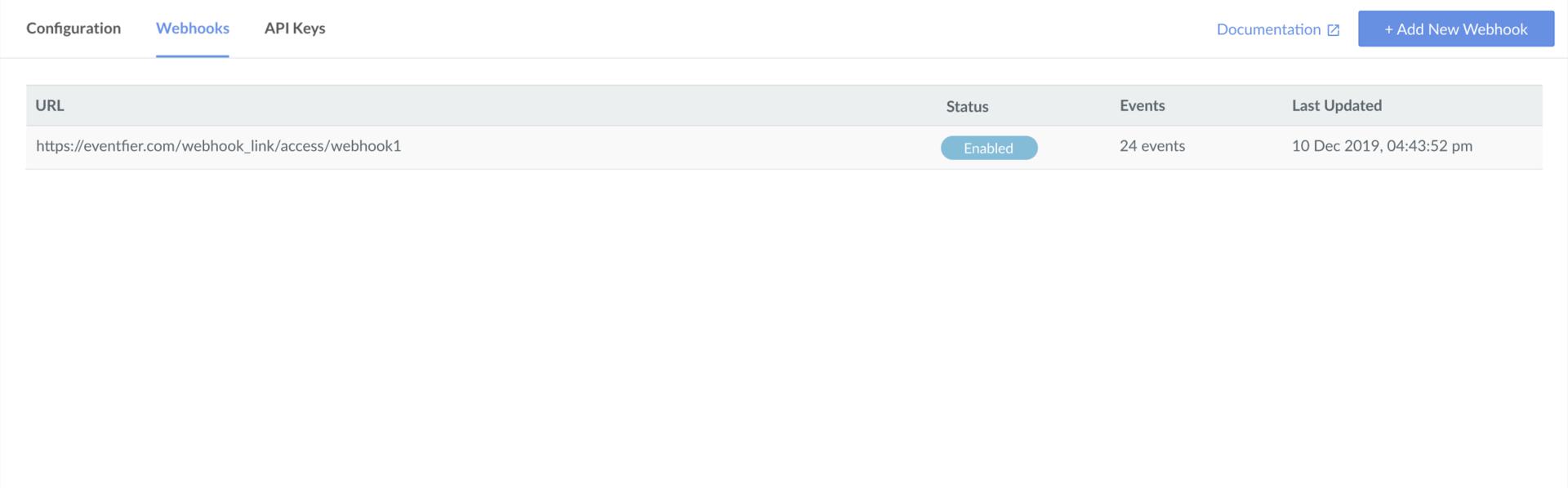
5. Click **Create Webhook**. After you set up a webhook, it appears on the list of webhooks.
6. You can select the webhook and click **Edit** to make more changes.
**Handy Tips**
Enter the default OTP `754081` when prompted, while setting up, editing or deleting a webhook in test mode.
## Edit a Webhook
You can edit your webhook to replace the webhook URL, modify the secret, change the alert email and add or remove events.
To edit webhooks:
1. Log in to the Dashboard and navigate to **Accounts & Settings**.
2. Click **Webhooks** under **Website and app settings**.
3. In the list, select the webhook you want to edit.
4. In the right panel, click **Edit**.
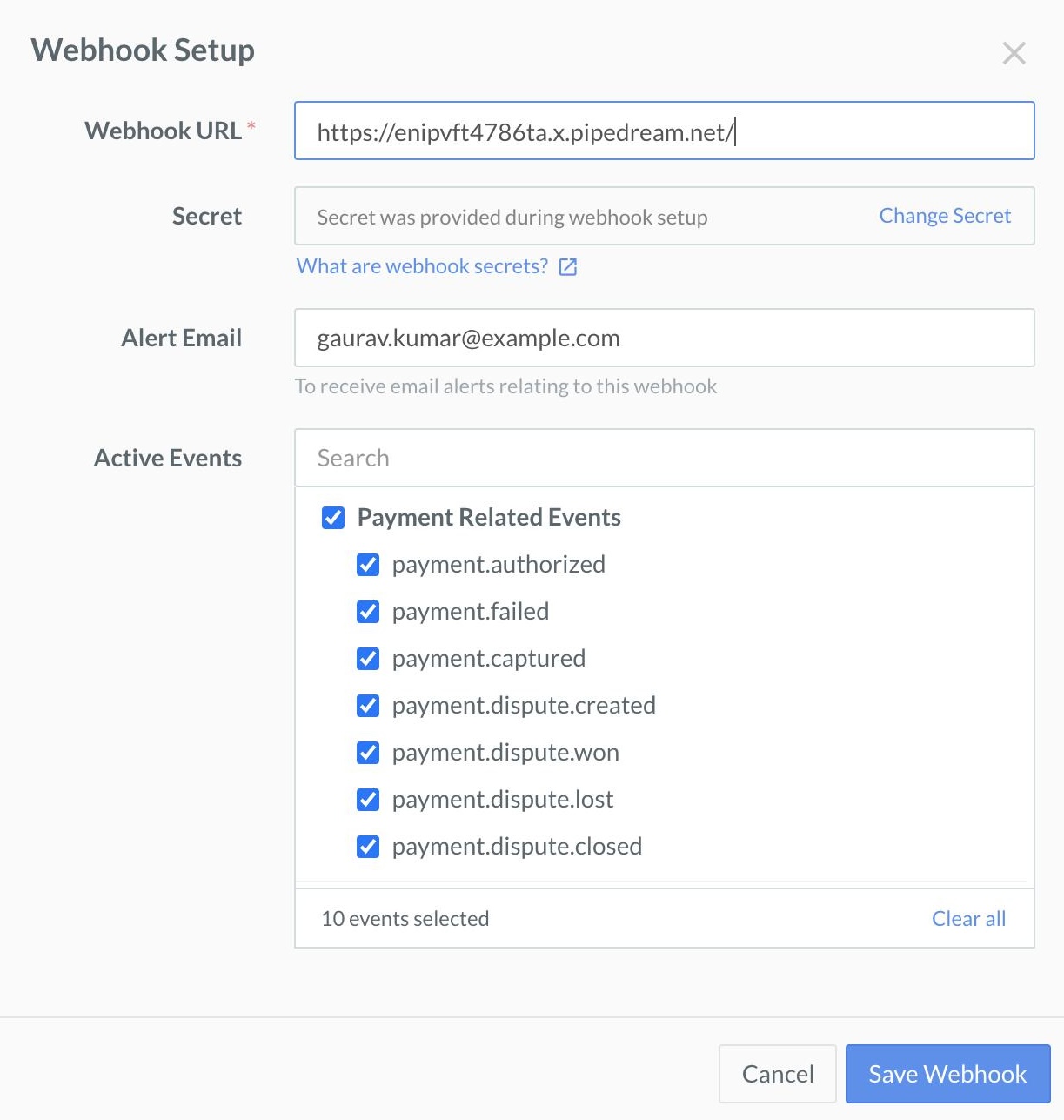
5. The **Webhook Setup** pop-up page is displayed. You can modify the following:
* Webhook URL
* Secret
* Alert Email
* Active Events
6. Click **Save Webhook** to save changes.
**Handy Tips**
You should validate and test your webhooks before you go live. Know more about [validating and testing your webhooks](/docs/webhooks/validate-test).
## Deactivation
All webhook responses must return a status code in the range `2XX` within a window of 5 seconds. If we receive response codes other than this or the request times out, it is considered a failure.
On failure, a webhook is re-tried at progressive intervals of time, defined in the exponential back-off policy, for 24 hours. If the failures continue for 24 hours, the webhook is disabled. You need to enable the webhook from the Dashboard after fixing the errors at your end. Know more about [enabling Webhooks](/docs/webhooks/setup-edit-payments#enabledisable-a-webhook).
**Handy Tips**
When a webhook gets disabled, you receive an email notification on the email id you configured while setting up the webhooks.
## Enable/Disable a Webhook
To enable or disable a webhook:
1. Log in to the Dashboard and navigate to **Accounts & Settings**.
2. Click **Webhooks** under **Website and app settings**.
3. In the list, select the webhook you want to edit.
4. Change the status to **Enabled** or **Disabled** in the right panel as required.
## Delete a Webhook
To delete a webhook:
1. Log in to the Dashboard and navigate to **Accounts & Settings**.
2. Click **Webhooks** under **Website and app settings**.
3. In the list, select the webhook that you want to delete.
4. In the right panel, click **Delete**. Click **Yes, Delete** in the dialogue box to confirm.
### Related Information
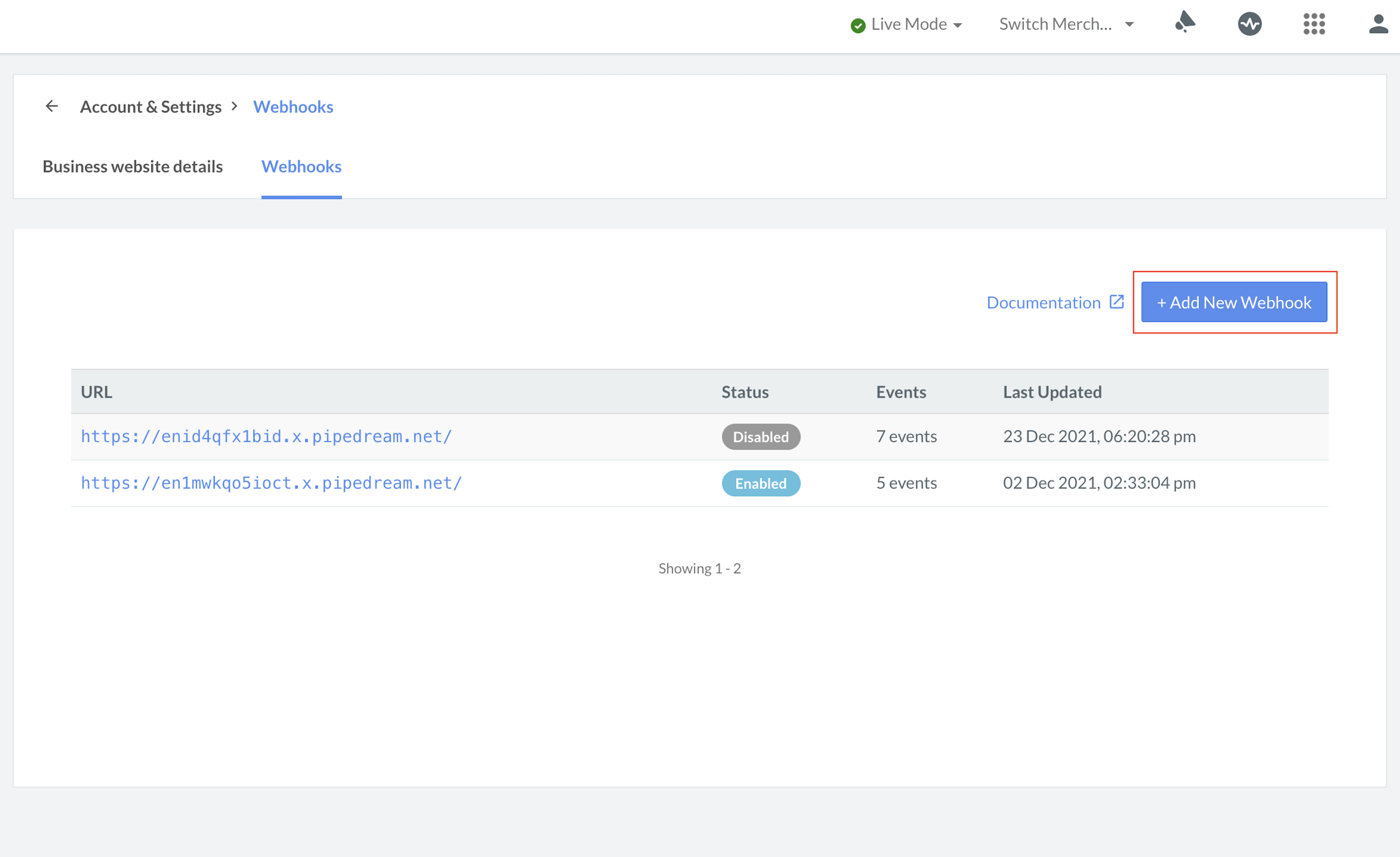 4. In the **Webhook Setup** pop-up page:
* Enter the **URL** where you want to receive the webhook payload when an event is triggered. We recommend using an HTTPS URL.
4. In the **Webhook Setup** pop-up page:
* Enter the **URL** where you want to receive the webhook payload when an event is triggered. We recommend using an HTTPS URL.
 6. You can select the webhook and click **Edit** to make more changes.
 6. Click **Save Webhook** to save changes.