> ## Documentation Index
> Fetch the complete documentation index at: https://razorpay-881012b3.mintlify.site/llms.txt
> Use this file to discover all available pages before exploring further.
# Set Up and Edit Payout Webhooks
> Set up and edit Payout Webhooks from the RazorpayX Dashboard.
Available in
🇮🇳 India
You can set up and edit webhooks from the RazorpayX Dashboard.
## Set Up and Edit Webhooks
**Handy Tips**
It is important to validate and test webhooks before you start using them. To test webhooks, refer [Validate and Test Webhooks](/docs/webhooks/validate-test).
To set up webhooks:
1. Log in to the [RazorpayX Dashboard](https://x.razorpay.com), and navigate to **My Account & Settings** → **Developer Controls**.
2. Click **Add Webhooks** if you are setting up a webhook or **Edit Webhook** to edit a previously saved webhook.
3. Enter the **Webhook URL** where you want to receive the webhook payload when an event is triggered.
**Handy Tips**
* You can set up to **30 URLs** to receive Webhook notifications. Webhooks can only be delivered to public URLs.
* This webhook URL can be different from your [Razorpay Payment Gateway webhook URL](/docs/webhooks/setup-edit-payments).
* If you attempt to save a localhost endpoint as part of a webhook setup, you will notice an error. Know more about [alternatives to localhost](/docs/webhooks/validate-test#application-running-on-localhost).
1. Enter a **Secret** for the webhook endpoint. This is an optional field and is used for [validation](/docs/webhooks/validate-test).
**Secret for Webhooks**
* When setting up the Webhooks, you will be asked to specify a secret. Using this secret, you can validate that the webhook is from Razorpay.
* Entering the secret is optional but recommended. The secret should never be exposed publicly.
* The webhook secret does not need to be the merchant secret key provided by Razorpay.
1. Select the events you want to subscribe from the list of **Active Events**.
2. Click **SAVE** to enable the webhook.
To edit webhooks:
1. Log in to the [RazorpayX Dashboard](https://x.razorpay.com), and navigate to **My Account & Settings** → **Developer Controls**.
2. After you have configured the webhooks, you can click **Edit** to make changes to a previously saved webhook.
**Handy Tips**
Enter the default OTP `754081` when prompted, while setting up, editing or deleting a webhook in test mode.
## Enable/Disable a Webhook
To enable or disable a webhook:
1. Log in to the [RazorpayX Dashboard](https://x.razorpay.com) and navigate to **My Account & Settings** → **Developer Controls**.
2. Scroll down to the **WEBHOOKS** section.
3. Click **EDIT WEBHOOK**.
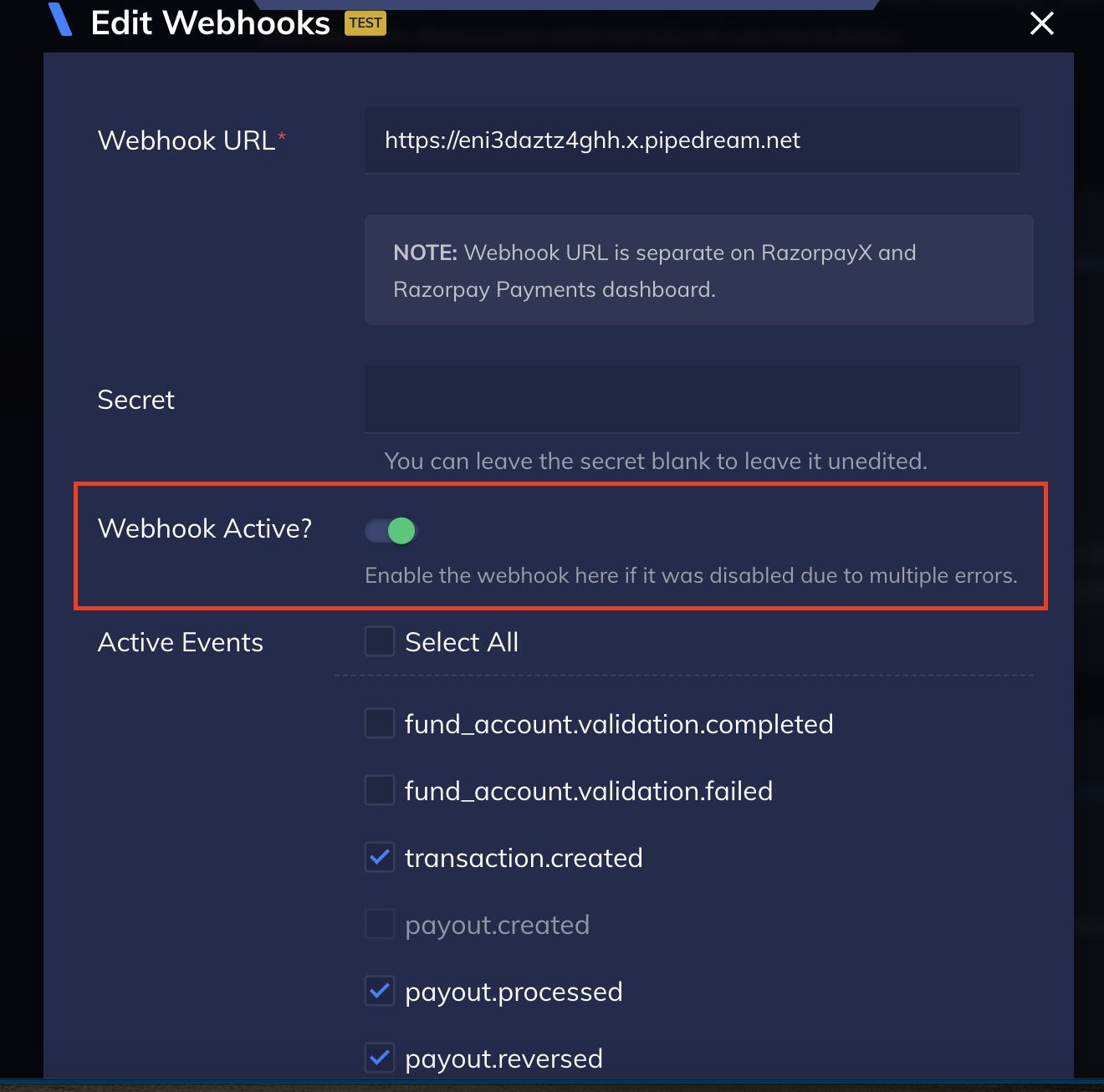
4. Use the **Webhook Active?** option to enable or disable the webhook as shown below:
 ## Deactivation
All webhook responses must return a status code in the range `2XX` within a window of 5 seconds. If we receive response codes other than this or the request times out, it is considered a failure.
On failure, a webhook is re-tried at progressive intervals of time, defined in the exponential back-off policy, for 24 hours. If the failures continue for 24 hours, the webhook is disabled. You have to enable the webhook from the [RazorpayX Dashboard](https://x.razorpay.com) after fixing the errors at your end. Know more about [enabling webhooks](/docs/webhooks/setup-edit-payouts#enabledisable-a-webhook).
**Handy Tips**
When a webhook gets disabled, you receive an email notification on the email id you configured while setting up the webhooks.
### Related Information
* [Webhooks](/docs/webhooks)
* [Set Up and Edit Payments Webhooks](/docs/webhooks/setup-edit-payments)
* [Validate and Test Webhooks](/docs/webhooks/validate-test)
## Deactivation
All webhook responses must return a status code in the range `2XX` within a window of 5 seconds. If we receive response codes other than this or the request times out, it is considered a failure.
On failure, a webhook is re-tried at progressive intervals of time, defined in the exponential back-off policy, for 24 hours. If the failures continue for 24 hours, the webhook is disabled. You have to enable the webhook from the [RazorpayX Dashboard](https://x.razorpay.com) after fixing the errors at your end. Know more about [enabling webhooks](/docs/webhooks/setup-edit-payouts#enabledisable-a-webhook).
**Handy Tips**
When a webhook gets disabled, you receive an email notification on the email id you configured while setting up the webhooks.
### Related Information
* [Webhooks](/docs/webhooks)
* [Set Up and Edit Payments Webhooks](/docs/webhooks/setup-edit-payments)
* [Validate and Test Webhooks](/docs/webhooks/validate-test)