> ## Documentation Index
> Fetch the complete documentation index at: https://razorpay-881012b3.mintlify.site/llms.txt
> Use this file to discover all available pages before exploring further.
# View and Download Account Statements
> Filter, view and download account statements from the RazorpayX Dashboard.
Available in
🇮🇳 India
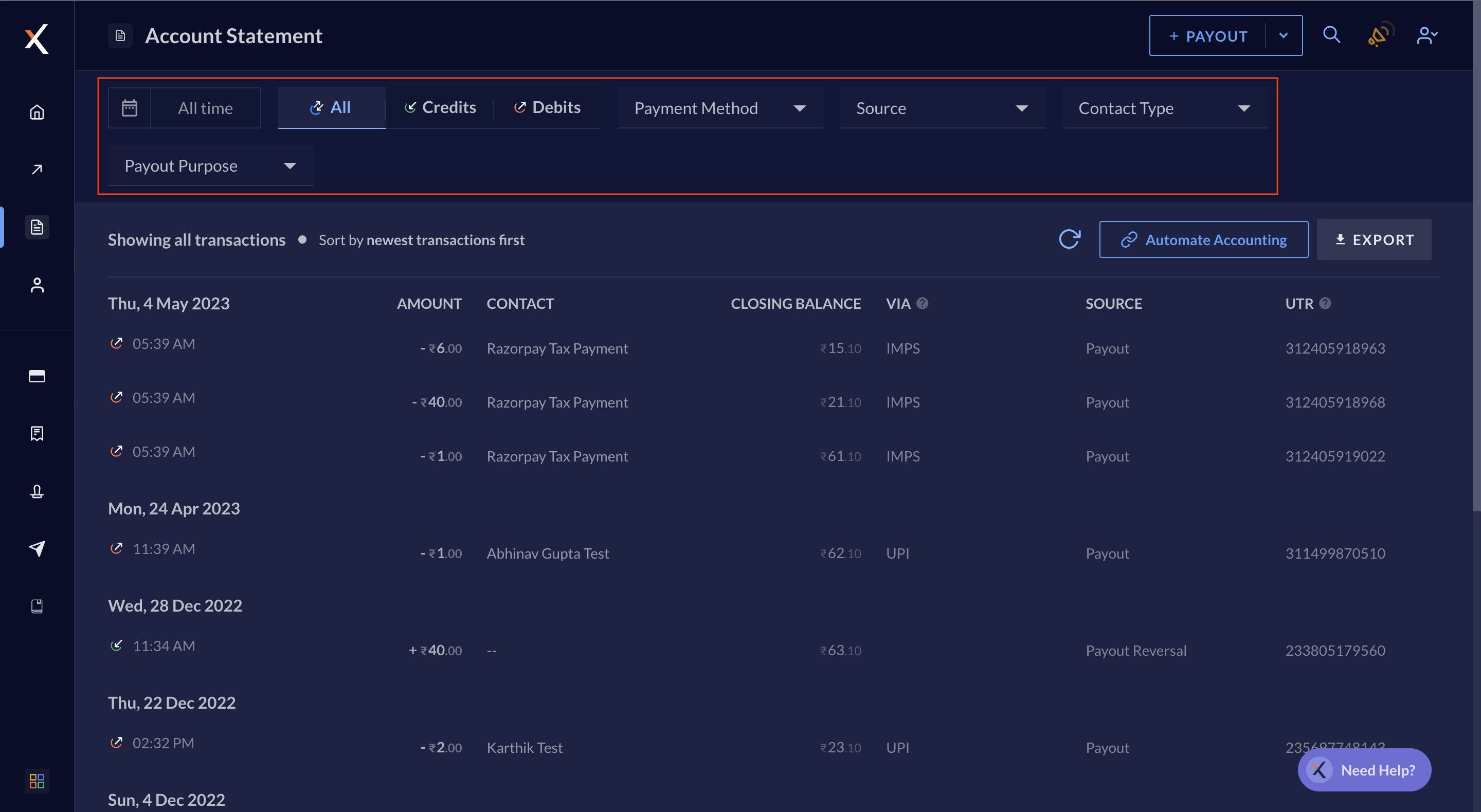
All your transactions on the [RazorpayX Dashboard](https://x.razorpay.com/auth) are visible under the **Account Statement** tab on the left navigation.
**Is account statement not visible on your dashboard?**
If the given view is not visible on your dashboard, know more about the [alternatives for viewing account statements](/docs/x/account-statement/sftp).
## View Account Statement
You can view all the transactions at once or filter it as per your requirement.
 ## Download Account Statement
You can download all of your transaction data for a specific day, month or any time frame as per your business requirements. This information can be downloaded as a `csv` or `xls` file, or sent via email to the intended recipients.
To download account statement:
1. Log in to the [RazorpayX Dashboard](https://x.razorpay.com/auth).
2. Navigate to **Account Statement** on the left navigation.
3. Click **EXPORT**.
## Download Account Statement
You can download all of your transaction data for a specific day, month or any time frame as per your business requirements. This information can be downloaded as a `csv` or `xls` file, or sent via email to the intended recipients.
To download account statement:
1. Log in to the [RazorpayX Dashboard](https://x.razorpay.com/auth).
2. Navigate to **Account Statement** on the left navigation.
3. Click **EXPORT**.
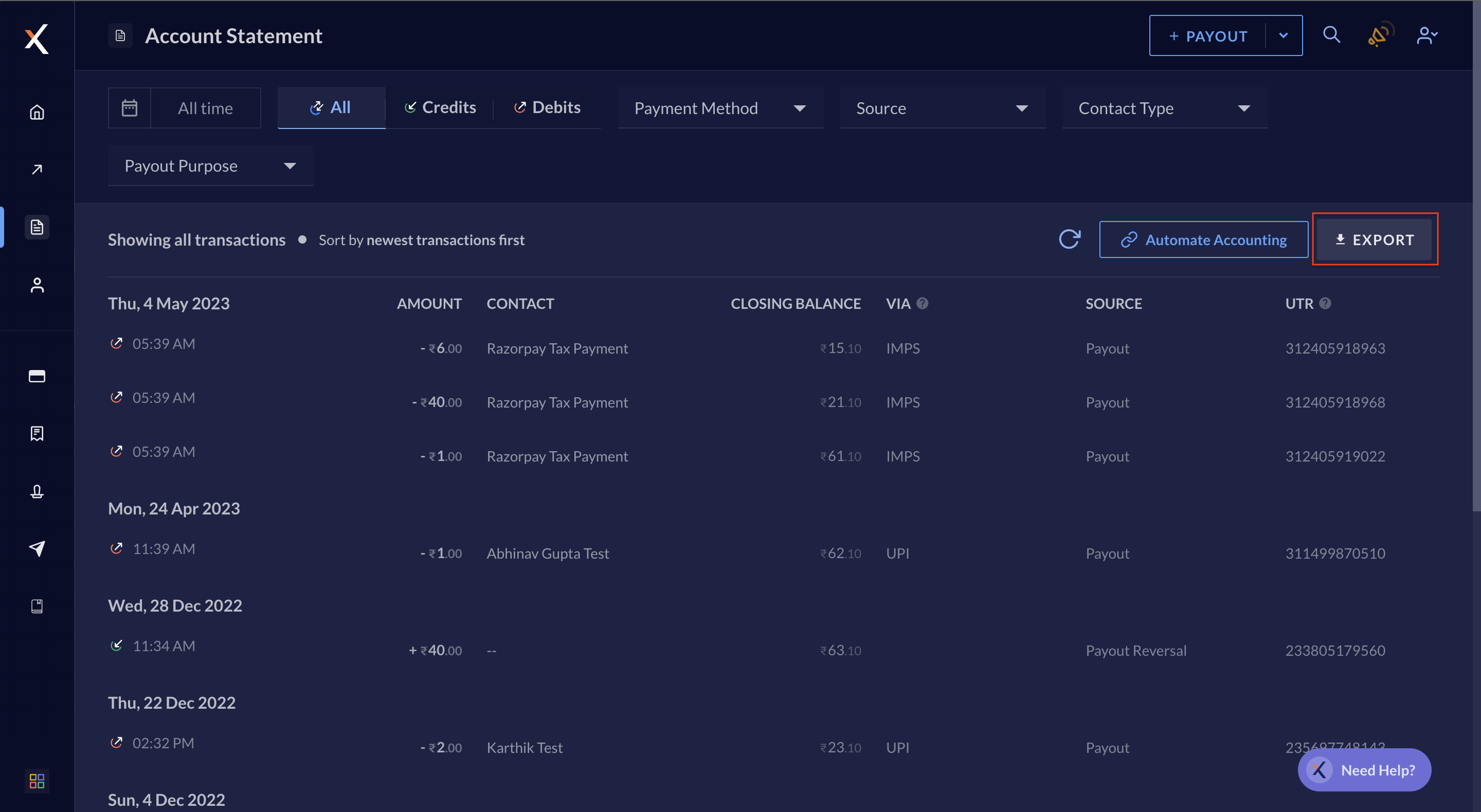 4. Select the date range for which you require the statement from the drop-down.
5. Select the format in which you wish to download the statement. You can choose between `csv` or `xls` files.
6. **DOWNLOAD** the statement.
**Watch Out!**
* Generating statements can take up to 10 minutes.
* The closing balance shown on the dashboard is generated by Razorpay and may differ slightly from real-time bank data.
7. You can also **EMAIL** the statement. Select the receivers from the list and click **EMAIL**.
## Integrate Accounting Software
Know about [how to integrate account statement with accounting software](/docs/x/accounting).
### Related Information
* [Payouts](/docs/x/payouts)
* [Vendor Payments](/docs/x/vendor-payments)
4. Select the date range for which you require the statement from the drop-down.
5. Select the format in which you wish to download the statement. You can choose between `csv` or `xls` files.
6. **DOWNLOAD** the statement.
**Watch Out!**
* Generating statements can take up to 10 minutes.
* The closing balance shown on the dashboard is generated by Razorpay and may differ slightly from real-time bank data.
7. You can also **EMAIL** the statement. Select the receivers from the list and click **EMAIL**.
## Integrate Accounting Software
Know about [how to integrate account statement with accounting software](/docs/x/accounting).
### Related Information
* [Payouts](/docs/x/payouts)
* [Vendor Payments](/docs/x/vendor-payments)