> ## Documentation Index
> Fetch the complete documentation index at: https://razorpay-881012b3.mintlify.site/llms.txt
> Use this file to discover all available pages before exploring further.
# Account Statements via SFTP
> Access your account statements through bank portals or secure file transfer protocol (SFTP) setup.
Available in
🇮🇳 India
In some scenarios, banks are not able to support account statements on the RazorpayX dashboard at the moment.
Examples of such scenarios:
* **RBL**: If you are performing high number of transactions.
* **Axis Bank / IDFC Bank**: Bank APIs are under development.
In such instances, you have the following alternatives to view your account statements:
| Bank | Bank Portal | SFTP |
| ---------- | ----------- | ---- |
| RBL | ✓ | ✓ |
| Yes Bank | ✓ | ✓ |
| ICICI Bank | ✓ | x |
| IDFC Bank | ✓ | ✓ |
| Axis Bank | ✓ | ✓ |
## Bank Portal for Account Statements
Login to your respective bank account portals to view and download the account statements.
* [RBL Bank](https://www.rblbank.com/)
* [Yes Bank](https://www.yesbank.in/)
* [ICICI Bank](https://www.icicibank.com/)
* [IDFC Bank](https://www.idfcfirst.bank.in/)
* [Axis Bank](https://www.axis.bank.in/)
## Secure File Transfer Protocol
Set up SFTP with RazorpayX to access the previous day’s account statement in a .CSV format through a file access tool installed in your system. You will find raw account statements shared by the bank without extra information such as Payout IDs.
To setup SFTP in your system:
* **Express interest**: [Write to RazorpayX Support](/docs/x/support#razorpayx-users) with your registered email ID to initiate the SFTP request. Upon receiving your request, we will work with the bank to setup account statement for you.
* **Install file access tool**: Install a File Access tool in a trusted system. Ensure that only authorized personnel use this file access software to access SFTP files. You can use any File Access Tool. We recommend [FileZilla](/docs/x/account-statement/sftp#setup-filezilla).
* **Generate public-private key pair**: You will be authenticated for accessing SFTP files through a public-private key mechanism. Generate these keys in your system that are used to access the account statement. Store the private key securely and do not share with anyone.
* **Share authentication information with RazorpayX**: Share the public key and your IP address on the previously initiated email thread.
* **Receive credentials from RazorpayX**: After receiving the the public key and IP Address from you and authorisation from the bank, RazorpayX will share necessary credentials with you (Username, Host) on the existing email thread.
* **Connect to Razorpay SFTP**: Using the File Access tool installed on your system and the credentials, access the files on SFTP.
If you choose to use FileZilla, you can follow the steps given below:
To setup FileZilla:
1. Open the FileZilla software on your system.
2. Go to **File** → **Site Manager**.
3. Click **New Site** from the left pane
4. Enter a name for the new server. This name is for display purpose only. We suggest you to choose a name that will help you remember the purpose of the server.
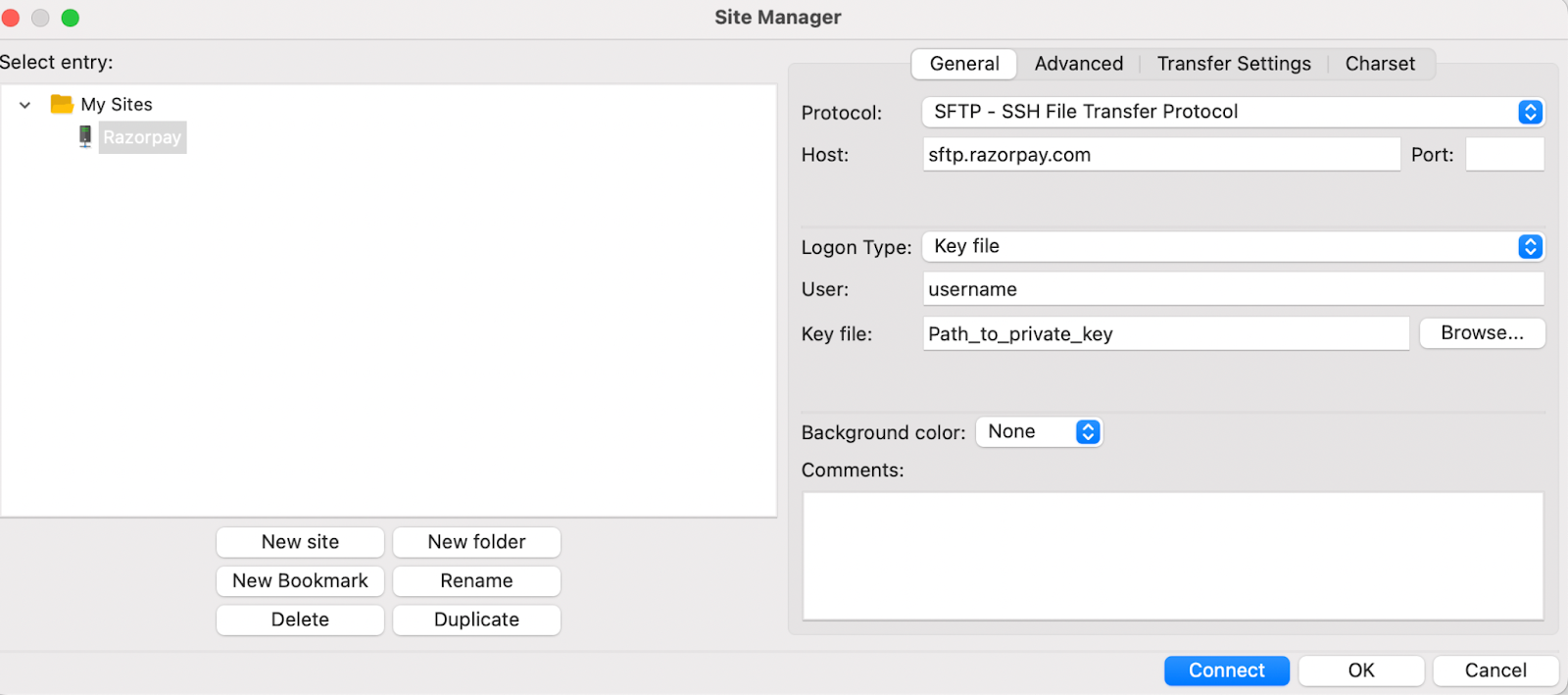
5. Go to **Protocol** and select **SFTP Protocol**.
6. Fill the **Site Manager** form with relevant details:
* **Host**: `sftp.razorpay.com`
* **Login type**: Key file
* **User**: Username shared by RazorpayX
* **Key file**: File path to the private key on your system
 7. Click **Connect**. You will be able to see all the files in your SFTP folder. You will receive a new account statement file everyday around 9 AM in this folder for the transactions done on the previous day.
If you face any problems setting up SFTP on your system, [contact support](/docs/x/support).
7. Click **Connect**. You will be able to see all the files in your SFTP folder. You will receive a new account statement file everyday around 9 AM in this folder for the transactions done on the previous day.
If you face any problems setting up SFTP on your system, [contact support](/docs/x/support).