> ## Documentation Index
> Fetch the complete documentation index at: https://razorpay-881012b3.mintlify.site/llms.txt
> Use this file to discover all available pages before exploring further.
# Current Account
> Explore RazorpayX powered Current Account, the application process, documents required and how to add funds.
Available in
🇮🇳 India
RazorpayX powered [Current Account](https://razorpay.com/x/current-accounts/) comes with a robust set of tools and integrations that make financial management powerful and easy.
Current Accounts enable you to manage receivables and payables in one place and offer all standard banking features like a cheque book, debit card and account statement.
**Handy Tips**
The Partner Banks for Current Account are [RBL](/docs/x/rbl-ybl-current-account/company), [Yes Bank](/docs/x/rbl-ybl-current-account/company), [IDFC First](/docs/x/idfc-first/kyc) and [Axis Bank](/docs/x/axis-current-account#current-account-opening-required-documents\)) presently. [Contact Support](/docs/x/support) to open a Current Account with the bank of your choice (subject to individual approval).
## Open a Current Account
To open a RazorpayX powered Current Account:
1. Log in to the [RazorpayX Dashboard](https://x.razorpay.com/auth).
2. Go to the Current Account [application link](https://x.razorpay.com/auth/signup/?intent=current_account). Keep your Business PAN/GSTIN readily available to make your application process quicker.
3. Provide your [Business PAN](https://razorpay.com/learn/company-permanent-account-number-pan-card/)/[GSTIN](https://razorpay.com/learn/what-is-gstin-all-you-know-about-your-15-digits-gstin/) to auto-fill your application.
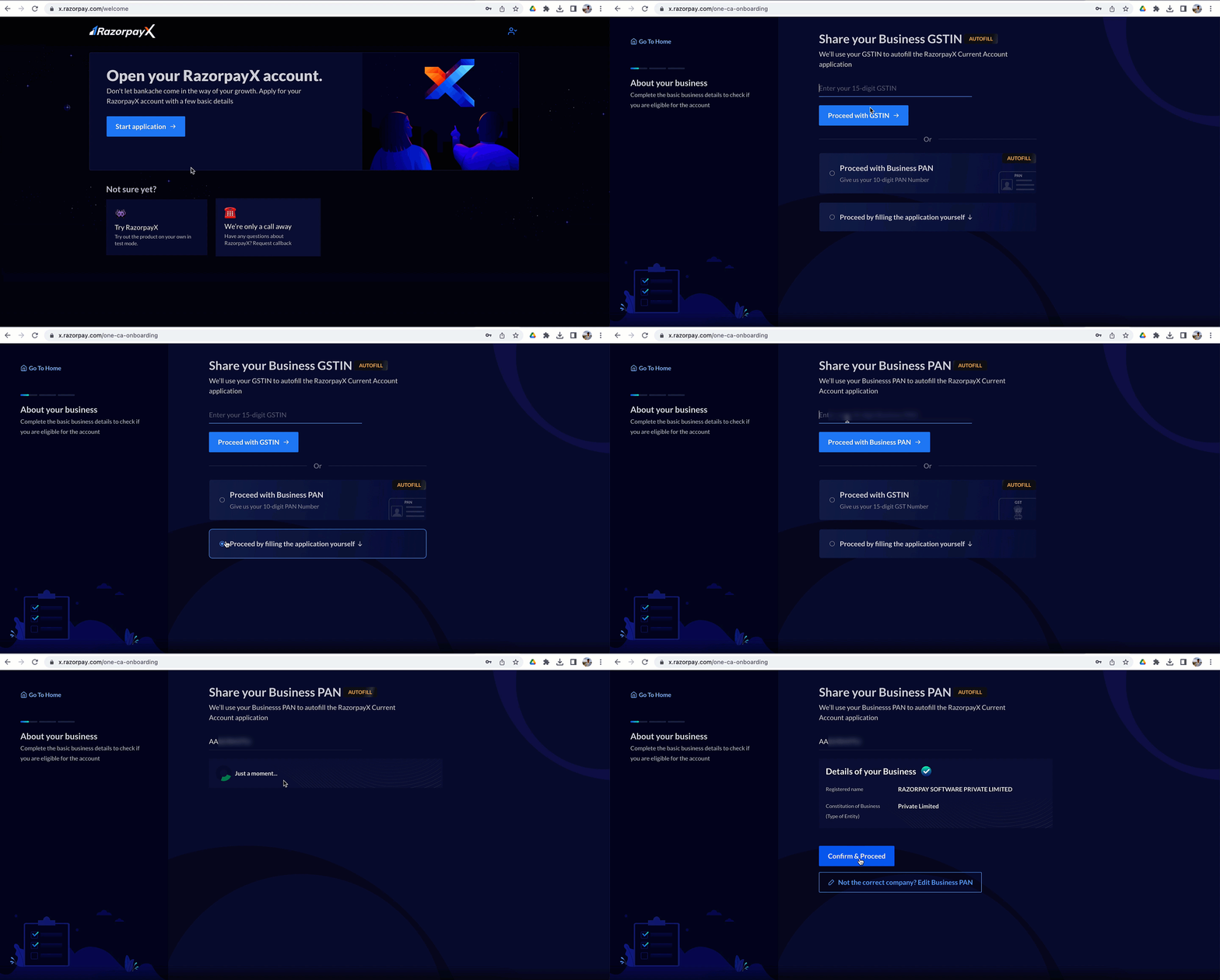 You can also manually enter your business details. Refer to the list of [required documents](#required-documents).
4. Review the business details retrieved by the identity number you provided.
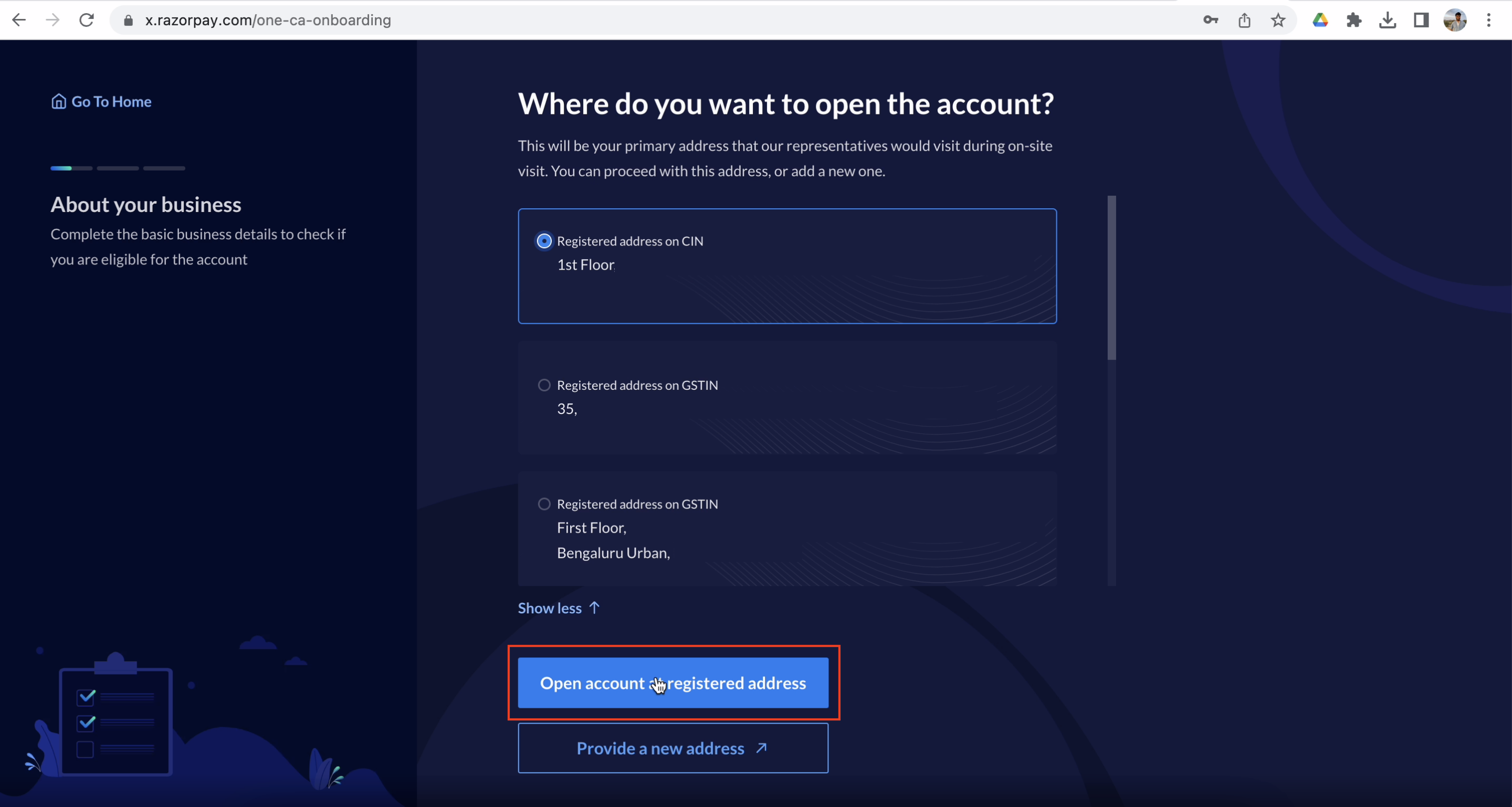
1. Verify the address for the on-site visit and click **Open account at registered address**. You can also choose to provide a new address, if required.
You can also manually enter your business details. Refer to the list of [required documents](#required-documents).
4. Review the business details retrieved by the identity number you provided.
1. Verify the address for the on-site visit and click **Open account at registered address**. You can also choose to provide a new address, if required.
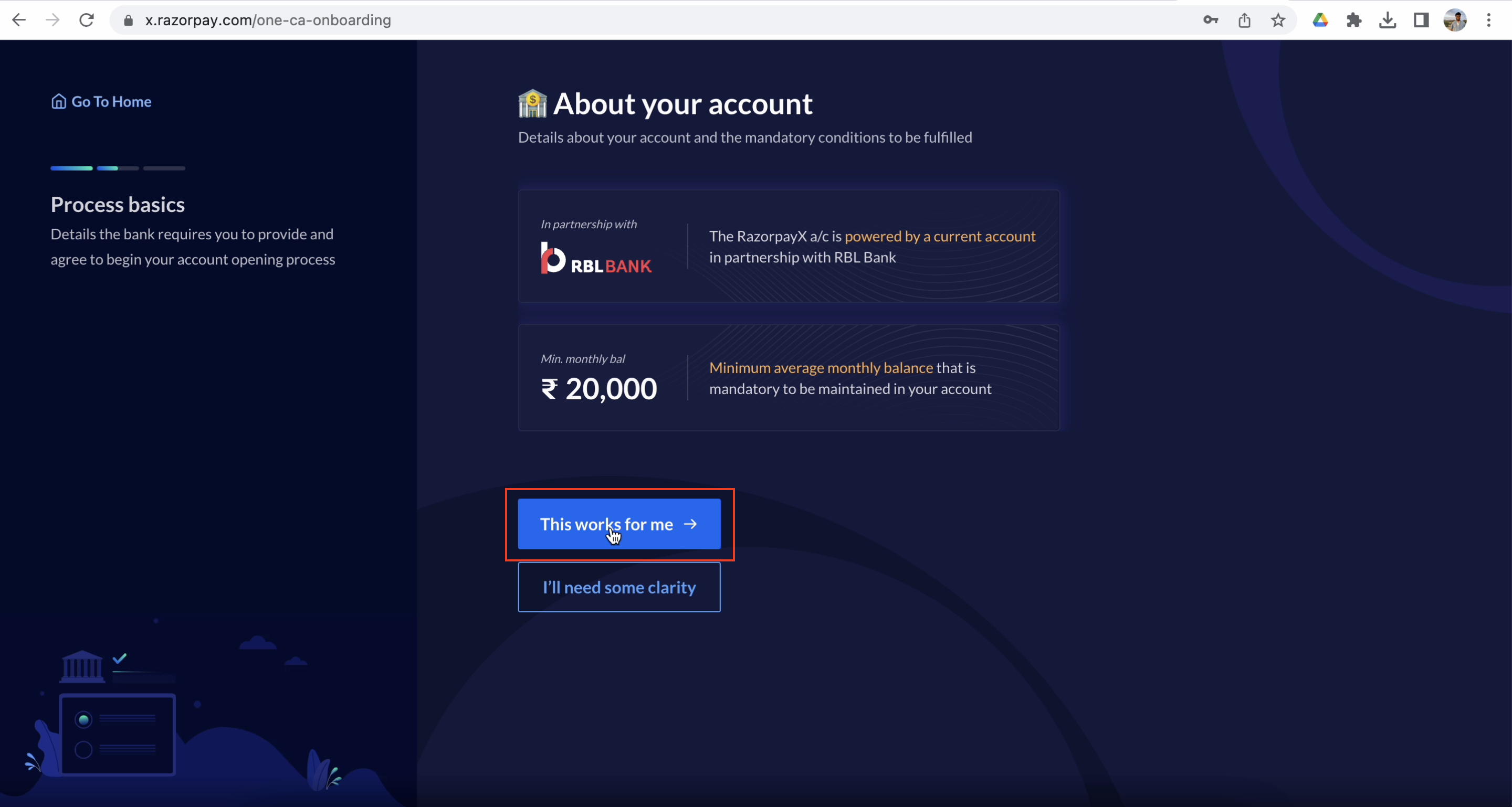
 2. Review the details of your account type, such as partner bank name and monthly minimum balance. Click **This works for me** to proceed with the account opening.
 3. Edit your signatories/declarations.
5. Complete the OTP verification process.
**Handy Tips**
You can always check the status of your application on the Dashboard.
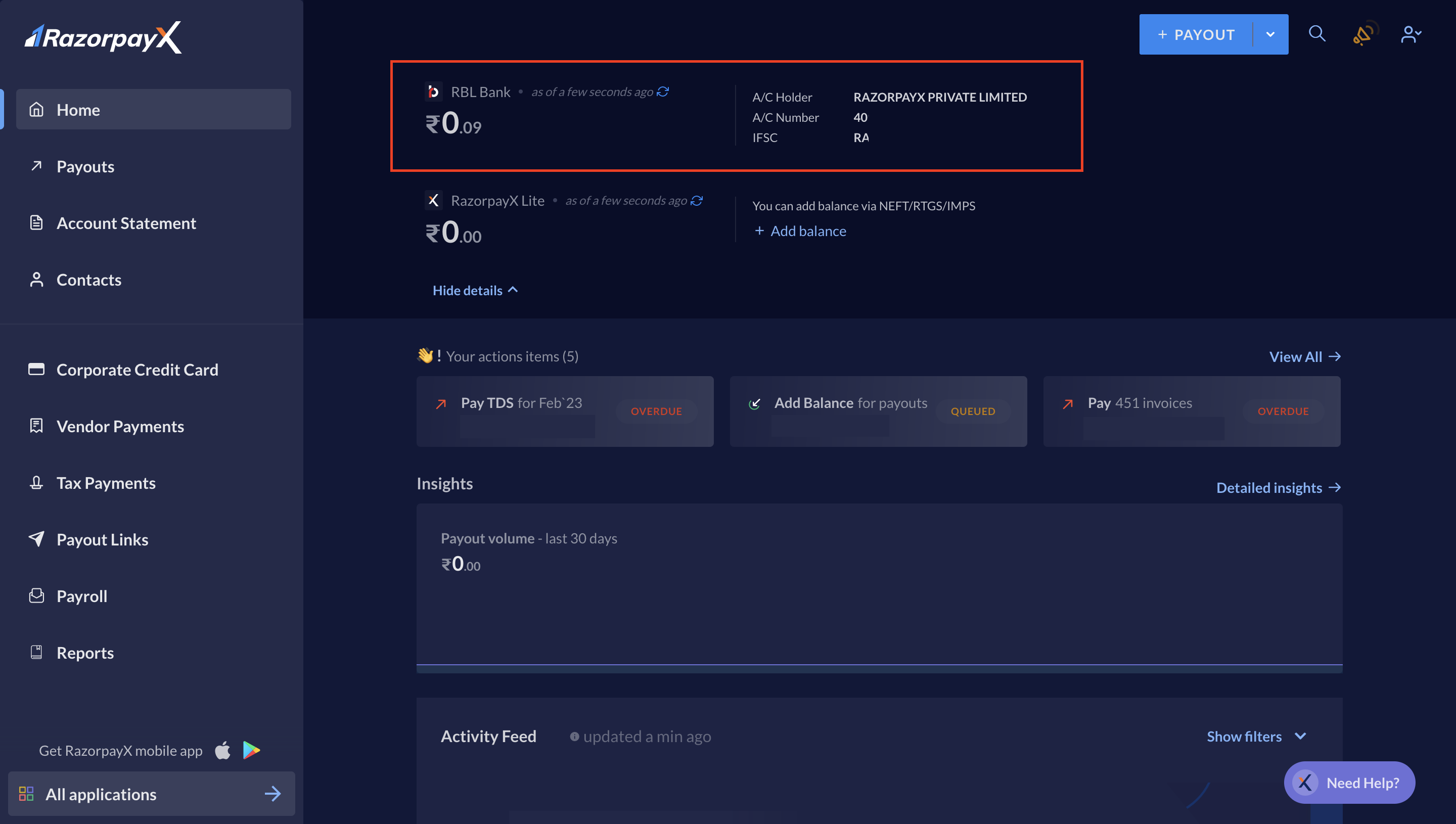
After verifying your details, RazorpayX works to open your Current Account with the partner bank. You can access your Current Account details and avail the benefits on your RazorpayX [Dashboard](/docs/x/dashboard).
Here is a sample dashboard after account activation:
3. Edit your signatories/declarations.
5. Complete the OTP verification process.
**Handy Tips**
You can always check the status of your application on the Dashboard.
After verifying your details, RazorpayX works to open your Current Account with the partner bank. You can access your Current Account details and avail the benefits on your RazorpayX [Dashboard](/docs/x/dashboard).
Here is a sample dashboard after account activation:
 [Add funds](#add-funds) to your Current Account to get started.
### Required Documents
Check the documents required to open a Current Account with the following banks as per your business type in RazorpayX:
### RBL/Yes Bank
* [Private / Public Limited Company / OPC](/docs/x/rbl-ybl-current-account/company)
* [Limited Liability Partnership (LLP)](/docs/x/rbl-ybl-current-account/llp)
* [Partnership](/docs/x/rbl-ybl-current-account/partnership)
* [Trust or Society](/docs/x/rbl-ybl-current-account/trust-society)
* [Sole Proprietorship](/docs/x/rbl-ybl-current-account/sole-proprietorship)
### IDFC First Bank
* [Private / Public Limited Company / OPC](/docs/x/idfc-first/pvt-ltd-co)
* [Limited Liability Partnership (LLP)](/docs/x/idfc-first/llp)
* [Partnership](/docs/x/idfc-first/partnership)
* [Sole Proprietorship](/docs/x/idfc-first/sole-proprietorship)
### Axis Bank
* [Axis Bank](/docs/x/axis-current-account) (available only for Public/Private Limited Company, Limited Liability Partnership or Trust, Associations, Societies and Clubs)
## Add Funds
After account activation, add funds to your RazorpayX account to make payouts. You can do this by direct bank transfer via:
* [NEFT/RTGS/IMPS](#direct-bank-transfer-netbanking)
* [UPI](#direct-bank-transfers-upi-apps)
### Direct Bank Transfer: Netbanking
You can transfer funds to your RazorpayX account via a direct bank transfer from bank accounts.
### Direct Bank Transfers: UPI Apps
To transfer funds to your RazorpayX account from your UPI app:
1. Log in to your UPI app.
2. Create a beneficiary using your RazorpayX account number and IFSC details. You can find these details on your Dashboard → [**My Account & Settings**](/docs/x/dashboard#my-account-settings).
3. Transfer funds via IMPS.
### Related Information
* [About Current Account](https://razorpay.com/blog/business-banking/what-is-current-account/)
* [Open a Current Account](https://razorpay.com/x/current-accounts/)
* [Generate API Keys](/docs/x/dashboard/api-keys)
* [Test Mode](/docs/x/dashboard/test-mode)
[Add funds](#add-funds) to your Current Account to get started.
### Required Documents
Check the documents required to open a Current Account with the following banks as per your business type in RazorpayX:
### RBL/Yes Bank
* [Private / Public Limited Company / OPC](/docs/x/rbl-ybl-current-account/company)
* [Limited Liability Partnership (LLP)](/docs/x/rbl-ybl-current-account/llp)
* [Partnership](/docs/x/rbl-ybl-current-account/partnership)
* [Trust or Society](/docs/x/rbl-ybl-current-account/trust-society)
* [Sole Proprietorship](/docs/x/rbl-ybl-current-account/sole-proprietorship)
### IDFC First Bank
* [Private / Public Limited Company / OPC](/docs/x/idfc-first/pvt-ltd-co)
* [Limited Liability Partnership (LLP)](/docs/x/idfc-first/llp)
* [Partnership](/docs/x/idfc-first/partnership)
* [Sole Proprietorship](/docs/x/idfc-first/sole-proprietorship)
### Axis Bank
* [Axis Bank](/docs/x/axis-current-account) (available only for Public/Private Limited Company, Limited Liability Partnership or Trust, Associations, Societies and Clubs)
## Add Funds
After account activation, add funds to your RazorpayX account to make payouts. You can do this by direct bank transfer via:
* [NEFT/RTGS/IMPS](#direct-bank-transfer-netbanking)
* [UPI](#direct-bank-transfers-upi-apps)
### Direct Bank Transfer: Netbanking
You can transfer funds to your RazorpayX account via a direct bank transfer from bank accounts.
### Direct Bank Transfers: UPI Apps
To transfer funds to your RazorpayX account from your UPI app:
1. Log in to your UPI app.
2. Create a beneficiary using your RazorpayX account number and IFSC details. You can find these details on your Dashboard → [**My Account & Settings**](/docs/x/dashboard#my-account-settings).
3. Transfer funds via IMPS.
### Related Information
* [About Current Account](https://razorpay.com/blog/business-banking/what-is-current-account/)
* [Open a Current Account](https://razorpay.com/x/current-accounts/)
* [Generate API Keys](/docs/x/dashboard/api-keys)
* [Test Mode](/docs/x/dashboard/test-mode)