> ## Documentation Index
> Fetch the complete documentation index at: https://razorpay-881012b3.mintlify.site/llms.txt
> Use this file to discover all available pages before exploring further.
# Integrate RazorpayX with Zoho Books
> Integrate RazorpayX with Zoho Books to sync account statement, vendor payments and payouts for easy reconciliation while accounting.
Available in
🇮🇳 India
Zoho Books is a financial platform that enables you to create invoices, maintain and reconcile bank accounts, and make tax payments to ensure GST compliance.
If you are a Zoho Books user, you can integrate your Zoho account with RazorpayX to sync payment information between RazorpayX to Zoho Books. This makes reconciliation easy.
## Integrate with Zoho Books
To start the integration process:
1. Log in to your [RazorpayX Dashboard](https://x.razorpay.com/).
2. Navigate to **Profile** → **My Accounts & Settings** → **Integrations**.
3. Select **ZOHOBOOKS** in the Accounting Tool Integration menu.
4. You can **Invite Finance Team →** or integrate on your own by clicking **Integrate Myself**. If you have invited your finance team, they can click **Integrate →**.
5. Select the domain in which your Zoho Books is hosted.
1. Click **Proceed with .in** if your domain is .IN
2. Click **Proceed with .com** if your domain is .COM
6. Now, RazorpayX will redirect to the Zoho Books website. Login to your Zoho Books account and click **Accept**.
7. You are then redirected back to RazorpayX to complete the final step. Select your organisation from the drop-down list which is synced from Zoho Books.
8. Your GSTIN is pre-filled. Click **NEXT**. This integration works only if you have a GSTIN attached to your Zoho Books account.
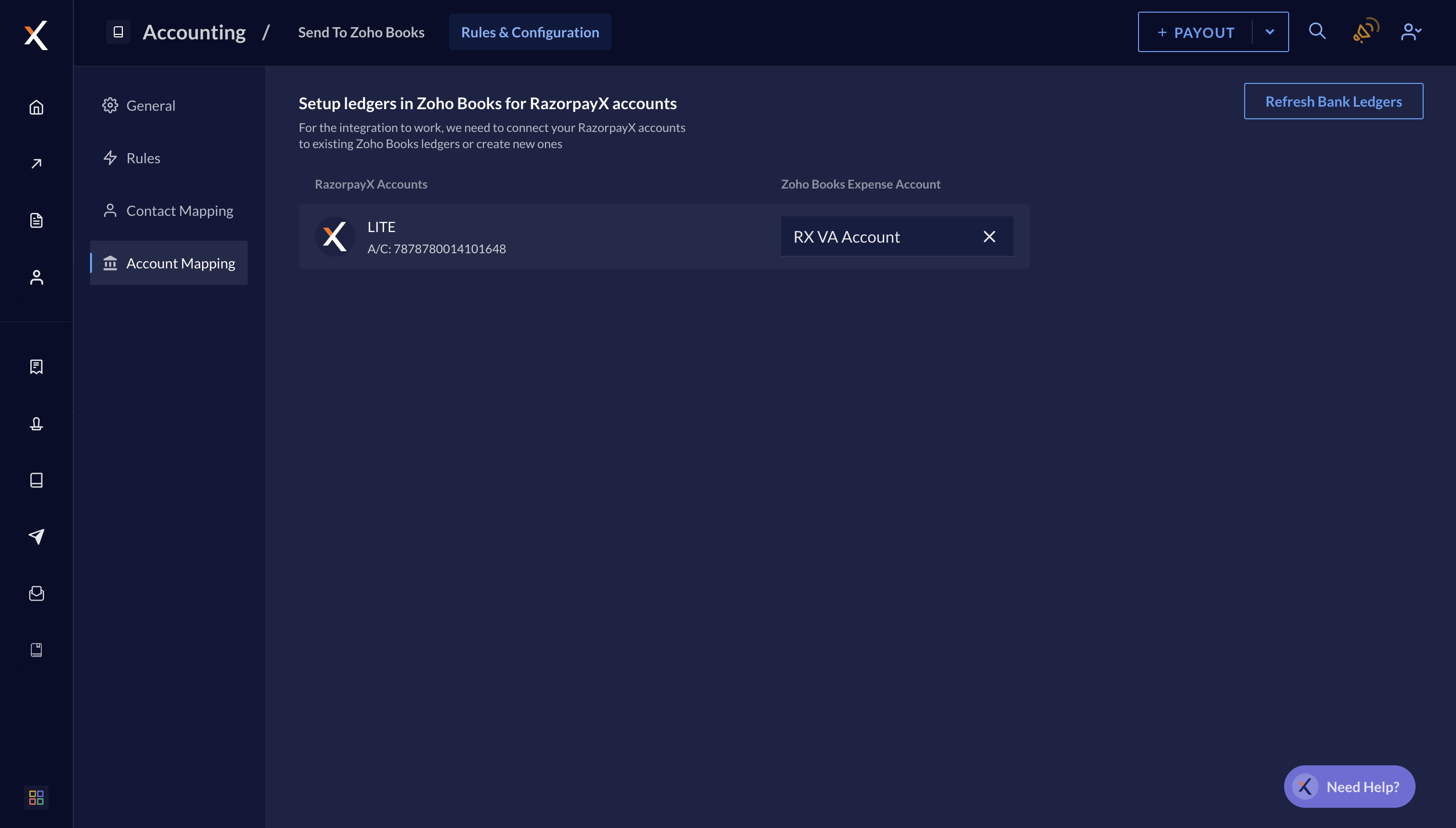
9. Connect your RazorpayX bank account/s to an existing Zoho Books ledger or create a new one by selecting from the drop-down menu. All payments made via the chosen RazorpayX bank account appear in the respective ledger on Zoho Books.
This works with both the Current account as well as RazorpayX Lite.
**Watch Out!**
RazorpayX Lite is currently not available for new merchants. To set up a new RazorpayX account, refer to [Current Account](/docs/x/account-types/current-account).
10. Review the settings. **Change Sync Settings** if you want to make any changes or click **NEXT →**.
If you click **Change Sync Settings**, you can disable the functions listed below. All the functions are enabled by default.
* **Send invoices form RazorpayX to Zoho Books**
* **Sync Payouts data from RazorpayX to Zoho Books**
* **View RazorpayX bank account statement in Zoho Books**
This completes Zoho Books Integration and a success message is displayed as shown below. Either **Go to Accounting →** and explore the feature or **Setup a Demo Call**.
## Accounting on RazorpayX Dashboard
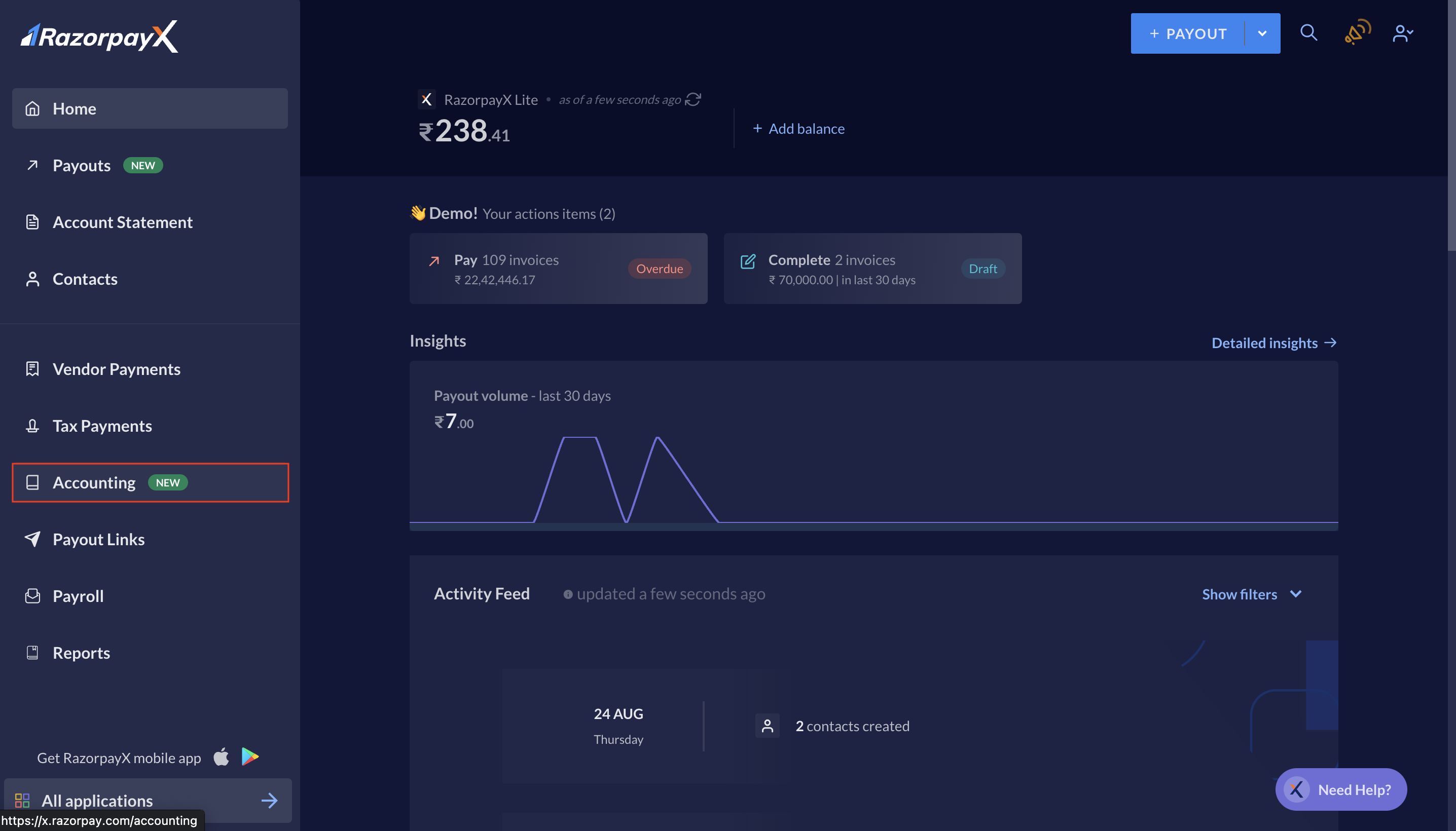
After you integrate with Zoho Books, navigate to the Accounting tab from the [RazorpayX Dashboard](https://x.razorpay.com/). You can sync your payouts and vendor payments to Zoho Books here.
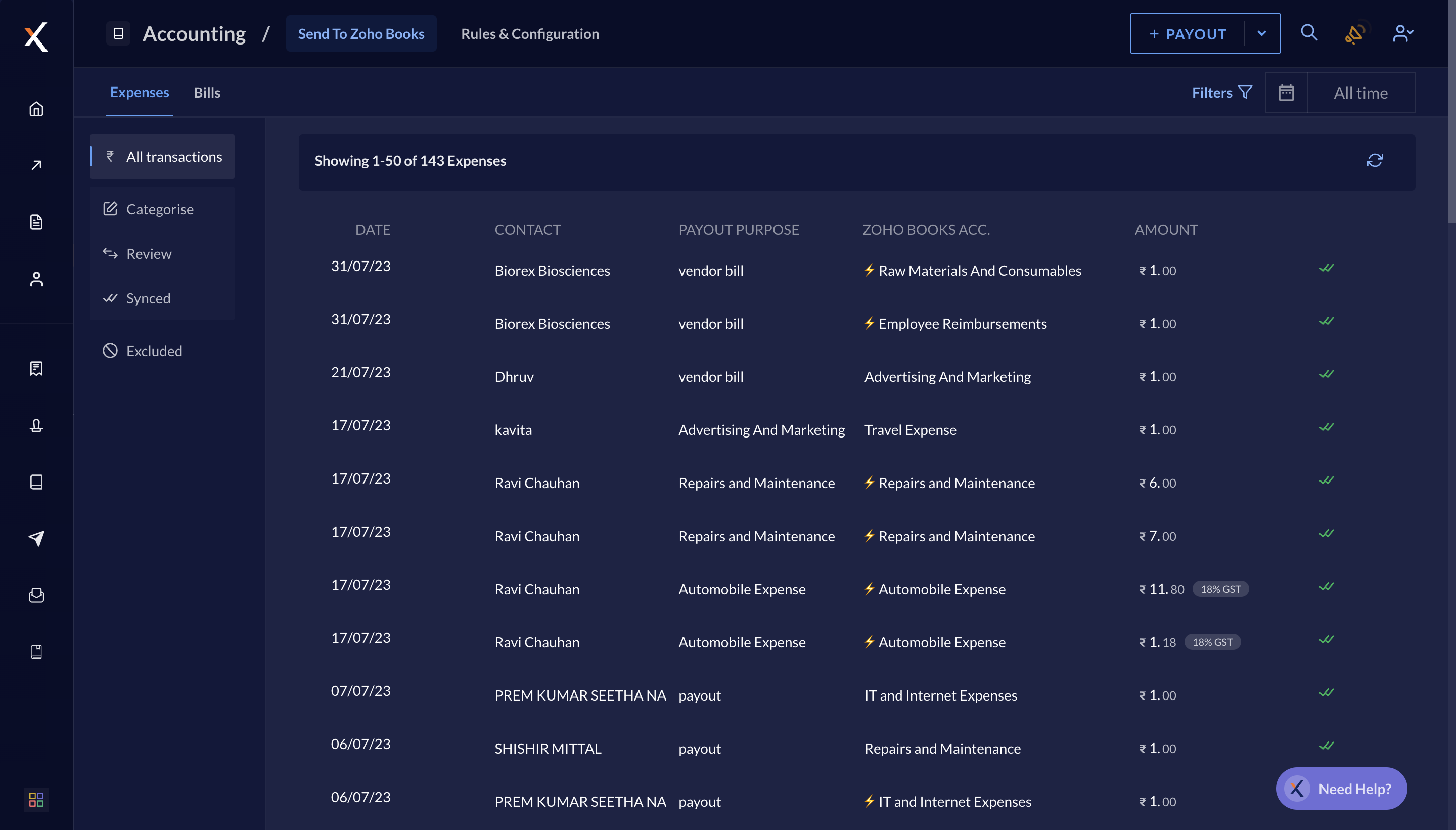
 Payouts are listed under the **Expenses** tab and Vendor Payments are listed under the **Bills** tab.
 ## Rules & Configuration
The following are the available settings for your Zoho Books Integration:
You can choose to disable or enable the following options:
* Sync RazorpayX Bank [Account Statement](/docs/x/accounting/zohobooks/account-statement) to Zoho Books
* Sync and Categorise [Vendor Payments](/docs/x/accounting/zohobooks/vendor-payments) from RazorpayX to Zoho Books
* Sync and Categorise [Payouts](/docs/x/accounting/zohobooks/payouts) from RazorpayX to Zoho Books
You can also **Refresh** Zoho Books Expense Accounts, Bank Ledgers and Tax Groups.
Setting rules will automate categorisation and hence reduce the manual effort drastically. You can set the following rules:
* Contact Rules
* Set contact rules for [categorisation of Vendor Payments](/docs/x/accounting/zohobooks/vendor-payments#categorise).
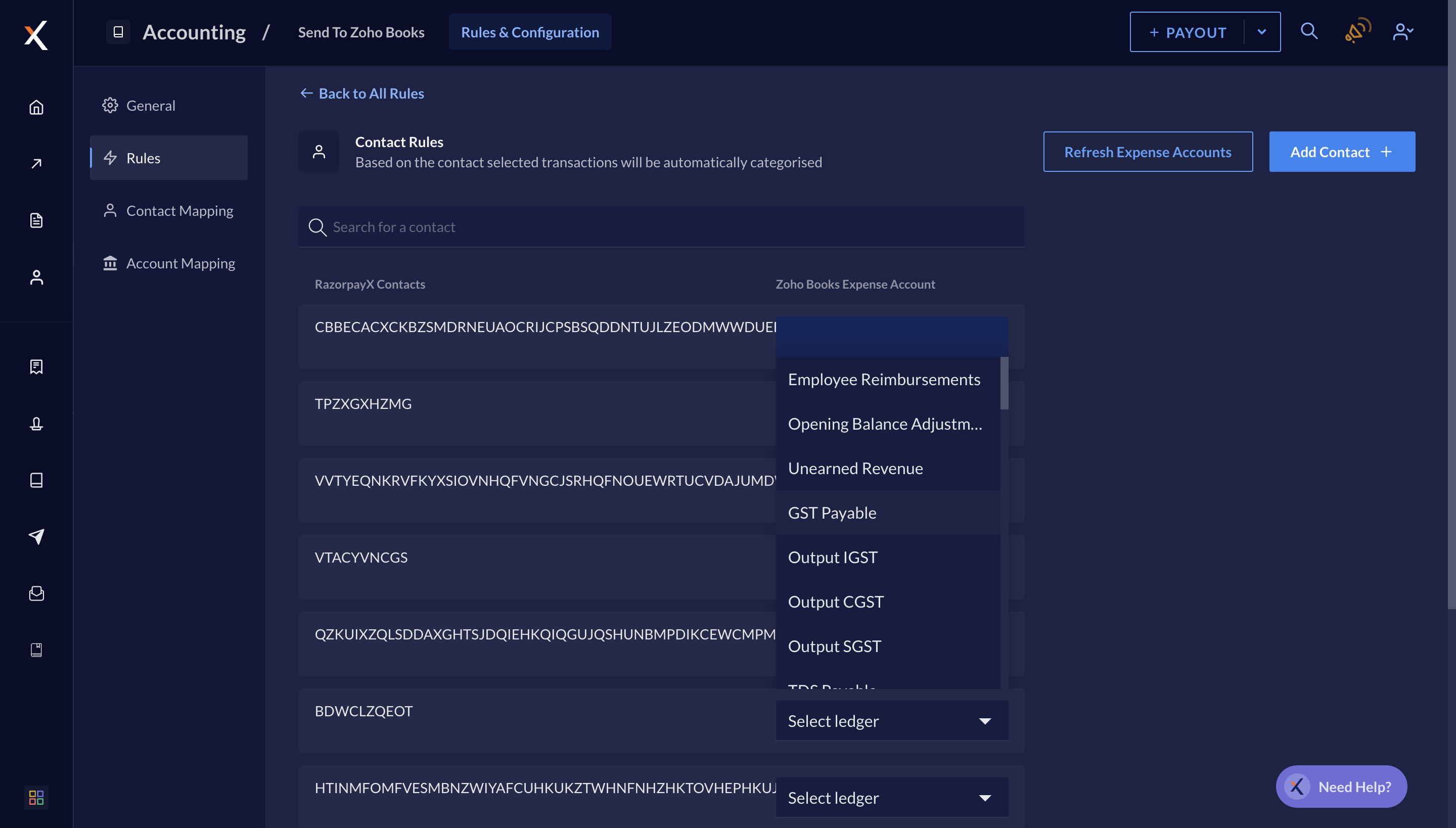
* Select the drop-down under Zoho Books Expense Account and choose the relevant Account for the particular contact. You can also **Add Contact +** and add a new rule for it.
## Rules & Configuration
The following are the available settings for your Zoho Books Integration:
You can choose to disable or enable the following options:
* Sync RazorpayX Bank [Account Statement](/docs/x/accounting/zohobooks/account-statement) to Zoho Books
* Sync and Categorise [Vendor Payments](/docs/x/accounting/zohobooks/vendor-payments) from RazorpayX to Zoho Books
* Sync and Categorise [Payouts](/docs/x/accounting/zohobooks/payouts) from RazorpayX to Zoho Books
You can also **Refresh** Zoho Books Expense Accounts, Bank Ledgers and Tax Groups.
Setting rules will automate categorisation and hence reduce the manual effort drastically. You can set the following rules:
* Contact Rules
* Set contact rules for [categorisation of Vendor Payments](/docs/x/accounting/zohobooks/vendor-payments#categorise).
* Select the drop-down under Zoho Books Expense Account and choose the relevant Account for the particular contact. You can also **Add Contact +** and add a new rule for it.
 * Purpose Rules
* Set purpose rules for [categorisation of Payouts](/docs/x/accounting/zohobooks/payouts#categorise).
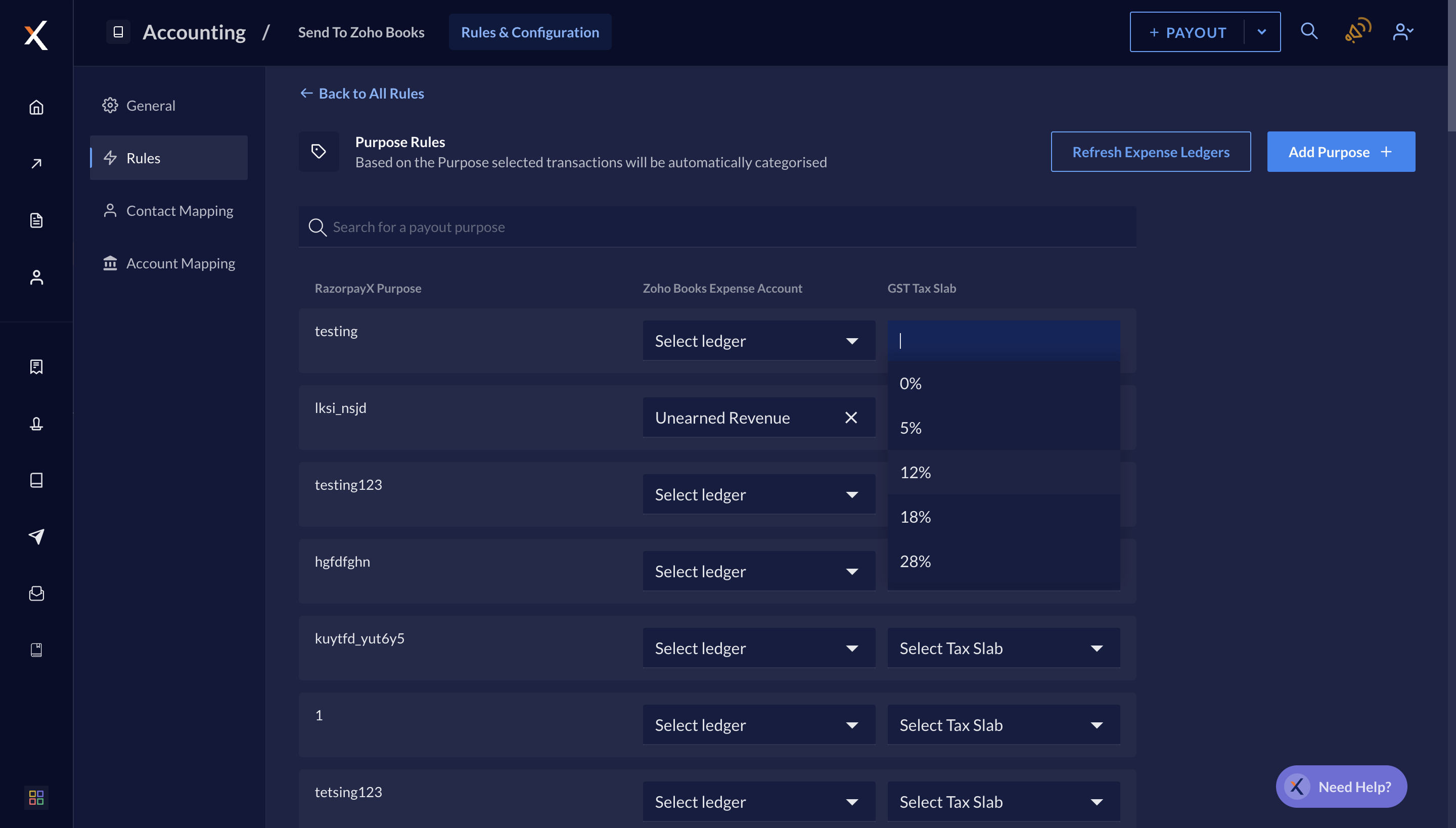
* Select the drop-down under Zoho Books Expense Account and choose the relevant Account for the particular RazorpayX Purpose and select the relevant Tax Slab. You can also **Add Purpose +**.
* Purpose Rules
* Set purpose rules for [categorisation of Payouts](/docs/x/accounting/zohobooks/payouts#categorise).
* Select the drop-down under Zoho Books Expense Account and choose the relevant Account for the particular RazorpayX Purpose and select the relevant Tax Slab. You can also **Add Purpose +**.
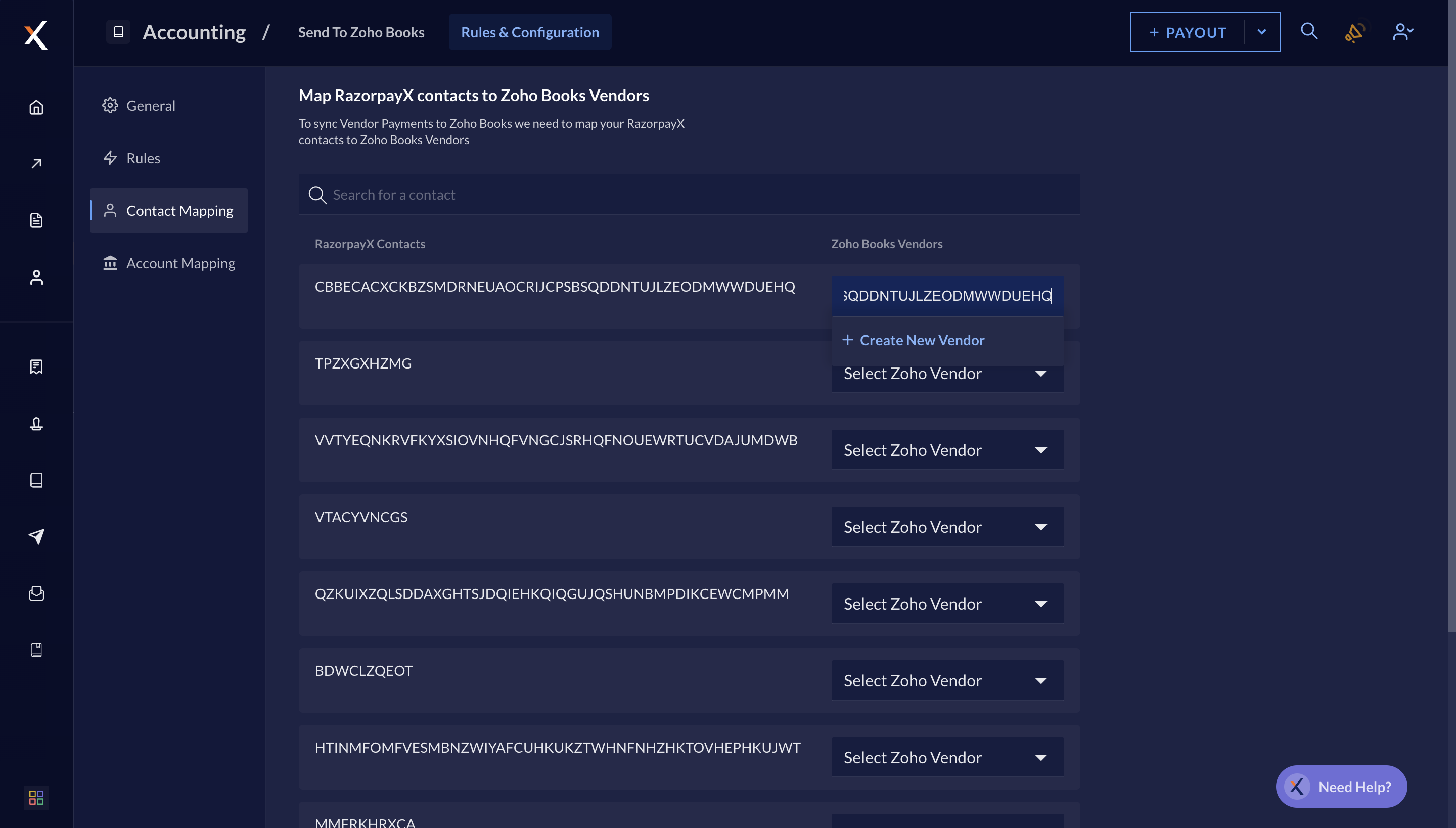
 Select the relevant Zoho Vendor from the drop-down menu or **+ Create New Vendor** to map it to the particular RazorpayX Contact to avoid duplication of vendors on Zoho Books.
 Setup ledgers in Zoho Books for RazorpayX accounts. Select the Zoho Books Expense Account you want to map with the particular RazorpayX Account.