> ## Documentation Index
> Fetch the complete documentation index at: https://razorpay-881012b3.mintlify.site/llms.txt
> Use this file to discover all available pages before exploring further.
# Zoho Books Account Statement Integration
> Integrate and sync your account statements on Zoho Books with RazorpayX for reconciliation.
Available in🇮🇳 India
You can integrate your RazorpayX Account Statement with Zoho Books to sync payment information from RazorpayX and reconcile. After integration, all the transaction data on the RazorpayX bank statement flows into your accounting software, saving you time and effort.
**Watch Out!**
RazorpayX Lite is currently not available for new merchants. To set up a new RazorpayX account, refer to [Current Account](/docs/x/account-types/current-account).
* Account Statement can be synced with both RazorpayX Lite and Current Account.
* It updates automatically at the given time, every day.
* It passes all the required context you need to categorise your transaction.
| Term | Description |
| --------------- | ----------------------------------------------------------------------------------------------------------------------------------------------------------------------- |
| App | The app used to make the payment. Possible values:
`payout`
`VP`: Vendor Payments
`TP`: Tax Payments
`PL`: Payout Links
|
| TaxType | The tax category imposed on the payout. Possible values:
`advance_tax`
`gst`
`tds`
|
| Cpin | It is a Common Portal Identification Number. It is a 14 digit unique number to identify the challan. |
| Purpose | The purpose for which the expense was incurred. |
| Sub-total | The invoice amount before GST, Cess and other taxes. |
| Invoice number | The invoice number your entered while creating the invoice. |
| Invoice date | The invoice date you entered while creating the invoice. |
| CGST+SGST/ IGST | The CGST+SGST/ IGST amount on the invoice. |
| TDS | The TDS amount on the invoice. Tax deduction at source (TDS) means collecting tax on income in the form of salary, rent, asset sales, dividends. |
| TDS Slab | The interest rates based on the amount. |
| TDS Name | The TDS Category chosen on the invoice. |
| RzpDesc | The RazorpayX description passed while creating the entity. |
| Payout ID | The unique Payout ID recorded on RazorpayX. |
| Account Number | The beneficiary bank account number. |
| IFSC | The beneficiary bank IFSC. |
| Payee | Name of the beneficiary to which the payment was made. |
| VPA | The virtual payment address used to send or receive money without an IFSC code or bank account number. |
| Notes | Additional Notes. |
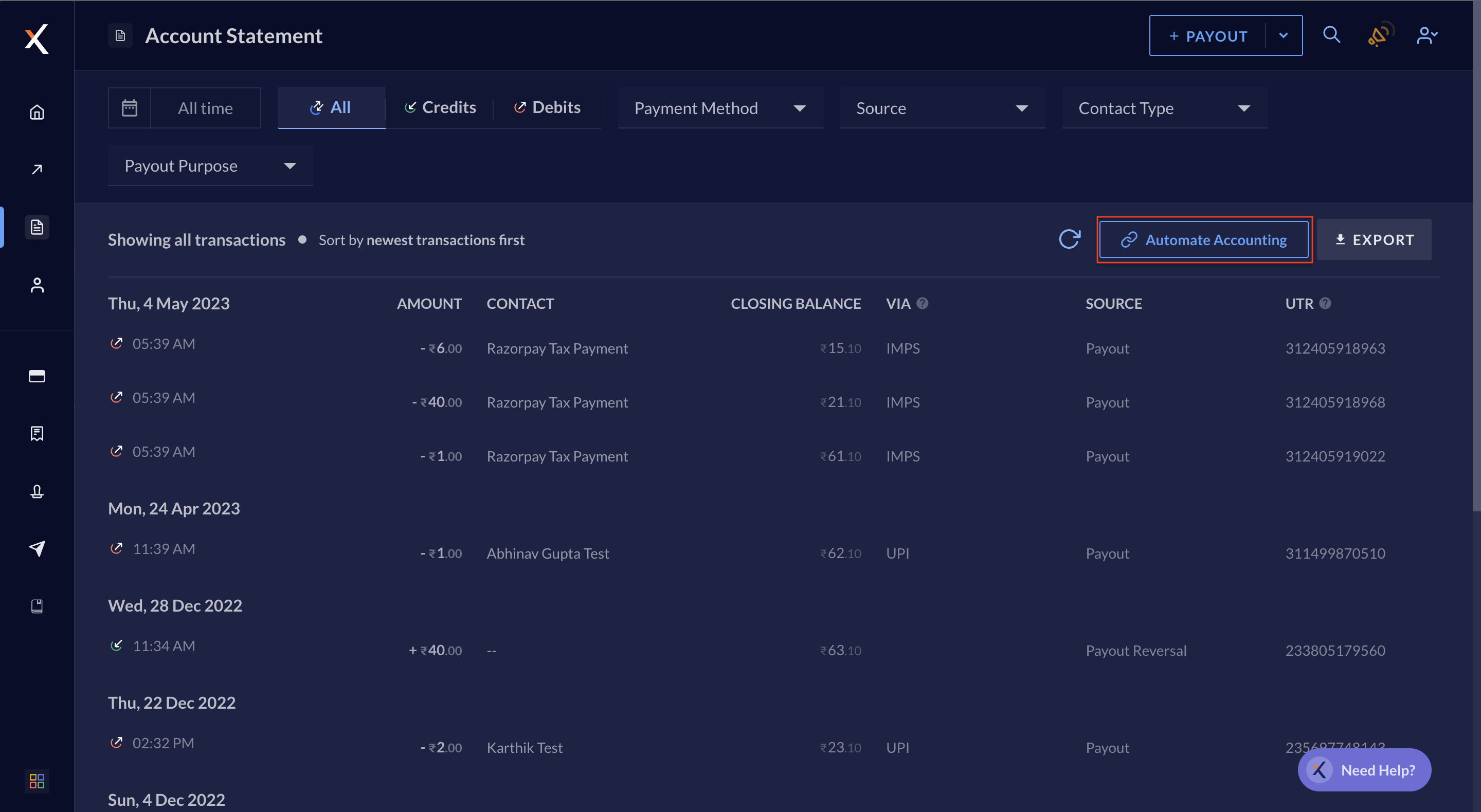
Navigate to **Account Statement** → **Automate Accounting** on the Dashboard and **Select** the software of your choice.
* It updates automatically at **6:00 am** and **8:00 pm**, every day.
* It passes all the required context you need to categorise your transaction on Zoho Books.
On Zoho Books, navigate to the **Banking Overview** section. Select the appropriate bank ledger, and find the necessary information under the statement details column.
## Prerequisites
To keep your opening balance up-to-date:
1. Log in to your Zoho Books Account and navigate to **Settings**.
2. Select **Opening Balances** and **click Edit**.
3. Scroll to the **Bank** section and update your opening balance.
4. Enter and click **Continue** to save the update.
 * It updates automatically at **6:00 am** and **8:00 pm**, every day.
* It passes all the required context you need to categorise your transaction on Zoho Books.
* It updates automatically at **6:00 am** and **8:00 pm**, every day.
* It passes all the required context you need to categorise your transaction on Zoho Books.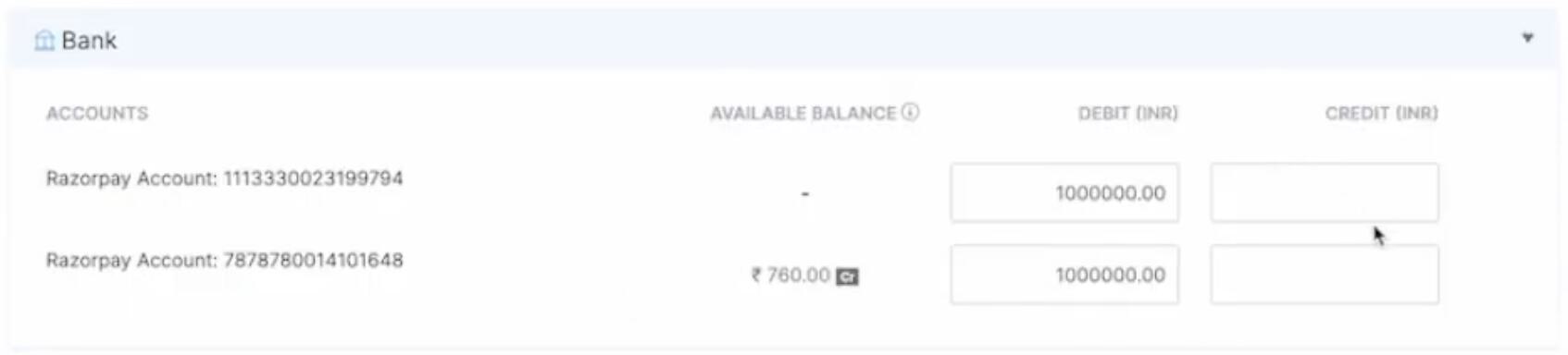 4. Enter and click **Continue** to save the update.