> ## Documentation Index
> Fetch the complete documentation index at: https://razorpay-881012b3.mintlify.site/llms.txt
> Use this file to discover all available pages before exploring further.
# About Bulk Payouts
> Use the Bulk Upload feature on the RazorpayX Dashboard to make payouts in bulk.
Available in🇮🇳 India
As a business owner, you may come across situations wherein you have to make payouts to multiple vendors or multiple payouts to vendor(s). You can use the Bulk Payouts feature to create multiple payouts in such cases. Apart from processing payouts, you can perform the following tasks:
* Make a payout to an existing [fund account](/docs/x/fund-accounts).
* Create a new [contact and fund account](/docs/x/fund-accounts#create-a-contact-with-fund-account) to make a payout.
Alternatively, you can also [create contacts and fund accounts in bulk](/docs/x/contacts/bulk-uploads).
## Create Bulk Payout
Watch the video to know how to create bulk payouts on RazorpayX Dashboard.
To create bulk payouts:
1. Log in to the [RazorpayX Dashboard](https://x.razorpay.com/auth).
2. Click **Payouts** on the left navigation menu and select **Bulk** on the top menu.
3. Click **+ Bulk Payouts**.
**Handy Tips**
Alternatively, you can click the drop-down next to **+PAYOUTS** and select **Bulk Payouts**.
4. [Download the template](#download-templates) (`.xlsx` or `.csv`). Or download it from the Dashboard:
1) Click **Download Template**.
2) Select the Payment method relevant to you from the drop-down menu. You can select from:
* UPI
* NEFT/IMPS/RTGS
* Amazonpay Wallet
3) Select the beneficiary information available. You can choose from:
* Beneficiary details (Bank details, UPI, Wallet no.)
* RazorpayX Fund Account ID (For existing contacts)
4) Choose `.xlsx` or `.csv` format and click **Download**.
**Handy Tips**
We recommend you to choose `.xlsx` format to see validations so that you can avoid errors during file upload.
5. Fill in the details based on the validations in the template.
6. Drag and drop your updated file or click **Browse** and select the file to upload from your system.
7. Once the file is successfully uploaded, click **Next**.
8. Select the **Payout Purpose** and the account you want to **Debit From**.
9. You can edit the **Batch Name** if required.
10. Click **Next** to make the payouts or [schedule the payouts](/docs/x/payouts/scheduled).
11. Enter the OTP sent to the registered mobile number and email id to confirm the payout and create the batch. If Approval Workflow is enabled, click **Send for Approval** in the final step.
**Handy Tips**
Using this feature, you can make upto 50,000 payouts at once.
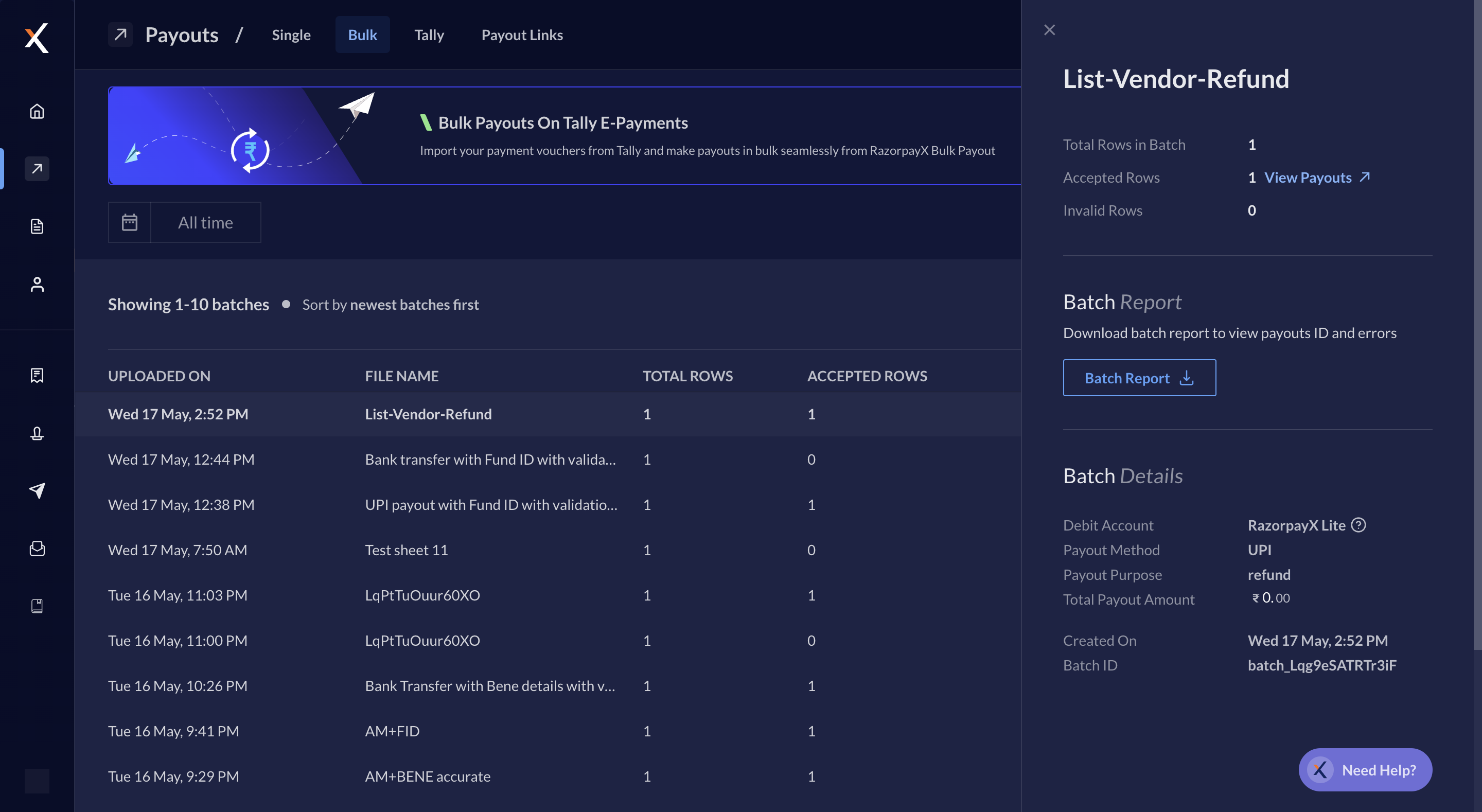
You have successfully created a bulk payout batch. Your file then moves to the `processing` status. Hover over the file name to **View Payouts** and their status or click on the respective file name to find details on the right pane.
After the file is processed, you can see the accepted rows and invalid rows.
* **ACCEPTED ROWS**: These rows contain payouts that were successfully created.
* **INVALID ROWS**: These rows were not processed due to some errors. You can download the batch report from the left pane (given below) to view the errors.
The **VALID AMOUNT** visible on the Dashboard is not the total of the created payouts amount. Only valid rows are processed. Check valid and invalid rows to rectify the mismatch.
## Bulk Payouts Templates
Bulk Payouts Templates are available in `.xlsx` and `.csv`. You can find the templates [here](#download-templates).
### Instructions to fill the Template
* Fill all the mandatory columns.
* Hover over the empty cells to see the validation criteria (applicable for .xlsx files only).
* If you are copy-pasting data using an internal tool, use these shortcuts:
* MacOS : Cmd+Opt+V, then press V again
* WindowsOS : Ctrl+Alt+V then press V again
**Watch Out!**
* Do not use Command+V or Ctrl+V for pasting data. The validation and formatting which help to identify errors will be removed.
* If you are generating a file in a template format from an internal tool, copy-paste the validations and formatting from the template to your file.
#### File Requirement
| Column | Requirement |
| ---------------------------- | --------------------------------------------------------------------------------------------- |
| Number of Rows in the sheet |
Min: 1
Max: 50,000
|
| Number of sheets in the file | Only 1 sheet is permitted. |
| Incorrect format of the file | Download and fill from the [templates](/docs/x/bulk-payouts#bulk-payouts-templates) provided. |
#### Payouts Requirement
| Column | Requirement |
| -------------------- | ----------------------------------------------------------------------------------------------------------------------------------------------------------------------------------------------------------------------------- |
| Bene Name | Between 3 - 60 characters. |
| Bene Account number | Between 5 - 35 characters. |
| Payout Amount | The amount should be:
=/\< ₹5L for payout via IMPS
=/\< ₹10Cr for payout via NEFT
>/= ₹2L for payout via RTGS
=/\< ₹1L for payout via UPI
=/\< ₹10K for payout via Amazonpay
|
| Payout Mode | Only IMPS/ NEFT/ RTGS, UPI and Amazonpay are supported. |
| IFSC | 11 alphanumeric characters. |
| Payout Narration | Below 30 characters. |
| Phone number | Between 10-13 digits. |
| Email ID | Valid Email ID. |
| Contact reference ID | Below 40 characters. |
| Payout reference ID | Below 40 characters. |
| Bene FA ID |
17 characters.
Depending on the `Razorpay Fund Account ID` template and payout mode (`UPI`/ `Bank Account`/ `Amazonpay Wallet`) that you choose, enter the linked ID.
|
**Example** If you have chosen `Razorpay Fund Account ID` details along with `UPI` as the payout method, the [Fund Account](/docs/x/fund-accounts) ID provided by Razorpay for the respective contact must be linked to a UPI account.
|
\| Bene UPI ID | Valid UPI ID. |
\| Bene phone no. linked with amazonpay | Between 10-13 digits. |
You can select the template based on the payment method and the beneficiary to whom you want to credit the amount. Know more about the [payout modes, processing time and amount limit](/docs/x/payouts#payout-modes-and-tat).
### Resolve Errors
The template throws errors in case the in-sheet validation fails. Ensure you follow the [instructions to fill the template](#instructions-to-fill-the-template) to avoid errors.
### Download Templates
These templates are available in `.xlsx` format.
| Payout Method | Beneficiary Information | Download Template |
| ---------------- | ------------------------ | -------------------------------------------------------------------------------------------------------------------------------------- |
| UPI | Beneficiary Details | [Download file](https://razorpay.com/docs/build/browser/assets/images/bulk-xlsx-templates/upi-payout-bene-details.xlsx) |
| UPI | Razorpay Fund Account ID | [Download file](https://razorpay.com/docs/build/browser/assets/images/bulk-xlsx-templates/upi-payout-fundid.xlsx) |
| Amazonpay Wallet | Beneficiary Details | [Download file](https://razorpay.com/docs/build/browser/assets/images/bulk-xlsx-templates/amazonpay-wallet-transfer-bene-details.xlsx) |
| Amazonpay Wallet | Razorpay Fund Account ID | [Download file](https://razorpay.com/docs/build/browser/assets/images/bulk-xlsx-templates/amazonpay-wallet-transfer-fundid.xlsx) |
| Bank Transfer | Beneficiary Details | [Download file](https://razorpay.com/docs/build/browser/assets/images/banktransfer-benedetails-updated.xlsx) |
| Bank Transfer | Razorpay Fund Account ID | [Download file](https://razorpay.com/docs/build/browser/assets/images/bulk-xlsx-templates/bank-transfer-fundid.xlsx) |
These templates are available in `.csv` format.
| Payout Method | Beneficiary Information | Download Template |
| ---------------- | ------------------------ | ------------------------------------------------------------------------------------------------------------------------------------ |
| UPI | Beneficiary Details | [Download file](https://razorpay.com/docs/build/browser/assets/images/bulk-csv-templates/upi-payout-bene-details.csv) |
| UPI | Razorpay Fund Account ID | [Download file](https://razorpay.com/docs/build/browser/assets/images/bulk-csv-templates/upi-payout-fundid.csv) |
| Amazonpay Wallet | Beneficiary Details | [Download file](https://razorpay.com/docs/build/browser/assets/images/bulk-csv-templates/amazonpay-wallet-transfer-bene-details.csv) |
| Amazonpay Wallet | Razorpay Fund Account ID | [Download file](https://razorpay.com/docs/build/browser/assets/images/bulk-csv-templates/amazonpay-wallet-transfer-fundid.csv) |
| Bank Transfer | Beneficiary Details | [Download file](https://razorpay.com/docs/build/browser/assets/images/bulk-csv-templates/banktransfer-benedetails.csv) |
| Bank Transfer | Razorpay Fund Account ID | [Download file](https://razorpay.com/docs/build/browser/assets/images/bulk-csv-templates/bank-transfer-fundid.csv) |
### Related Information
* [Bulk Upload Status](/docs/x/bulk-payouts/uploads)
* [Bulk Payouts Life Cycle](/docs/x/bulk-payouts/life-cycle)