> ## Documentation Index
> Fetch the complete documentation index at: https://razorpay-881012b3.mintlify.site/llms.txt
> Use this file to discover all available pages before exploring further.
# Set Payout Links Expiry
> Check how to set expiry for RazorpayX Payout Links and how to add, modify or delete expiry.
Available in
🇮🇳 India
With Payout Links, you can offer cashbacks, refund deposits, or refunds in case of cash on delivery transactions. However, if the end user does not claim the benefit, the amount is not disbursed and this results in bookkeeping issues for enterprises.
To resolve this, you can set your Payout Links to expire after a certain time. By default, Payout Links do not expire. You must:
1. [Enable Expiry](#enable-expiry)
2. [Set Expiry](#set-expiry)
The Payout Link then expires on that specific date or after the chosen duration.
You can set a Payout Link to expire:
* While creating the Payout Link.
* After creating the Payout Link.
Your contact receives 3 reminders for 3 days before the Payout Link expires.
## Enable Expiry
You have to enable the setting to set expiry date on Payout Links. To enable this feature:
1. Log in to your [RazorpayX Dashboard](https://x.razorpay.com/).
2. Navigate to **My Account & Settings**.
3. Click **Business Profile**.
4. Scroll to the **PAYOUT LINK EXPIRY** section and enable the feature using the toggle as shown:
 You can also enable expiry from the Payout Links Dashboard.
1. Log in to your [RazorpayX Dashboard](https://x.razorpay.com/).
2. Navigate to the **More Options** (⋮) menu as shown and click **Expiry Settings** from the menu.
You can also enable expiry from the Payout Links Dashboard.
1. Log in to your [RazorpayX Dashboard](https://x.razorpay.com/).
2. Navigate to the **More Options** (⋮) menu as shown and click **Expiry Settings** from the menu.
 3. On the **Business Profile** page, you can enable expiry for Payout Links.
After you enable expiry, you can set the following for Payout Links:
* Expiry date
* Expiry time
**Watch Out!**
Ensure the expiry time is greater than the current time by at least 15 minutes. For example, if the current time is `15:00`, the expiry time must be greater than `15:15`.
## Set Expiry
To set expiry date on a Payout Link:
1. Log in to your [RazorpayX Dashboard](https://x.razorpay.com/).
2. Navigate to **Payout Links** from the left menu.
3. Click **+PAYOUT LINK**.
4. Select contact to whom you want to send the Payout Link or add new contact and complete the procedure.
5. Click **NEXT**.
6. Provide details such as amount, Payout purpose, and Payout Reason.
7. Select the **Set Expiry Date** checkbox and add the expiry date and time as shown here:
3. On the **Business Profile** page, you can enable expiry for Payout Links.
After you enable expiry, you can set the following for Payout Links:
* Expiry date
* Expiry time
**Watch Out!**
Ensure the expiry time is greater than the current time by at least 15 minutes. For example, if the current time is `15:00`, the expiry time must be greater than `15:15`.
## Set Expiry
To set expiry date on a Payout Link:
1. Log in to your [RazorpayX Dashboard](https://x.razorpay.com/).
2. Navigate to **Payout Links** from the left menu.
3. Click **+PAYOUT LINK**.
4. Select contact to whom you want to send the Payout Link or add new contact and complete the procedure.
5. Click **NEXT**.
6. Provide details such as amount, Payout purpose, and Payout Reason.
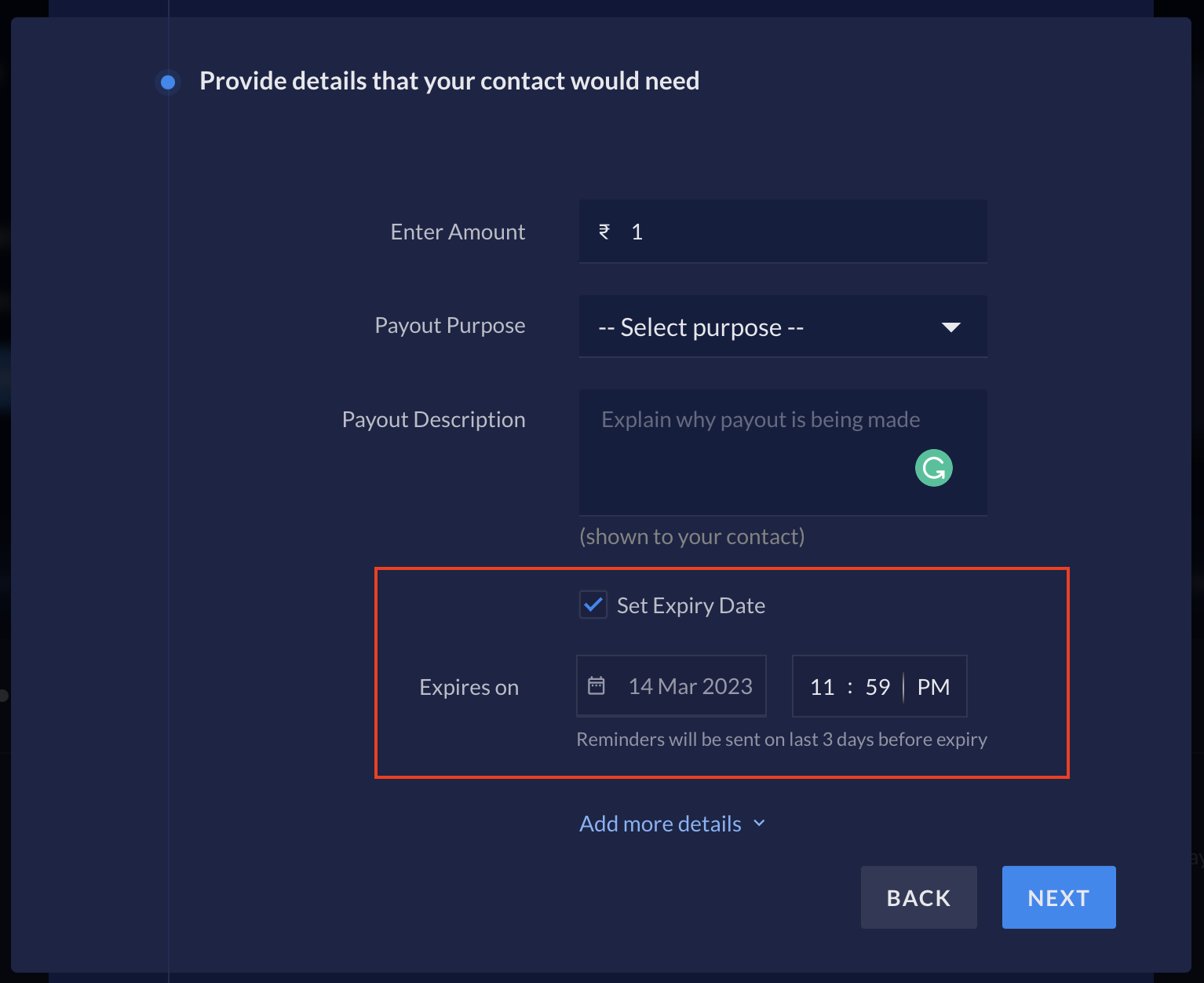
7. Select the **Set Expiry Date** checkbox and add the expiry date and time as shown here:
 8. Click **PROCEED TO CONFIRM**.
9. Enter the OTP sent to your registered mobile number/email address.
10. Click **CREATE LINK**.
You can also set expiry after creating the Payout Link and modify it as well.
### Add Expiry
To add expiry for existing Payout Links:
1. Log in to your [RazorpayX Dashboard](https://x.razorpay.com/) → **Payout Links** from the left menu.
2. Navigate to the specific Payout Link and open the Payout Link details view.
3. Click **SET EXPIRY DATE**, as shown.
8. Click **PROCEED TO CONFIRM**.
9. Enter the OTP sent to your registered mobile number/email address.
10. Click **CREATE LINK**.
You can also set expiry after creating the Payout Link and modify it as well.
### Add Expiry
To add expiry for existing Payout Links:
1. Log in to your [RazorpayX Dashboard](https://x.razorpay.com/) → **Payout Links** from the left menu.
2. Navigate to the specific Payout Link and open the Payout Link details view.
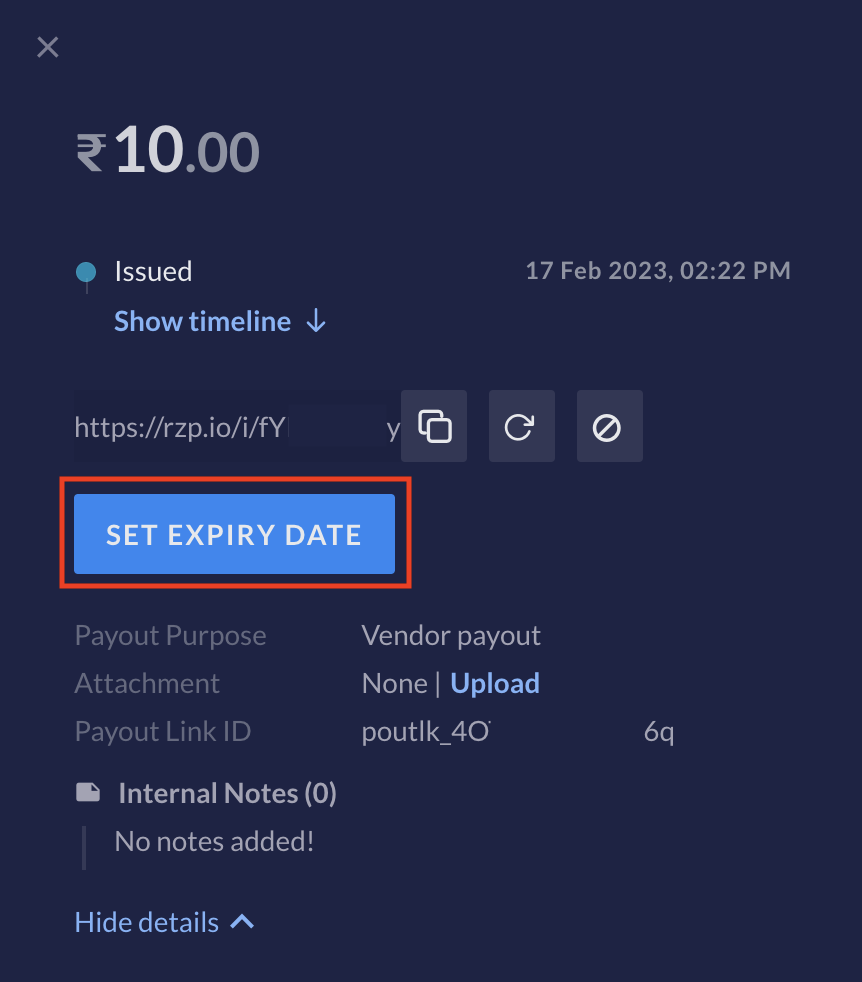
3. Click **SET EXPIRY DATE**, as shown.
 4. Select the date and the time by when you want the Payout Link to expire.
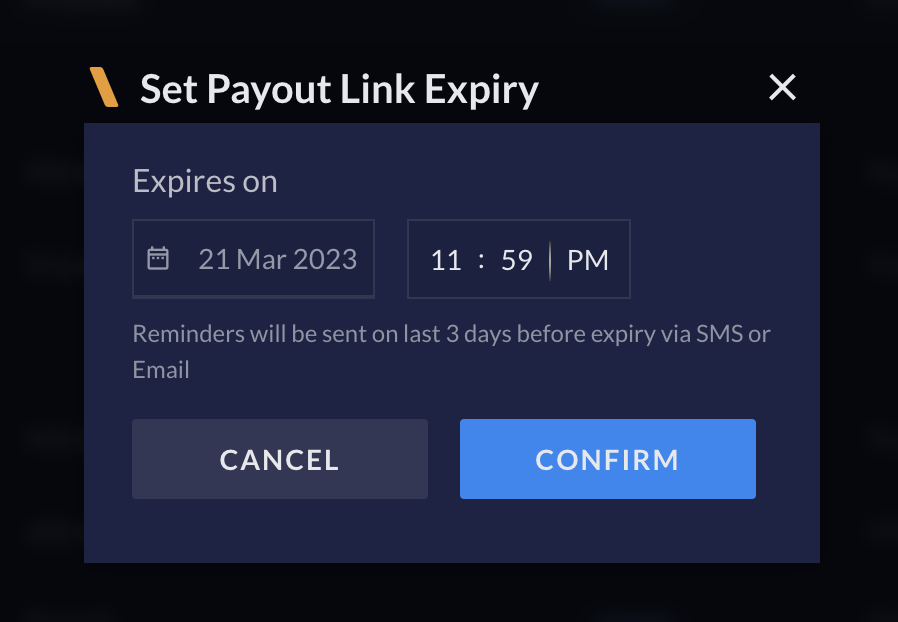 5. Click **CONFIRM**.
You have successfully added expiry for an existing Payout Link.
### Modify Expiry
To modify the expiry set for a Payout Link:
1. Log in to your [RazorpayX Dashboard](https://x.razorpay.com/) → **Payout Links** from the left menu.
2. Navigate to the specific Payout Link and open the Payout Link details view.
3. Click the edit icon, as shown.
5. Click **CONFIRM**.
You have successfully added expiry for an existing Payout Link.
### Modify Expiry
To modify the expiry set for a Payout Link:
1. Log in to your [RazorpayX Dashboard](https://x.razorpay.com/) → **Payout Links** from the left menu.
2. Navigate to the specific Payout Link and open the Payout Link details view.
3. Click the edit icon, as shown.
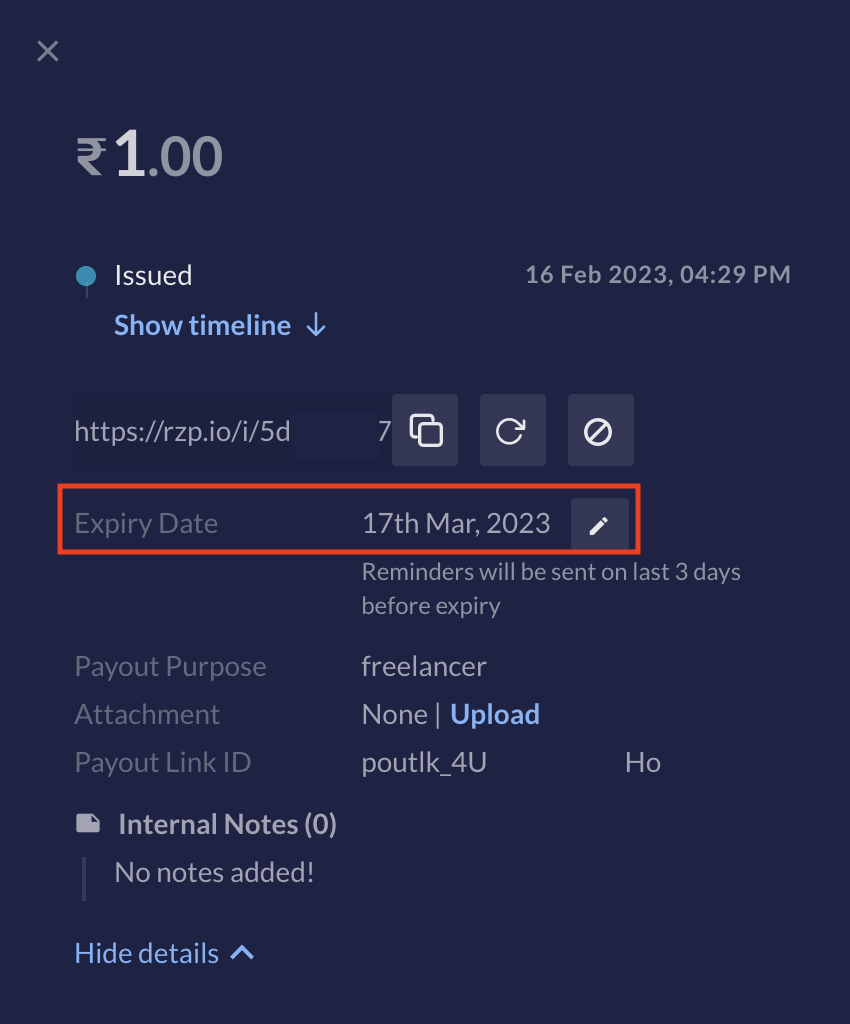 4. Change the date and the time by when you want the Payout Link to expire.
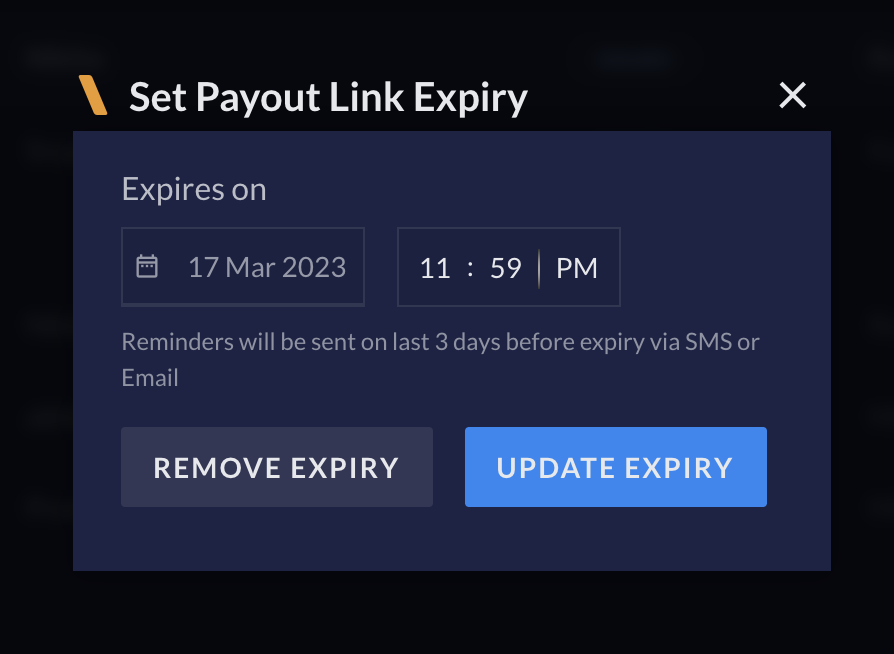 5. Click **UPDATE EXPIRY**.
You have successfully updated the expiry for an existing Payout Link.
### Remove Expiry
You can remove expiry for your Payout Links if they are no longer applicable. To do so:
1. Click and open the Payout Link details view.
2. Click the edit icon, as shown.
3. Click **REMOVE EXPIRY**.
You have successfully removed the expiry for a Payout Link.
**Handy Tips**
* Expired Payout Links can be duplicated to create another Payout Link with same details. Contact, Fund Account and amount details are automatically returned in the duplicated Payout Link.
* Once you enable expiry for Payout Links from the Dashboard, you can find the expiry parameters in the API response too (if you are using the [Payout Links API](/docs/api/x/payout-links)).
### Related Information
* [About Payout Links](/docs/x/payout-links)
* [Create Bulk Payout Links](/docs/x/payout-links/bulk)
* [Shopify Payout Links](/docs/x/payout-links/shopify)
5. Click **UPDATE EXPIRY**.
You have successfully updated the expiry for an existing Payout Link.
### Remove Expiry
You can remove expiry for your Payout Links if they are no longer applicable. To do so:
1. Click and open the Payout Link details view.
2. Click the edit icon, as shown.
3. Click **REMOVE EXPIRY**.
You have successfully removed the expiry for a Payout Link.
**Handy Tips**
* Expired Payout Links can be duplicated to create another Payout Link with same details. Contact, Fund Account and amount details are automatically returned in the duplicated Payout Link.
* Once you enable expiry for Payout Links from the Dashboard, you can find the expiry parameters in the API response too (if you are using the [Payout Links API](/docs/api/x/payout-links)).
### Related Information
* [About Payout Links](/docs/x/payout-links)
* [Create Bulk Payout Links](/docs/x/payout-links/bulk)
* [Shopify Payout Links](/docs/x/payout-links/shopify)