> ## Documentation Index
> Fetch the complete documentation index at: https://razorpay-881012b3.mintlify.site/llms.txt
> Use this file to discover all available pages before exploring further.
# Shopify Payout Links
> Create RazorpayX Payout Links for your Shopify website customers.
Available in
🇮🇳 India
Shopify provides an API based e-commerce platform that enables businesses to set up their stores online. It offers a wide host of services including payments, marketing, maintenance of customer database, and so on.
Shopify customers can now manage the entire refund process, especially for [cash-on-delivery (COD) refunds](#create-refunds-via-shopify), from the Shopify Dashboard, without having to enter the tracking details manually.
## Integrate Shopify with RazorpayX
To start making payouts via Payout Links, you have to first integrate Shopify with RazorpayX. To do this:
1. Open the Payout Links App page on the Shopify App store using [Shopify App Store](https://apps.shopify.com/payout-links-simple-refunds).
2. Click **Add app**.
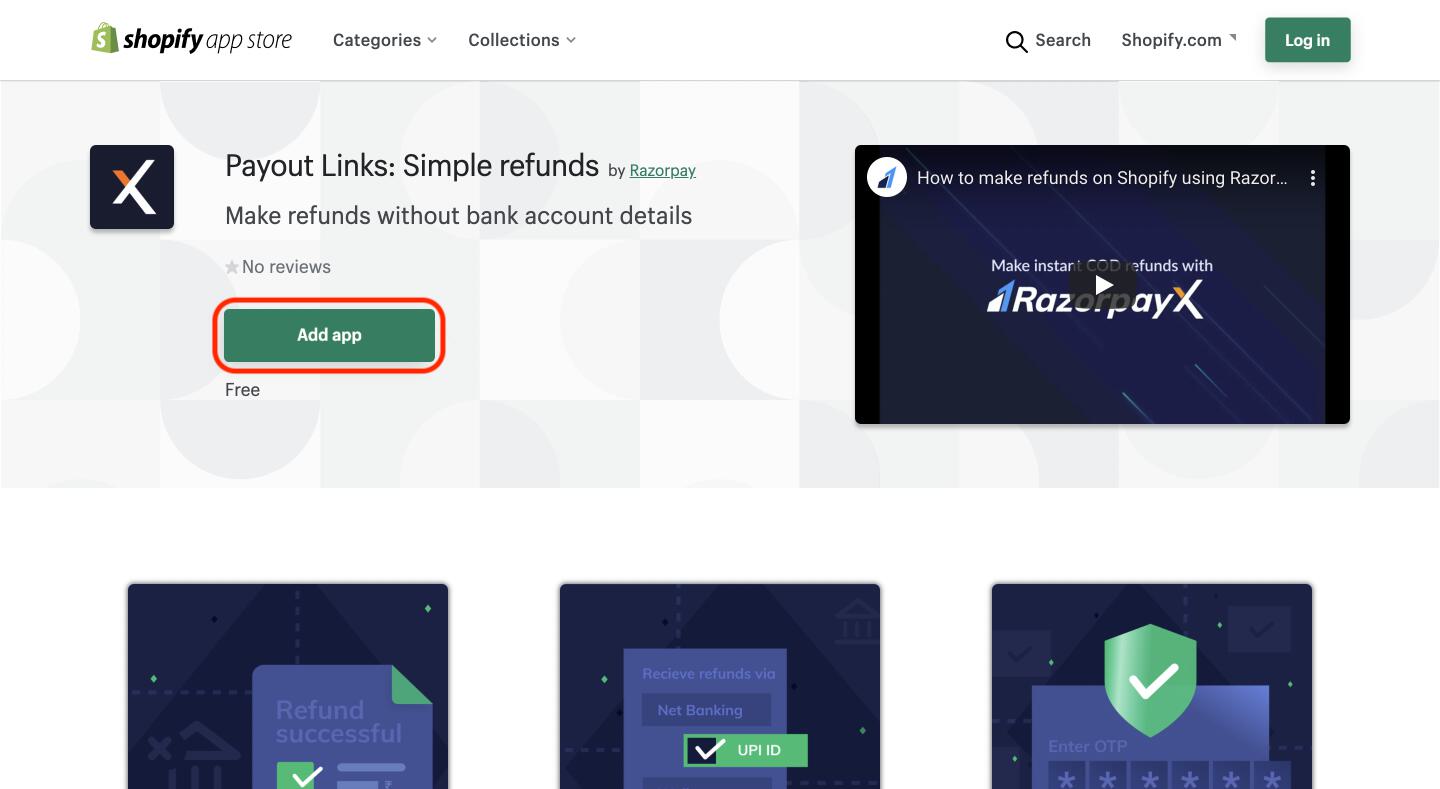 3. Click **Install app** as shown below:
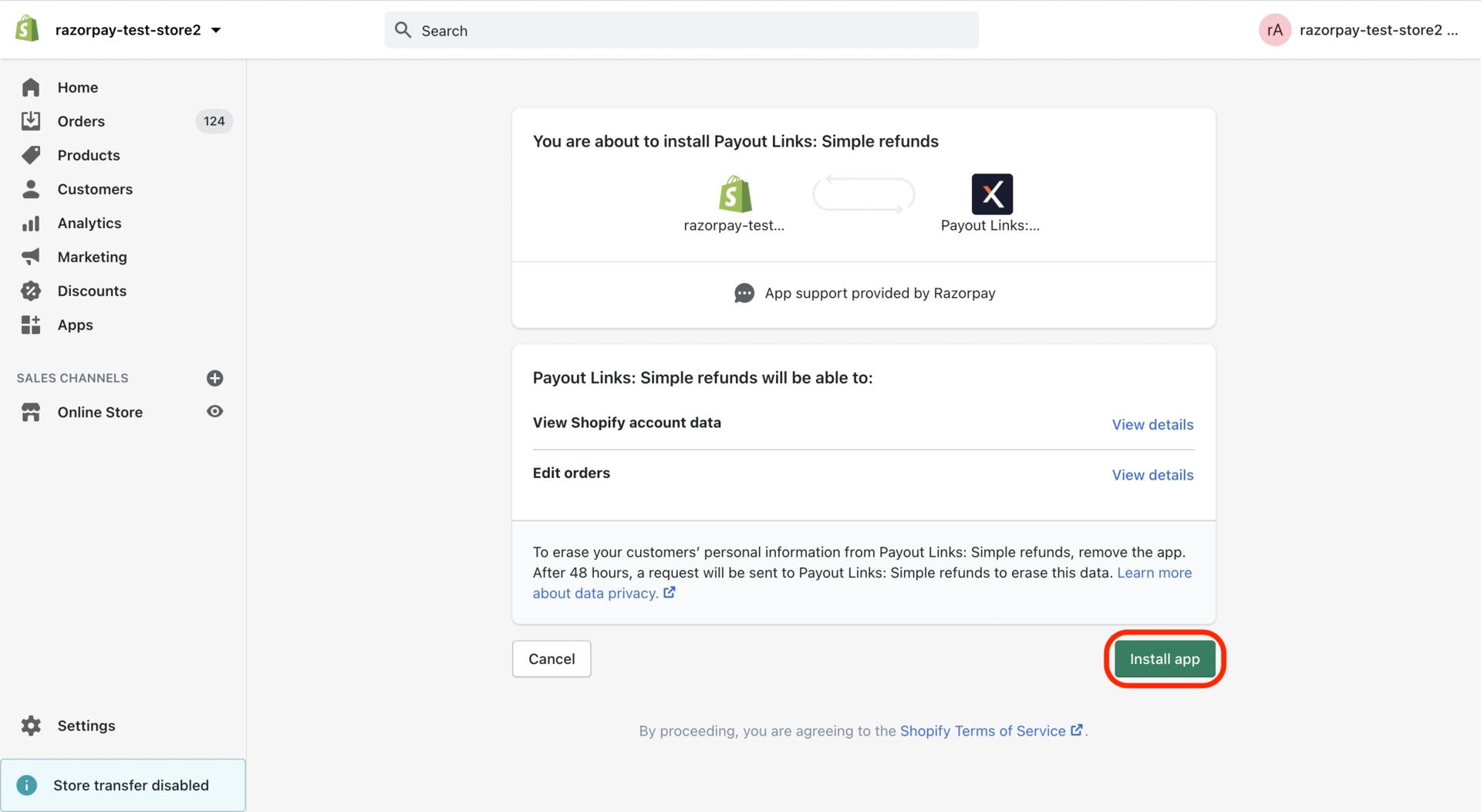 You are redirected to the RazorpayX Dashboard to complete the rest of the integration steps.
## Complete the Integration
To complete the integration:
1. Select **Merchant**. Note that only users who are owners or have admin rights have the access to integration.
2. Click **COMPLETE INTEGRATION**.
Upon successful integration, you see a success message on the page. With this, the integration is complete.
## Create Refunds via Shopify
Now that the integration is complete, you can generate Payout Links to your Shopify customers and process refunds when necessary. To do so, you must first create a Payout Link for the refund, and then verify and approve it. The steps for the same are explained below.
To create Payout Links for refunds on Shopify:
1. Log in to your Shopify store.
2. In the Store Home page, go to **Orders** in the left menu. The Orders page is displayed with a list of orders placed in the store.
3. Select the order for which refund has to be made.
4. Under the **More actions** option in the order page, select **Refund via Payout Links** as shown below:
You are redirected to the RazorpayX Dashboard to complete the rest of the integration steps.
## Complete the Integration
To complete the integration:
1. Select **Merchant**. Note that only users who are owners or have admin rights have the access to integration.
2. Click **COMPLETE INTEGRATION**.
Upon successful integration, you see a success message on the page. With this, the integration is complete.
## Create Refunds via Shopify
Now that the integration is complete, you can generate Payout Links to your Shopify customers and process refunds when necessary. To do so, you must first create a Payout Link for the refund, and then verify and approve it. The steps for the same are explained below.
To create Payout Links for refunds on Shopify:
1. Log in to your Shopify store.
2. In the Store Home page, go to **Orders** in the left menu. The Orders page is displayed with a list of orders placed in the store.
3. Select the order for which refund has to be made.
4. Under the **More actions** option in the order page, select **Refund via Payout Links** as shown below:
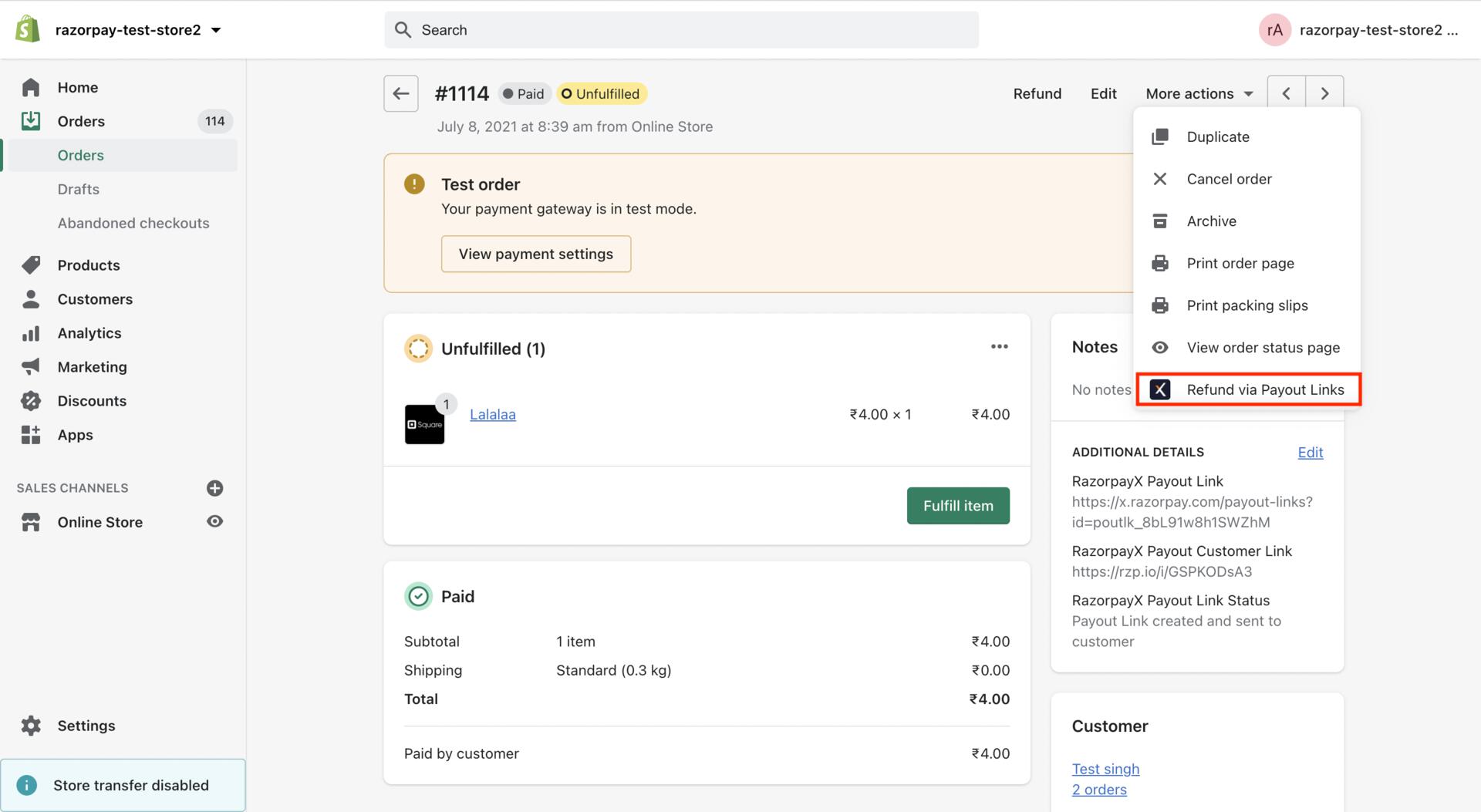 You are redirected to the Create Payout Link window of the [RazorpayX Dashboard](https://x.razorpay.com/). If you are not already logged in to the Dashboard, you will be redirected to the login window. Please log in to continue.
On the Create Payout Link pop-up page:
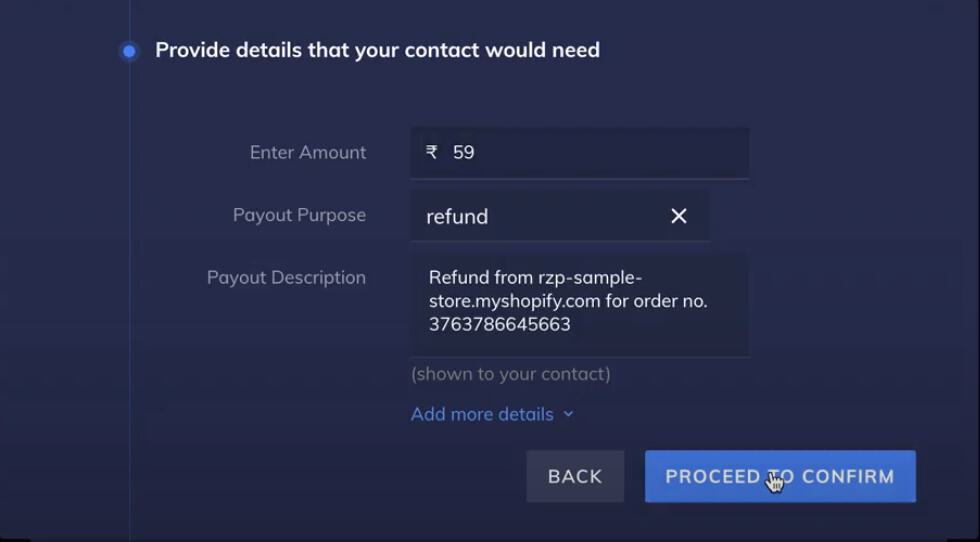
1. The order details such as Amount, Order Id, Customer Name, Customer contact information are automatically fetched from Shopify.
2. Verify the payout details for creating a refund and click **PROCEED TO CONFIRM** as shown below.
You are redirected to the Create Payout Link window of the [RazorpayX Dashboard](https://x.razorpay.com/). If you are not already logged in to the Dashboard, you will be redirected to the login window. Please log in to continue.
On the Create Payout Link pop-up page:
1. The order details such as Amount, Order Id, Customer Name, Customer contact information are automatically fetched from Shopify.
2. Verify the payout details for creating a refund and click **PROCEED TO CONFIRM** as shown below.
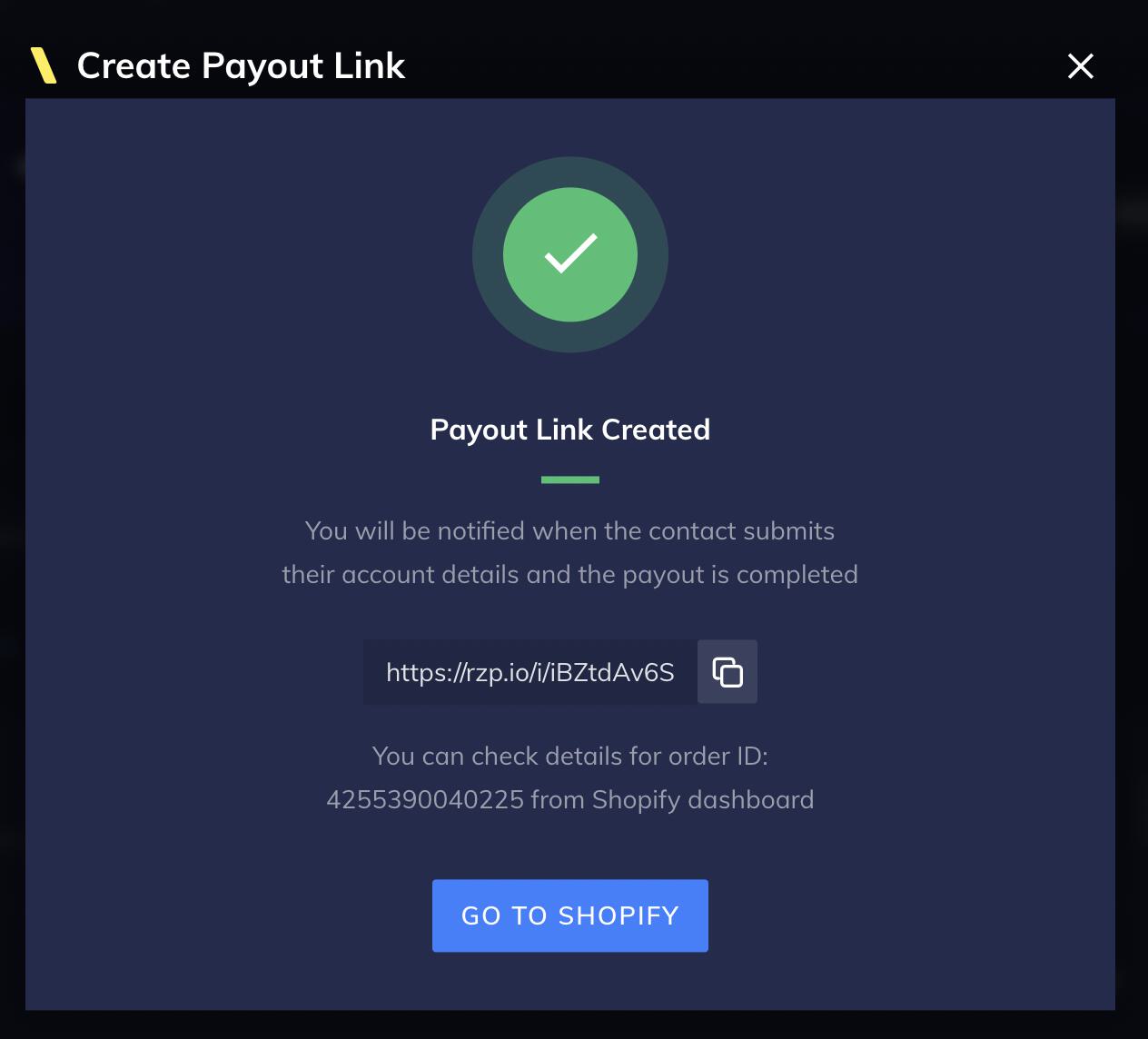
 3. To confirm creation of Payout Link, enter the OTP sent to the registered mobile number. Once confirmed, a success message is displayed as shown below:
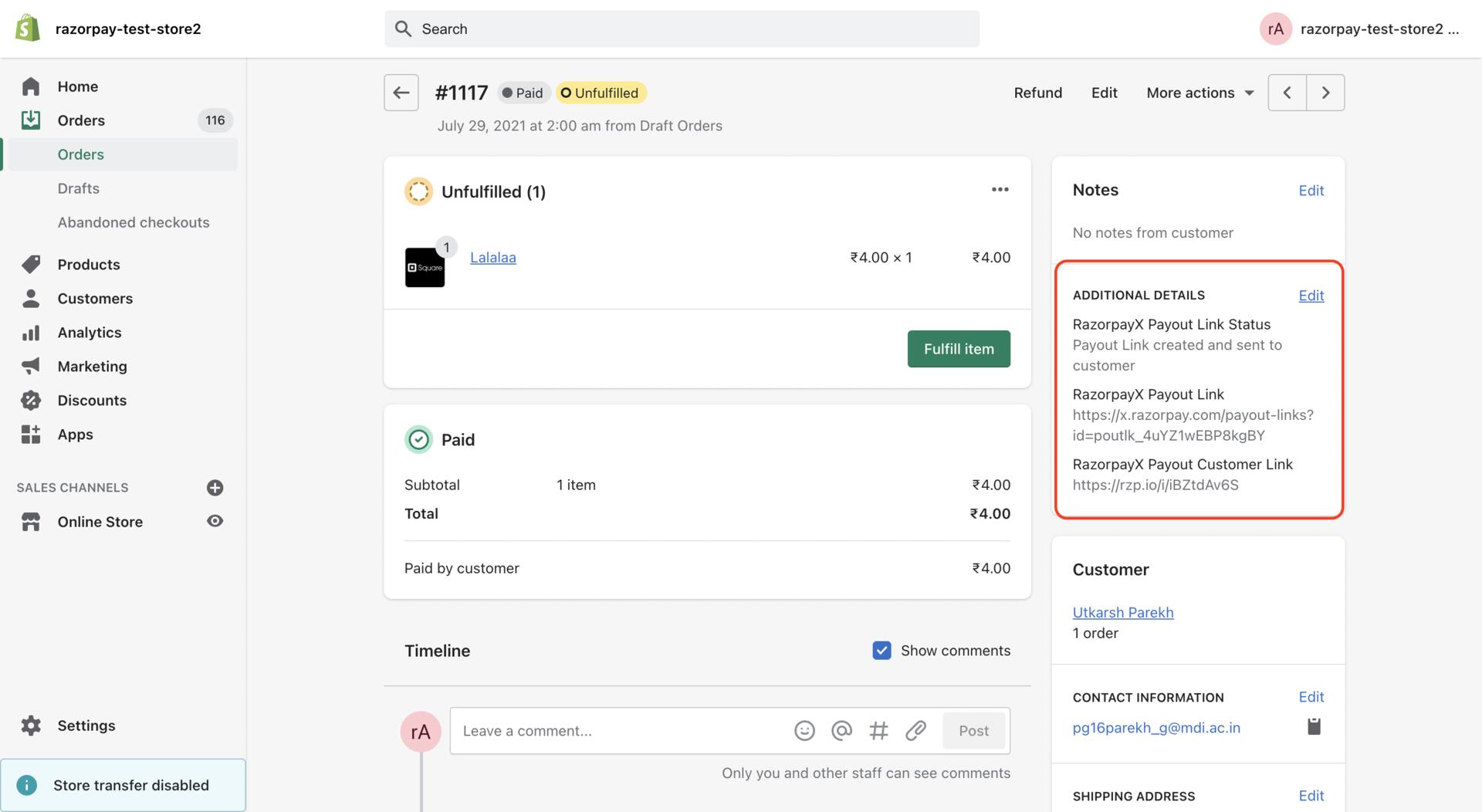
 After a Payout Link is created using Shopify, the Payout Link is displayed in the ADDITIONAL DETAILS section in the right panel of the Shopify Dashboard as well.
 **Handy Tips**
You can use the **Using Shopify** filter in the **Quick Filters** option to view Payout Links created using Shopify in the Payout Links page.
**Handy Tips**
You can use the **Using Shopify** filter in the **Quick Filters** option to view Payout Links created using Shopify in the Payout Links page.
 ### Related Information
* [About Payout Links](/docs/x/payout-links)
* [Payout Link Life Cycle](/docs/x/payout-links/life-cycle)
* [Set Expiry for Payout Links](/docs/x/payout-links/set-expiry)
### Related Information
* [About Payout Links](/docs/x/payout-links)
* [Payout Link Life Cycle](/docs/x/payout-links/life-cycle)
* [Set Expiry for Payout Links](/docs/x/payout-links/set-expiry)