> ## Documentation Index
> Fetch the complete documentation index at: https://razorpay-881012b3.mintlify.site/llms.txt
> Use this file to discover all available pages before exploring further.
# About Payouts
> Create and process payouts on the RazorpayX Dashboard. Understand the payout modes, actions and features.
Available in🇮🇳 India
Payouts are transactions made to contacts. For every payout, you need to specify the amount, the contact, and the payout purpose. You become eligible to make payouts after you sign up, complete the account activation and KYC verification.
A payout transaction is made to a [Fund account](/docs/x/fund-accounts) associated with a [Contact](/docs/x/contacts). Contact is the beneficiary (person or institution) and Fund account is the account used for payment transactions.
**What's New**
You can now initiate payouts directly to mobile numbers using the [Payout Composite API](/docs/api/x/payout-composite/create/phone-number). This feature is currently not available on dashboard.
Payouts in RazorpayX come with variety of features and functions. You can:
* [Add attachments](#add-attachments) to your payouts and help customers and clients reconcile payments.
* [Create Payout Purpose](#create-payout-purpose) as a narration to the payment to give context. You can create new or/and use the existing ones.
* [Create and view Payout summary](#actions) as created.
* [Use the various supported payout modes](#payout-modes) to process payouts from RazorpayX Lite and Current Account.
* [Make payouts in Test Mode](/docs/x/dashboard/test-mode#payouts) to understand the payout process and life cycle.
If a payout fails at any stage, [a reversal is created](/docs/x/payouts/states-life-cycle#reversal-transaction), which ends with the debited balance being credited back to your RazorpayX account.
The payout amount, fees and tax are deducted from your RazorpayX account balance. These appear as a debit against your RazorpayX account. Know more about [Billing in RazorpayX](/docs/x/manage-teams/billing).
**Watch Out!**
* Making payouts from [RazorpayX Lite](/docs/x/account-types/razorpayx-lite) account to RazorpayX Lite Customer Identifiers or Razorpay [Customer identifiers](/docs/payments/smart-collect) is not supported.
* The payout modes are case-sensitive. When creating payouts using APIs, ensure payout modes are entered in upper case.
* RazorpayX Lite is currently not available for new merchants. To set up a new RazorpayX account, refer to [Current Account](/docs/x/account-types/current-account).
## How to Make Payouts
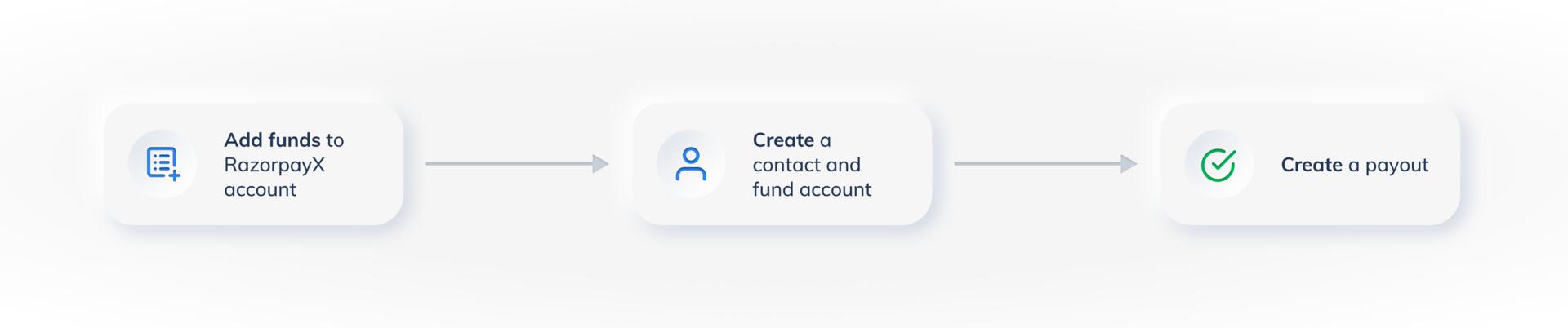
You can make payouts in 3 simple steps:
1. Add funds to your business account.
2. Create a Contact and a Fund account. This is similar to adding a beneficiary on your netbanking portal. Know more about adding [Contacts and Fund accounts](/docs/x/contacts).
3. Make a payout.
**Payouts Demo**
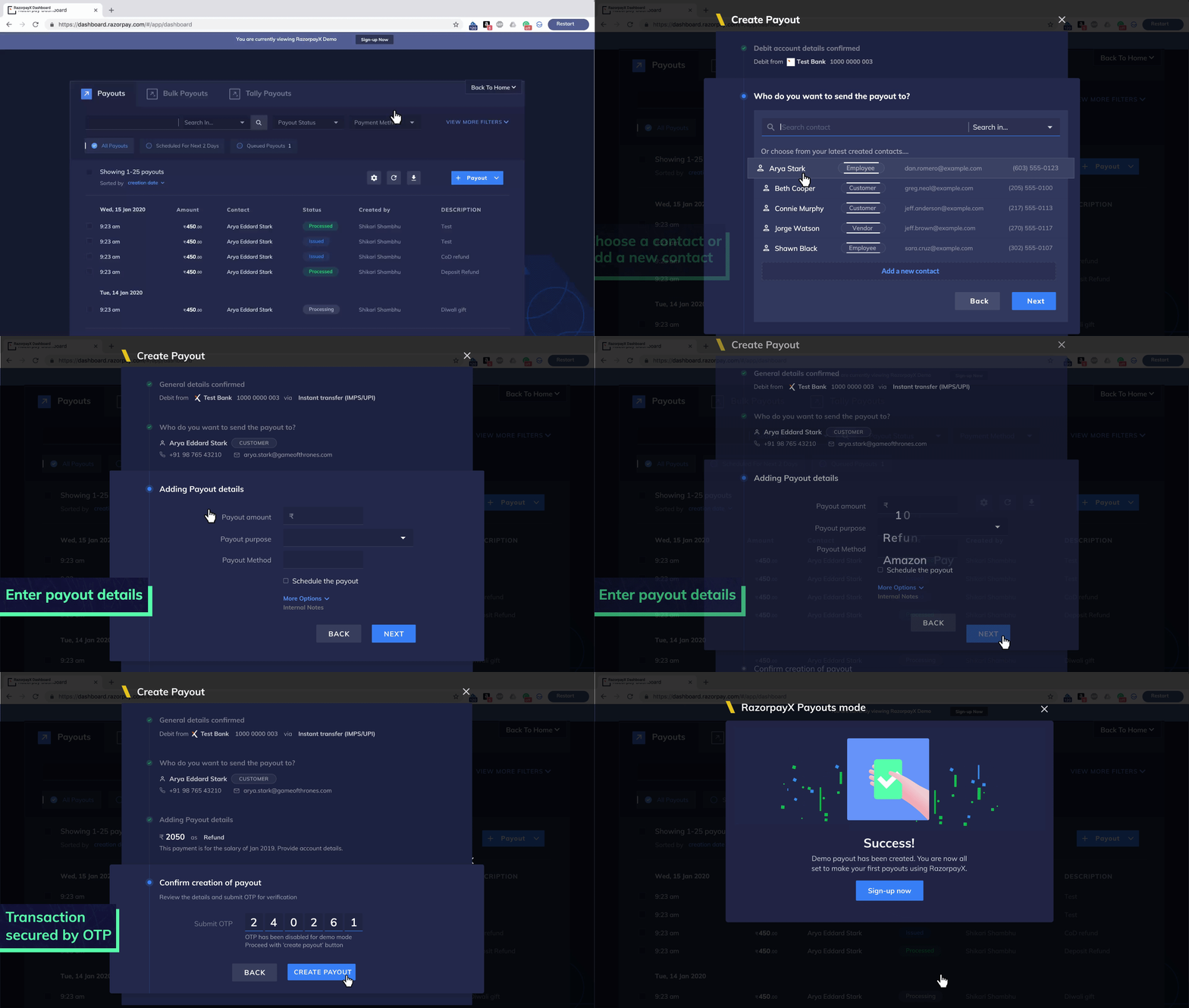
[Check out the RazorpayX Payouts Demo](https://x.razorpay.com/demo?utm_source=docs\&utm_medium=fold\&utm_id=demo) to understand how to create and make payouts in 4 simple steps. Experience making payouts in a jiffy, without having to sign up!
### Create a Payout
Watch the video to know how to create payouts.
To make a Payout:
1. Log in to the [RazorpayX Dashboard](https://x.razorpay.com/auth).
2. You can navigate to Payouts in two ways:
* Click **+ Payouts** on the top-right side of the Dashboard or
* Hover over Payouts on the left navigation and click **+**.
* You can also click Payouts on the left navigation and then click **+ Payouts** on the left side.
3. Select an existing contact or [create a new one](/docs/x/contacts#create-a-contact).
4. Hover over the fund account to which you want to make the payout and click **NEXT** or [**+ FUND ACCOUNT**](/docs/x/fund-accounts#update-a-contact-and-fund-account) as per requirement.
5. Enter the total amount to be paid and click **Next**.
6. Select the Payout Details:
* Payout Purpose (*mandatory*)
* Debit from (*mandatory*)
* Transfer Type (*mandatory*)
* Attachment (*optional*)
* Additional details (*optional*)
7. Click **Next**. An OTP is sent to your registered mobile number and email id. Enter the OTP to confirm the Payout.
8. Click **Pay**.
**Is your payout in `processing` state?**
You can check status details of a payout to know why it is in the `processing` state.
1. [Status Details via API](/docs/errors/x/payout-status-details)
2. [Status Details via Dashboard](/docs/x/payouts/status-details)
3. You can subscribe to daily reports to receive a detailed document on the status, reason for status and SLA for the payouts in `processing state`. [Raise a support ticket](/docs/x/support) from the Dashboard, with a list of recipient email IDs. We will enable the function for you in 3 working days.
**Watch Out!**
If you get the below response while trying to complete a payout, it is recommended to wait for sometime and retry the payout if required, after the status is updated on the Dashboard.
### Payout Purpose
You can add a payout purpose as a narration to the payout as it leads to easier reconciliation. You can choose an existing purpose or create a new one while making the payout itself. **You can add up to 400 Payout Purposes.**
To create payout purpose via the Dashboard:
1. Log in to the [RazorpayX Dashboard](https://x.razorpay.com/auth).
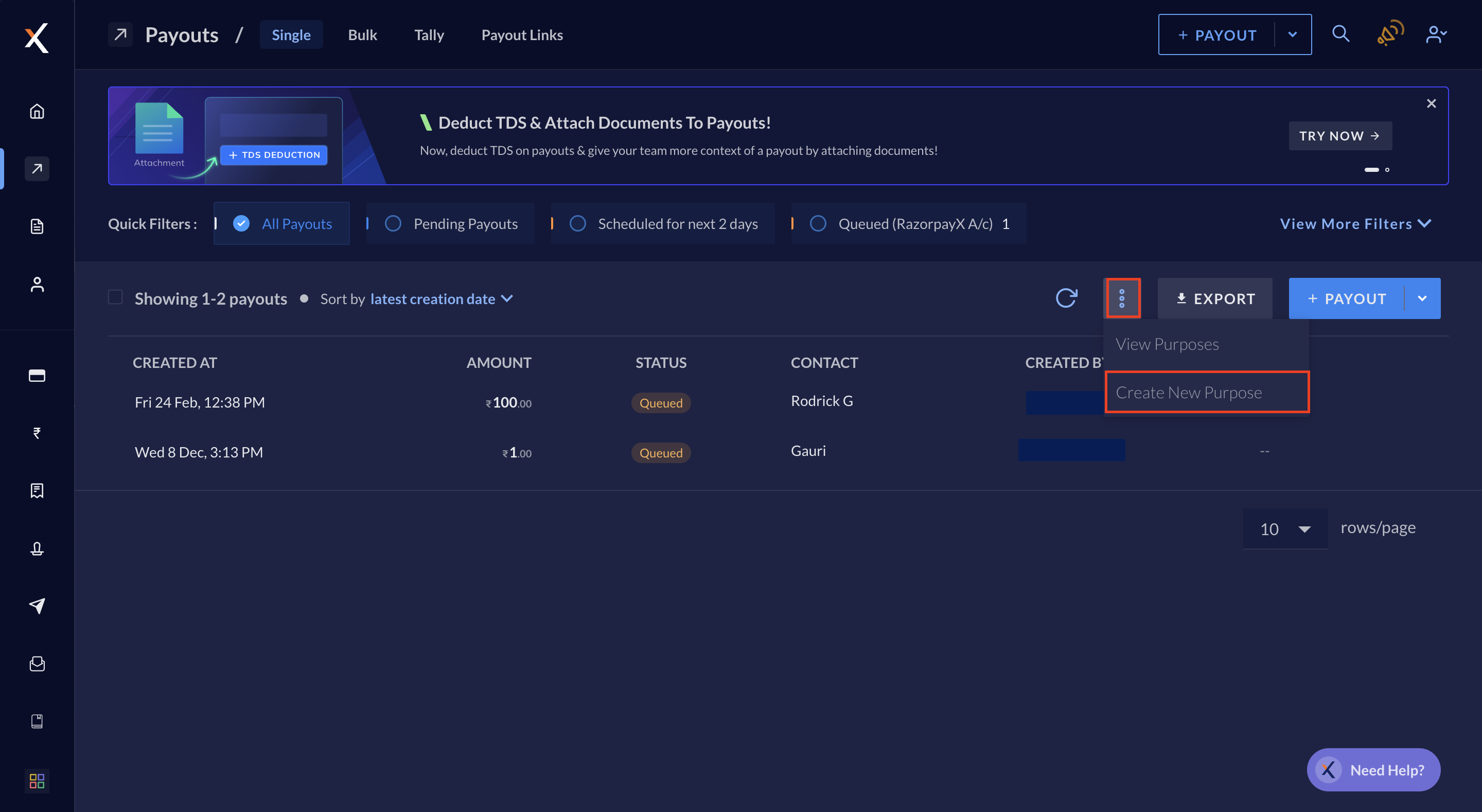
2. Navigate to **Payouts** on the left navigation and click the more options (**⋮**) menu.
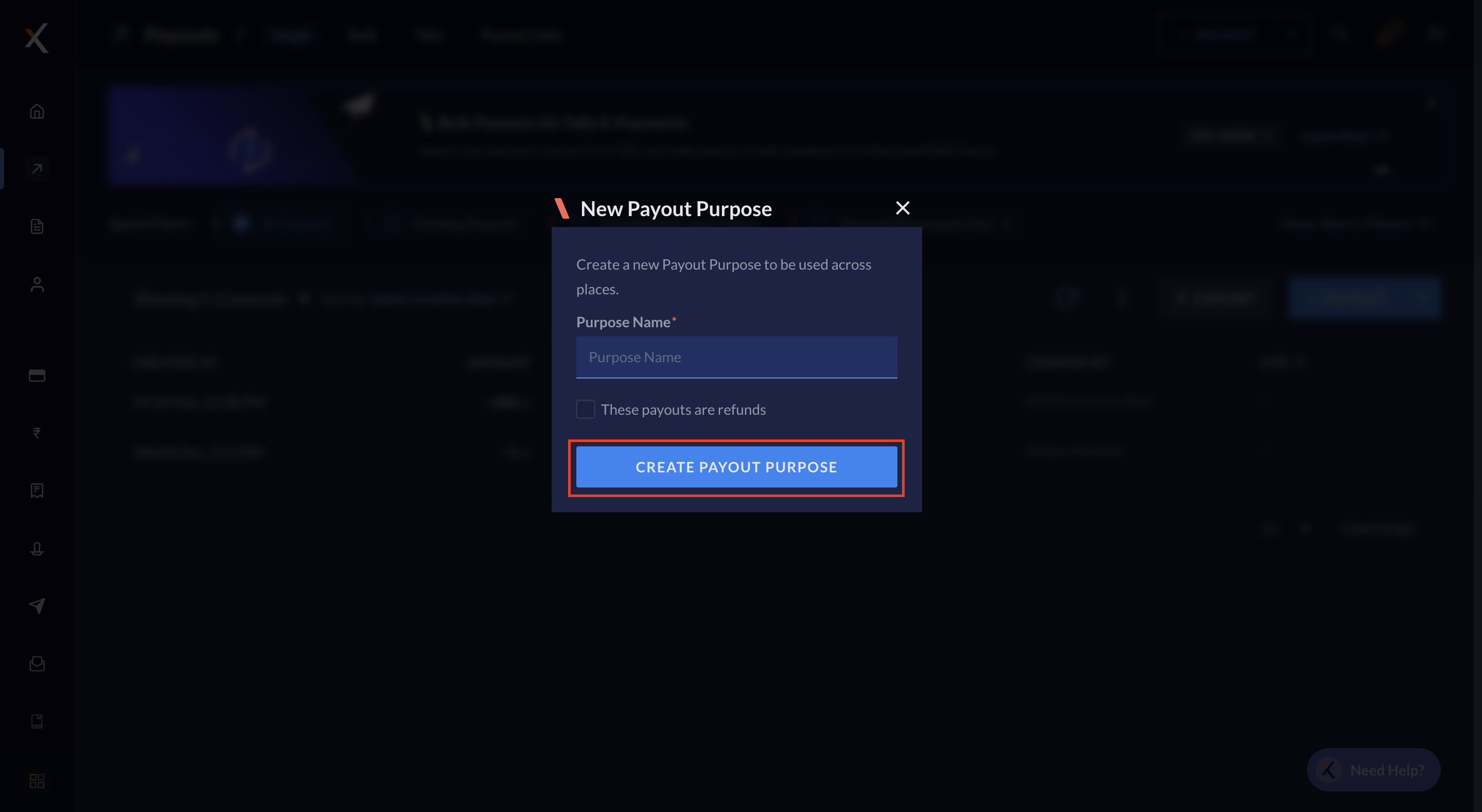
3. Click **Create New Purpose**.
4. Enter name for the purpose.
5. Click **CREATE PAYOUT PURPOSE**.
The payout purpose is created.
Alternately, you can also assign a payout purpose while creating a payout. Select purpose from the Payout Purpose drop-down menu or click **+ ADD PAYOUT PURPOSE** to create a new one.
**Watch Out!**
You cannot delete or edit a Payout Purpose once it is created.
To add attachments during the payout creation process:
1. On your Dashboard, [create a Payout](#how-to-make-payouts).
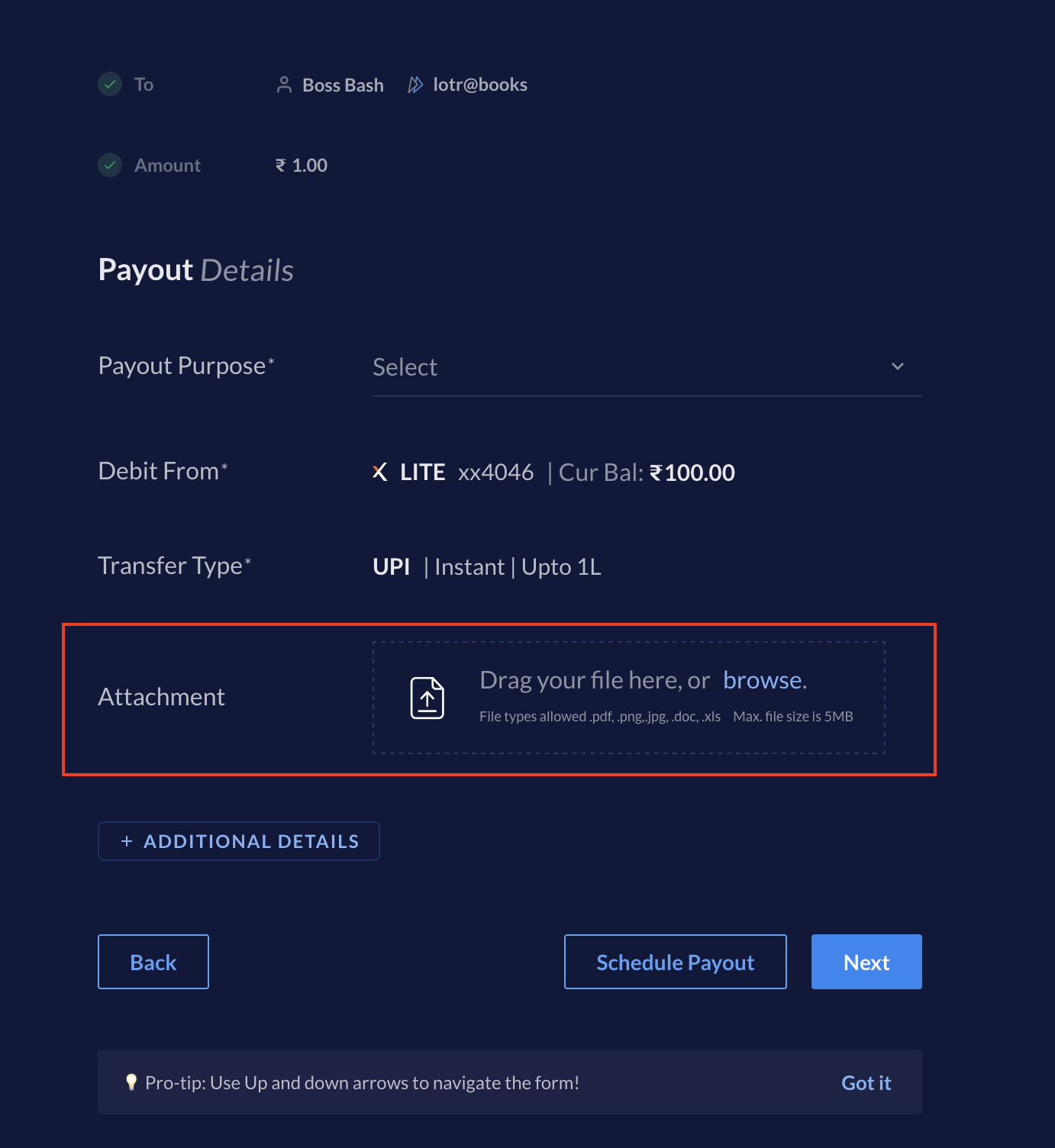
2. In the **Payout Details** page of creating a payout, add files against **Attachment**, as shown.
* You can upload files with `.pdf`, `.jpg`, `.jpg`, `.doc` and `.xls` extensions.
* The supported file size is upto 5 MB.
* Drag and drop the file or click **browse** to upload it from the system.
The image below shows how to add an attachment during the payout creation process. You can also add [after creating payouts](#upload-attachments-after-payout-creation).
3. Add other details in **+ ADDITIONAL DETAILS** if required and click **NEXT**. Enter the OTP and proceed to pay.
To add attachments after the Payout is created:
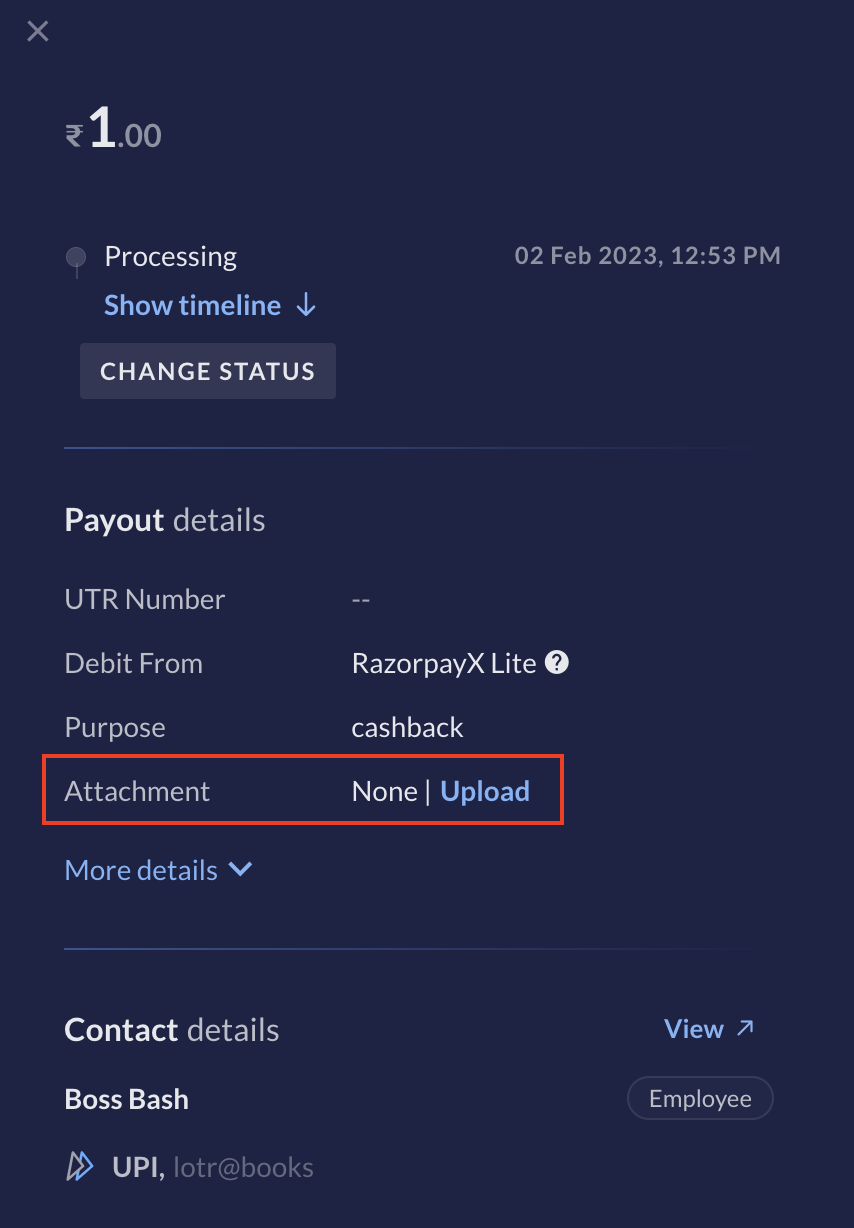
1. In you Payouts Dashboard, click on the Payout you want to add an attachment to.
2. Navigate to **Attachment** in pop-up page that appears to the right.
3. Click **Upload** and upload the attachment file. The supported file type remain [as mentioned above](#upload-attachments-during-payout-creation).
## Cancel Payouts
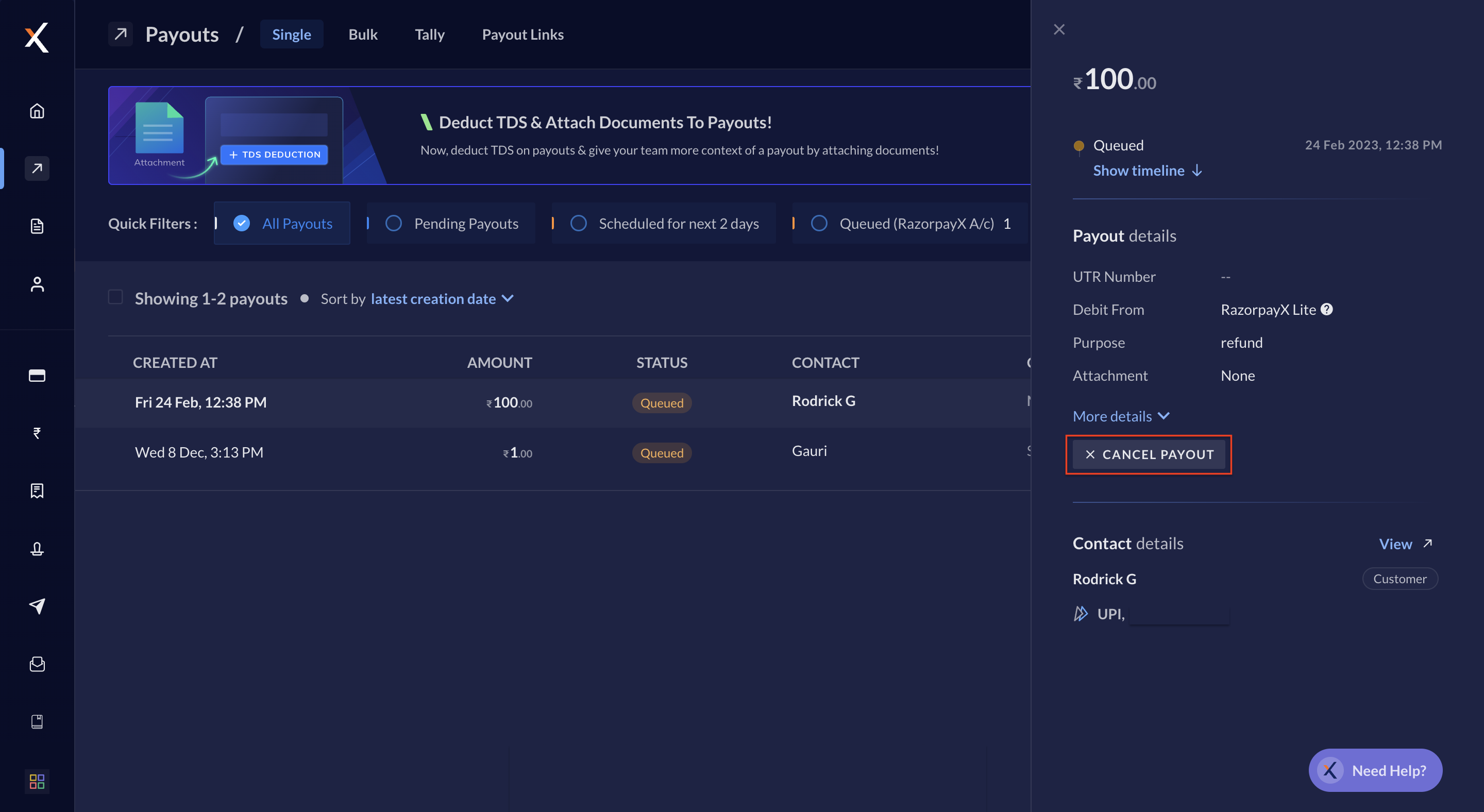
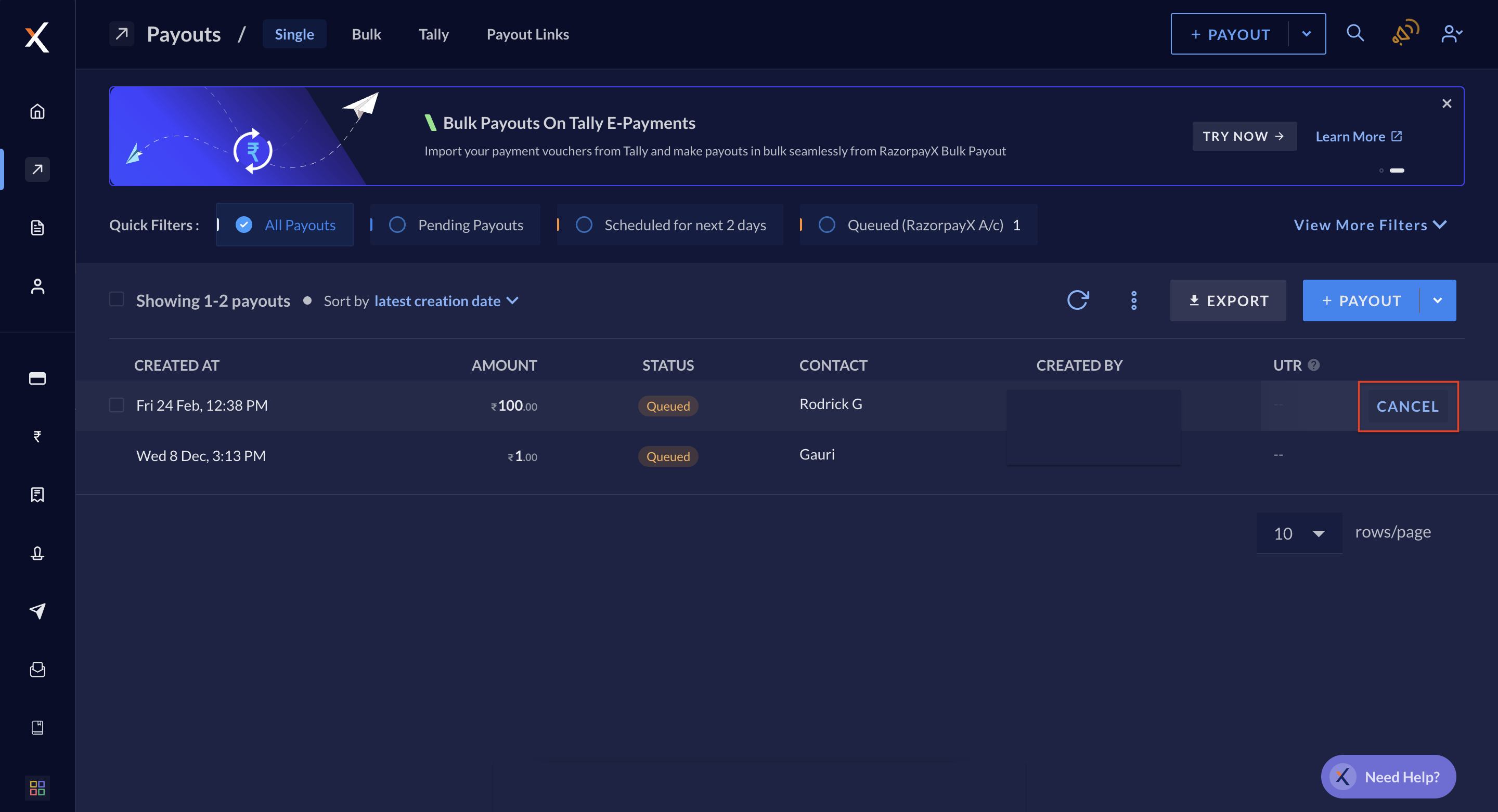
You can cancel the payouts in a [`queued`](/docs/x/payouts/states-life-cycle#queued), [`pending`](/docs/x/payouts/states-life-cycle#pending) or [`scheduled`](/docs/x/payouts/states-life-cycle#scheduled) state only.
1. Log in to the [RazorpayX Dashboard](https://x.razorpay.com/auth).
Either:
2. Navigate to **Payouts**.
3. Hover over the payout you want to cancel and click **CANCEL**. Your payout is cancelled.
Or you can also:
2. Select the payout you want to cancel.
3. Click **CANCEL PAYOUT** on the right pane. Your payout is cancelled.
### Actions
| Action | API | Dashboard | RazorpayX Mobile App | Bulk Upload |
| ------------------- | --- | --------- | -------------------- | ----------- |
| Create a Payout | ✓ | ✓ | ✓ | ✓ |
| View payout details | ✓ | ✓ | ✓ | x |
Know more about creating [payouts using APIs](/docs/api/x/payouts) and [payouts in bulk](/docs/x/contacts/bulk-uploads).
## Payout Modes and TAT
You can make payouts using any one of the following payout modes (IMPS/RTGS/NEFT/UPI). The transaction limits and operating hours for each payout mode is listed below.
The transaction limits and operating hours for different payout modes for [RazorpayX Lite](/docs/x/account-types#virtual-account) are as below:
When the payout mode is IMPS for the following conditions:
* **Fund account type**: `bank_account`
* **Amount limit**: Upto ₹5 lakh (per transaction) The transaction is processed to the fund account immediately on all days, 24x7.
When the payout mode is NEFT for the following conditions:
* **Fund account type**: `bank_account`
* **Amount limit**: Above ₹1 (per transaction) Transactions are processed to fund accounts within 2 hours, if initiated on working days between 2:00 am and 6:00 pm.
When the payout mode is RTGS for the following conditions:
* **Fund account type**: `bank_account`
* **Amount limit**: Above ₹2 lakh (per transaction) Transactions are processed to fund accounts within 2 hours, if initiated on working days between 2:00 am and 6:00 pm.
When the payout mode is UPI for the following conditions:
* **Fund account type**: `vpa`
* **Amount limit**: Upto ₹1 lakh (per transaction) The transaction is processed to the fund account immediately on all days, 24x7.
When the payout mode is NEFT for the following conditions:
* **Fund account type**: `wallet`
* **Amount limit**: Upto ₹10,000 (per transaction) The gift card is sent to the fund account immediately.
The transaction limits and operating hours for different payout modes for [Current account](/docs/x/account-types/current-account):
When the payout mode is IMPS for the following conditions:
* **Fund account type**: `bank_account`
* **Amount limit**: Upto ₹5 lakh (per transaction) The transaction is processed to the fund account immediately on all days, 24x7.
When the payout mode is NEFT for the following conditions:
* **Fund account type**: `bank_account`
* **Amount limit**: Above ₹1 (per transaction) The transaction is processed to the fund account within 2 hours if initiated on working days between:
* 2:00 am and 6:00 pm ( from **IDFC First Bank** or **RBL** Accounts)
* 1:00 am and 6:45 pm (from **ICICI Bank** or **Yes Bank** Accounts) [Contact support](/docs/x/support) for enabling **NEFT 24 \* 7** in RBL and Yes Bank accounts.
- January 26, 2026 (Republic Day)
- August 15, 2026 (Independence Day)
- October 2, 2026 (Gandhi Jayanti)
- All Sundays
- All 2nd and 4th Saturdays
* January 26, 2026 (Republic Day)
* August 15, 2026 (Independence Day)
* October 2, 2026 (Gandhi Jayanthi)
* December 25, 2026 (Christmas)
* All Sundays
* All 2nd and 4th Saturdays
* January 26, 2026 (Republic Day)
* August 15, 2026 (Independence Day)
* October 2, 2026 (Gandhi Jayanthi)
* All Sundays
* All 2nd and 4th Saturdays
* January 26, 2026 (Republic Day)
* August 15, 2026 (Independence Day)
* October 2, 2026 (Gandhi Jayanthi)
* All Sundays
* All 2nd and 4th Saturdays
* January 26, 2026 (Republic Day)
* August 15, 2026 (Independence Day)
* October 2, 2026 (Gandhi Jayanthi)
* December 25, 2026 (Christmas)
* All Sundays
* All 2nd and 4th Saturdays
* Operational on all days regardless of bank holidays.
When the payout mode is RTGS for the following conditions:
* **Fund account type**: `bank_account`
* **Amount limit**: Above ₹2 lakh (per transaction) The transaction is processed to the fund account within 30 minutes, if initiated on working days between:
* 2:00 am and 6:00 pm ( from **IDFC First Bank** Accounts)
* 9:30 am and 5:15 pm (from **ICICI Bank** Accounts)
* 7:00 am and 6:30 pm (from **Yes Bank** Accounts)
* 8:00 am and 5:30 pm (from **RBL** Accounts) RTGS holidays: 2nd and 4th Saturdays and all Sundays for all banks.
Currently, the UPI facility is available only for RBL and Yes Bank Current Accounts. When the payout mode is UPI for the following conditions:
* **Fund account type**: `vpa`
* **Amount limit**: Below ₹1 lakh (per transaction) The transaction is processed to the fund account immediately on all days, 24x7.
### Related Information
* [Payout Life Cycle and States](/docs/x/payouts/states-life-cycle)
* [Payout Status](/docs/x/payouts/status-details)
* [Payout Best Practices](/docs/x/payouts/best-practices)

 4. Enter name for the purpose.
5. Click **CREATE PAYOUT PURPOSE**.
4. Enter name for the purpose.
5. Click **CREATE PAYOUT PURPOSE**.
 The payout purpose is created.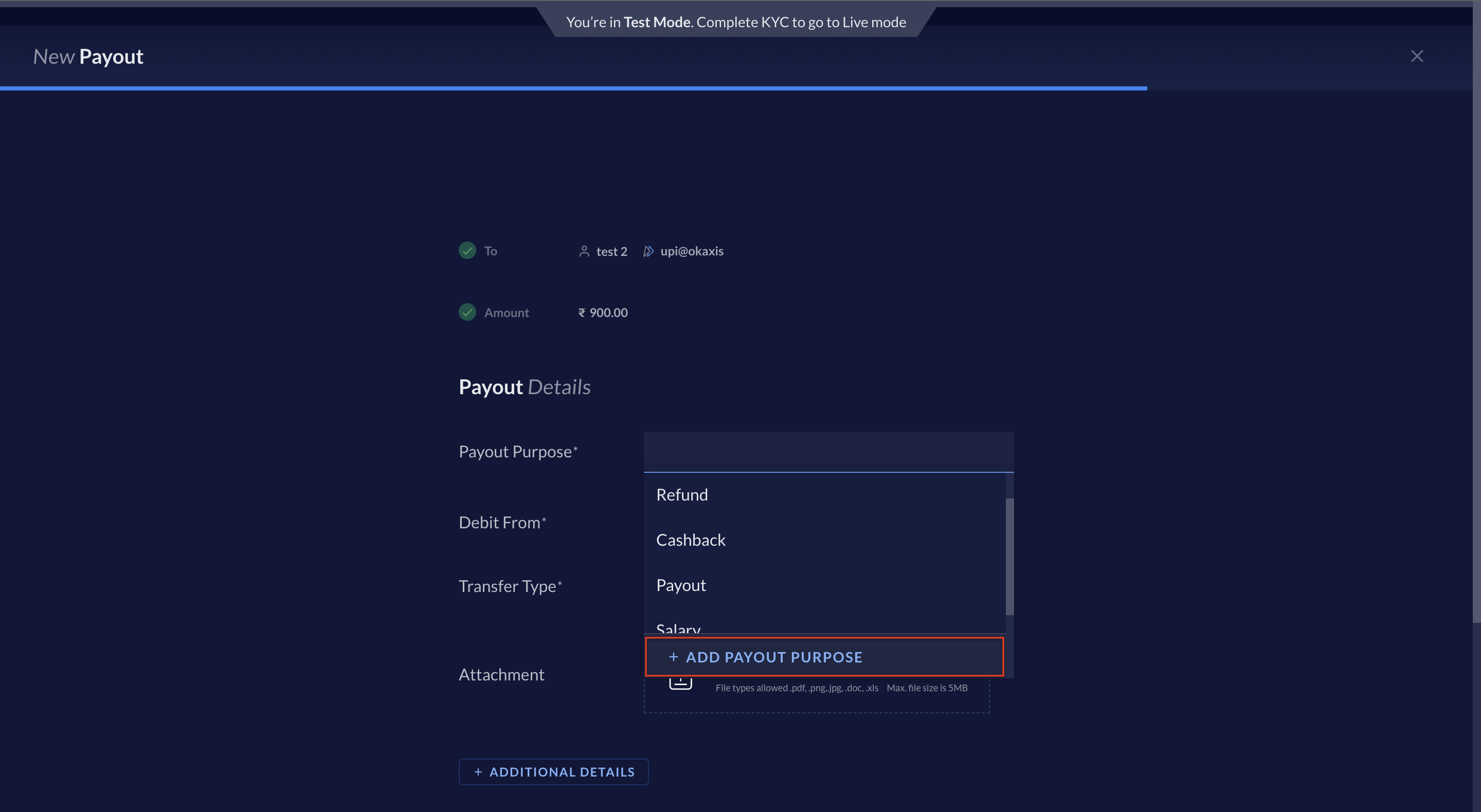
 3. Add other details in **+ ADDITIONAL DETAILS** if required and click **NEXT**. Enter the OTP and proceed to pay.
 Or you can also:
2. Select the payout you want to cancel.
3. Click **CANCEL PAYOUT** on the right pane. Your payout is cancelled.
Or you can also:
2. Select the payout you want to cancel.
3. Click **CANCEL PAYOUT** on the right pane. Your payout is cancelled.