> ## Documentation Index
> Fetch the complete documentation index at: https://razorpay-881012b3.mintlify.site/llms.txt
> Use this file to discover all available pages before exploring further.
# Payouts Report
> Download and view Payouts Report on the RazorpayX Dashboard.
Available in
🇮🇳 India
You can download all of your transaction data for a specific day, month or any time frame as per your business requirements. This information can be downloaded as a `.csv` or `.xlsx` file, or sent via email to the intended recipients.
## Download Report
To generate the report:
1. Log in to the [RazorpayX Dashboard](https://x.razorpay.com/auth).
2. Click **Payouts**.
3. Click **Export** button.
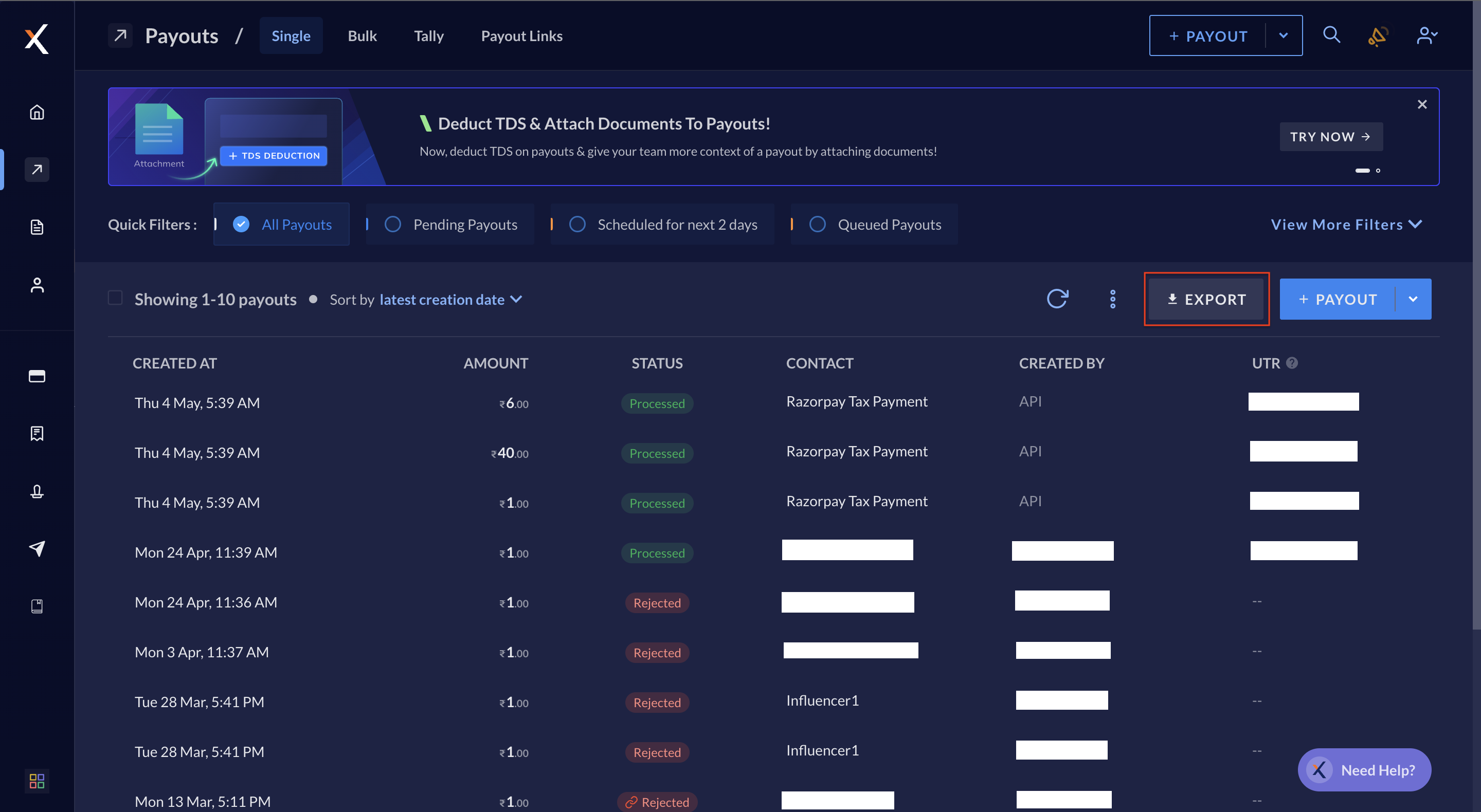 4. Select a period from the drop-down, or select custom dates for which you require the report.
5. Choose the format of your report- `xlsx` or `csv`.
6. You can **DOWNLOAD** as well as **EMAIL** the report. You can enter any email address you wish to share the report with as well as select the team members you want to share it with. The downloaded reports will be available in the default downloads folder of your system.
**Watch Out!**
Generating reports can take upto 10 minutes.
4. Select a period from the drop-down, or select custom dates for which you require the report.
5. Choose the format of your report- `xlsx` or `csv`.
6. You can **DOWNLOAD** as well as **EMAIL** the report. You can enter any email address you wish to share the report with as well as select the team members you want to share it with. The downloaded reports will be available in the default downloads folder of your system.
**Watch Out!**
Generating reports can take upto 10 minutes.