
 ### Raise a New Request
You can raise a request when you wish for help in setting up certain processes, enabling features or to report an issue.
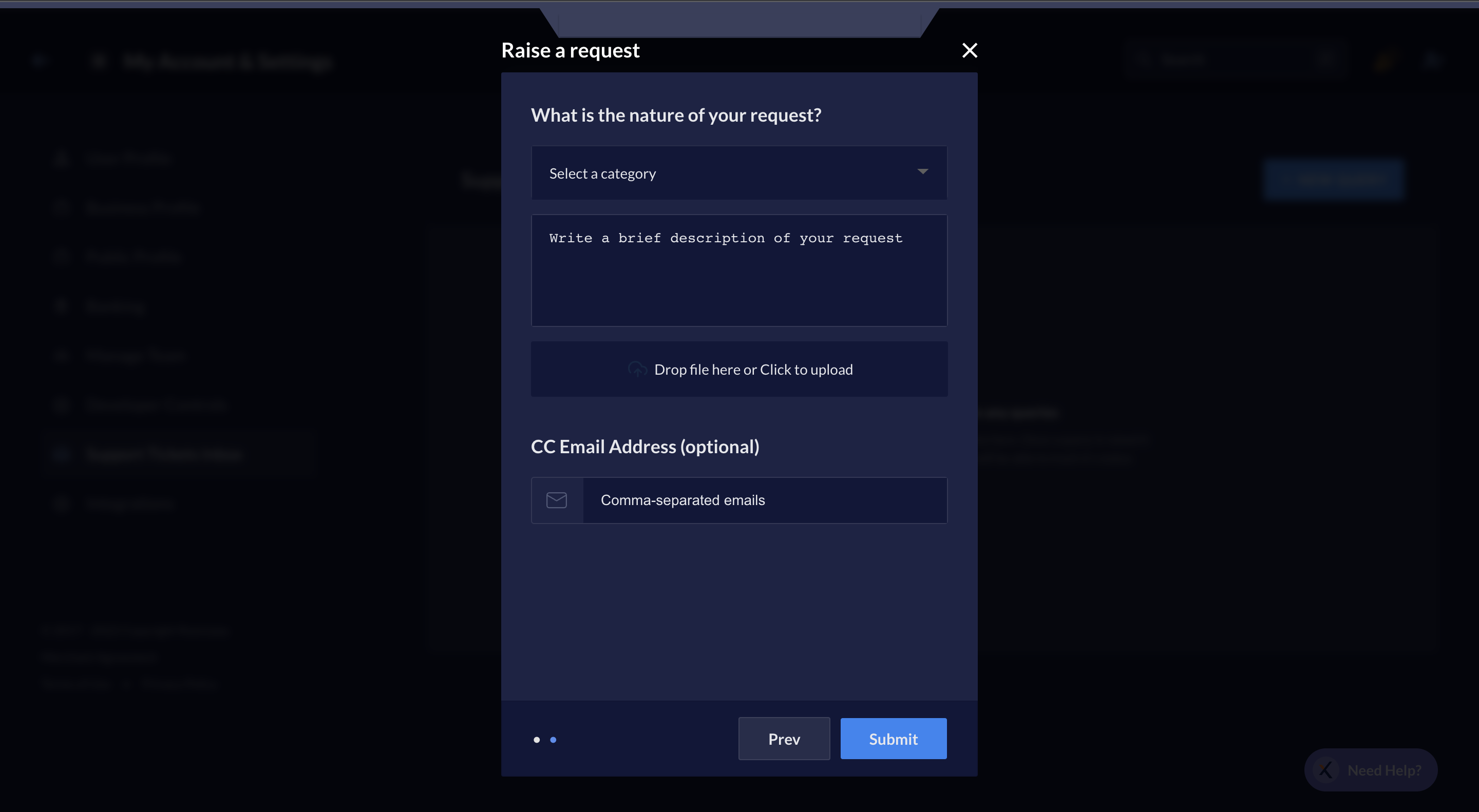
1. Select the category of the issue from the drop-down menu.
2. Write a description of the issue faced for our better understanding and attach images if available.
3. Enter the email addresses of other users who you wish to keep informed.
4. Click **Submit**.
### Raise a New Request
You can raise a request when you wish for help in setting up certain processes, enabling features or to report an issue.
1. Select the category of the issue from the drop-down menu.
2. Write a description of the issue faced for our better understanding and attach images if available.
3. Enter the email addresses of other users who you wish to keep informed.
4. Click **Submit**.
 ### File a Grievance
You can file a grievance when you are not satisfied with the support provided for a request you raised in the past.
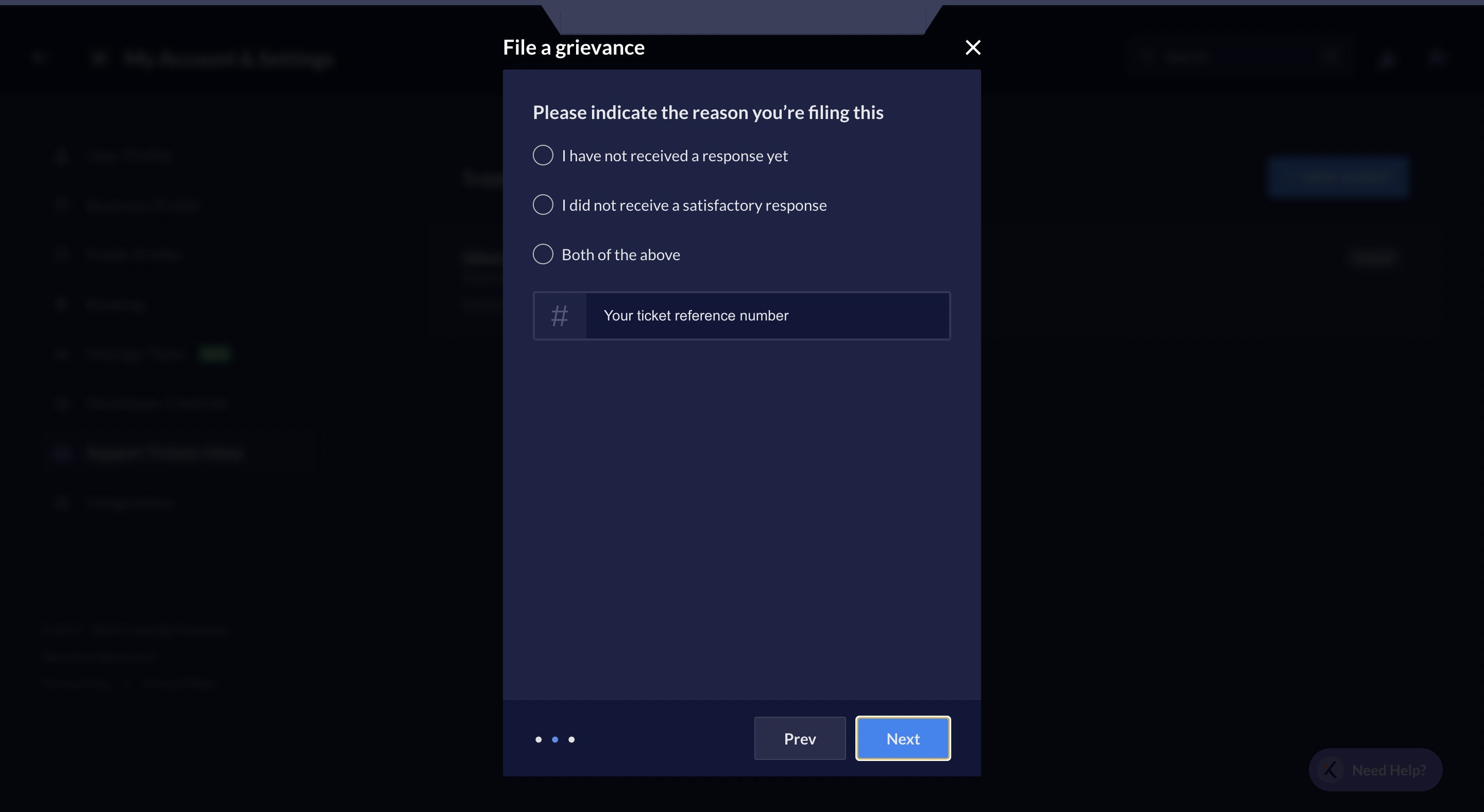
1. Select the reason for you to file a grievance.
2. Mention your ticket reference number.
3. Click **Next**.
### File a Grievance
You can file a grievance when you are not satisfied with the support provided for a request you raised in the past.
1. Select the reason for you to file a grievance.
2. Mention your ticket reference number.
3. Click **Next**.
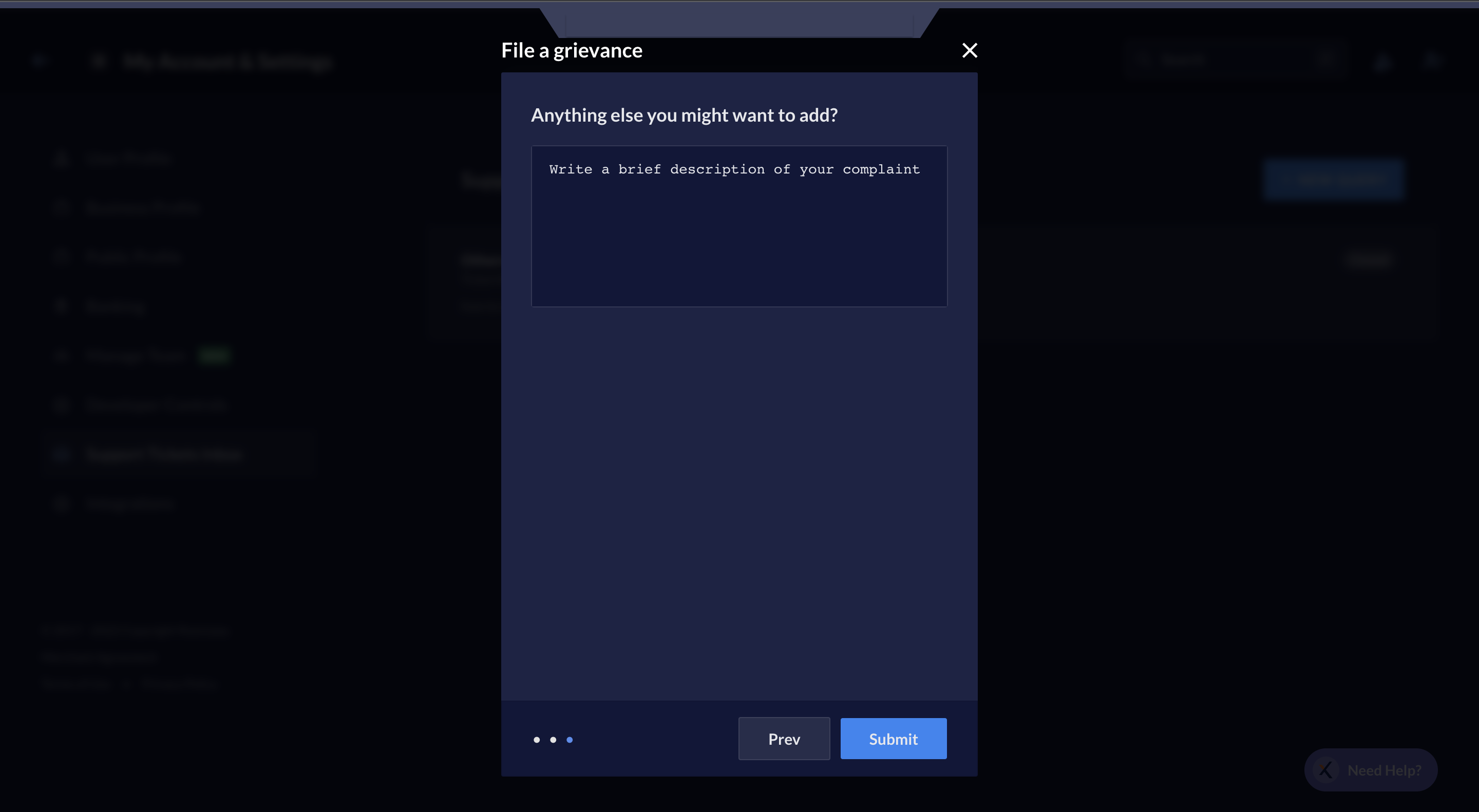
 4. Write a description of the complaint and expectations and click **Submit**.
 You have successfully raised a support request from the RazorpayX Dashboard.
## RazorpayX Payroll
Write to [xpayroll@razorpay.com](mailto:xpayroll@razorpay.com) for any queries, requests or other issues related to Payroll.
You have successfully raised a support request from the RazorpayX Dashboard.
## RazorpayX Payroll
Write to [xpayroll@razorpay.com](mailto:xpayroll@razorpay.com) for any queries, requests or other issues related to Payroll.