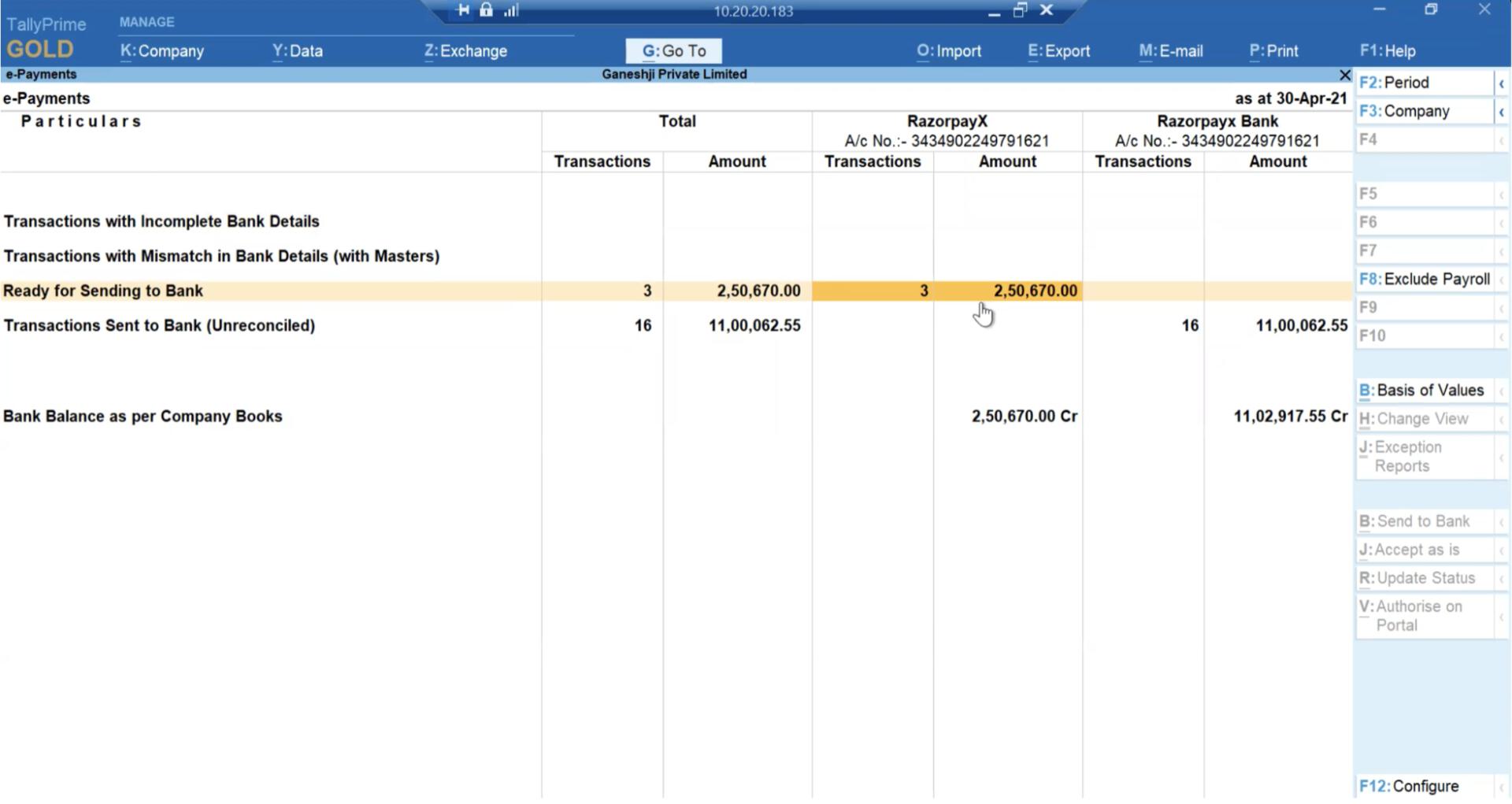
 5. Select the transactions which you wish to export from the list.
6. On the top menu, select **Export** → **Payment Instructions**.
7. Click **Yes** to confirm.
You see a message after successful completion of the data export. Then you [upload the payout data](#upload-payout-data) into the RazorpayX Dashboard for review and approval.
## RazorpayX Dashboard Actions
Switch to your RazorpayX Dashboard to upload and approve the payouts.
## Upload Payout Data
To upload payout data:
1. Log in to your [RazorpayX Dashboard](https://x.razorpay.com/).
2. Navigate to **Payouts** → **Tally Payouts**.
3. Click **Tally bulk import** under the **+ NEW** drop-down menu, as shown below.
5. Select the transactions which you wish to export from the list.
6. On the top menu, select **Export** → **Payment Instructions**.
7. Click **Yes** to confirm.
You see a message after successful completion of the data export. Then you [upload the payout data](#upload-payout-data) into the RazorpayX Dashboard for review and approval.
## RazorpayX Dashboard Actions
Switch to your RazorpayX Dashboard to upload and approve the payouts.
## Upload Payout Data
To upload payout data:
1. Log in to your [RazorpayX Dashboard](https://x.razorpay.com/).
2. Navigate to **Payouts** → **Tally Payouts**.
3. Click **Tally bulk import** under the **+ NEW** drop-down menu, as shown below.
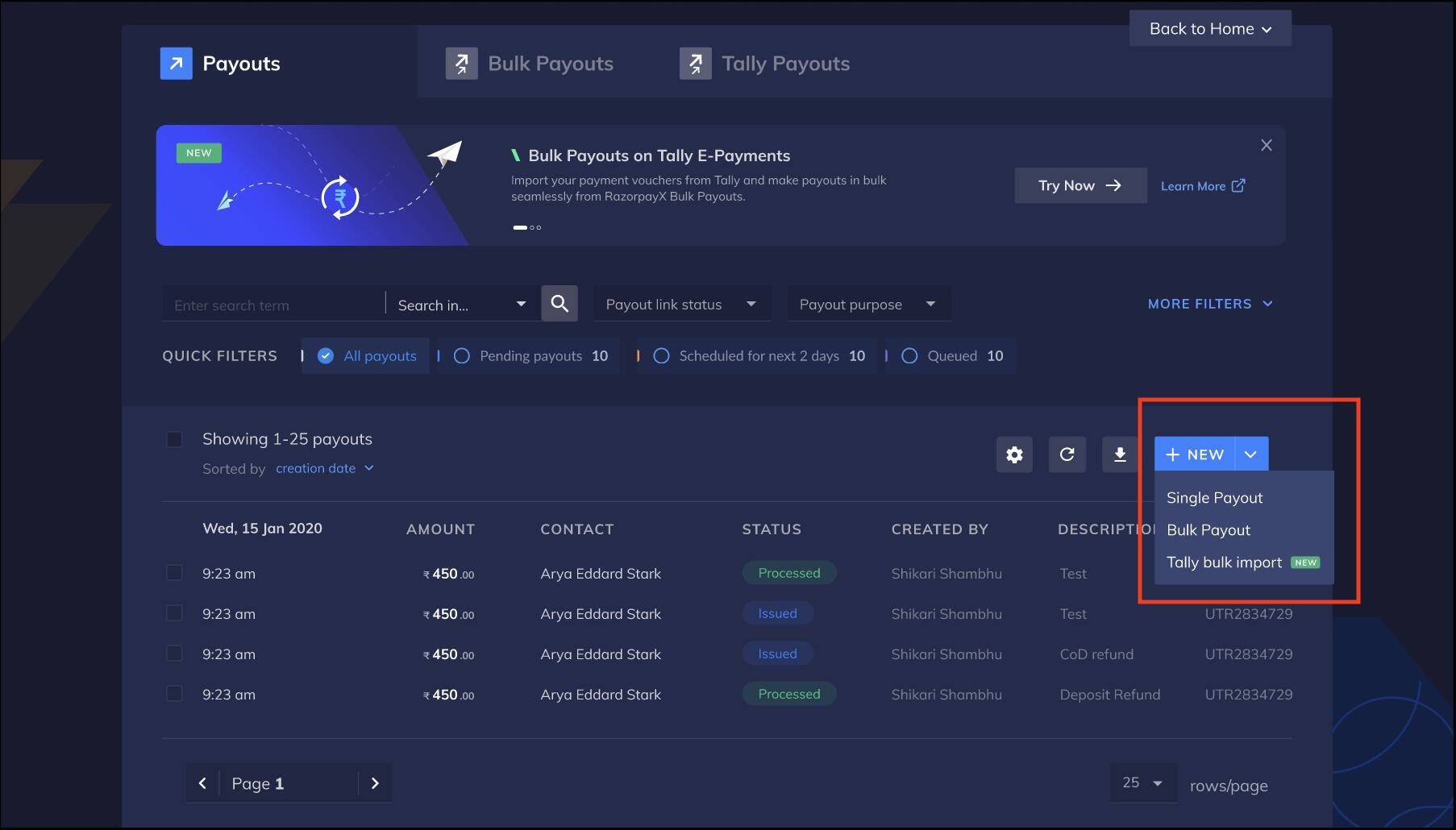 4. Click **+ BULK PAYOUT**.
5. Upload the payouts data file exported from TallyPrime and click **Next**.
4. Click **+ BULK PAYOUT**.
5. Upload the payouts data file exported from TallyPrime and click **Next**.
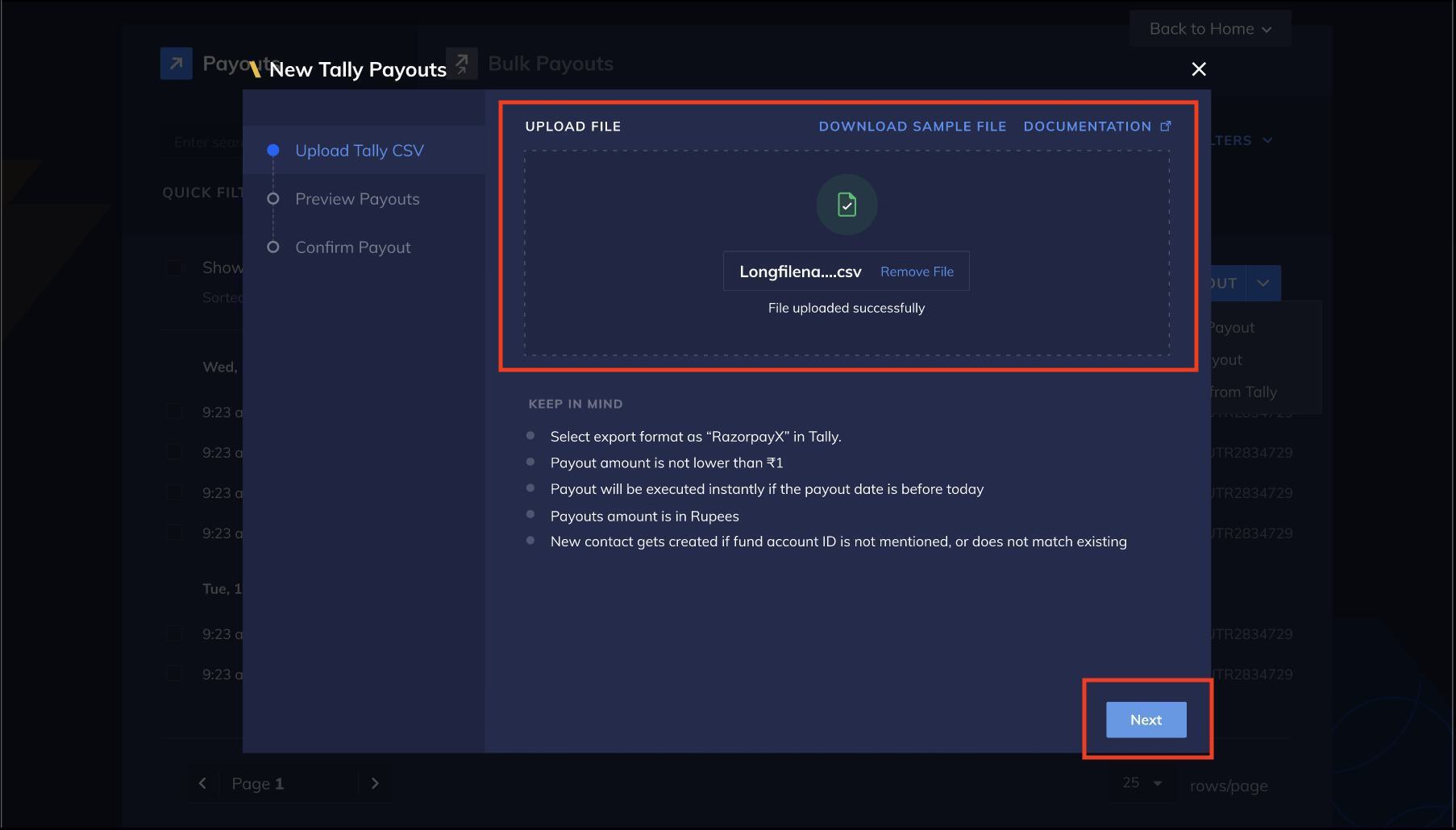 6. Preview the payouts and click Next.
7. Enter the OTP sent to your registered mobile number and email address and click **Confirm Payouts**.
6. Preview the payouts and click Next.
7. Enter the OTP sent to your registered mobile number and email address and click **Confirm Payouts**.
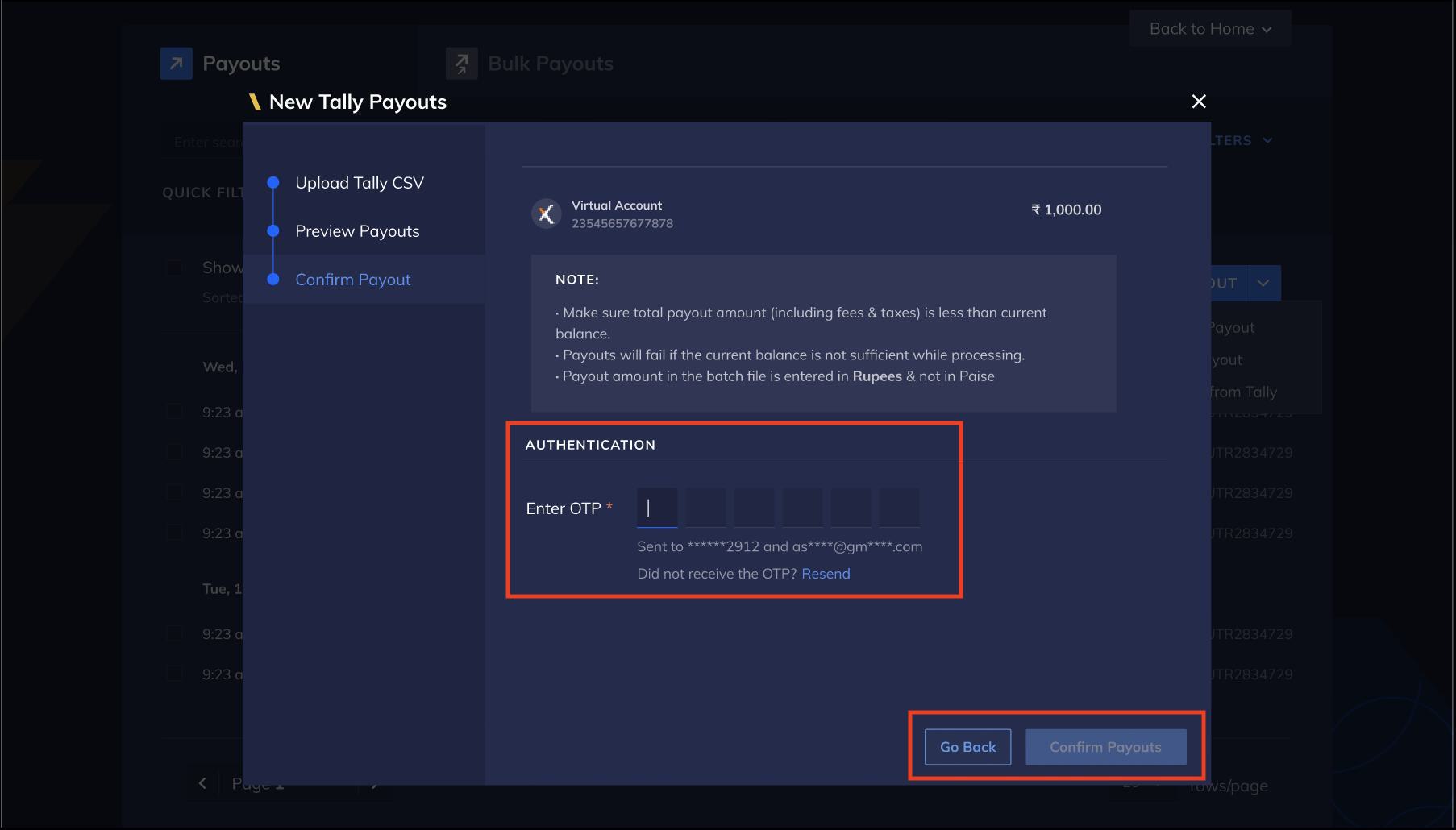 Bulk payouts are created and listed on the Tally Payouts screen.
## Approve Payouts
After the payouts are uploaded to the RazorpayX Dashboard, you can access the payout data for further review and approval.
To approve these payouts in bulk:
1. Go to **Payouts** → **Pending on you**.
Bulk payouts are created and listed on the Tally Payouts screen.
## Approve Payouts
After the payouts are uploaded to the RazorpayX Dashboard, you can access the payout data for further review and approval.
To approve these payouts in bulk:
1. Go to **Payouts** → **Pending on you**.
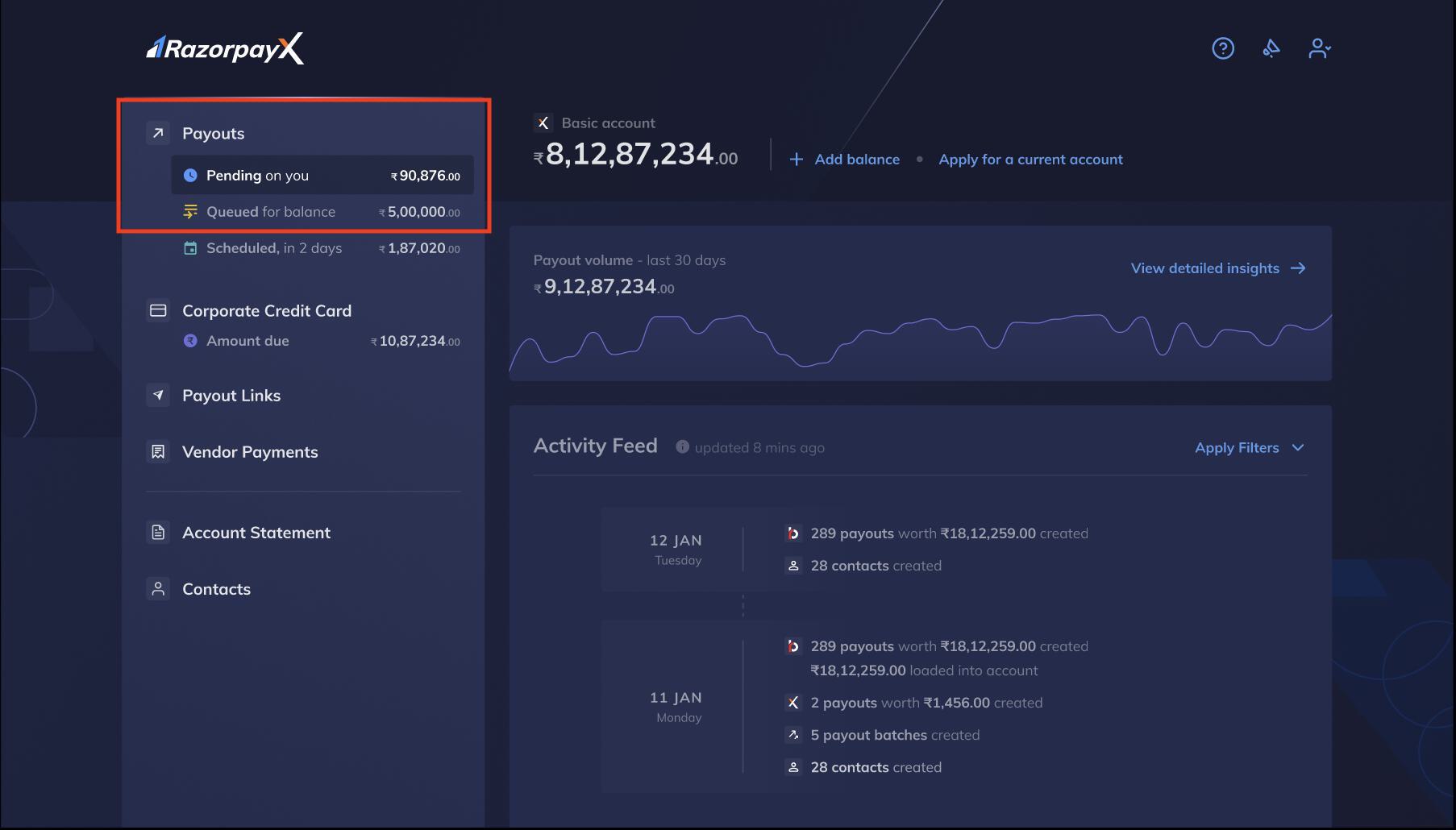 2. All payouts pending on you are displayed in the **Payouts** page.
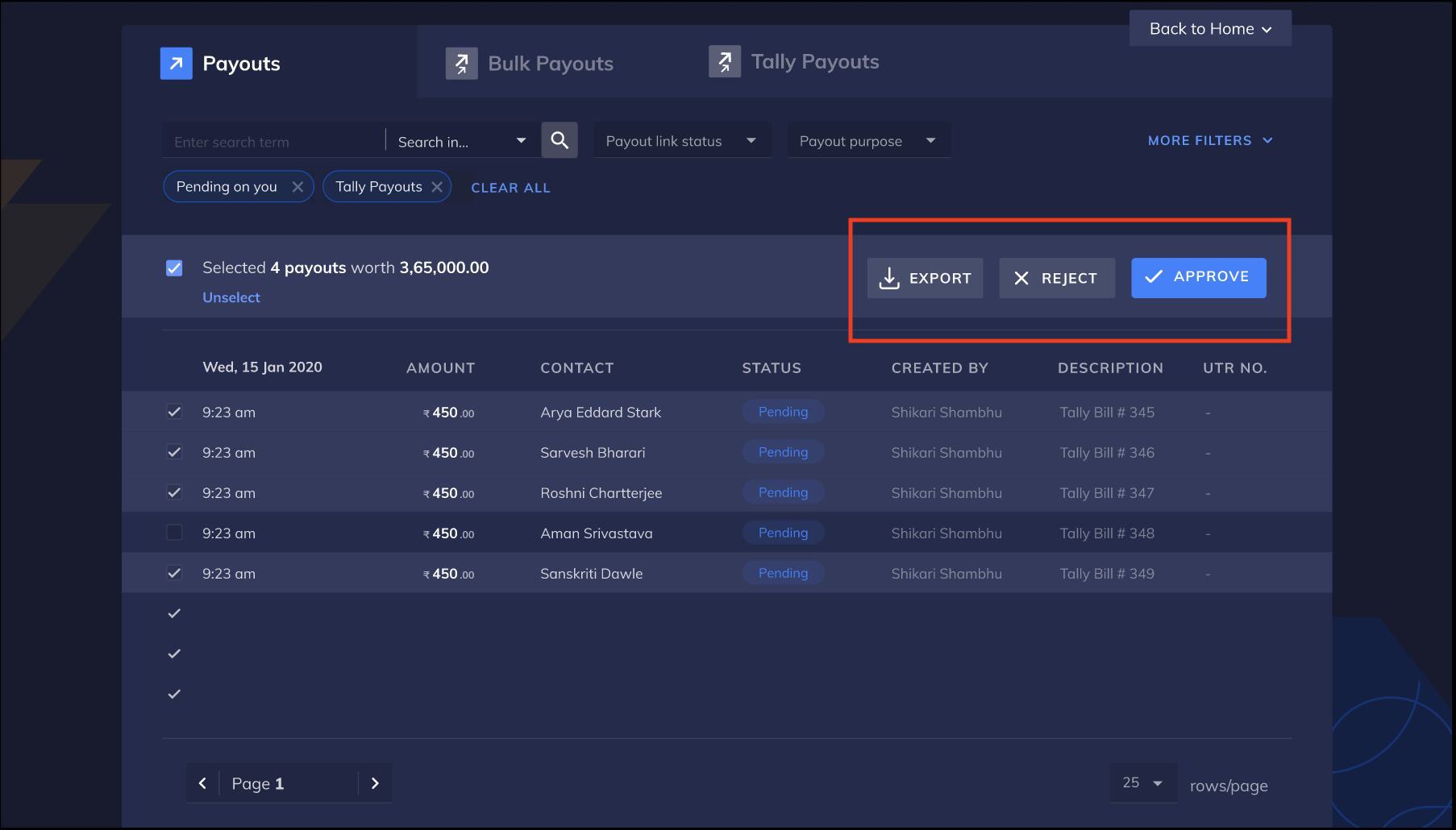
3. Use the check box to select the payouts you want to make.
4. Click **APPROVE** as shown below.
2. All payouts pending on you are displayed in the **Payouts** page.
3. Use the check box to select the payouts you want to make.
4. Click **APPROVE** as shown below.
 RazorpayX shows a message confirming the payouts approval. You can now [view and download the payouts report](#view-payouts-and-download-reports).
## View Payouts and Download Reports
Click **VIEW PAYOUTS** to view all the processed payouts. Click **DOWNLOAD** to view information about unprocessed rows by downloading the error report.
RazorpayX shows a message confirming the payouts approval. You can now [view and download the payouts report](#view-payouts-and-download-reports).
## View Payouts and Download Reports
Click **VIEW PAYOUTS** to view all the processed payouts. Click **DOWNLOAD** to view information about unprocessed rows by downloading the error report.
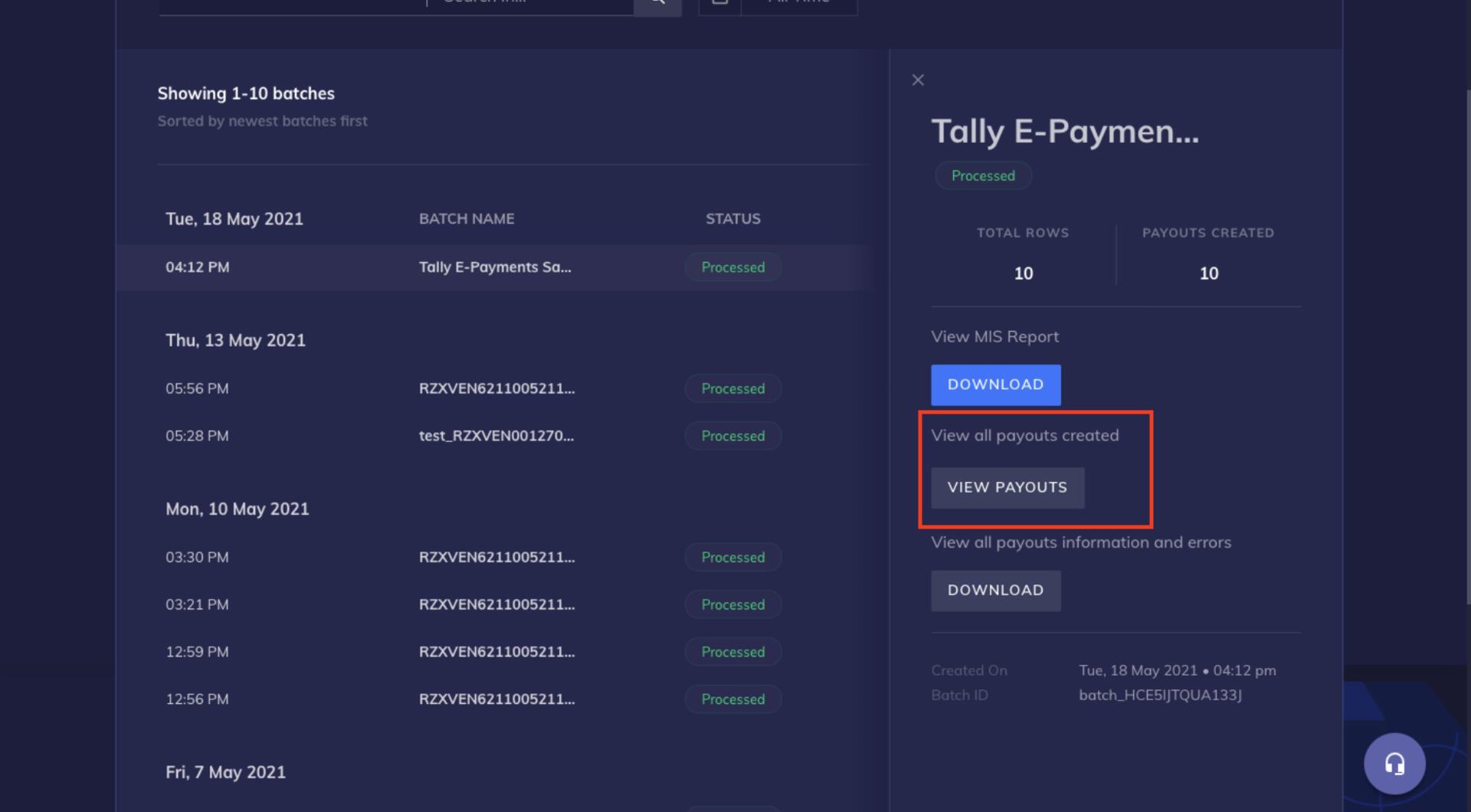 You can then download the MIS report and [reconcile payouts in TallyPrime](/docs/x/tally-epayments/reconcile-payouts).
### Next Steps
* [Reconcile Payouts in TallyPrime](/docs/x/tally-epayments/reconcile-payouts)
### Related Information
* [About Tally e-Payments](/docs/x/tally-epayments)
* [Create RazorpayX Ledger in TallyPrime](/docs/x/tally-epayments/set-up)
You can then download the MIS report and [reconcile payouts in TallyPrime](/docs/x/tally-epayments/reconcile-payouts).
### Next Steps
* [Reconcile Payouts in TallyPrime](/docs/x/tally-epayments/reconcile-payouts)
### Related Information
* [About Tally e-Payments](/docs/x/tally-epayments)
* [Create RazorpayX Ledger in TallyPrime](/docs/x/tally-epayments/set-up)