> ## Documentation Index
> Fetch the complete documentation index at: https://razorpay-881012b3.mintlify.site/llms.txt
> Use this file to discover all available pages before exploring further.
# About GRN
> Create or import GRNs to your RazorpayX Dashboard.
Available in
🇮🇳 India
GRN - Goods Received Note is a document used in procurement to formally acknowledge the receipt of goods.
* When businesses receive goods from a supplier, the receiving department or personnel generate a GRN to confirm the delivery of goods specified in a Purchase Order.
* It also is a confirmation that the goods are in the expected condition, of the requested quantity and rate.
## How it Works
A key part of the procurement process is to ensure that the quantity received is the same as the quantity ordered and is in the aligned rate.
RazorpayX solves this problem with a seamless three-way matching system that reconciles Purchase Orders (PO), Goods Receipts (GRN), and Invoices. This robust process ensures accuracy and compliance, reducing the risk of errors and discrepancies.
## Advantages of GRN
With GRN, you can be assured of:
* Confirmed Delivery: It acts as proof that the goods have been delivered as per the Purchase Order. It also maintains a log of receipts tagged to the respective Purchase Orders. The receipt log provides information on:
* Receiver of goods
* Date/time of receipt
* The SKU wise quantity of the goods received
* The effective SKU wise inward post damages/defects
* Three-Way Matching: Match the quantity received against quantity ordered and quantity billed for, to ensure that what you received matches against what you ordered and what you are billed for.
* Easy Escalation: In case of mismatch, conflicts can be easily resolved by matching records.
**Handy Tips**
Approval Workflows can be applied on GRNs. However, GRNs are created usually by the warehouse team whereas the Purchase Orders/Bills are created by the finance teams. This means that you must create a separate set of Approval Workflows.
## Create new GRN
To create a new GRN:
1. Log in to the [RazorpayX Dashboard](http://x.razorpay.com/auth).
2. Navigate to **Source to Pay** on the left-hand menu.
3. Click **GRN**.
4. Click **+ New GRN**. The New GRN modal is displayed.
5. From the list of vendors, select the vendor for whom the GRN has to be created. If it is a new vendor, you can click **+ NEW VENDOR** to create a new vendor.
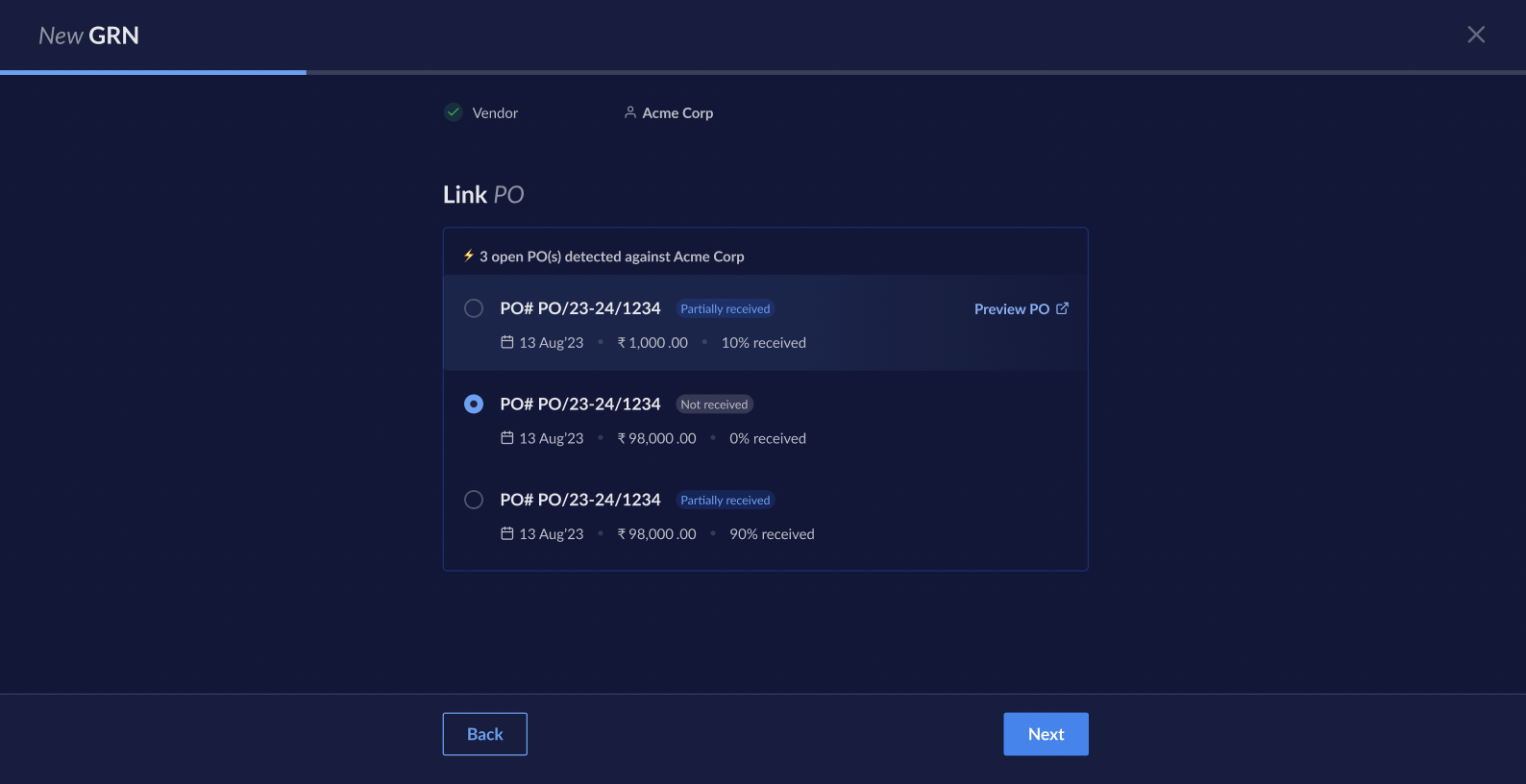
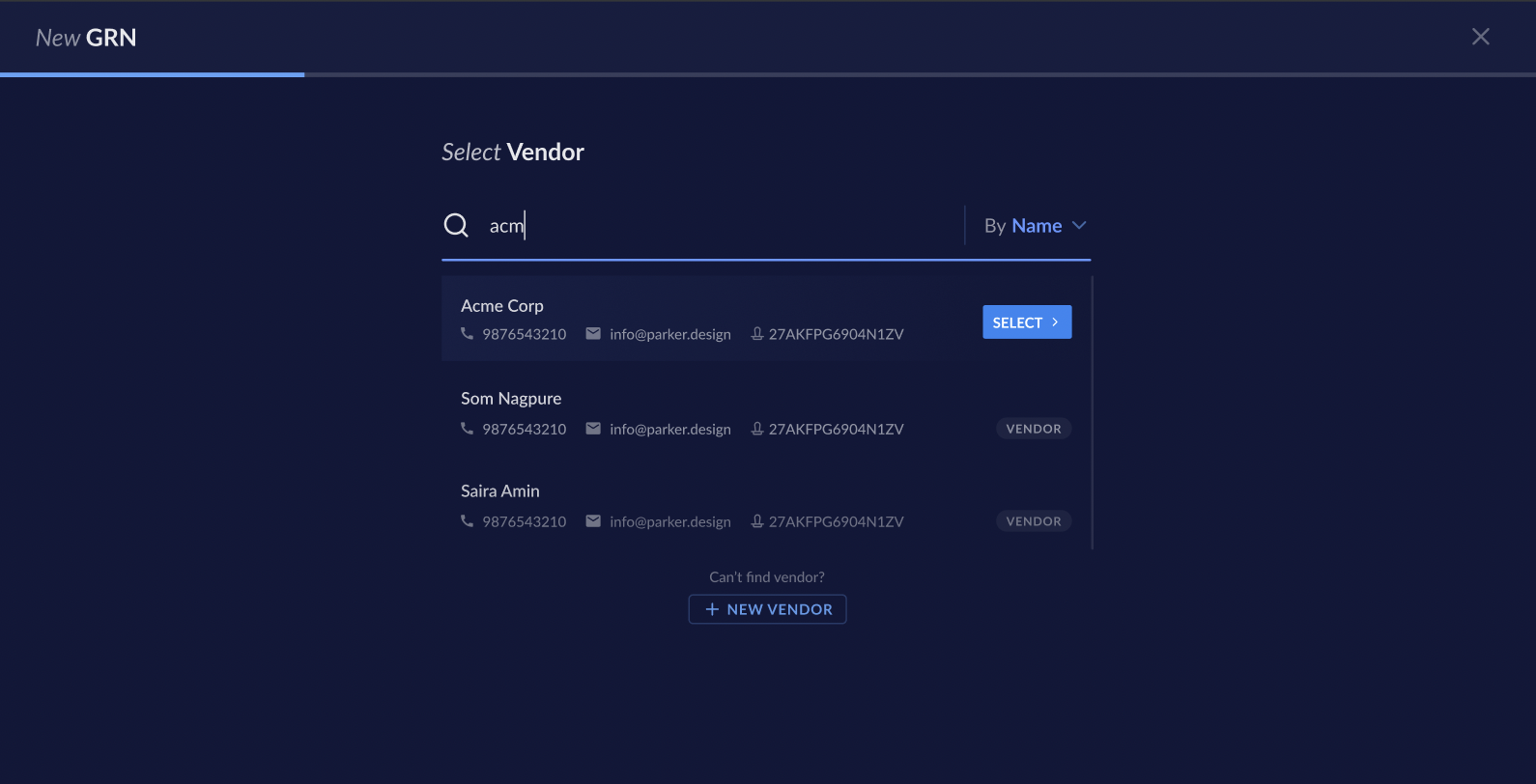 6. In the **Link PO** modal, select the Purchase Order to be linked to the GRN. Click **Next**.
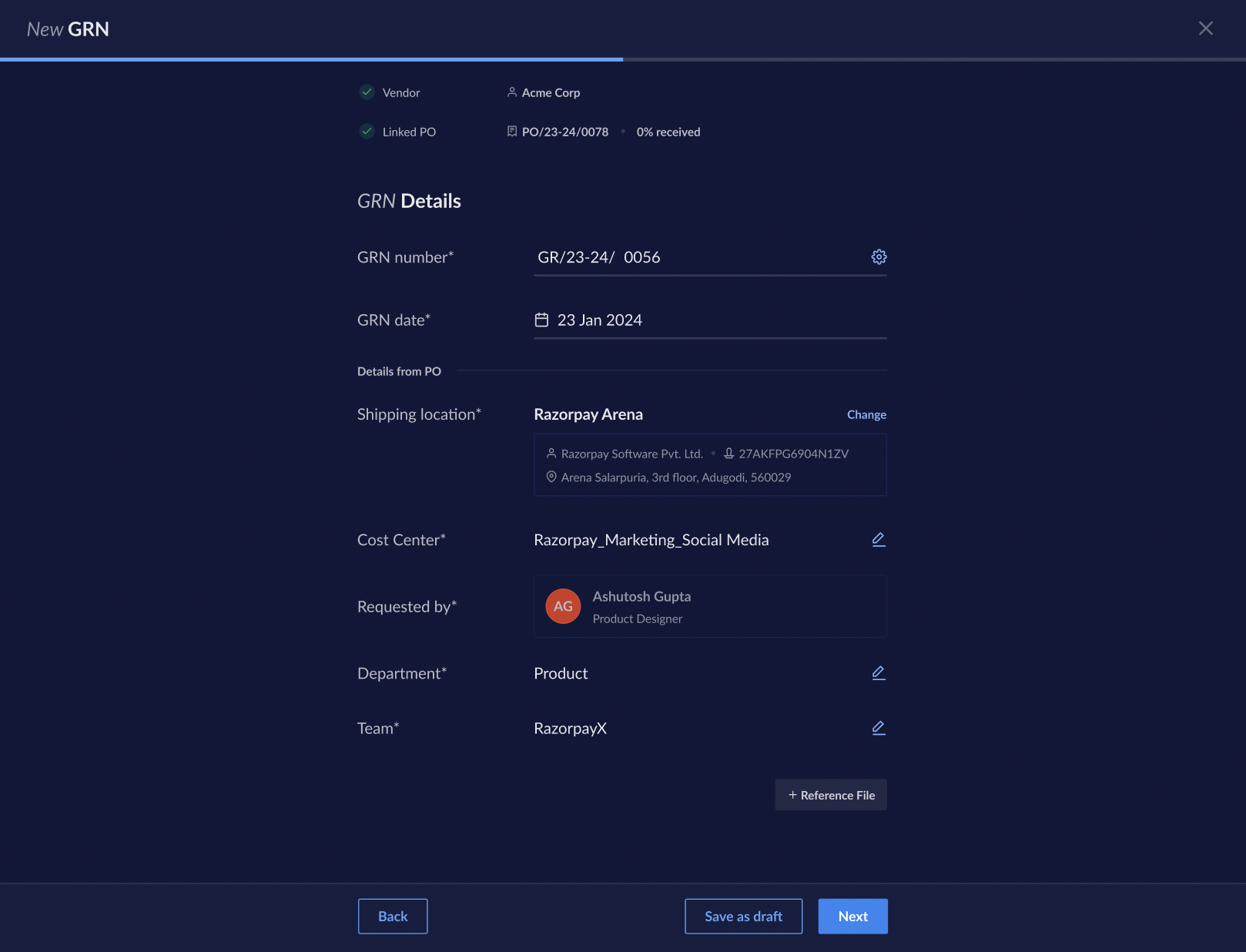
 7. Enter the **GRN number** and **GRN date**. The rest of the details such as Shipping location, Cost Center, Requested By, Department, and Team is auto-populated on basis of the linked PO as shown below. Click **Next**.
 8. Enter the details of the goods received, such as Item name, Description, Received Quantity and Balance Quantity, Rate, Number of Units, and the IGST%. Click **Review** to verify the information entered. The details entered in the GRN are matched with the details from the Purchase Order. Discrepancies, if any, are displayed by the system as shown here.
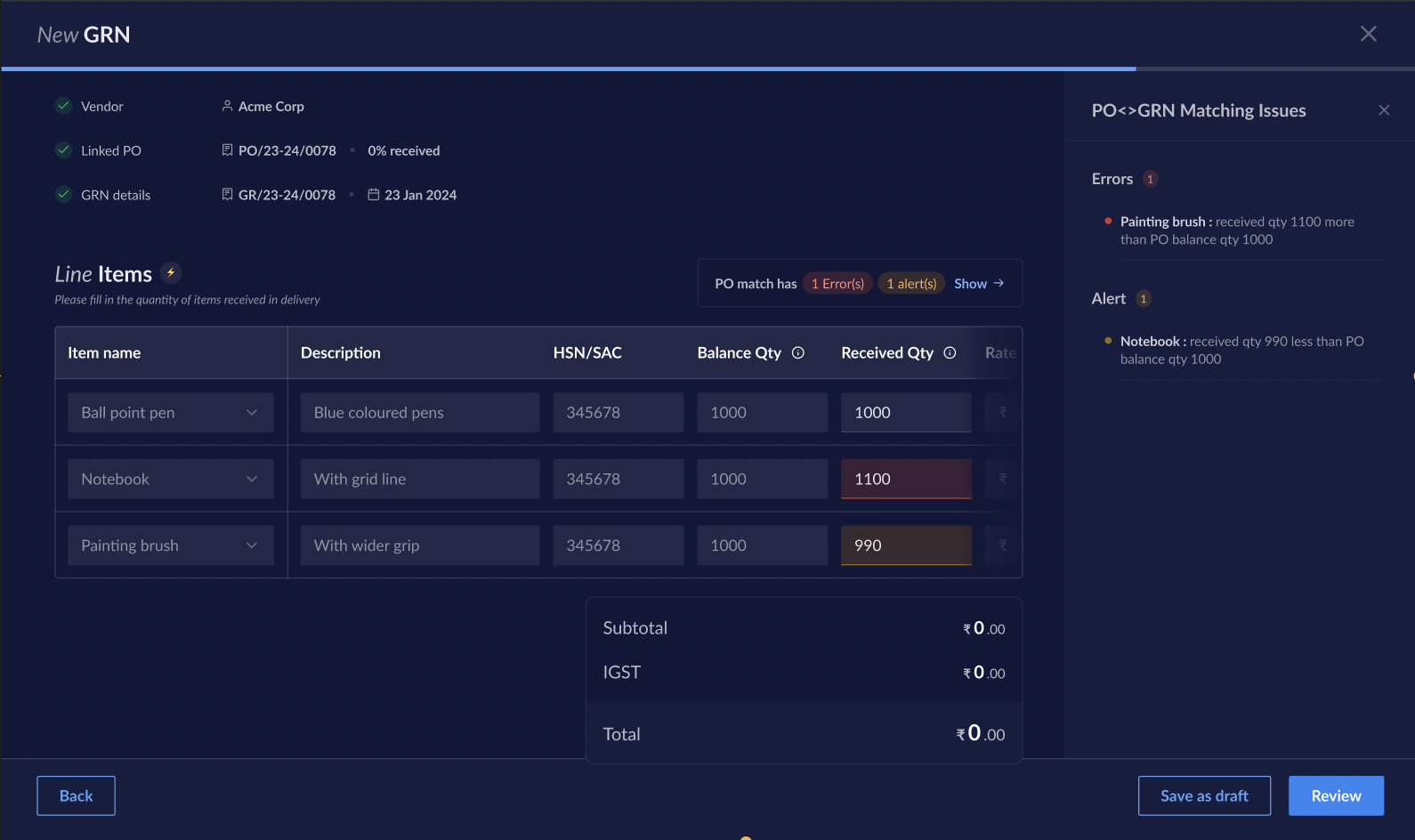 9. Rectify the errors and click **Send for Approval**. For cases where approvals are not configured, you can proceed with creating the GRN directly.
## Related information
* [Purchase Orders](/docs/x/vendor-payments/purchase-order)
* [Invoices](/docs/x/vendor-payments/invoices)
* [Vendor Payments](/docs/x/vendor-payments)
9. Rectify the errors and click **Send for Approval**. For cases where approvals are not configured, you can proceed with creating the GRN directly.
## Related information
* [Purchase Orders](/docs/x/vendor-payments/purchase-order)
* [Invoices](/docs/x/vendor-payments/invoices)
* [Vendor Payments](/docs/x/vendor-payments)