> ## Documentation Index
> Fetch the complete documentation index at: https://razorpay-881012b3.mintlify.site/llms.txt
> Use this file to discover all available pages before exploring further.
# Invoice Life Cycle and States
> List of states of a RazorpayX invoice and their significance.
Available in
🇮🇳 India
Following are the 2 life cycles in Vendor Payments:
* [Invoice Life Cycle](#invoice-life-cycle)
* [Payout Life Cycle](#payout-life-cycle)
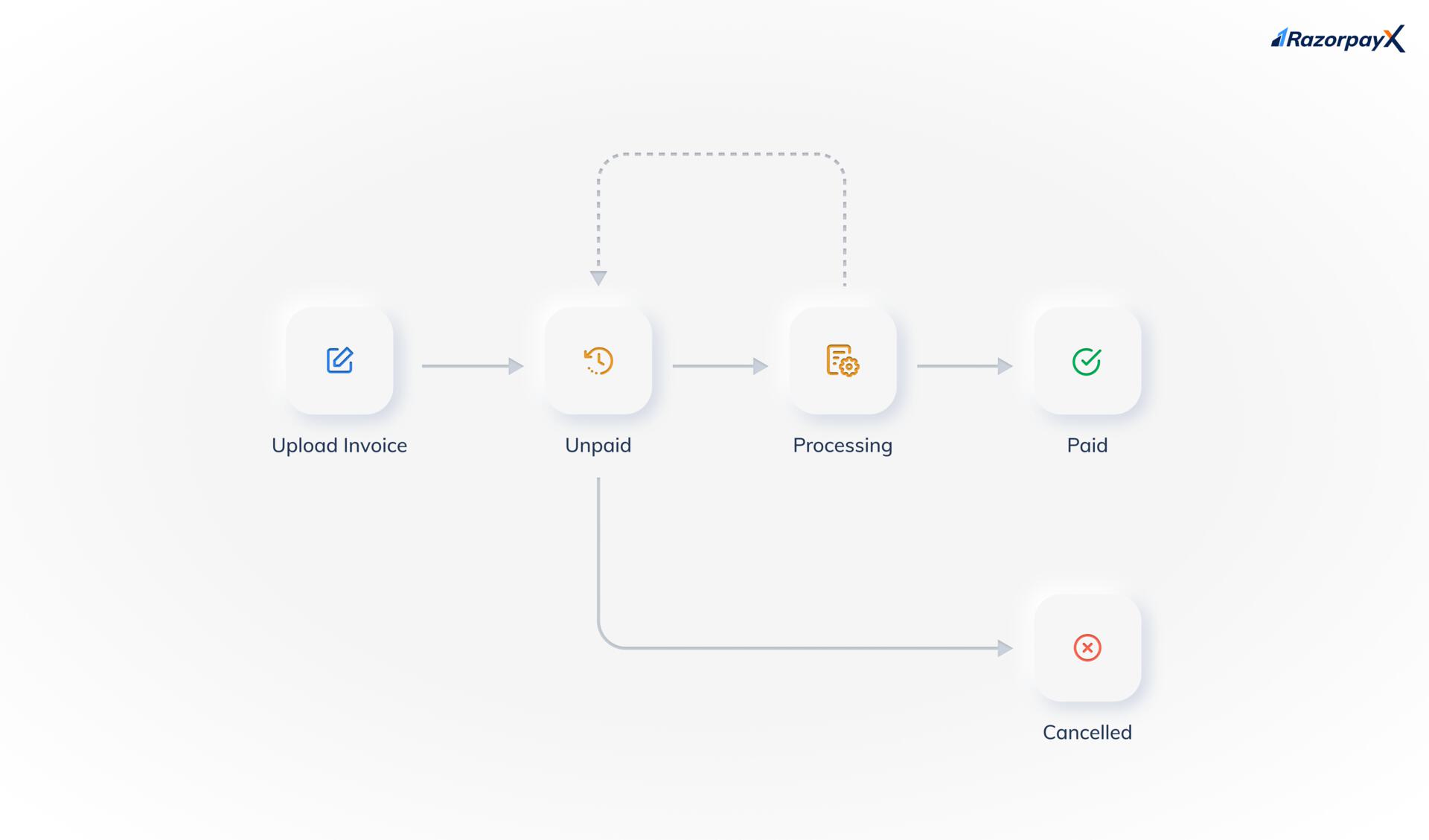
Below is the life cycle of an invoice.
 ## Invoice Life Cycle
Invoices can be in any one of the following states:
* `draft`
* `unpaid`
* `scheduled`
* `partially paid`
* `processing`
* `canceled`
* `paid`
### Draft
An invoice is in the `draft` state when the process of creating an invoice has been initiated but the invoice has not been saved yet. For an invoice in the `draft` state, you can take the following actions from the Vendor Payments app:
* Complete details (or edit the invoice)
* Cancel
### Unpaid
The invoice has been uploaded to our system. A payout may be created, but not successfully paid against the invoice.
Possible payout states:
* Payout not yet created.
* `rejected`
* `cancelled`
* `failed`
* `reversed`
For an invoice in the `unpaid` state, you can take the following actions from the Vendor Payments app:
* Pay Invoice
* Edit Invoice
* Mark as Paid
* Cancel Invoice
* Add File
### Scheduled
An invoice can be created and a corresponding payout can be scheduled. This is done in cases where payments are to be made on specific dates. For an invoice in the `scheduled` state, you can take the following actions from the Vendor Payments app:
* Pay Remaining
* Mark as Paid
* Edit Details
* Add File
Scheduled payouts can be canceled/approved/rejected from the Payouts app. This will automatically change the status of the invoice to `unpaid`.
### Partially Paid
Partial payouts are done in cases where an advance payment is requested or in cases where payments are made in EMIs. An invoice is moved to `partially paid` state in such cases. For an invoice in this state, you can take the following actions from the Vendor Payments app:
* Pay Remaining
* Mark as Paid
* Edit Details
* Add File
Invoices in this state can be canceled/approved/rejected from the Payouts app.
### Processing
The payment for the invoice is being processed. A payout is created and is being processed.
Possible payout states:
* `pending`
* `queued`
* `processing`
From the `processing` state, the invoice can go back to the `unpaid` state:
* If you reject or cancel the payout.
* If the payout fails or is reversed.
For an invoice in the `processing` state, you can take the following actions from the Vendor Payments app:
* Edit Details
* Add File
Invoices in this state can be canceled/approved/rejected from the Payouts app.
### Paid
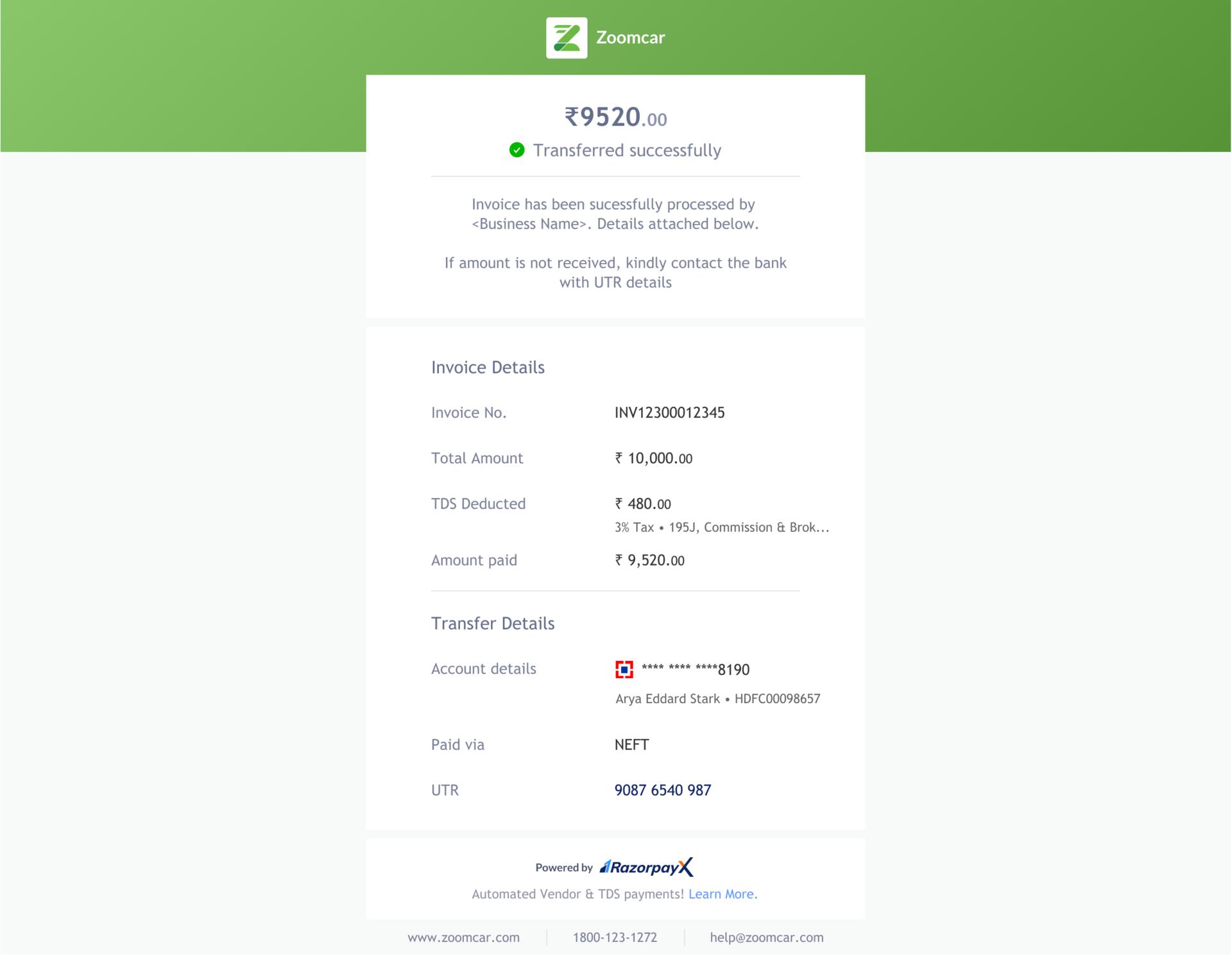
A payout for the full amount is made against the invoice to your vendor. Possible payout state: `processed`.
Once an invoice is paid, your vendor receives an email informing them about the payment. Shown below is a sample email that is sent to your vendor.
## Invoice Life Cycle
Invoices can be in any one of the following states:
* `draft`
* `unpaid`
* `scheduled`
* `partially paid`
* `processing`
* `canceled`
* `paid`
### Draft
An invoice is in the `draft` state when the process of creating an invoice has been initiated but the invoice has not been saved yet. For an invoice in the `draft` state, you can take the following actions from the Vendor Payments app:
* Complete details (or edit the invoice)
* Cancel
### Unpaid
The invoice has been uploaded to our system. A payout may be created, but not successfully paid against the invoice.
Possible payout states:
* Payout not yet created.
* `rejected`
* `cancelled`
* `failed`
* `reversed`
For an invoice in the `unpaid` state, you can take the following actions from the Vendor Payments app:
* Pay Invoice
* Edit Invoice
* Mark as Paid
* Cancel Invoice
* Add File
### Scheduled
An invoice can be created and a corresponding payout can be scheduled. This is done in cases where payments are to be made on specific dates. For an invoice in the `scheduled` state, you can take the following actions from the Vendor Payments app:
* Pay Remaining
* Mark as Paid
* Edit Details
* Add File
Scheduled payouts can be canceled/approved/rejected from the Payouts app. This will automatically change the status of the invoice to `unpaid`.
### Partially Paid
Partial payouts are done in cases where an advance payment is requested or in cases where payments are made in EMIs. An invoice is moved to `partially paid` state in such cases. For an invoice in this state, you can take the following actions from the Vendor Payments app:
* Pay Remaining
* Mark as Paid
* Edit Details
* Add File
Invoices in this state can be canceled/approved/rejected from the Payouts app.
### Processing
The payment for the invoice is being processed. A payout is created and is being processed.
Possible payout states:
* `pending`
* `queued`
* `processing`
From the `processing` state, the invoice can go back to the `unpaid` state:
* If you reject or cancel the payout.
* If the payout fails or is reversed.
For an invoice in the `processing` state, you can take the following actions from the Vendor Payments app:
* Edit Details
* Add File
Invoices in this state can be canceled/approved/rejected from the Payouts app.
### Paid
A payout for the full amount is made against the invoice to your vendor. Possible payout state: `processed`.
Once an invoice is paid, your vendor receives an email informing them about the payment. Shown below is a sample email that is sent to your vendor.
 You can perform the following actions on invoices in the `paid` state:
* Edit Details
* Add File
### Cancelled
You have manually cancelled the payout against the invoice from the Dashboard.
* You can only cancel an invoice in the `unpaid` state.
* You cannot cancel an invoice once a payout is made for it.
## Payout Life Cycle
After you pay an invoice, a payout is created. The payout created follows the same life cycle as a normal payout. Know more about [payout life cycle and states](/docs/x/payouts/states-life-cycle).
### Related Information
* [About Vendor Payments](/docs/x/vendor-payments)
* [Bulk Invoices](/docs/x/vendor-payments/bulk-invoices)
* [Vendor Payments Report](/docs/x/vendor-payments/reports)
You can perform the following actions on invoices in the `paid` state:
* Edit Details
* Add File
### Cancelled
You have manually cancelled the payout against the invoice from the Dashboard.
* You can only cancel an invoice in the `unpaid` state.
* You cannot cancel an invoice once a payout is made for it.
## Payout Life Cycle
After you pay an invoice, a payout is created. The payout created follows the same life cycle as a normal payout. Know more about [payout life cycle and states](/docs/x/payouts/states-life-cycle).
### Related Information
* [About Vendor Payments](/docs/x/vendor-payments)
* [Bulk Invoices](/docs/x/vendor-payments/bulk-invoices)
* [Vendor Payments Report](/docs/x/vendor-payments/reports)