> ## Documentation Index
> Fetch the complete documentation index at: https://razorpay-881012b3.mintlify.site/llms.txt
> Use this file to discover all available pages before exploring further.
# Vendor Payment Reports
> Generate and view the Vendor Payments Invoice Report, TDS Auto Calculation Report and Vendor Payouts Report on RazorpayX Dashboard. Share them with your CA.
Available in
🇮🇳 India
You can generate reports from Vendor Payments to export details of all invoices/vendors/taxes on your account.
## Generate a Report
To generate a report, you can either navigate to [**Reports**](/docs/x/reports) on the RazorpayX Dashboard or follow the steps below:
1. Log in to your [RazorpayX Dashboard](https://x.razorpay.com/).
2. Click **Vendor Payments** in the left navigation menu.
3. Click **View More Filters** and apply the required filters.
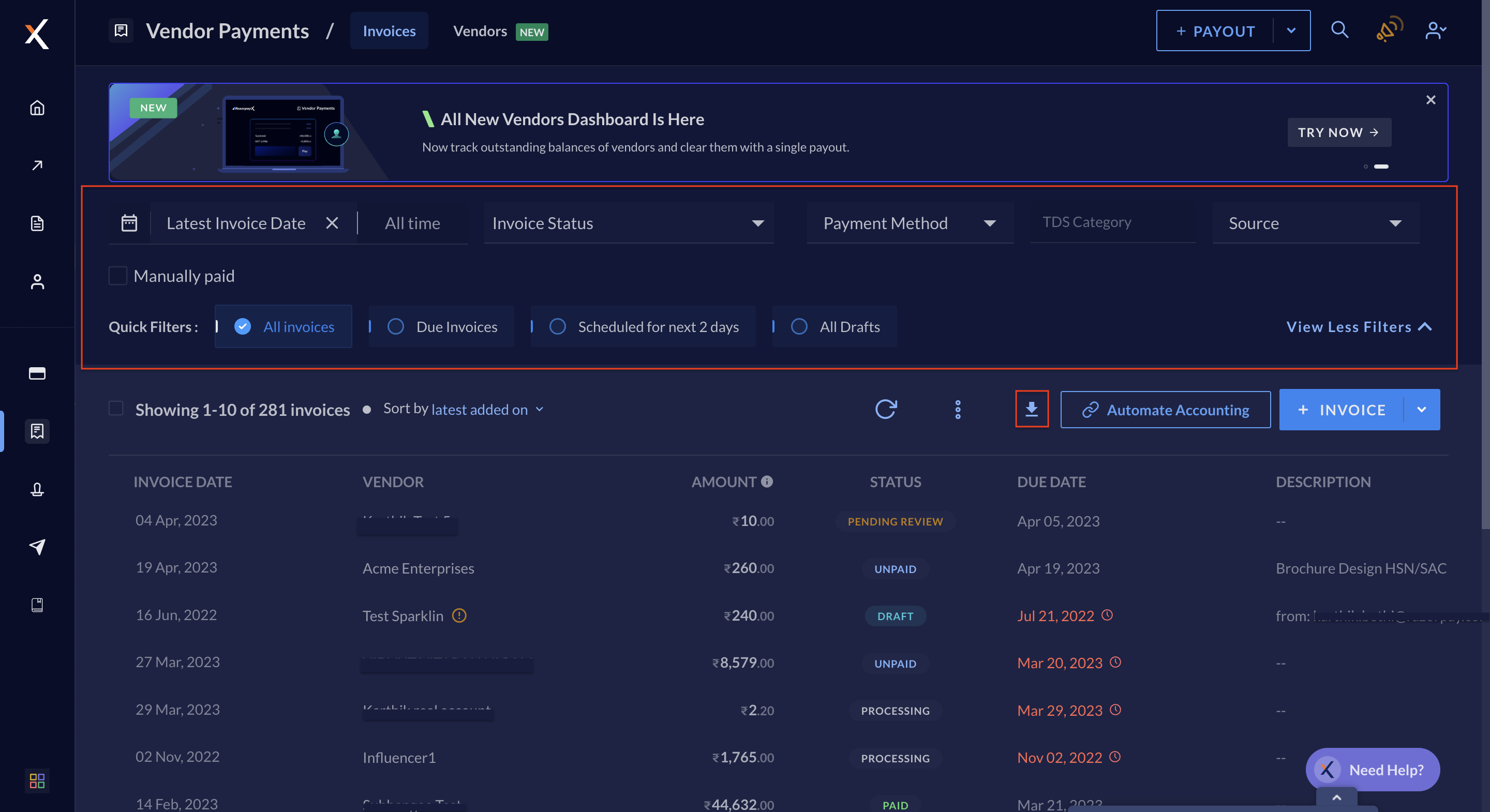 4. Click the download icon.
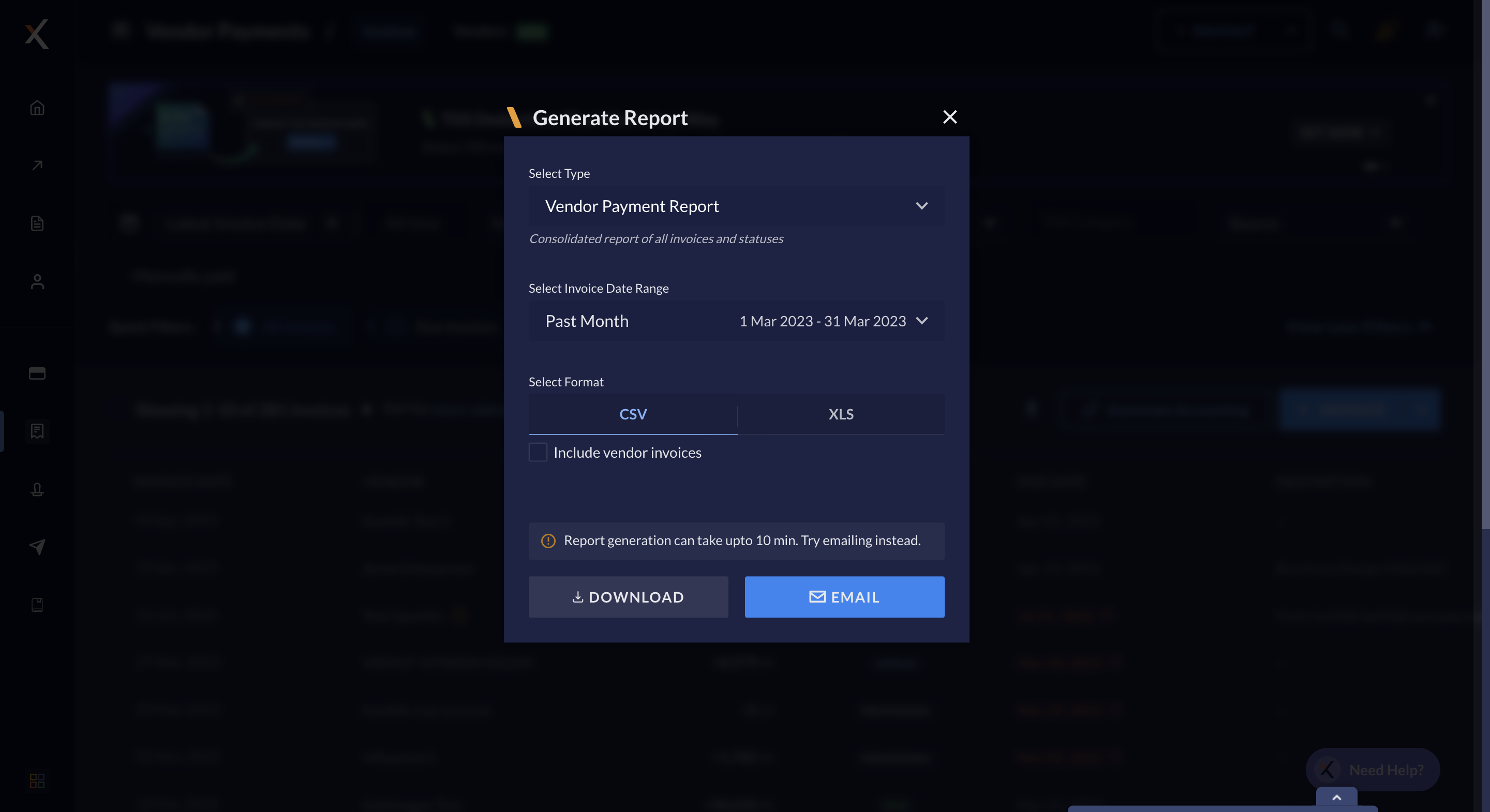
5. Select the report you want to generate:
* Vendor Payments
* Payouts on Vendor Payments
* Auto TDS Calculation
* Vendors
6. Select the date range/duration for which you want to download data.
7. Select the **Include Invoice Files** option, if you want to include the uploaded invoices in the report. This is applicable only for the Vendor Payments report.
8. Select the format for the report. You can download them either as `csv` or `xlsx` files.
9. Click:
* **DOWNLOAD** to download the report and save it on your system. It may take up to 10 minutes.
* **EMAIL** to email the report to yourself or your team members.
4. Click the download icon.
5. Select the report you want to generate:
* Vendor Payments
* Payouts on Vendor Payments
* Auto TDS Calculation
* Vendors
6. Select the date range/duration for which you want to download data.
7. Select the **Include Invoice Files** option, if you want to include the uploaded invoices in the report. This is applicable only for the Vendor Payments report.
8. Select the format for the report. You can download them either as `csv` or `xlsx` files.
9. Click:
* **DOWNLOAD** to download the report and save it on your system. It may take up to 10 minutes.
* **EMAIL** to email the report to yourself or your team members.
 ## Types of Vendor Payment Reports
The following are the types of reports available for vendor payments on the RazorpayX Dashboard.
| Report | Description | Sample |
| -------------------------- | ------------------------------------------------------------------------------------------------------------------------------------------------------------------------------------------------------------ | --------------------------------------------------------------------------------------------------- |
| Vendor Payments | Consolidated vendor payments report. If an invoice has got two payments against it, the report will reflect it on the same row. You can also download the attached invoices as a `.zip` file. | [Report](https://razorpay.com/docs/build/browser/assets/images/vendor-payments-report.xlsx) |
| Payouts on Vendor Payments | Provides information about payouts associated with vendor payments respectively. If an invoice has got two payments against it, the report will reflect it in two rows. | [Report](https://razorpay.com/docs/build/browser/assets/images/payouts-vendor-payments-report.xlsx) |
| Auto TDS Calculation | Gives information about additions and deletions to the auto TDS calculations on Vendor Payments, both category-wise and each record wise. | [Report](https://razorpay.com/docs/build/browser/assets/images/auto-tds-calculation-report.xlsx) |
| Vendors | Provides a list of all the vendors in the system, along with their contact information, tax-related information, fund account details and other relevant data such as vendor portal enabled/disabled status. | [Report](https://razorpay.com/docs/build/browser/assets/images/vendors-report.xlsx) |
## Share Reports with CA
You can share the invoice report with your Chartered Accountant or Financial Manager via the [CA user role feature](/docs/x/manage-teams/ca-portal) available in RazorpayX.
### Related Information
* [About Vendor Payments](/docs/x/vendor-payments)
* [Invoice Life Cycle](/docs/x/vendor-payments/life-cycle)
## Types of Vendor Payment Reports
The following are the types of reports available for vendor payments on the RazorpayX Dashboard.
| Report | Description | Sample |
| -------------------------- | ------------------------------------------------------------------------------------------------------------------------------------------------------------------------------------------------------------ | --------------------------------------------------------------------------------------------------- |
| Vendor Payments | Consolidated vendor payments report. If an invoice has got two payments against it, the report will reflect it on the same row. You can also download the attached invoices as a `.zip` file. | [Report](https://razorpay.com/docs/build/browser/assets/images/vendor-payments-report.xlsx) |
| Payouts on Vendor Payments | Provides information about payouts associated with vendor payments respectively. If an invoice has got two payments against it, the report will reflect it in two rows. | [Report](https://razorpay.com/docs/build/browser/assets/images/payouts-vendor-payments-report.xlsx) |
| Auto TDS Calculation | Gives information about additions and deletions to the auto TDS calculations on Vendor Payments, both category-wise and each record wise. | [Report](https://razorpay.com/docs/build/browser/assets/images/auto-tds-calculation-report.xlsx) |
| Vendors | Provides a list of all the vendors in the system, along with their contact information, tax-related information, fund account details and other relevant data such as vendor portal enabled/disabled status. | [Report](https://razorpay.com/docs/build/browser/assets/images/vendors-report.xlsx) |
## Share Reports with CA
You can share the invoice report with your Chartered Accountant or Financial Manager via the [CA user role feature](/docs/x/manage-teams/ca-portal) available in RazorpayX.
### Related Information
* [About Vendor Payments](/docs/x/vendor-payments)
* [Invoice Life Cycle](/docs/x/vendor-payments/life-cycle)