> ## Documentation Index
> Fetch the complete documentation index at: https://razorpay-881012b3.mintlify.site/llms.txt
> Use this file to discover all available pages before exploring further.
# Sync Purchase Vouchers
> Set up the mechanism to send and sync Purchase Vouchers uploaded in Tally with RazorpayX.
Available in🇮🇳 India
After you [set up and configure](/docs/x/vendor-payments/tally/set-up) the integration, you can send your Purchase Vouchers to RazorpayX and sync them for reconciliation.
## How it Works
To set up the Purchase Vouchers workflow, you must:
1. [Send the Purchase Voucher to RazorpayX](#1-send-purchase-voucher).
2. [Sync the voucher in RazorpayX](#2-sync-purchase-voucher).
3. [Make payments as per the invoices created in RazorpayX](#pay-invoices).
Watch the video below to understand how you can send Purchase Vouchers to RazorpayX, or read along.
You can also watch the [Send Purchase Vouchers to RazorpayX video in Hindi](https://youtu.be/saKPbQuy0qw).
## Advantages
Following are the advantages of using the sync purchase vouchers flow:
* Make bill entries in a single place instead of maintaining multiple Excel sheets.
* You need not spend time cross-checking the synced values. This integration removes the errors of repetition.
* Move Payment Instructions, bank account details and other sensitive data with complete accuracy.
* Automate the payment entry and reconciliation in Tally.
* Verify the invoices created only once. You need not spend time reviewing or rectifying entries.
## Send and Sync Workflow
Check the process to send and sync purchase vouchers to RazorpayX.
## 1. Send Purchase Voucher
To send Purchase Vouchers to RazorpayX, you must configure that setting in Tally.
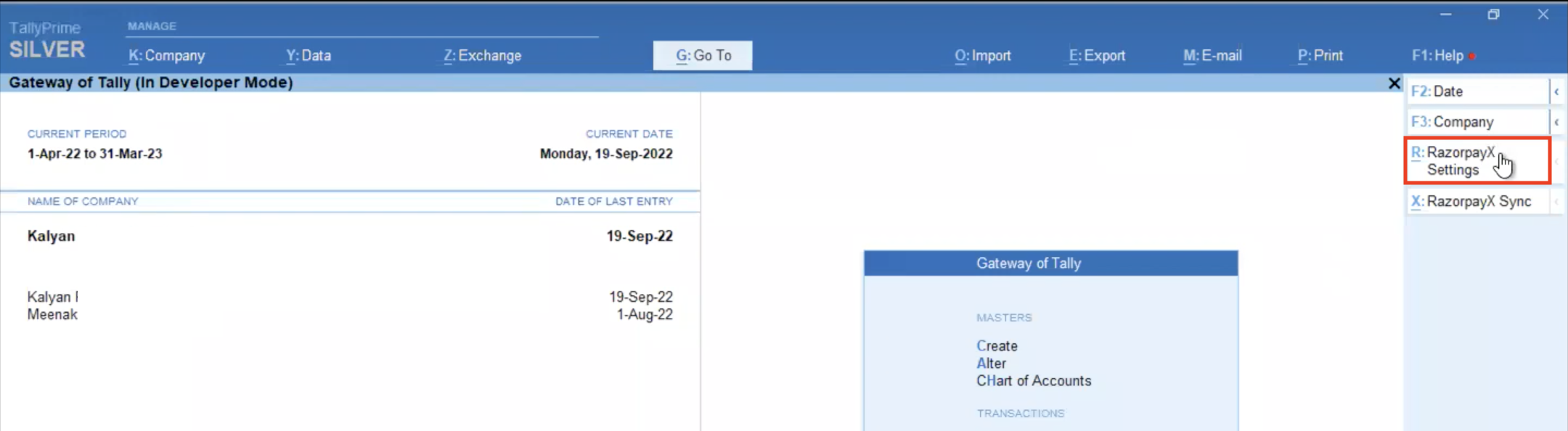
1. Open your Tally application to show the **Gateway of Tally** page.
2. Click **R:RazorpayX Settings** from the right menu.
The **RazorpayX Configuration (in Developer Mode)** page appears.
3. On this page:
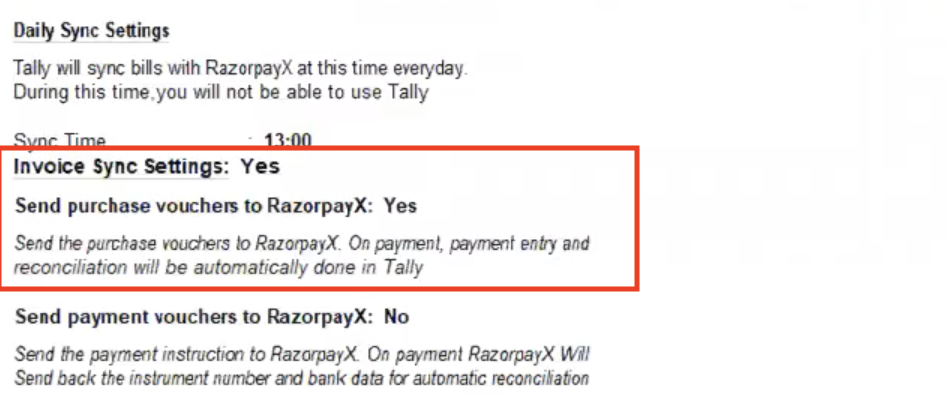
* Enter **Yes** against **Invoice Sync Settings**.
* Change the following settings:
| Settings | Value |
| -------------------------------------- | ----- |
| **Send puchase vouchers to RazorpayX** | Yes |
| **Send payment vouchers to RazorpayX** | No |
Set the purchase voucher setting to **Yes**.
1. After selecting **Yes**, enter the OTP sent to your registered email. Check your spam folder if you do not find the OTP in your primary inbox.
2. Save your changes.
You have successully configured the settings to send Purchase Vouchers to RazorpayX.
**Watch Out!**
Select either **Purchase vouchers** or **Payment vouchers**. You cannot choose **Yes** for both Purchase vouchers and Payment vouchers. If you do so, Tally shows an error.
## 2. Sync Purchase Voucher
To creat a purchase voucher in Tally and sync it in RazorpayX:
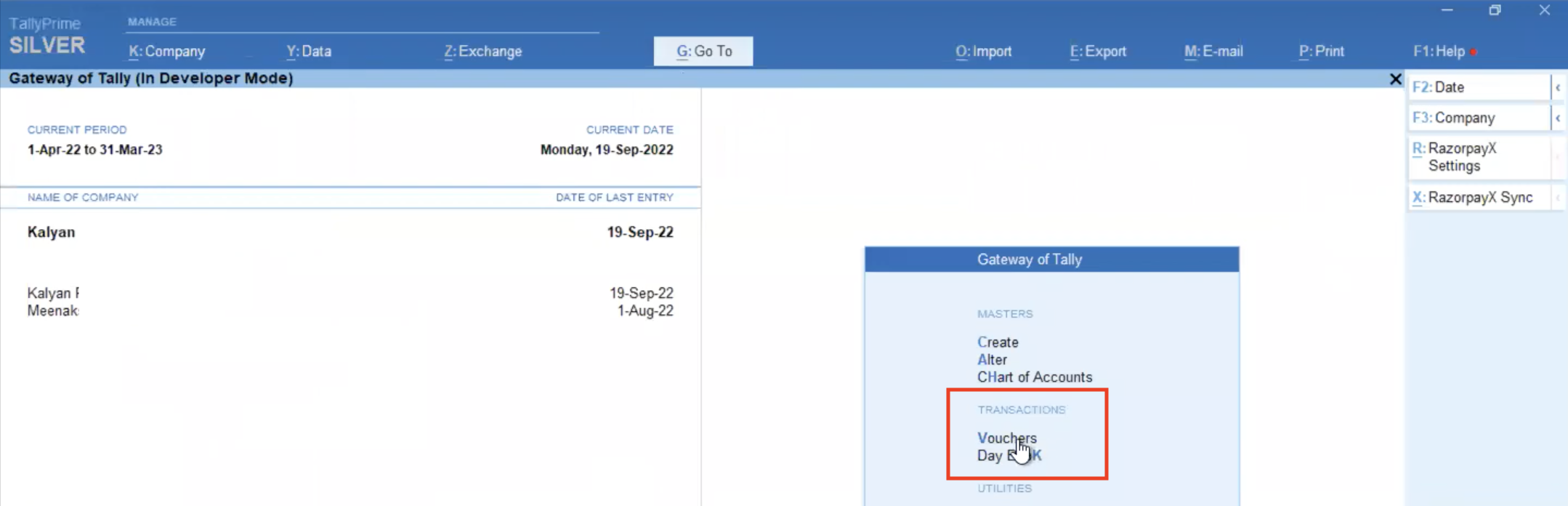
1. Go to **Gateway of Tally** → **TRANSACTIONS** → **Vouchers**.
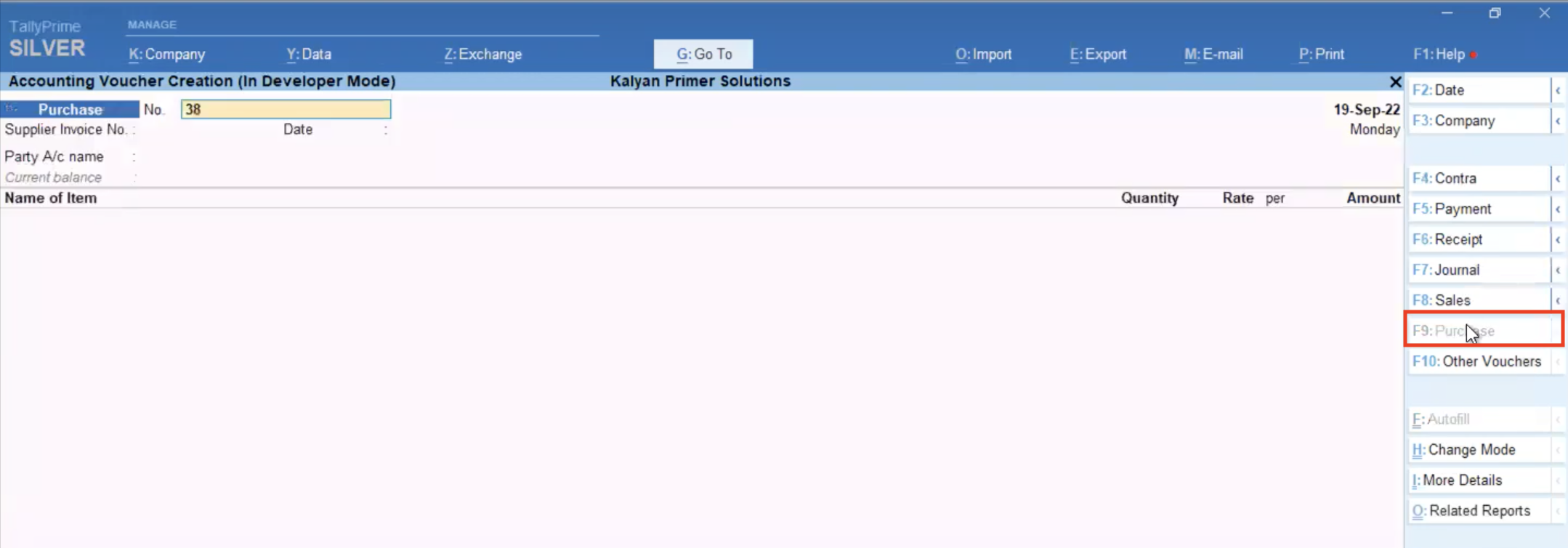
2. Click **F9:Purchase**. Enter the invoice details to create a Purchase Voucher.
3. Go to **Gateway of Tally** → **UTILITIES** → **RazorpayX**. Under **RazorpayX**, go to **RazorpayX Bills** → **Bill Status**.
The **Bills Outstanding (in Developer Mode)** page appears.
4. From the right menu, click **F2:Period** and enter the duration in the **From** and **To** fields. The bills for that duration load on the page.
The Bill Status is **Not Synced** for the invoices uploaded but not synced to RazorpayX.
5. Click spacebar on your keyboard to select a particular bill, or multiple bills, and click **S:Sync Selected Bills** to sync the selected bill/s.
You can also sync bills in bulk by clicking **A:Sync All Bills** from the right menu.
6. A dialogue box appears asking for confirmation of your action. Select **Yes** under **Do you want to sync bill to RazorpayX**.
7. Shift to your [RazorpayX Dashboard](https://x.razorpay.com/auth). Refresh the Vendor Payments Dashboard, and you can find that the latest invoice you have uploaded reflects in the topmost row.
To verify the details of the invoice uploaded via Tally, click the invoice to open the invoice details view to the right of the page, as shown.
This page shows the details as synced from Tally.
* The single tick mark under the **TALLY SYNC** column shows whether the invoice was synced from Tally.
* The double tick marks mean that the invoice is synced and reconciled too.
**Handy Tips**
In the invoice details pop-up page, you find the **Payout to vendor** section. This is the vendor's contact and bank details as saved in RazorpayX.
If the section is empty, [create a Contact](/docs/x/contacts) of the type Vendor and [create a Fund Account](/docs/x/fund-accounts) for that Contact.
This is a one-time process. If you regularly make purchases from and payments to that Vendor, you can simply make regular [payments](#pay-invoices) to them.
You have now successfully synced a Purchase Voucher made in Tally to RazorpayX. Know more about [syncing Payment Vouchers](/docs/x/vendor-payments/tally/sync-payment-vouchers).
## Pay Invoices
After you send and sync the vouchers in RazorpayX, you can pay the invoices in the following ways:
* [Pay your vendor immediately](/docs/x/vendor-payments).
* [Pay vendor partially](/docs/x/vendor-payments/vendor-payouts/partial-payouts).
* [Schedule the vendor payment](/docs/x/vendor-payments/vendor-payouts/scheduled-payouts).
* [Make vendor payouts in bulk](/docs/x/vendor-payments/vendor-payouts/bulk).
All the payments made can be brought back to Tally. Know more about [bringing bills](/docs/x/vendor-payments/tally/bring-bills) to Tally from RazorpayX.
### Related Information
* [Bring Bills to Tally](/docs/x/vendor-payments/tally/bring-bills)
* Keyboard shortcuts in [Tally Prime](https://help.tallysolutions.com/tally-prime/keyboard-shortcuts/keyboard-shortcuts-tally-prime/)
 The **RazorpayX Configuration (in Developer Mode)** page appears.
3. On this page:
* Enter **Yes** against **Invoice Sync Settings**.
* Change the following settings:
| Settings | Value |
| -------------------------------------- | ----- |
| **Send puchase vouchers to RazorpayX** | Yes |
| **Send payment vouchers to RazorpayX** | No |
Set the purchase voucher setting to **Yes**.
The **RazorpayX Configuration (in Developer Mode)** page appears.
3. On this page:
* Enter **Yes** against **Invoice Sync Settings**.
* Change the following settings:
| Settings | Value |
| -------------------------------------- | ----- |
| **Send puchase vouchers to RazorpayX** | Yes |
| **Send payment vouchers to RazorpayX** | No |
Set the purchase voucher setting to **Yes**.
 1. After selecting **Yes**, enter the OTP sent to your registered email. Check your spam folder if you do not find the OTP in your primary inbox.
2. Save your changes.
You have successully configured the settings to send Purchase Vouchers to RazorpayX.
1. After selecting **Yes**, enter the OTP sent to your registered email. Check your spam folder if you do not find the OTP in your primary inbox.
2. Save your changes.
You have successully configured the settings to send Purchase Vouchers to RazorpayX.
 2. Click **F9:Purchase**. Enter the invoice details to create a Purchase Voucher.
 3. Go to **Gateway of Tally** → **UTILITIES** → **RazorpayX**. Under **RazorpayX**, go to **RazorpayX Bills** → **Bill Status**.
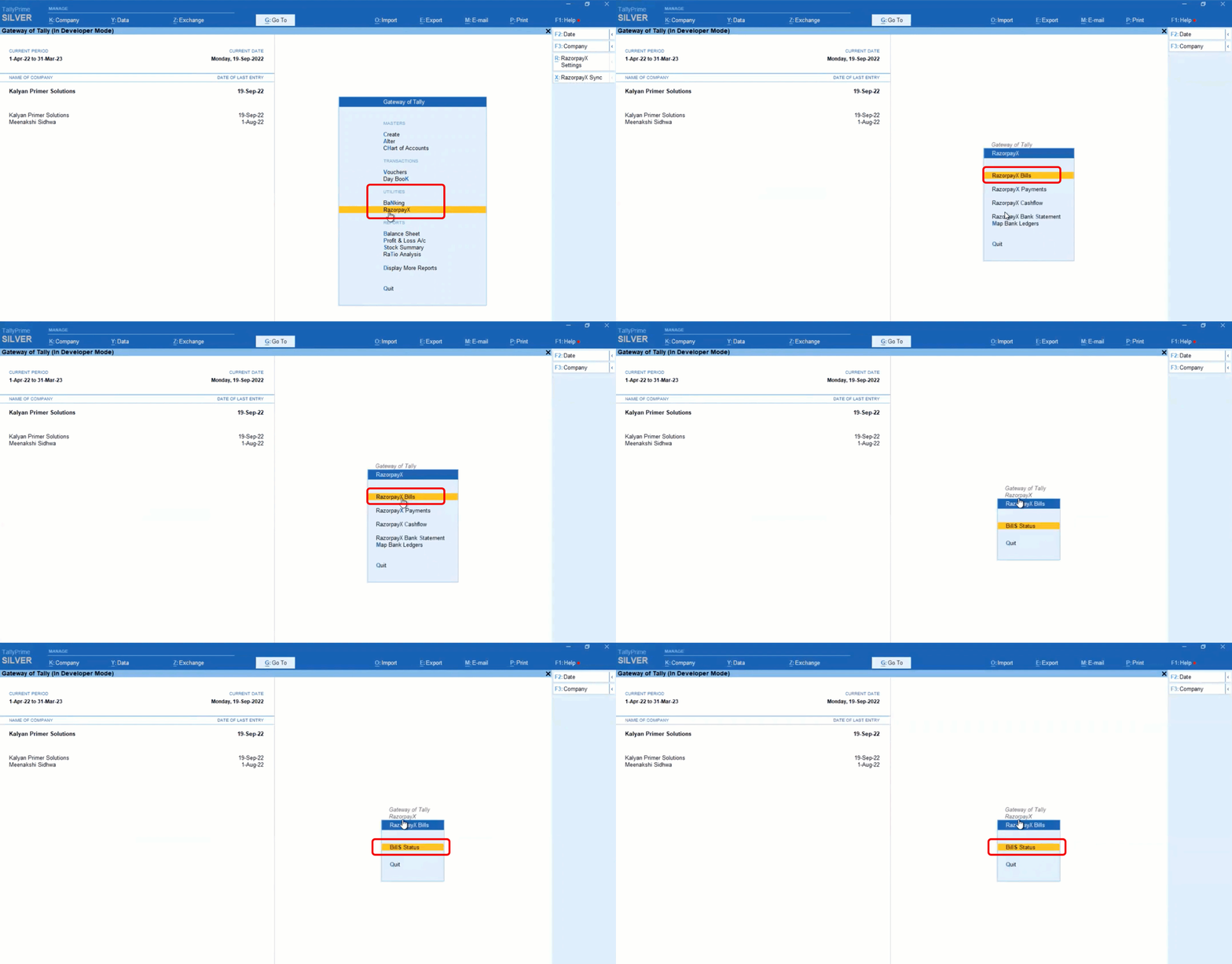 The **Bills Outstanding (in Developer Mode)** page appears.
4. From the right menu, click **F2:Period** and enter the duration in the **From** and **To** fields. The bills for that duration load on the page.
The **Bills Outstanding (in Developer Mode)** page appears.
4. From the right menu, click **F2:Period** and enter the duration in the **From** and **To** fields. The bills for that duration load on the page.
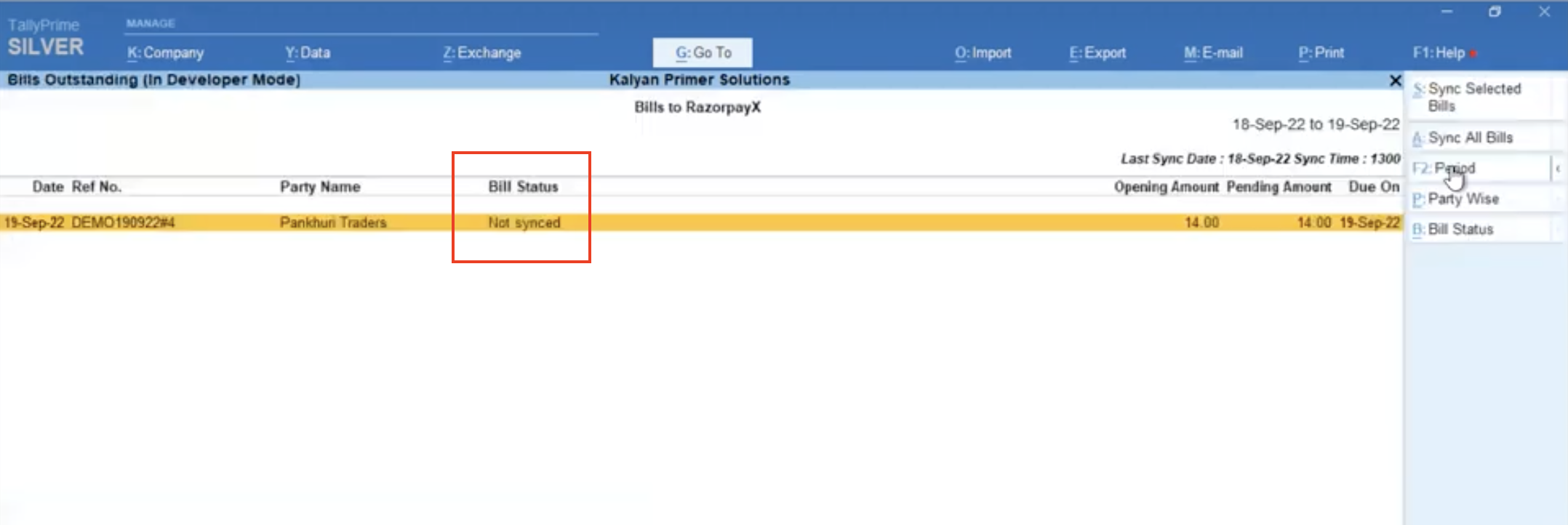 The Bill Status is **Not Synced** for the invoices uploaded but not synced to RazorpayX.
5. Click spacebar on your keyboard to select a particular bill, or multiple bills, and click **S:Sync Selected Bills** to sync the selected bill/s.
The Bill Status is **Not Synced** for the invoices uploaded but not synced to RazorpayX.
5. Click spacebar on your keyboard to select a particular bill, or multiple bills, and click **S:Sync Selected Bills** to sync the selected bill/s.
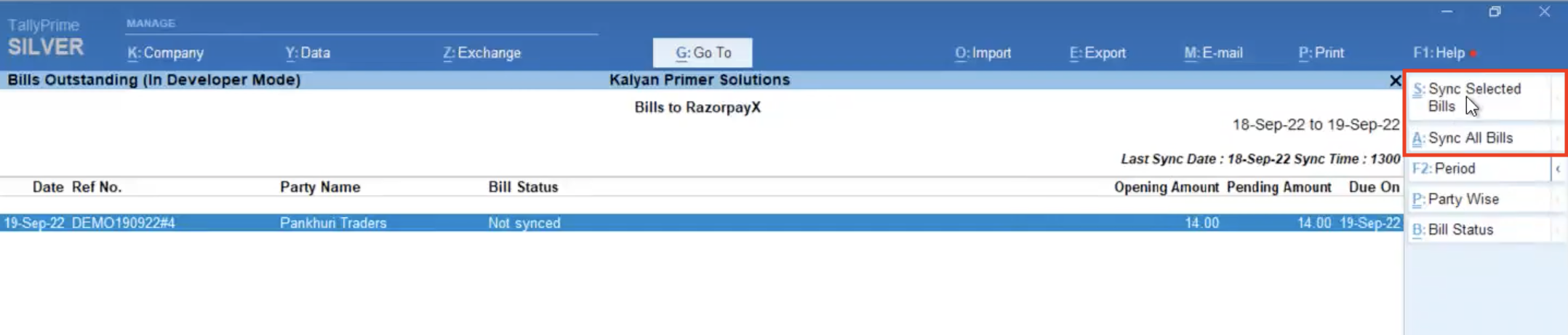 You can also sync bills in bulk by clicking **A:Sync All Bills** from the right menu.
6. A dialogue box appears asking for confirmation of your action. Select **Yes** under **Do you want to sync bill to RazorpayX**.
7. Shift to your [RazorpayX Dashboard](https://x.razorpay.com/auth). Refresh the Vendor Payments Dashboard, and you can find that the latest invoice you have uploaded reflects in the topmost row.
To verify the details of the invoice uploaded via Tally, click the invoice to open the invoice details view to the right of the page, as shown.
You can also sync bills in bulk by clicking **A:Sync All Bills** from the right menu.
6. A dialogue box appears asking for confirmation of your action. Select **Yes** under **Do you want to sync bill to RazorpayX**.
7. Shift to your [RazorpayX Dashboard](https://x.razorpay.com/auth). Refresh the Vendor Payments Dashboard, and you can find that the latest invoice you have uploaded reflects in the topmost row.
To verify the details of the invoice uploaded via Tally, click the invoice to open the invoice details view to the right of the page, as shown.
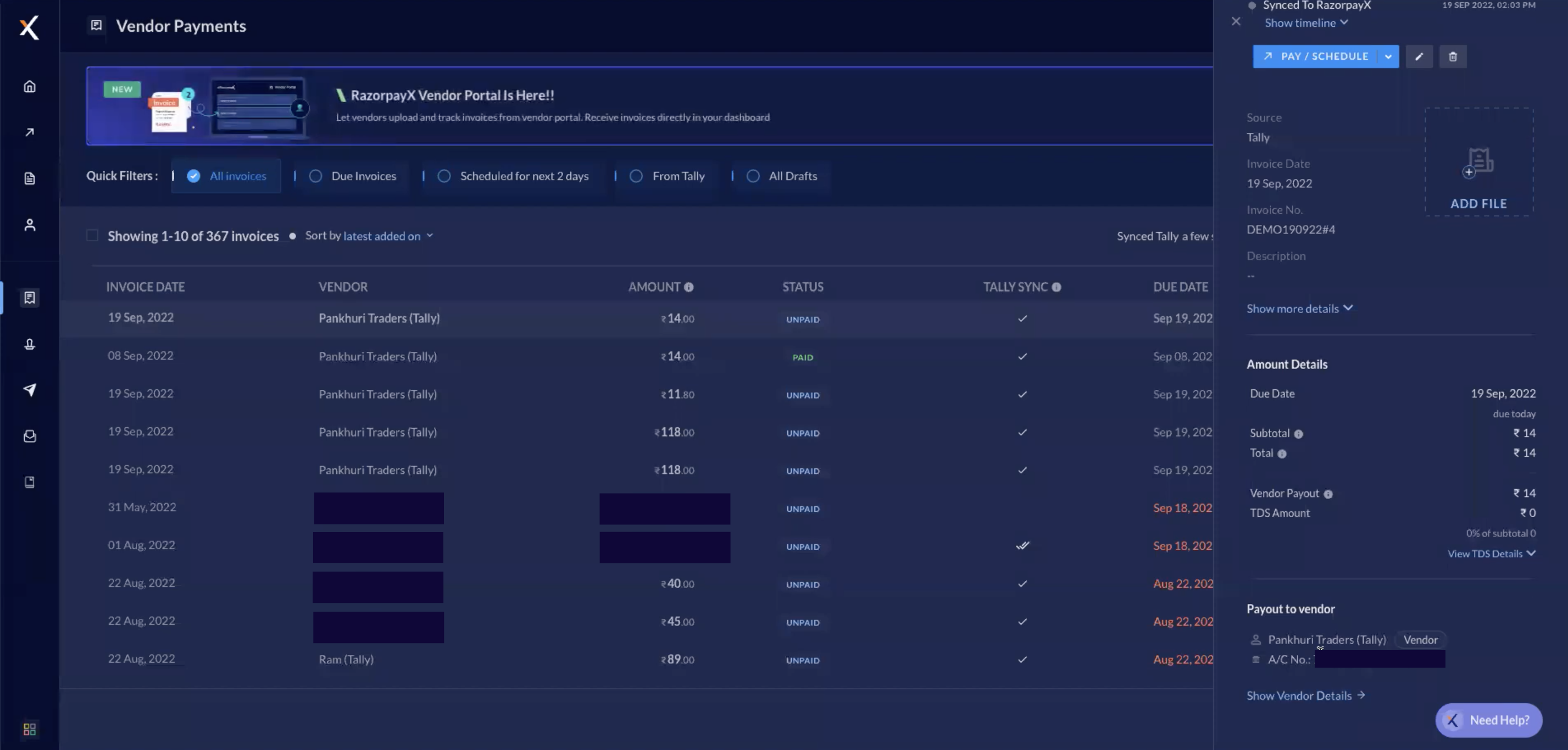 This page shows the details as synced from Tally.
* The single tick mark under the **TALLY SYNC** column shows whether the invoice was synced from Tally.
* The double tick marks mean that the invoice is synced and reconciled too.
This page shows the details as synced from Tally.
* The single tick mark under the **TALLY SYNC** column shows whether the invoice was synced from Tally.
* The double tick marks mean that the invoice is synced and reconciled too.