> ## Documentation Index
> Fetch the complete documentation index at: https://razorpay-881012b3.mintlify.site/llms.txt
> Use this file to discover all available pages before exploring further.
# Razorpay Home
> Razorpay home page with visual representation of all your transactions and activities on Payments, RazorpayX, Payroll, Partners or Rize Dashboard.
Available in
🇮🇳 India
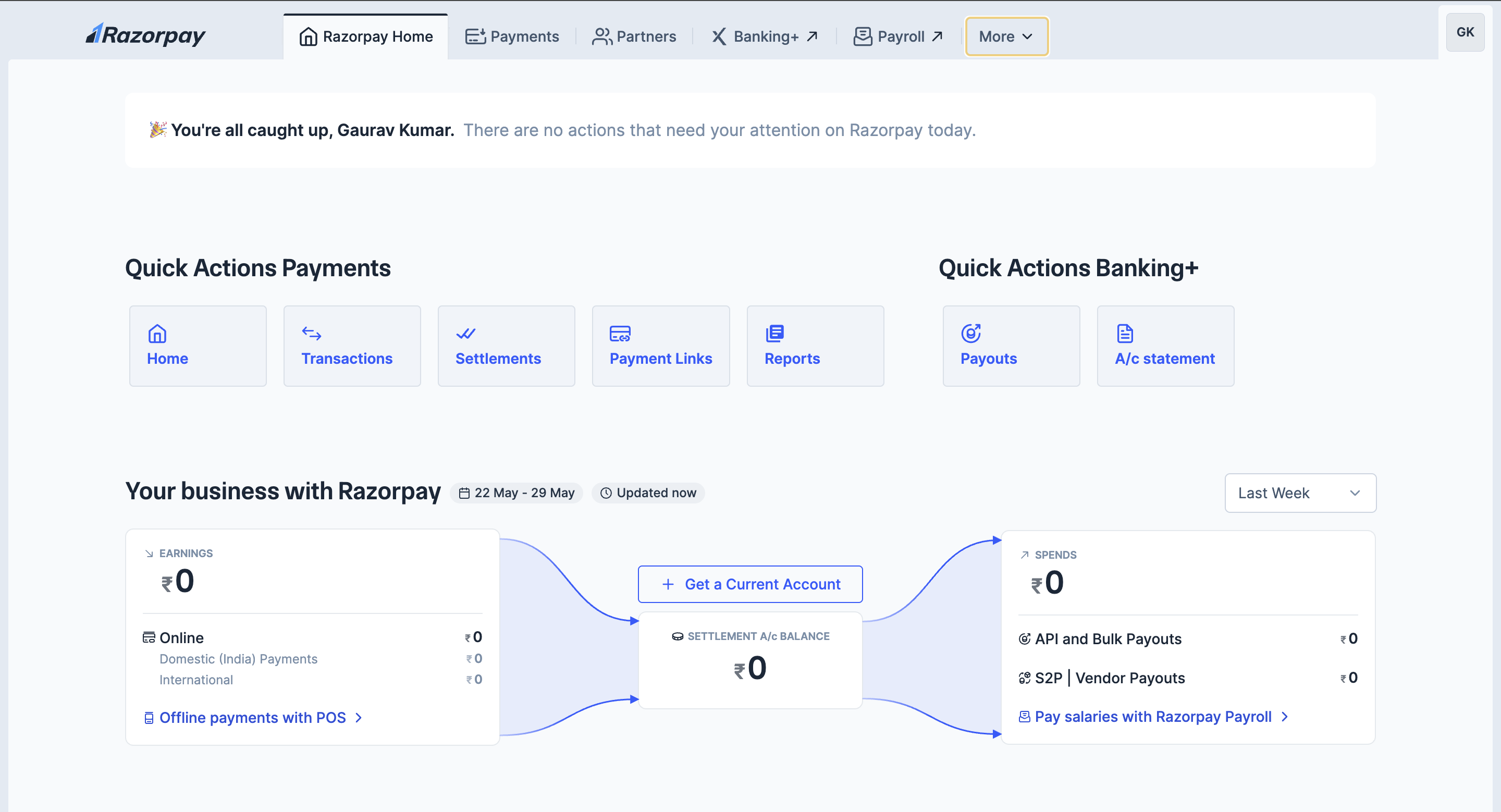
The Dashboard Home page provides a consolidated view of your business activity across Razorpay Payments and Banking Plus services. Use this page to monitor transactions, view earnings and spends, gain insights into payment performance, and take action directly through quick-access cards.
## Navigation
Use the navigation bar on the top of the page to navigate between different Razorpay suite of products such as Payments, Banking Plus, Payroll, Partners program and more.
 **Watch Out!**
* The unified dashboard gives you a visual summary of all the Razorpay services you use. However, the actual data for each service is stored securely within the specific Razorpay group entity that provides it, not centrally on the dashboard.
* The dashboard presents insights with respect to the products you use. Hence, the descriptions are only relevant for your products. You can choose to use the other products directly from Razorpay Home.
Log in to your [Razorpay account](https://accounts.razorpay.com) to access Razorpay Home.
## Critical Actions
Razorpay displays system-wide alerts at the top of the page to keep you informed. These alerts will notify you of any important announcements or actions you need to take. For instance, you might see an alert if your funds are on hold or if there are pending tasks related to your international payments.
## Quick Actions
Use these shortcuts to navigate to commonly used features related to payment collection and reporting:
* **Transactions**: View all payment transactions.
* **Settlements**: Track the settlement of collected payments to your account.
* **Payment Links**: Create shareable links to collect payments without a website or app.
* **Reports**: Generate and download detailed reports.
Use these shortcuts to manage disbursals and financial statements:
* **Payouts**: Send money to vendors, employees or customers.
* **A/c Statement**: View or download your Razorpay Current Account statement.
## Your Business with Razorpay
This section shows a snapshot of your financial flows within Razorpay:
Displays the total amount received via Razorpay Payments during the selected date range.
* **Online (Domestic transactions + International Cards)**: Breaks down domestic and international payments.
* **Offline payments with POS**: Link available to set up or view POS-based payments.
Displays the total money disbursed via Razorpay Banking Plus.
* **API and Bulk Payouts** – Payouts made via integrations or dashboard.
* **S2P** | **Vendor Payouts** – Payments made to suppliers or vendors.
* **Pay salaries with Razorpay Payroll** – Shortcut to Razorpay’s Payroll service.
Displays the balance amount for Razorpay Payments/RazorpayX.
* **Settlement A/c Balance**: Shows the real-time balance available for settlements in your Razorpay account.
* **Current Account Balance**: Shows the real-time balance available in your RazorpayX powered current account.
* **View breakup**: Shows a balance breakup across payment channels (Online (Domestic transactions + International Cards), In-person, International)
## Payment Insights
This widget helps track how well your payments are performing.
**Watch Out!**
* The unified dashboard gives you a visual summary of all the Razorpay services you use. However, the actual data for each service is stored securely within the specific Razorpay group entity that provides it, not centrally on the dashboard.
* The dashboard presents insights with respect to the products you use. Hence, the descriptions are only relevant for your products. You can choose to use the other products directly from Razorpay Home.
Log in to your [Razorpay account](https://accounts.razorpay.com) to access Razorpay Home.
## Critical Actions
Razorpay displays system-wide alerts at the top of the page to keep you informed. These alerts will notify you of any important announcements or actions you need to take. For instance, you might see an alert if your funds are on hold or if there are pending tasks related to your international payments.
## Quick Actions
Use these shortcuts to navigate to commonly used features related to payment collection and reporting:
* **Transactions**: View all payment transactions.
* **Settlements**: Track the settlement of collected payments to your account.
* **Payment Links**: Create shareable links to collect payments without a website or app.
* **Reports**: Generate and download detailed reports.
Use these shortcuts to manage disbursals and financial statements:
* **Payouts**: Send money to vendors, employees or customers.
* **A/c Statement**: View or download your Razorpay Current Account statement.
## Your Business with Razorpay
This section shows a snapshot of your financial flows within Razorpay:
Displays the total amount received via Razorpay Payments during the selected date range.
* **Online (Domestic transactions + International Cards)**: Breaks down domestic and international payments.
* **Offline payments with POS**: Link available to set up or view POS-based payments.
Displays the total money disbursed via Razorpay Banking Plus.
* **API and Bulk Payouts** – Payouts made via integrations or dashboard.
* **S2P** | **Vendor Payouts** – Payments made to suppliers or vendors.
* **Pay salaries with Razorpay Payroll** – Shortcut to Razorpay’s Payroll service.
Displays the balance amount for Razorpay Payments/RazorpayX.
* **Settlement A/c Balance**: Shows the real-time balance available for settlements in your Razorpay account.
* **Current Account Balance**: Shows the real-time balance available in your RazorpayX powered current account.
* **View breakup**: Shows a balance breakup across payment channels (Online (Domestic transactions + International Cards), In-person, International)
## Payment Insights
This widget helps track how well your payments are performing.
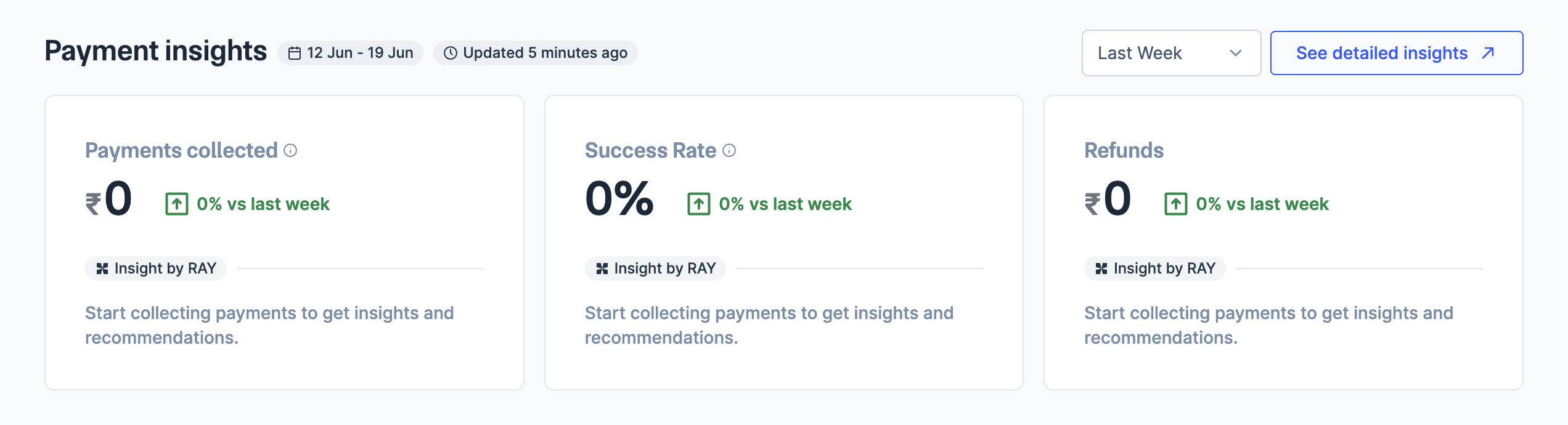 | Metric | Description |
| ------------------ | ------------------------------------------------------------- |
| Payments Collected | Total money collected through Razorpay. |
| Success Rate | The percentage of successful transactions vs. total attempts. |
| Refunds | Value and count of refunded transactions. |
Each widget includes:
* Percentage change from the previous week.
* A link to Insight by RAY for data-backed recommendations to improve performance.
You can filter data using the time range dropdown:
* Yesterday
* Last Week
* Last Month
Click See detailed insights for a more granular view on the Payments home page.
## Other Insights
This section covers operational and growth-related widgets.
| Metric | Description |
| ------------------ | ------------------------------------------------------------- |
| Payments Collected | Total money collected through Razorpay. |
| Success Rate | The percentage of successful transactions vs. total attempts. |
| Refunds | Value and count of refunded transactions. |
Each widget includes:
* Percentage change from the previous week.
* A link to Insight by RAY for data-backed recommendations to improve performance.
You can filter data using the time range dropdown:
* Yesterday
* Last Week
* Last Month
Click See detailed insights for a more granular view on the Payments home page.
## Other Insights
This section covers operational and growth-related widgets.
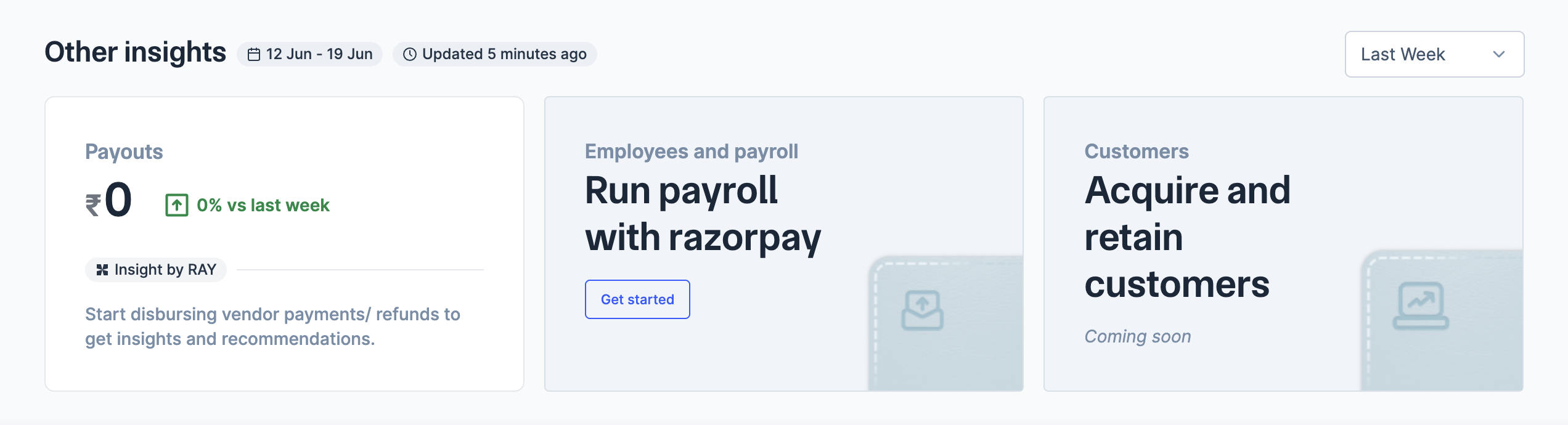 | Term | Description |
| --------------------- | -------------------------------------------------------------------------------------- |
| Payouts | Displays total amount disbursed via Payouts with insights by RAY. |
| Employees and Payroll | Set up Razorpay Payroll and disburse salaries. |
| Customers | This area will provide tools to acquire and retain customers using Razorpay solutions. |
| Term | Description |
| --------------------- | -------------------------------------------------------------------------------------- |
| Payouts | Displays total amount disbursed via Payouts with insights by RAY. |
| Employees and Payroll | Set up Razorpay Payroll and disburse salaries. |
| Customers | This area will provide tools to acquire and retain customers using Razorpay solutions. |