Available in🇮🇳 India🇸🇬 Singapore🇺🇸 United States
Sign up for a Razorpay account to start accepting customer payments using our products.
1. Sign Up
Create an account to use Razorpay products to accept customer payments.
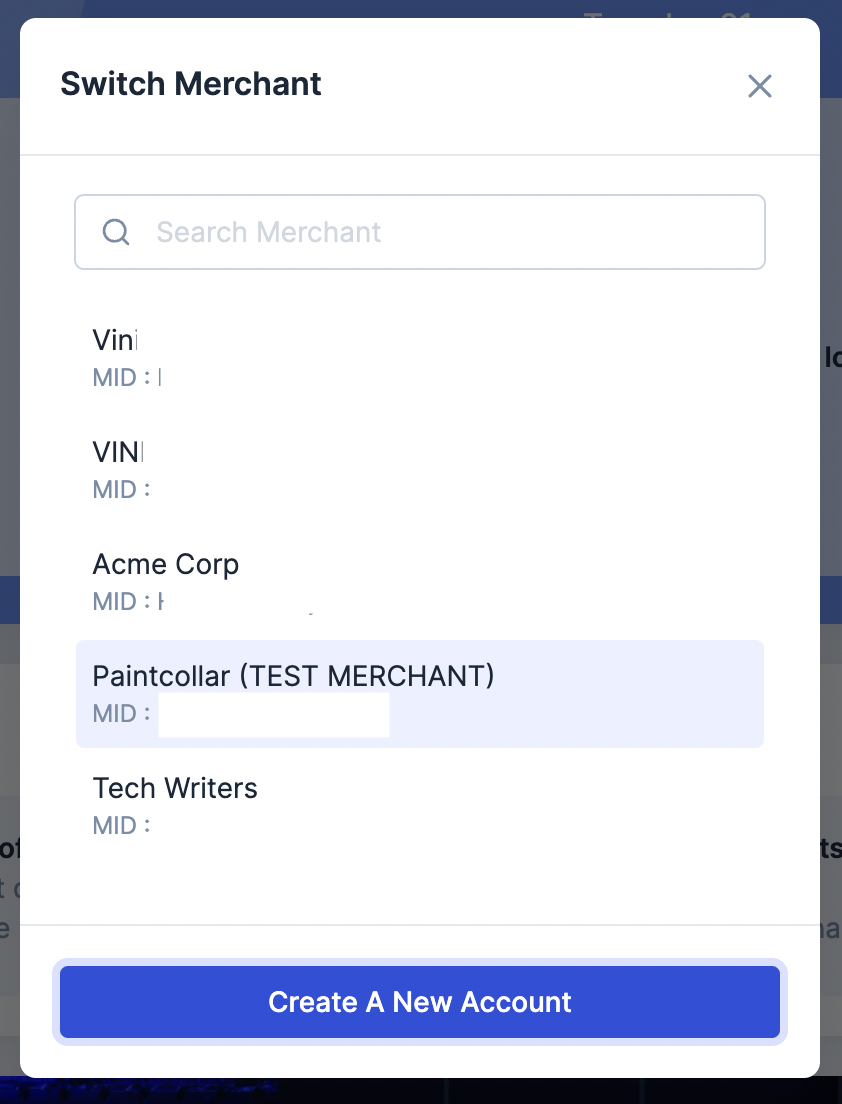
You can also create multiple accounts with the same mobile number and email id.
You can also create multiple accounts with the same mobile number and email id.
2. Submit KYC
Submit your KYC documents to get your account verified and get the payments settled in your account.
1. Sign Up
To create a Razorpay Account, go to the Razorpay website and click Get Started. Follow these steps for a smooth sign up process:Contact Details
Contact Details
Provide your contact details to get started.
- Enter your mobile number or email address. You can also register using a Google account.
- Select United States under Where is your company registered?.
- To sign up with a Google account click Continue as (Your name).
- Click Continue.
- Enter the OTP sent to your mobile number. If you did not receive the OTP, click Resend OTP.
- Click Verify.
- Enter your Name and click Continue.
Basic Details
Basic Details
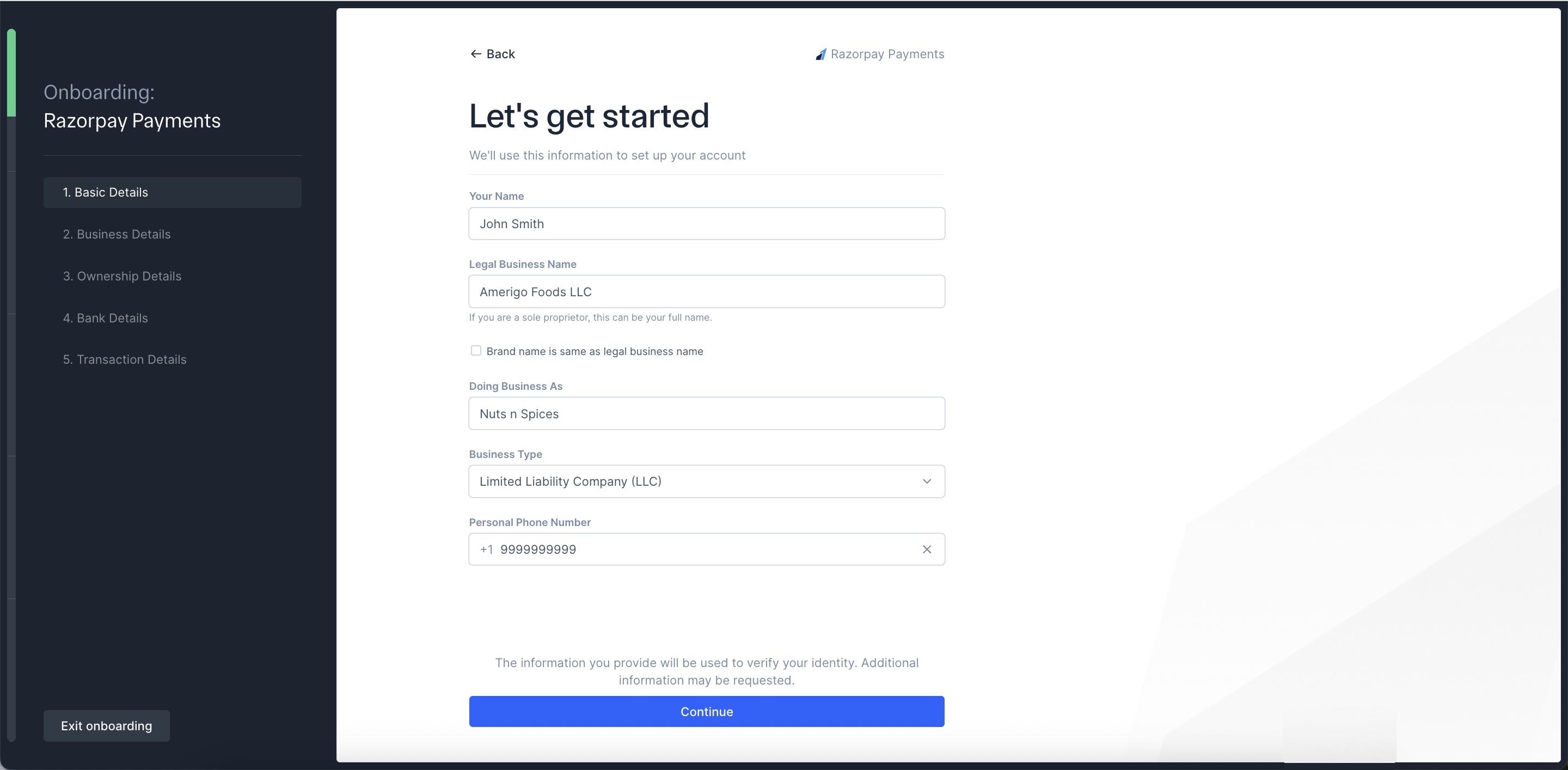
Provide the following basic details to help us set up your account:
- Enter your Name.
- Enter your Legal Business Name. Use your full name if you are the sole proprietor.
- Select the Brand name is same as legal business name check box if the names are identical; otherwise, clear the check box. Then, enter your brand name under Doing Business As. You must enter the company name under Legal Business Name.
- Select Business Type.
- Enter your Personal Phone Number.
- Click Continue. Review the basic details after entering them.
Business Details
Business Details
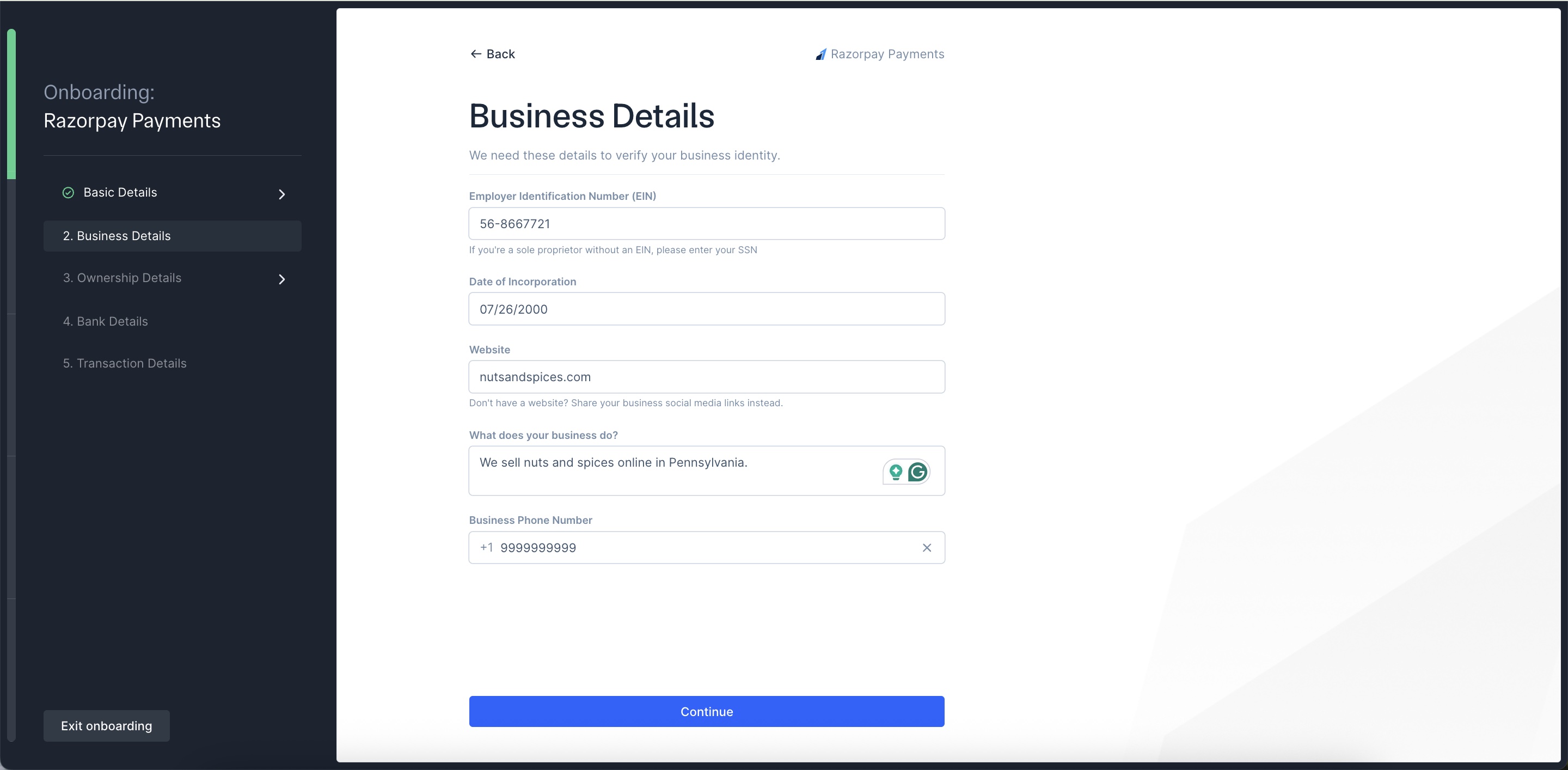
Provide the following business details to help us verify your business identity:
- Enter your Employer Identification Number (EIN). If you are a sole proprietor without an EIN, enter your Social Security Number (SSN).
- Enter the Date of Incorporation.
- Add a link to your website. If you do not have a website, add social media links to your business.
- Write a description about your business under What does your business do?.
- Enter your Business Phone Number. Click Continue.
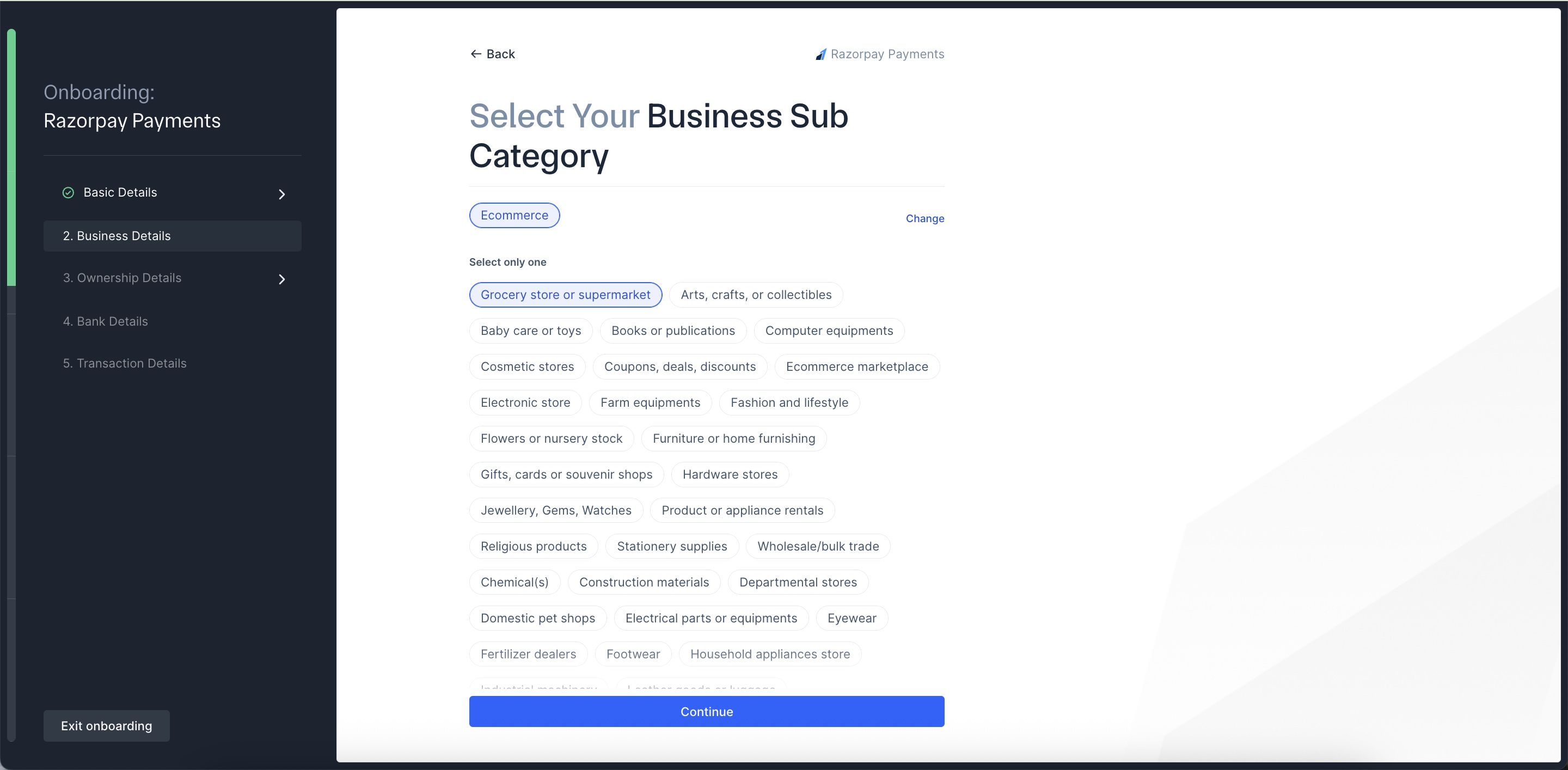
- Select your Business Category.
- Select your Business Sub-category.
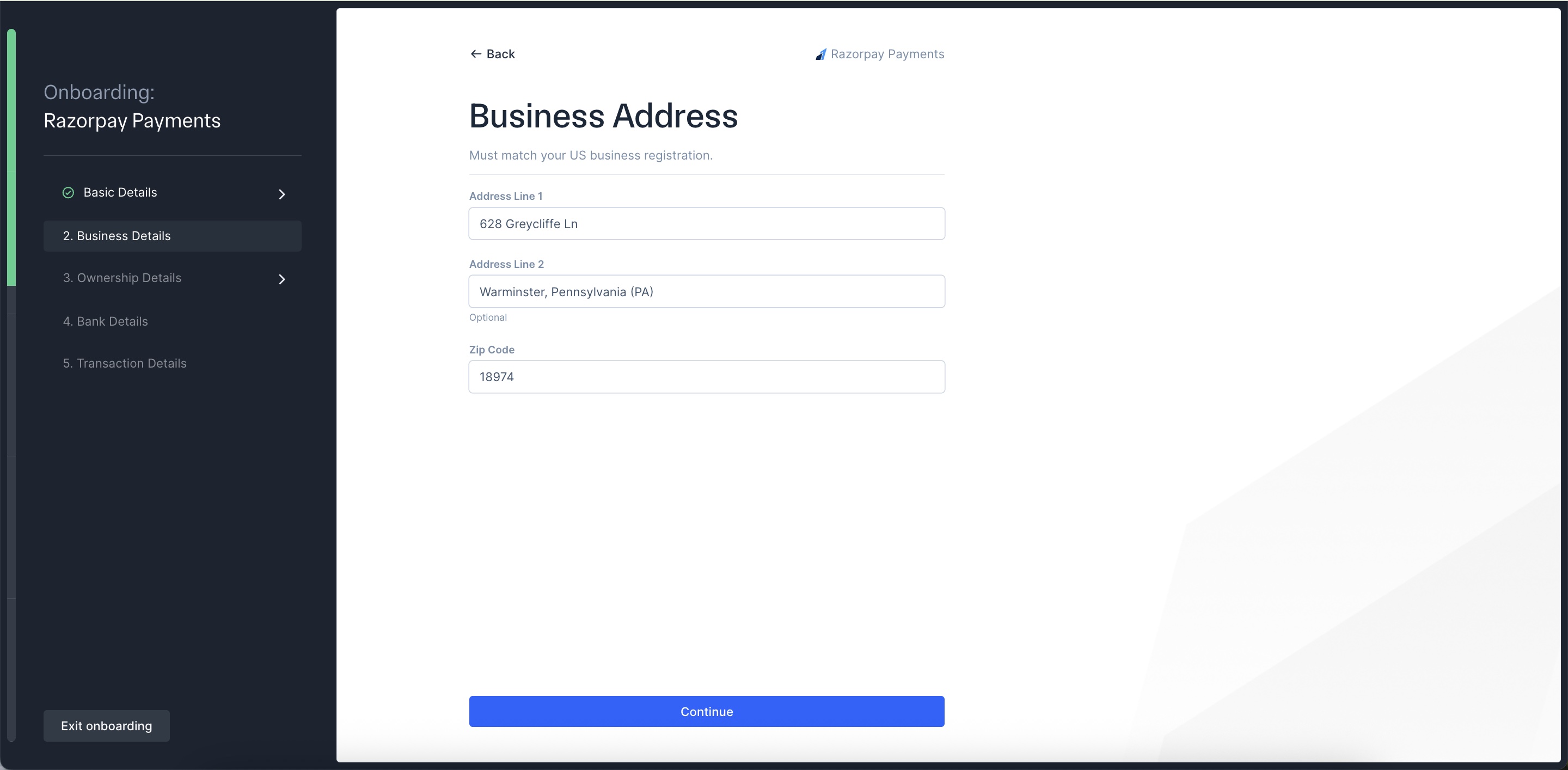
- Enter your physical business address in Address line 1. This must be a physical address. Virtual addresses and P.O. Boxes are not allowed.
- Add Address line 2. This is optional.
- Enter Zip code. Click Continue. Review your business details after entering them.
Ownership Details
Ownership Details
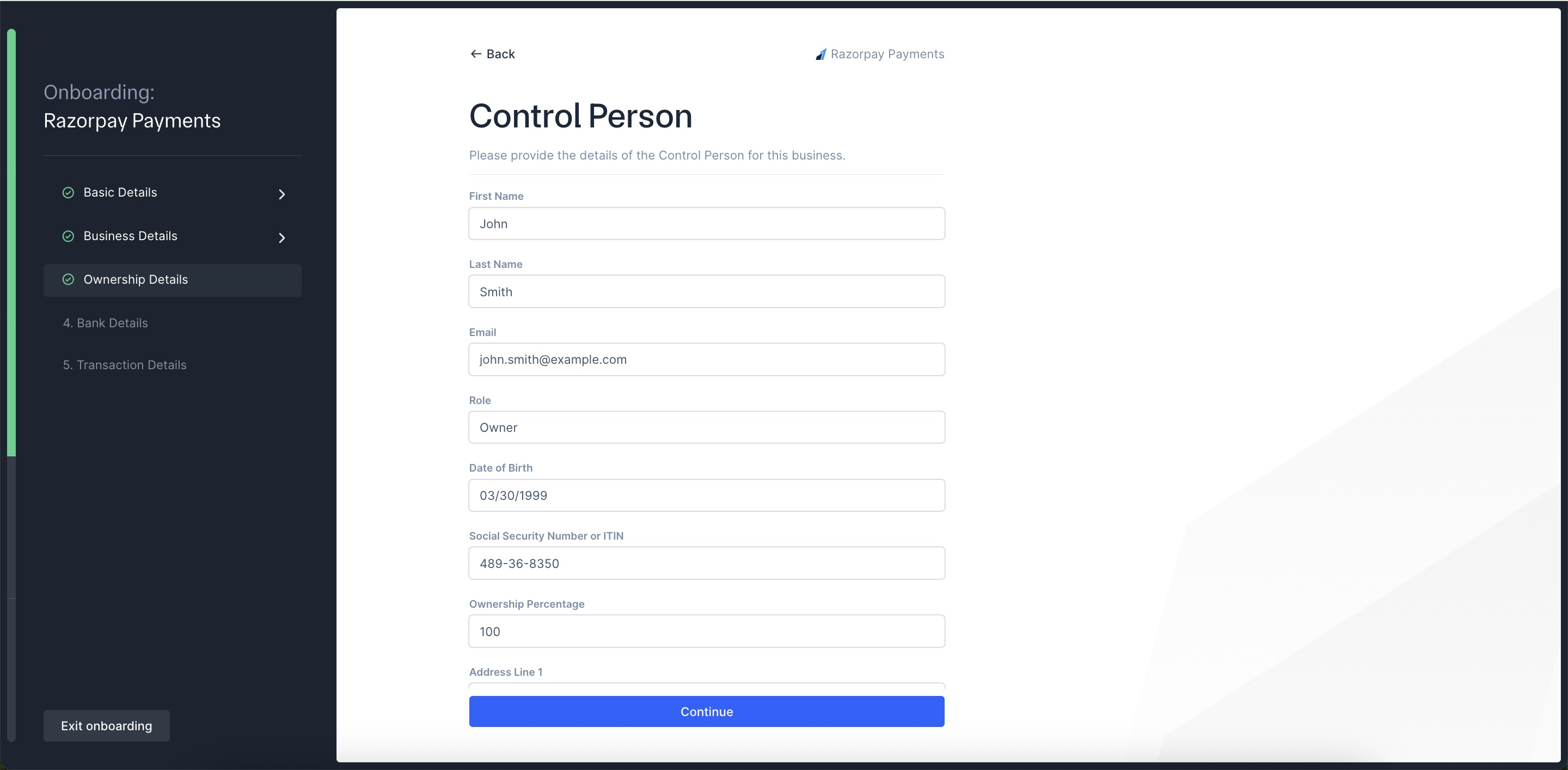
Provide the details of the Control Person for this business.
- Select Yes or No for Are you the Control Person for this business and do you have an SSN/ITIN?. For this example, let us select Yes and proceed.
- Provide the details of the Control Person for the business. Enter First name.
- Enter Last name.
- Enter Email.
- Enter Role.
- Enter Date of Birth.
- Enter Social Security Number or ITIN.
- Specify Ownership Percentage, if any.
- Enter Address Line 1.
- Add Address line 2. This is optional.
- Enter Zip code.
- Select Country. Click Continue. Review your ownership details after entering them.
Bank Details
Bank Details
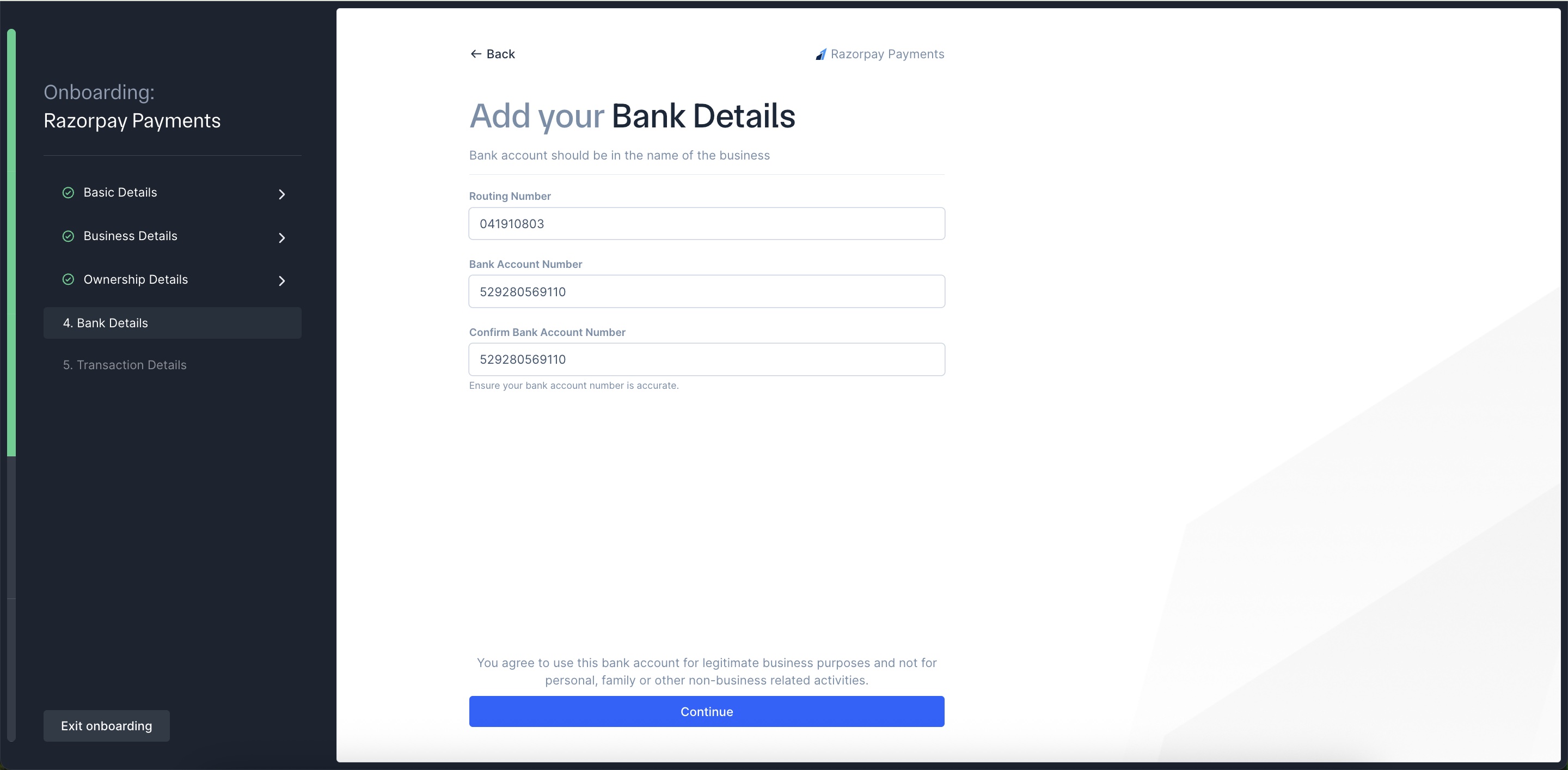
Provide bank details. Bank account should be in the name of the business.
- Enter Routing Number.
- Enter Bank Account Number. This must be between 5 and 17 digits.
- Confirm the bank account number by re-entering it. Click Continue.
Transaction Details
Transaction Details
Provide us your payment volumes to tailor our products for you.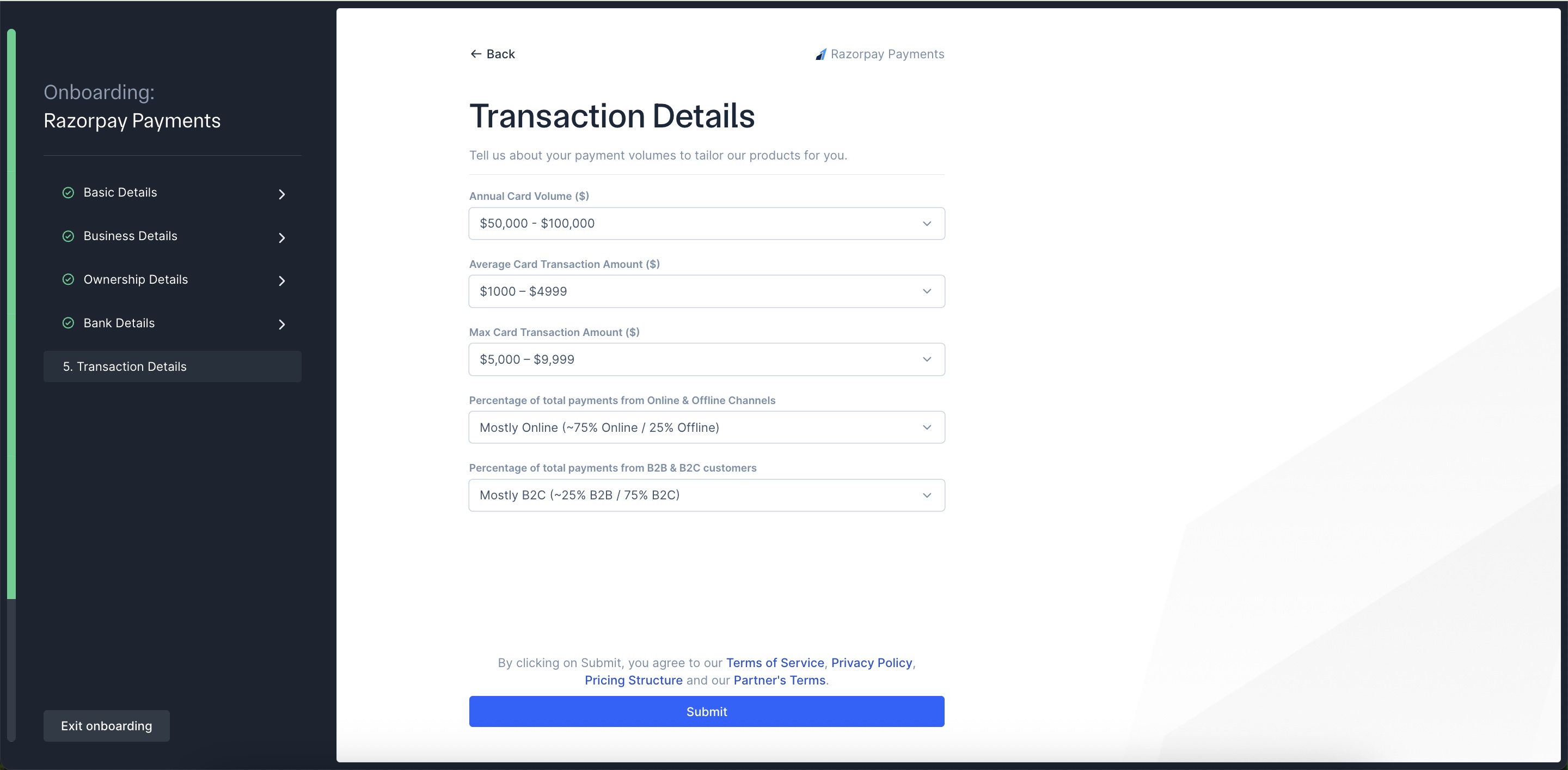 You have successfully completed the onboarding and KYC process. The process takes around 1-2 business days to complete.For any queries, contact the Razorpay support team. We will get back to you in 1-2 business days.
- Select Annual Card Volume.
- Select Average Card Transaction Amount.
- Select Max Card Transaction Amount.
- Select Percentage of total payments from Online & Offline Channels.
- Select Percentage of total payments from B2B & B2C customers. Click Submit.
You have successfully completed the onboarding and KYC process. The process takes around 1-2 business days to complete.For any queries, contact the Razorpay support team. We will get back to you in 1-2 business days.After Your Account is Created
- You can accept payments using a range of products after KYC completion.
- You can access the Test mode on the Dashboard to test and experience the products offered by Razorpay. Test mode does not involve actual money transactions.
- You have to generate separate API keys for Live and Test modes. Know more about API Keys.
2. Submit KYC Details
Upon creating an account, you can start accepting payments from customers once your KYC is completed. The operations team will subsequently contact you to activate your account. The process takes around 3-4 business days to complete. After Successful Activation- Accept payments without any amount limits.
- Razorpay will automatically settle payments in your bank account as per your settlement cycle.
- Request for other payment methods.
Set Up Multiple Accounts
As a business owner, you may need different accounts for different kinds of work. However, it is challenging to obtain a new mobile number each time you want to set up an account. With Multi-Account, you can set up different accounts using the same mobile number and email id as your existing account.Example
Assume John is an American business owner who has an account with Razorpay using Mobile Number:+1123456789 and Email Id: john.smith@example.com.
John uses Multi-Account feature to set up another account. Razorpay will use the same number and email id as shown above to set up the other account. This will work in a similar way in your respective country.
Set up Another Account Using Website
Set up Another Account Using Website
- Go to the website and click Sign Up.
- Enter your mobile number or email id and click Continue.
- Enter the OTP sent to your registered mobile number and click Verify.
- All the accounts linked to the entered number/email is are displayed. Click Create a new account.
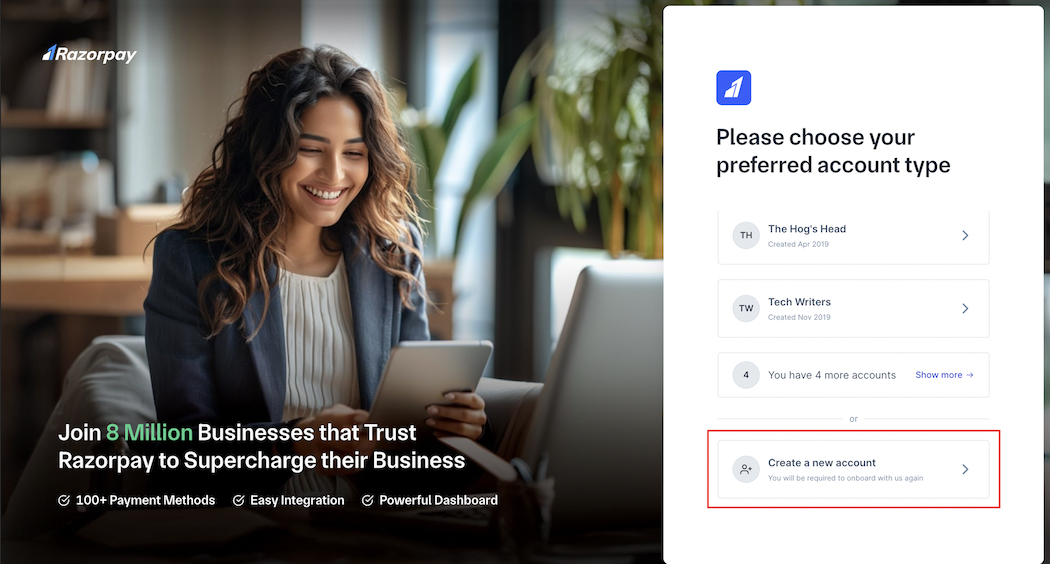
- Select the country and click Verify.
- Your existing number and email id is already registered with the new account. Enter your name and continue with Sign Up and KYC.