

Available in🇮🇳 India
Integrate the Razorpay Affordability Widget with your Shopify store to influence your customer’s purchase decisions before they reach checkout by displaying various affordable payment options and offers.
Prerequisites
- Create a Razorpay account.
- Generate the API keys from the Dashboard by navigating to Account & Settings → Website and app settings → API keys.
- Ensure your website’s theme version supports Online Store Theme 2.0. You can verify if the Online Store Theme 2.0 is supported on your website.
List of Supported Themes
List of Supported Themes
Razorpay Affordability Widget Shopify is supported on the following popular themes:
Integration Steps
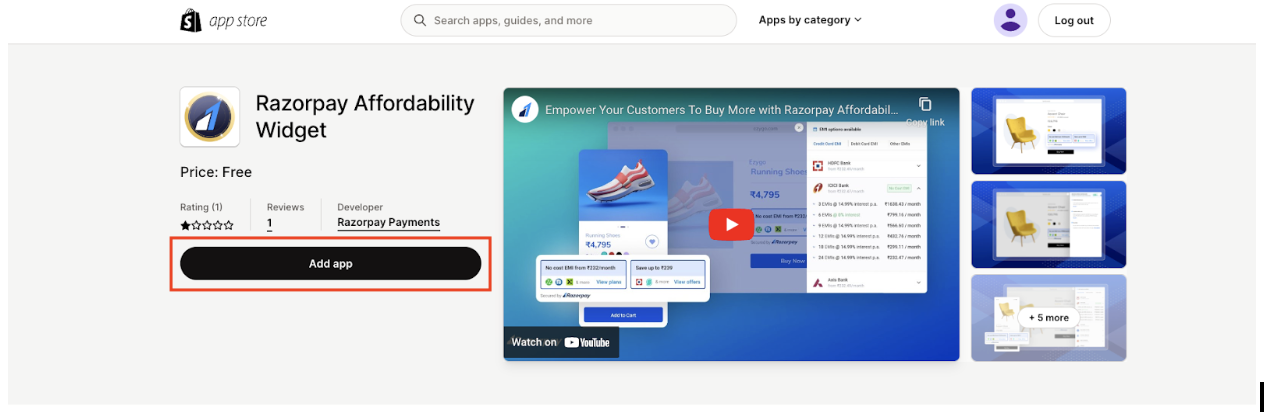
Perform the following integration steps:- Go to the Shopify app store.
- Click Add app to install Razorpay Affordability Widget.
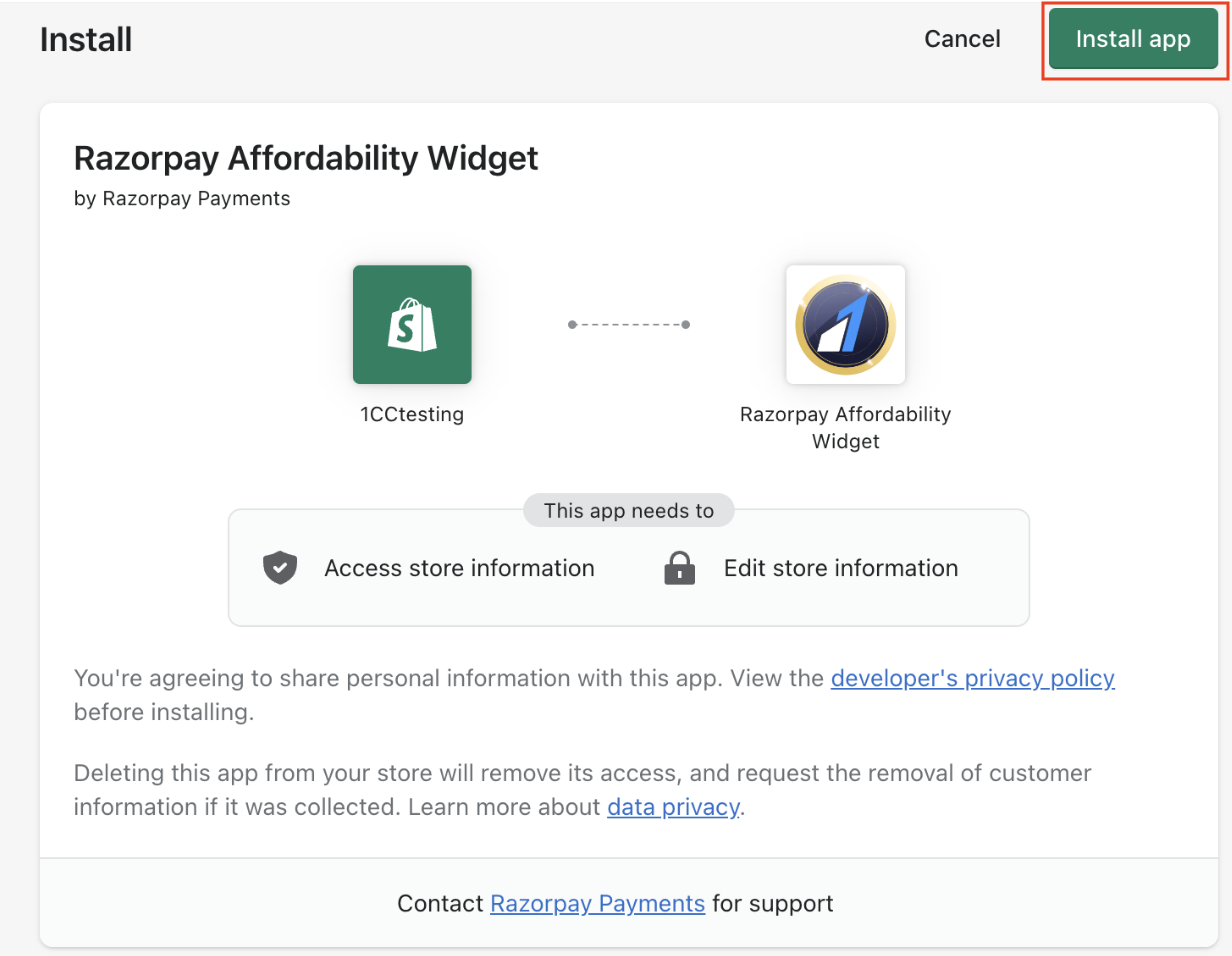
- Click Install app.
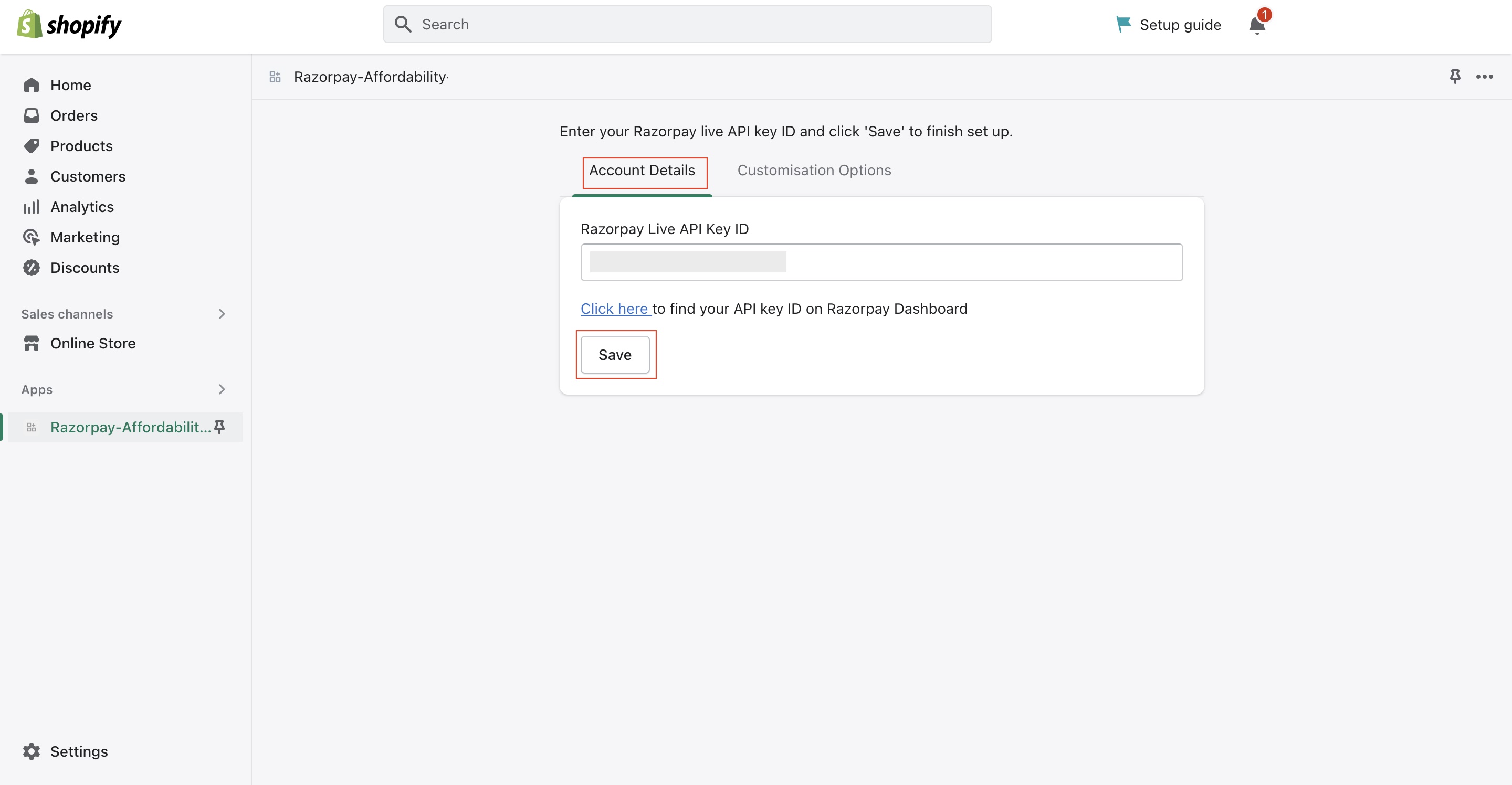
- In the Account Details section, enter the Live API Key ID and click Save.
Handy TipsIn case you cannot find your API key ID, use the Click here option below the field to find the key on the Dashboard.
- You are redirected to the Shopify theme editor page. In the Product information section, click Add block.
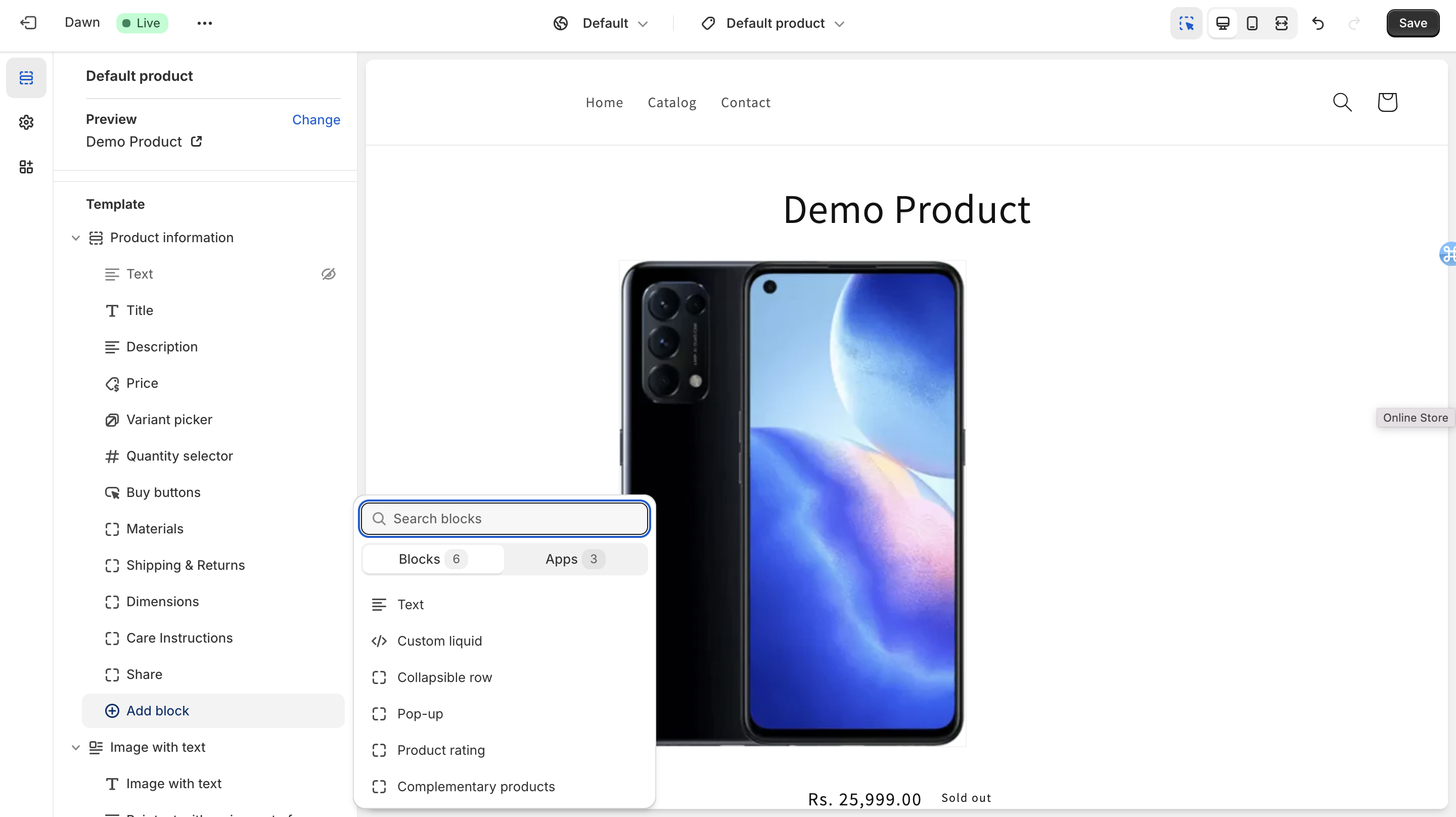
Handy TipsIn case you are not redirected to the theme editor page, then navigate to Online Store in the Sales channels section and click Themes. Click Customize.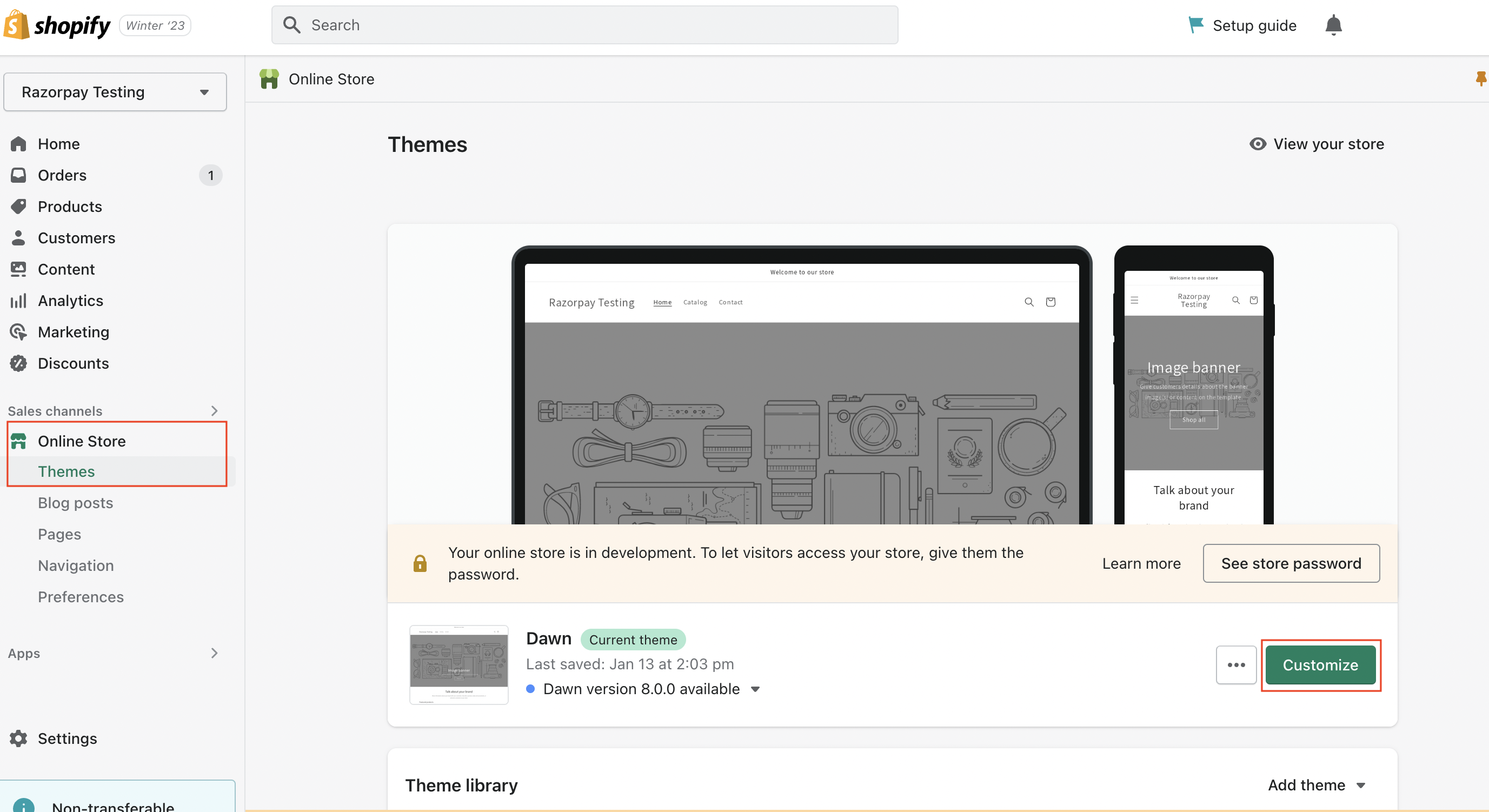
-
Click Apps. The Razorpay Affordability Widget app appears.
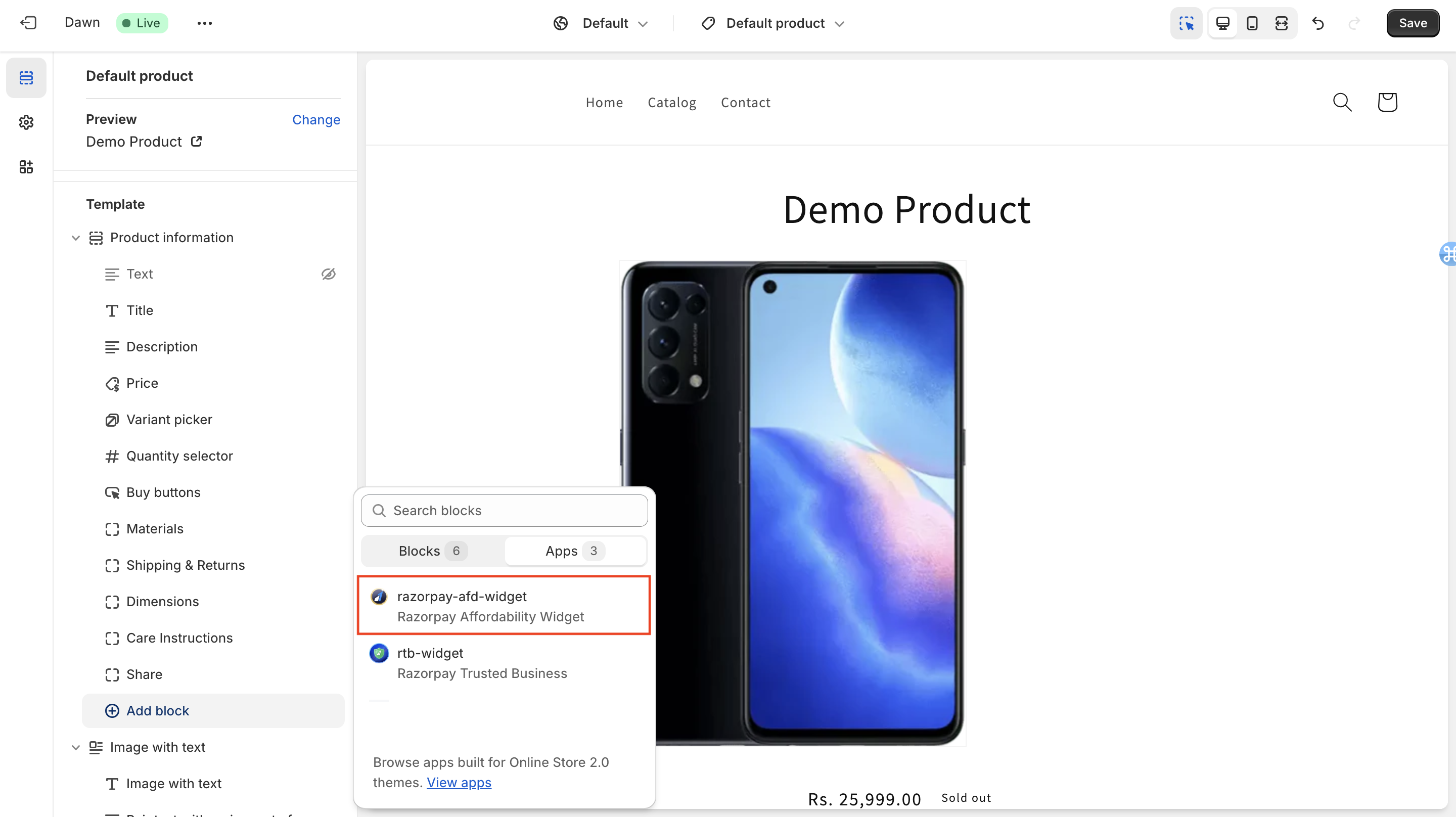
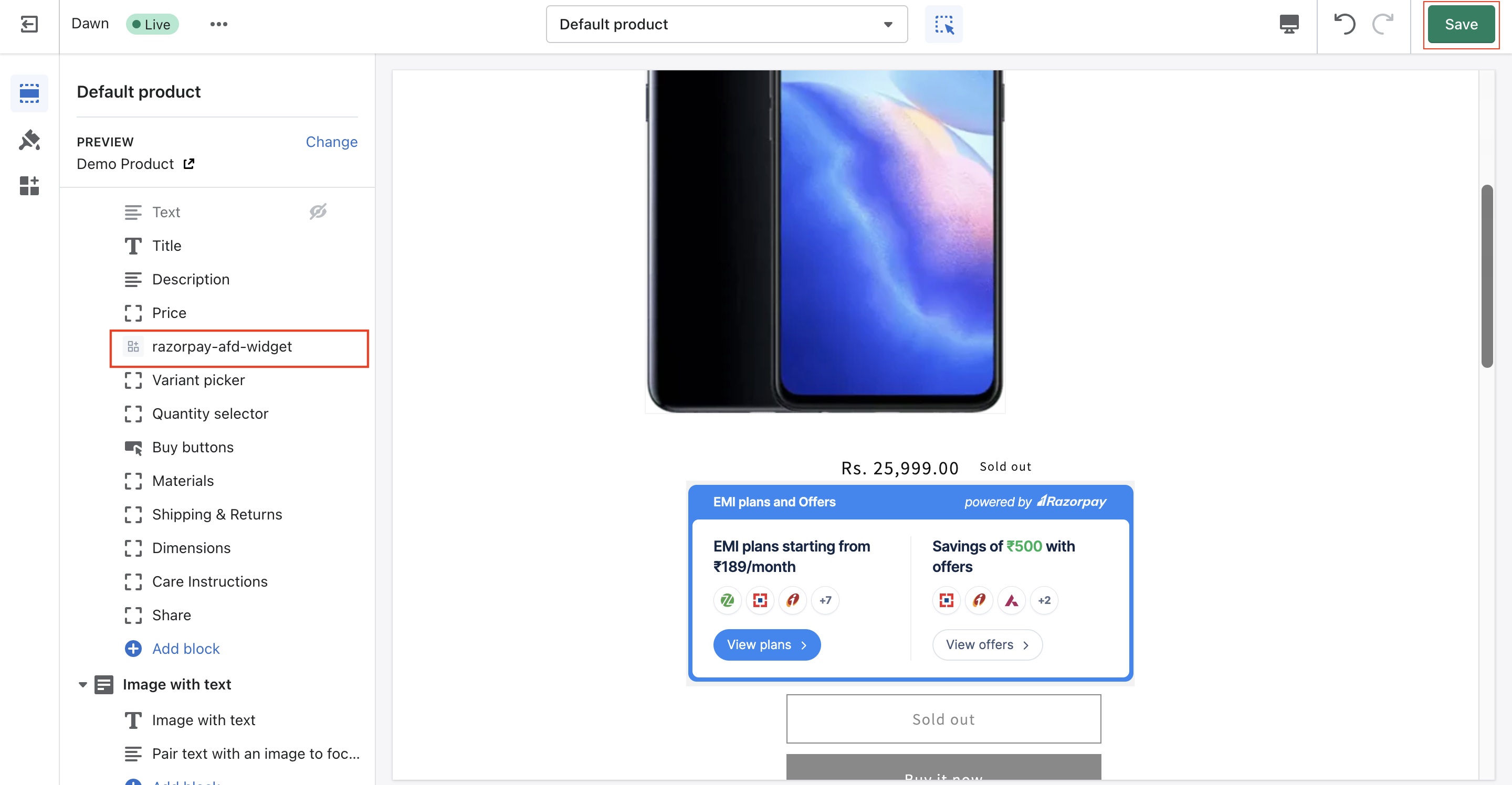
- Select razorpay-afd-widget and drag it below the Price field. The customers will be able to view the widget below the product price.
-
Click Save in the Shopify theme editor page to display the widget to your customers.
Successful Activation
Here is a glimpse of the default widget with offers and payment method options enabled.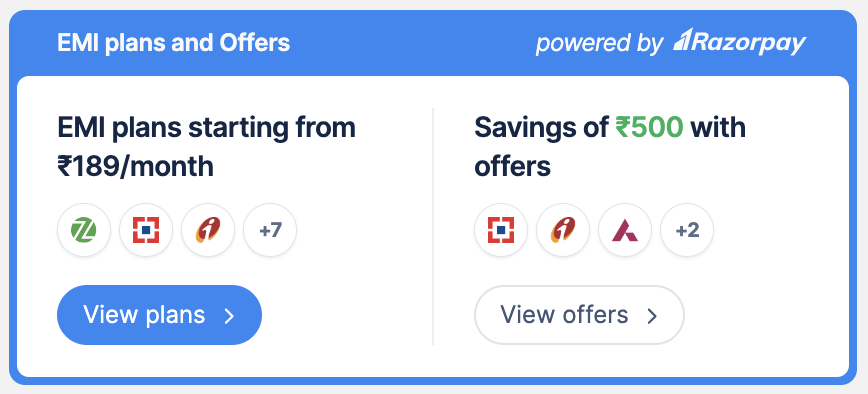
Minimum Order LimitAll the payment method options that are enabled and that satisfy the minimum order limit appear on the widget. Know more about the minimum order limit for:
Next Steps
Once you successfully integrate the widget on your Shopify store, you can choose to customise the widget based on your requirement.Handy Tips
- Fill in the integration support form in case you are facing any issues with the integration.
- In case you have any queries, raise a ticket on the Razorpay Support Portal.