

Available in🇮🇳 India
With Razorpay Turbo UPI, businesses experience faster and simpler payments. It condenses the payment process from 5 steps to just 1, eliminating app redirections. Enjoy a seamless in-app payment experience, reduce dependencies on third-party UPI apps, and gain complete visibility of the payment journey.
You can seamlessly integrate Turbo UPI with Razorpay iOS Standard SDK. Explore the full potential of Razorpay Turbo UPI and know How it Works.
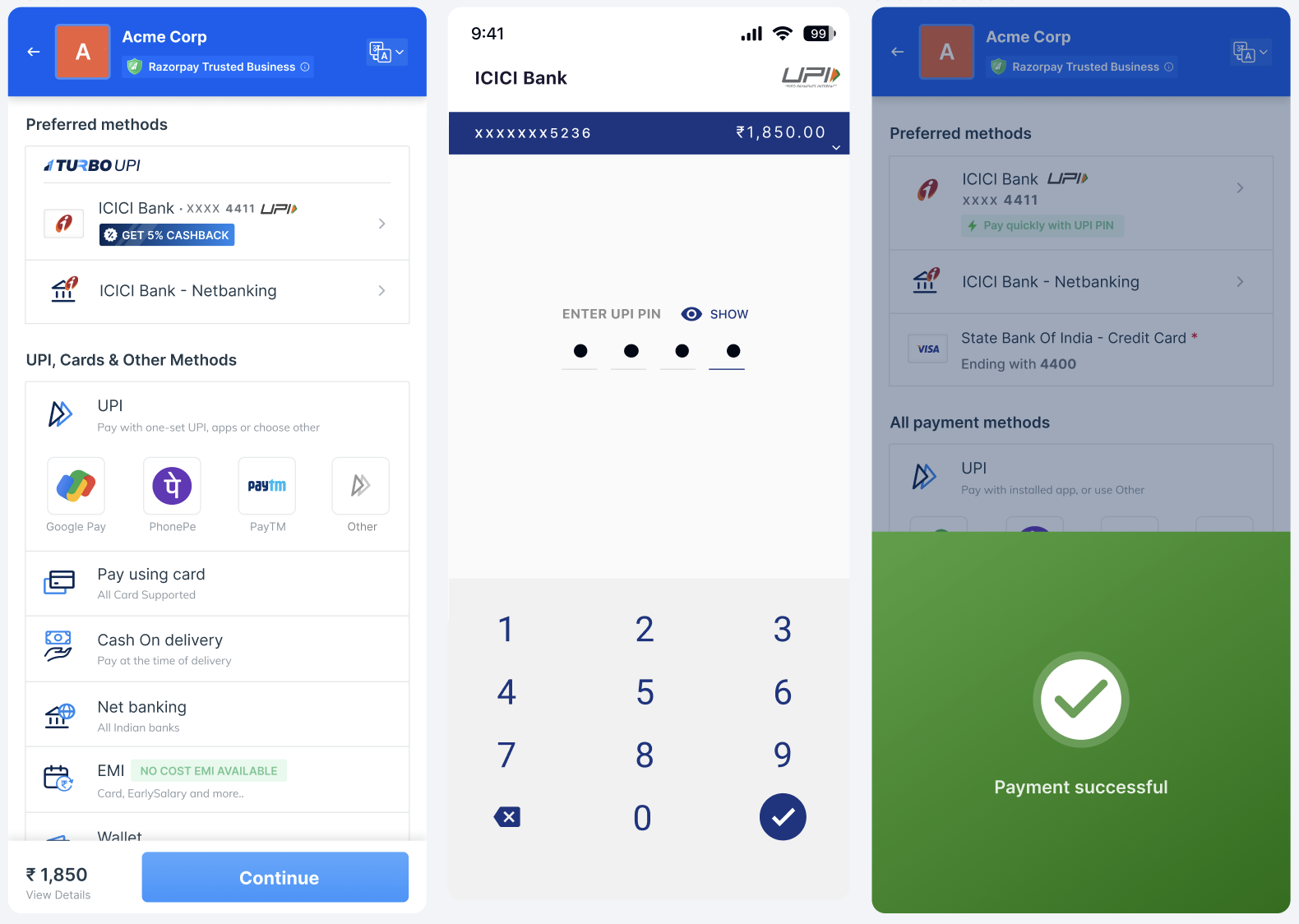
Prerequisites
- Integrate with Razorpay iOS Standard SDK. Ensure that you integrate with SDK version 1.0.0 or higher.
- Import the following frameworks:
- Common library/NPCI framework
- Axis olive framework
- Razorpay Turbo UPI framework
Onboarding Flow
Ensure your customers onboard with Razorpay Turbo UPI to get started.Installation
Turbo UPI wrapper plugin is available as a cocoapod, which can be integrated with any iOS application with a minimum deployment target of iOS 11 later. Add the code given below in the project’spodfile to get this cocoapod:
Turbo UI SDK Integration
Follow these steps to integrate with Razorpay Turbo UPI:- Initialise the Checkout object to enable the Turbo UPI functionality.
- Use the following code to link the newly created UPI account with your app. This function can be called from any application section, offering multiple entry points for customers to link their UPI account with your app. Linking it in advance allows customers to pay directly with the linked
UpiAccountwithout repeating the linking process.
Payment FlowRazorpay SDK will handle all the changes related to
UpiTurbo internally. To integrate with the payment flow, pass payment option and display the checkout form.Non-Transactional Flow
Razorpay provides a single exposed function that allows you to manage linked UPI accounts and access all non-transactional flows seamlessly.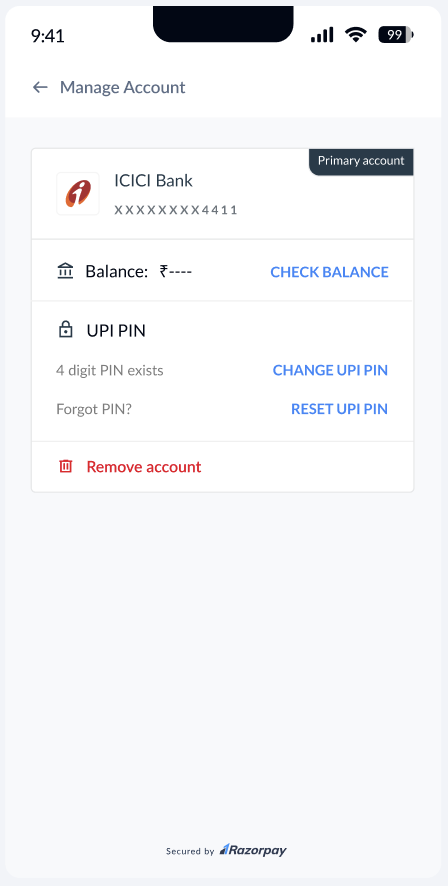
Manage UPI Accounts
Manage UPI Accounts
The SDK manages the linked
UpiAccounts on the application by triggering manageUpiAccounts(), which follows the following internal non-transaction flows for UpiAccounts:- Fetch balance: Check the customer’s account balance.
- Change UPI pin: Provide the customer the ability to change their UPI PIN.
- Reset UPI pin: Let your customers reset the pin for their account.
- Delete the account from the application: Let your customers delink, that is, remove a selected UPI account from your application.
Models Exposed from the SDKs
The SDKs given below provide access to exposed models for seamless integration.TurboError
TurboError
Go-Live Checklist
For iOS users, outgoing device binding SMS is editable by default. To ensure these SMS messages are non-editable, you must complete the following steps:Requesting UPI Device Validation Entitlement
Submit a Request on the Apple Developer Portal
Submit a Request on the Apple Developer Portal
- Log in to the Apple Developer Portal.
- Fill out the necessary details to request permission for the
setUPIVerificationCodeSendCompletionAPI, which allows secure, non-editable content for device registration SMS. - Await approval from Apple.
Submit Details to NPCI
Submit Details to NPCI
Once Apple approves the entitlement, share the request details with NPCI for their approval. Use the format given below for submitting the details:
- Name of the App:
- Functionality (UPI or CBDC App): UPI
- App ID:
- Team ID:
- Request ID:
- Bundle ID:
Follow the Guidelines for Implementation
Follow the Guidelines for Implementation
- Ensure your app supports iOS 17 and above.
- Use the
setUPIVerificationCodeSendCompletionAPI to comply with NPCI requirements.