

Available in🇮🇳 India
Razorpay Aggregator Partners are businesses that:
- Provide a platform to their clients.
- Manage their transactions.
- Collect payments.
- Create refunds.
- View settlements on behalf of their clients via API and Dashboard access.
Example
Acme Corp wants to manage payments on its application for its client Gekko & Co. Since Acme cannot natively do so, it signs up with Razorpay as a Partner and creates a sub-merchant account (affiliate account) for Gekko. Once the account for Gekko is activated, Acme Corp can use its account credentials to access Gekko’s Dashboard and create and manage transactions on behalf of Gekko. As a Razorpay merchant, Gekko can also transact and access account details using its own API keys and Dashboard.Become an Aggregator
After onboarding as a Razorpay Partner, you need to request a Partner type switch to become an Aggregator.Add Sub-merchants
You can add your affiliate partners/sub-merchants directly using the Dashboard. Know more about adding sub-merchants.Sub-merchant Account Activation
You or the sub-merchant can activate the sub-merchant account. The newly added sub-merchants will appear on the Partner Dashboard merchant list with a default Activation Status as Not Submitted.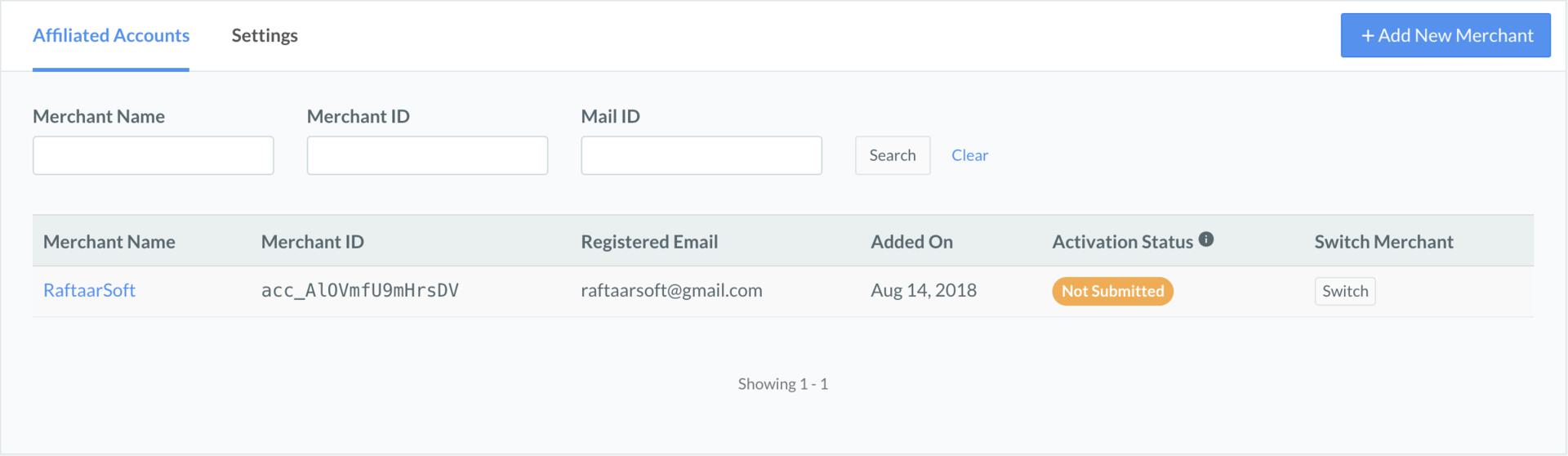 The activation will follow the standard process according to which the Activation Status will move from Under Review to Activated.
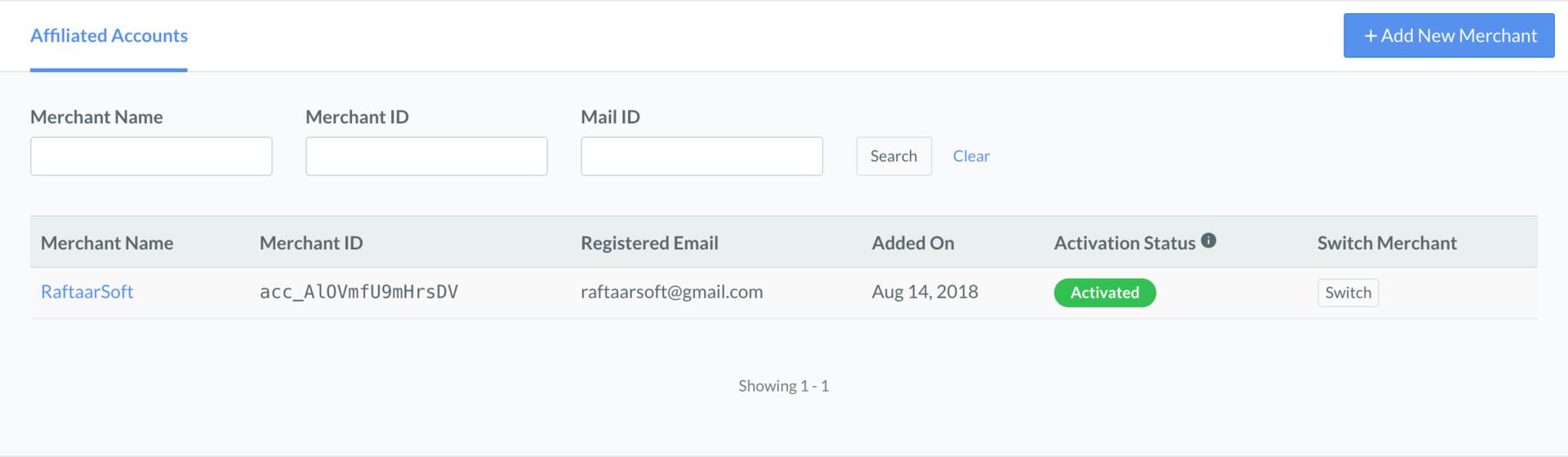
Failed Account ActivationIf the account activation has failed due to some invalidation, it must be rectified and resubmitted.
Switch Dashboards
After a sub-merchant is added, you can anytime switch to the sub-merchant Dashboard. To switch to a Dashboard of a particular sub-merchant:- Log in to the Dashboard.
- Click on Switch Merchant on the top right.
-
Search the sub-merchant using:
- Merchant ID
- Merchant Name
- Mail ID
- On the merchant list, click the merchant you want switch to and go to the Dashboard of that sub-merchant.
Switch between Dashboards QuicklyYou can also quickly switch between Dashboards from the Switch Merchant drop-down list. The drop-down list displays the list of all your sub-merchants.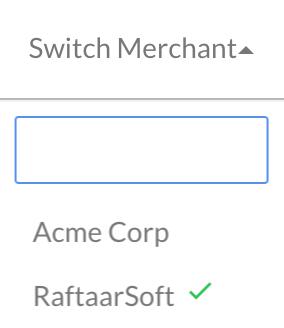
User Access
As an Aggregator Partner, you will have owner access to the sub-merchant’s Dashboard. Know more about user roles.Settings
Under the Settings option, you have Partner Credentials and Webhooks settings for the sub-merchant account.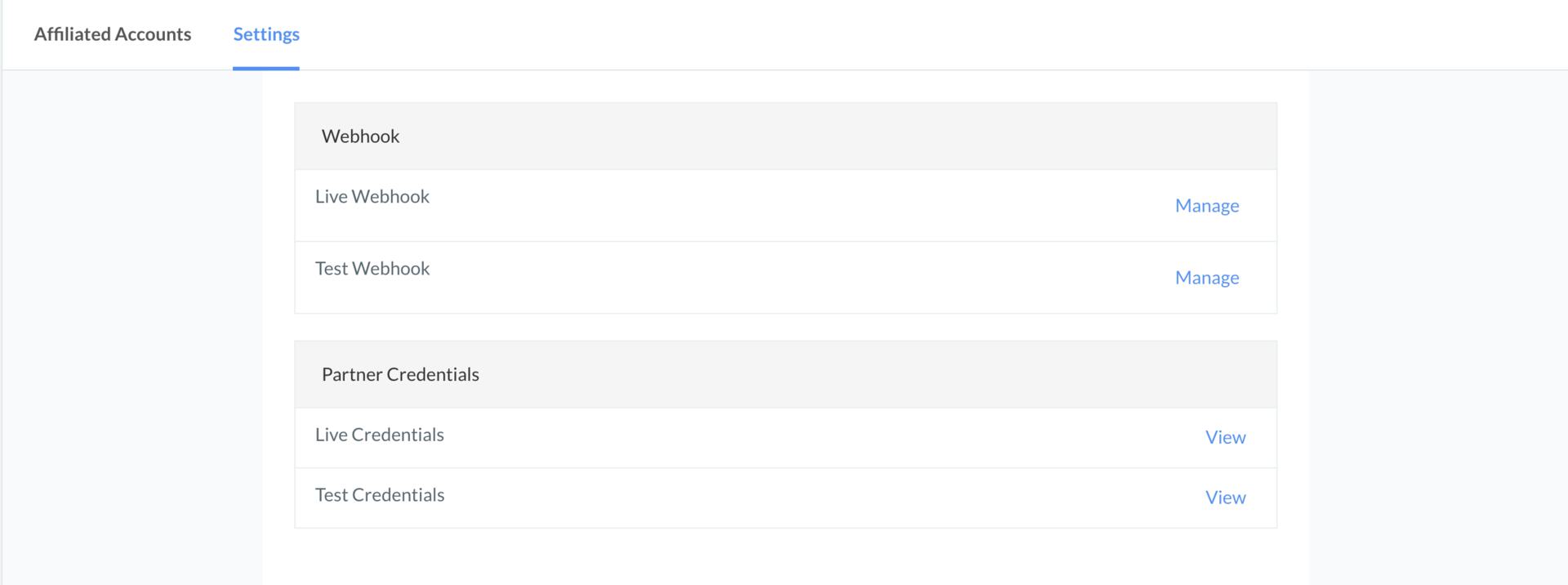
Partner Credentials
You can use partner credentials to make API requests to Razorpay on behalf of the sub-merchant account. The Partner credentials will have a different format from the regular account. Two sets of credentials are provided, one for Test and Live mode.
Know more about using the Partner credentials.
Two sets of credentials are provided, one for Test and Live mode.
Know more about using the Partner credentials.
Handy TipsThe mode here corresponds to the sub-merchant’s mode. You can call a Fetch a Payment API using Partner’s test credentials, which will attribute to the sub-merchant’s test mode account.
Webhooks
You can also set up webhooks for specific events on the sub-merchant account. Know more about webhooks.- Log in to your Dashboard.
- Click Partner on the Dashboard.
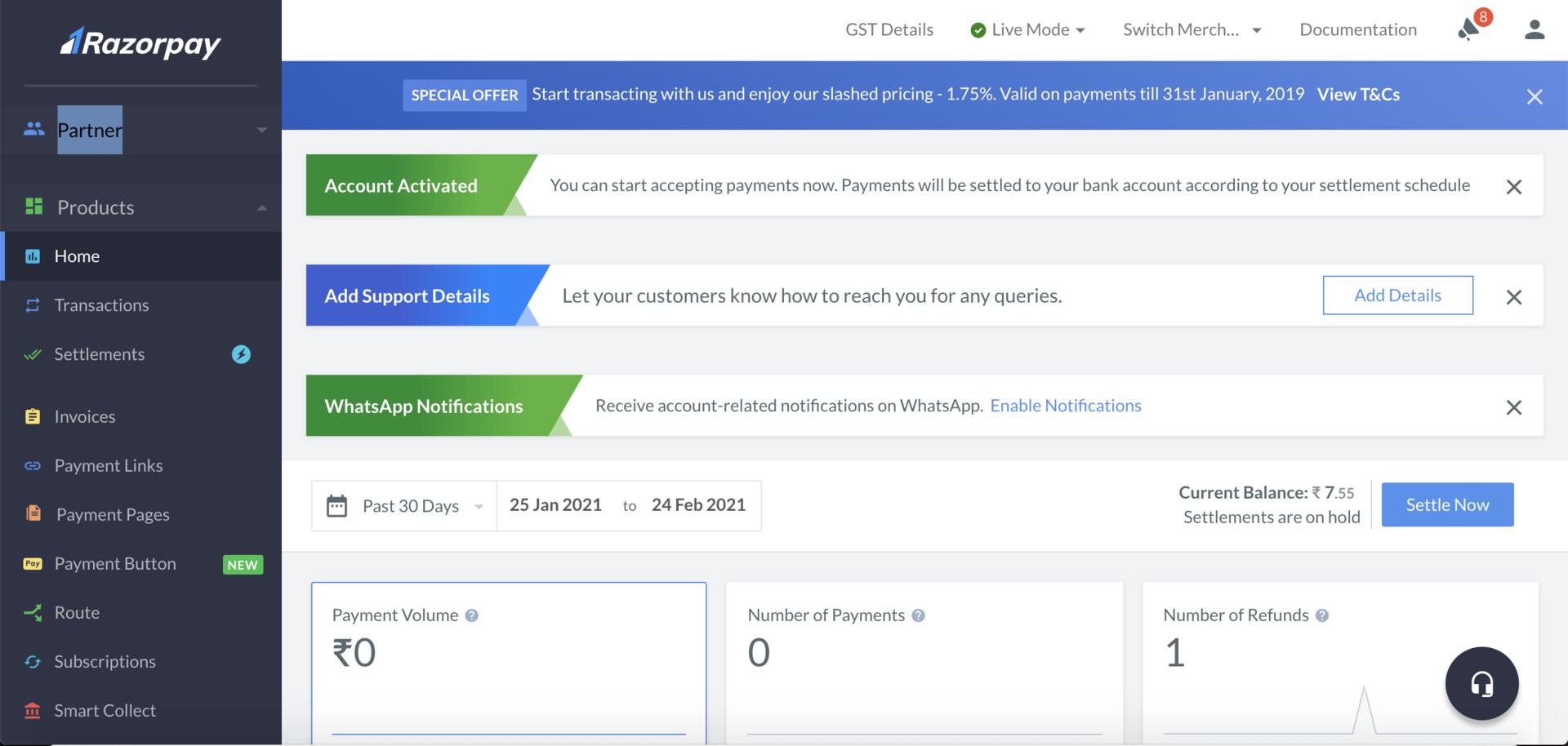
- Under the Affiliated Accounts tab, click Settings.
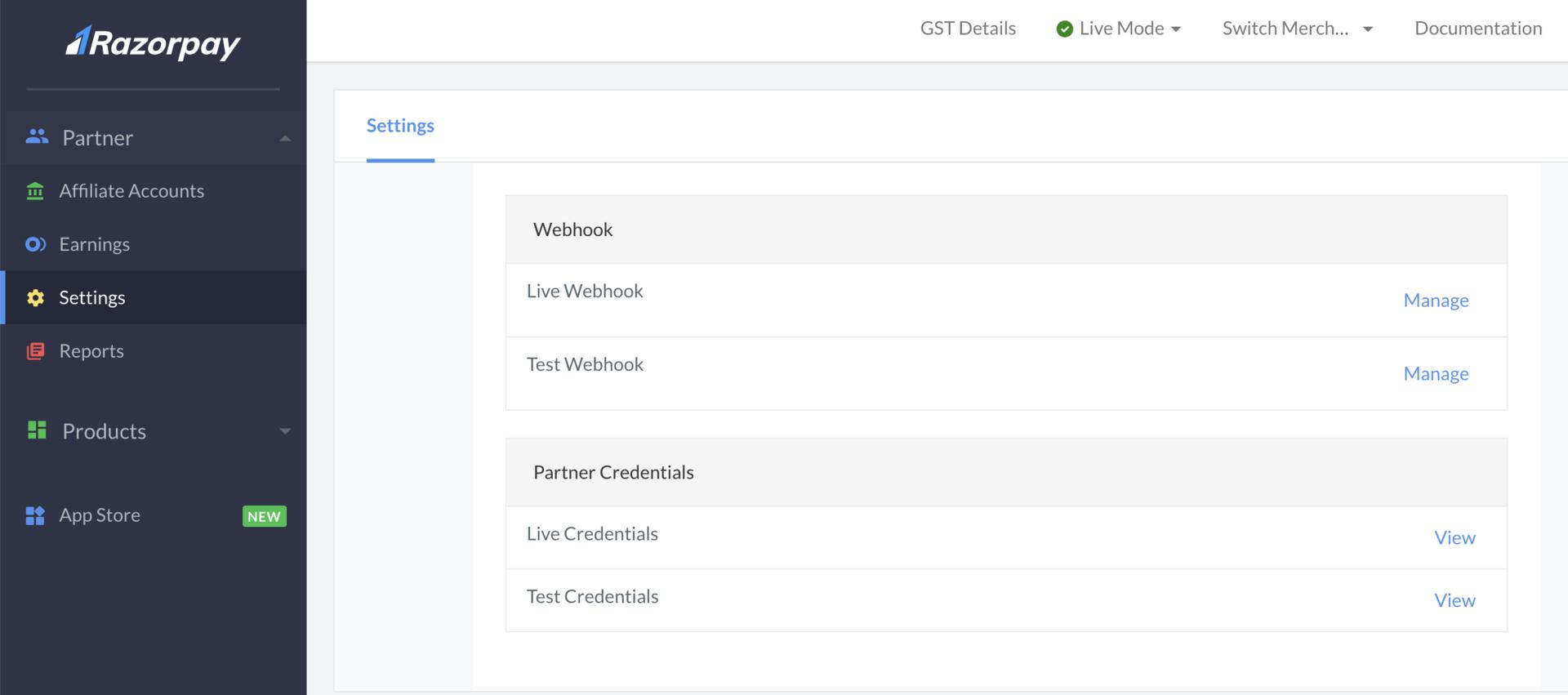
- In the Webhooks section, you can set up webhooks from your Dashboard for live mode and test mode.
- Enter the Webhook URL where you will receive the webhook payload when the event is triggered.
- Enter Secret. This field is optional.
- Select appropriate events from the list of Active Events you would like to activate.

- Click Save to enable the webhook.