Available in🇮🇳 India🇸🇬 Singapore
Let us understand the building blocks that are required to build a configuration of your choice:
Payment Methods
Before deciding the payment methods or payment instruments that you want to configure on the Checkout, refer to the payment methods supported by Razorpay.Payment Instruments
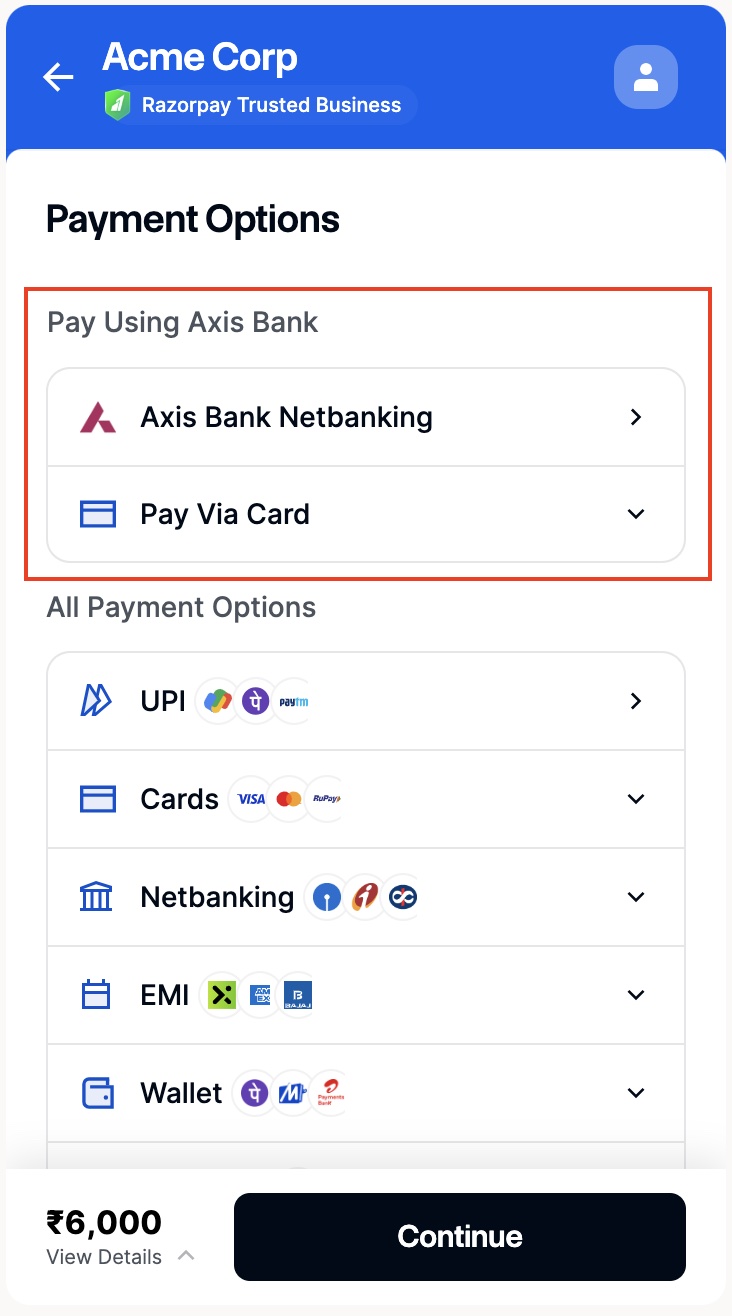
A payment instrument is a combination of the payment method and its associated properties. For example, a payment instrument can be an AXIS Debit card, where card is the payment method and the issuer (AXIS bank) is the associated instrument. An instrument is a JSON object with a key namedmethod. Each method and its associated properties are described in the sections below:
Card
Payment instruments for themethod: card are listed below:
JavaScript
Netbanking
Payment instruments for themethod: netbanking are listed below:
Wallet
Payment instruments for themethod: wallet are listed below:
UPI
Payment instruments for themethod: upi are listed below:
EMI
Payment instruments for themethod: emi are listed below:
Cardless EMI
Payment instruments for themethod: cardless_emi are listed below:
Pay Later
For the method:paylater, the payment instruments are listed below:
Apps
For the methodapp, the payment instrument is listed below:
JavaScript
Blocks
A block is a collection of one or more payment instruments. Each block has aname and code associated as shown below:
JavaScript
highlighted is the code associated with myPayments. Multiple blocks can be added to the config at the same time.
Sequence
You can specify thesequence, that is the order, in which the payment methods should be displayed on the Checkout.
A sequence is an array of strings, where each string is the name of the payment method or a block.
In a sequence, you can include any block using the block.${code} format. The block with code highlighted should be represented as block.highlighted as shown below:
JavaScript
highlighted first followed by the payment methods upi and netbanking in that particular order.
Handy TipsEvery block defined has to be present in the sequence. If you do not wish to reorder the methods and want to place your block, the sequence should contain
block.highlighted with just one item in it.Preferences
Using thepreferences object, you can enhance the configuration of the Checkout. By setting this value, you can decide whether the default list of payment methods should be displayed or not.
Possible values are:
true
: Checkout will display the sequence of the payment methods configured by you alongside with the default order of payment methods available in the Checkout.
false
: Checkout will only show the sequence of the payment methods configured by you.
Hide Payment Instruments
You can also hide or remove certain instruments from the Checkout. This is anarray containing the method key used to hide either the payment method and/or the payment instrument associated with that payment method. For example, you can hide the methods, card and HDFC netbanking on the Checkout.
JavaScript
array containing the method key used to hide either the payment method and/or the payment instrument associated with that payment method. For example, you can hide the methods, card and Axis netbanking on the Checkout.
JavaScript
Handy TipsHiding any instrument using
hide does not affect the similar instrument defined in blocks. So, if you want to hide UTIB bank from netbanking and have defined the same instrument in one of your blocks, Axis bank will still be displayed in that block.