Available in🇮🇳 India
You can cancel a Subscriptions product. You can also refund the subscription amount to your customers. If you want to update a Subscriptions product, you need to create a new Subscription product.

Update a Subscriptions Product

Razorpay Subscriptions plugin for WooCommerce does not support updating existing products. You must create a new subscription product for any changes.
Watch Out!Once a customer’s subscription is live, you cannot modify its details (including upgrades or downgrades).
  • Modifying Existing Subscriptions: If you modify an existing WooCommerce subscription product and process a test payment, it will be registered as a New Plan on the Razorpay Dashboard. Hence, you must:
    1. Cancel the customer’s existing subscription.
    2. Create a new subscription product.
    3. Have the customer subscribe to the newly created plan.
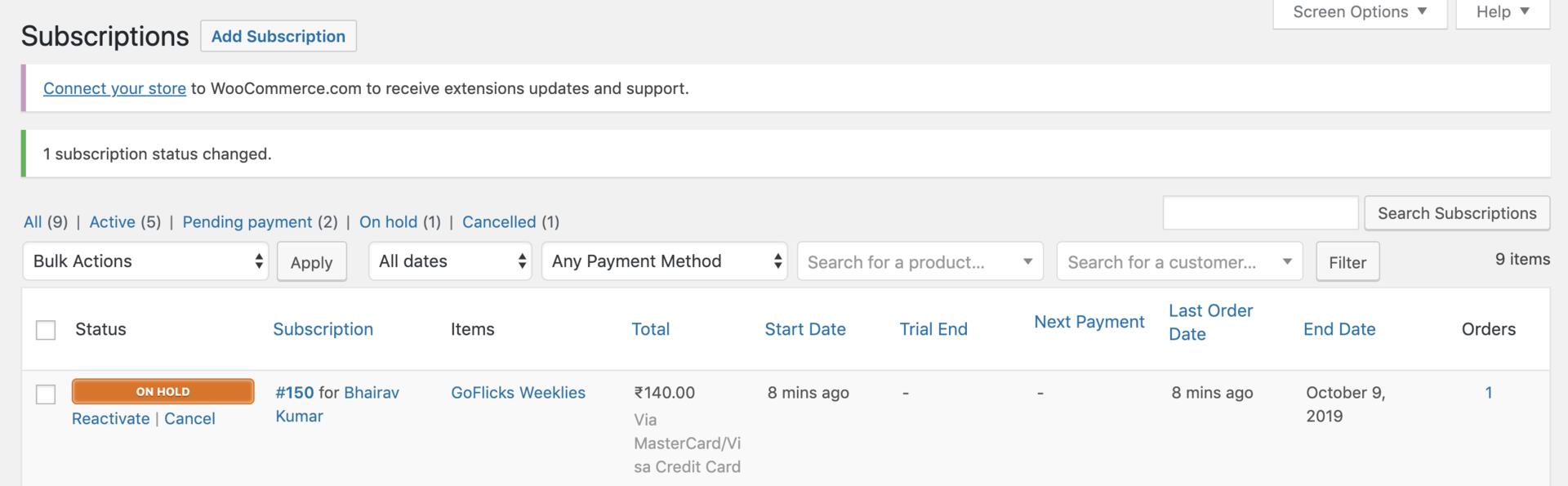
  • Reactivating On-Hold Subscriptions: For subscriptions that are on-hold, you can use the Reactivate option to resume service after successfully charging the customer’s card. This updates the subscription status to Active on the Razorpay Dashboard.
The Reactivate button is only displayed when no payment is currently due.
Update Subscriptions product

Cancel a Subscription

The cancel option is used to cancel the Subscription. You can cancel a Subscription:
  • Immediately
  • At the end of the current billing cycle
To cancel a Subscription:
  1. Navigate to WooCommerceSubscriptions.
  2. Hover over the subscription you want to put on hold and click Cancel.
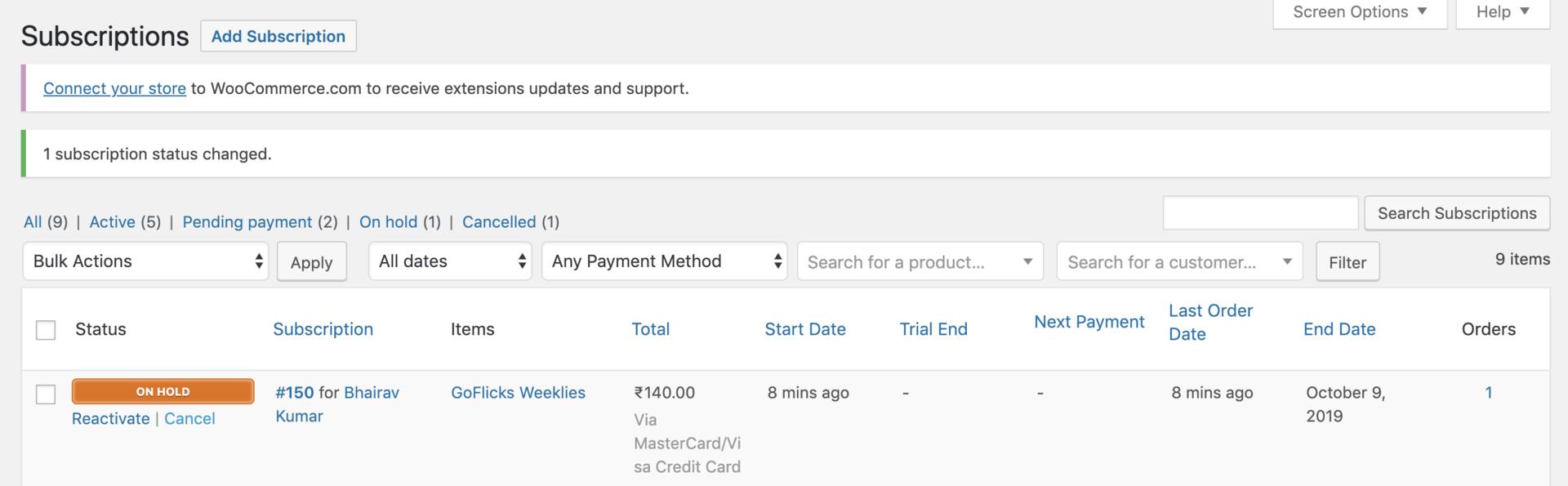
Cancel a Subscription
Watch Out!After you cancel an existing Subscription, you cannot restart it.
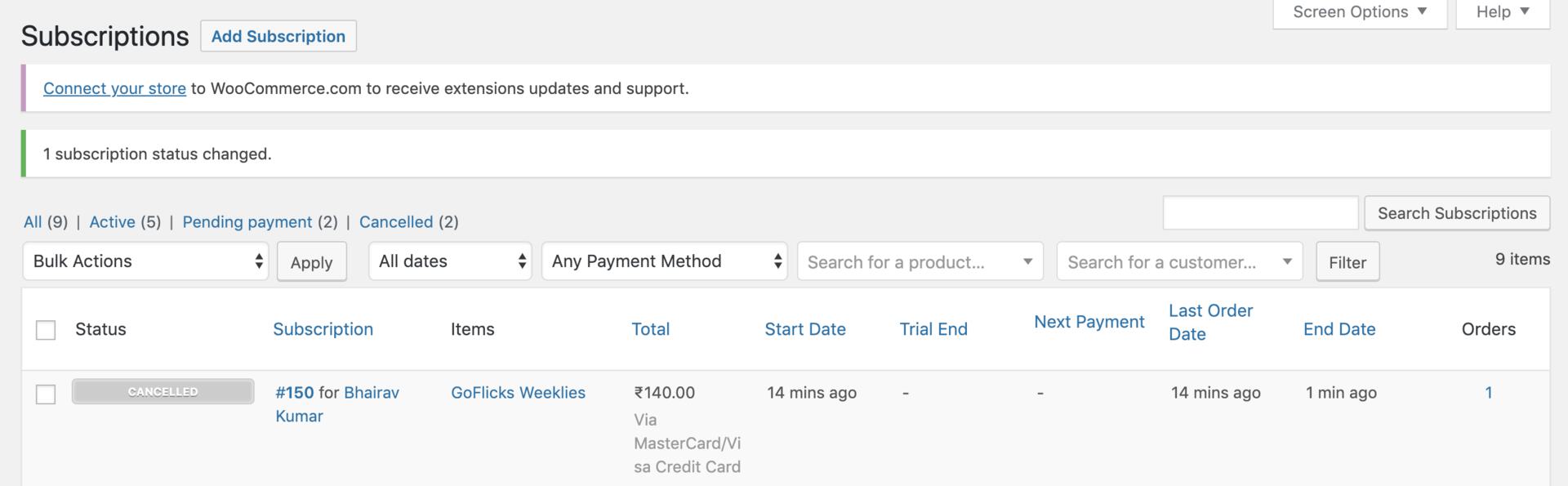
WooCommerce Subscriptions after cancellation

Refund Subscription Amount

  • To refund the subscription amount to a customer, you need to do this manually from the Dashboard.
  • You also need to mark the subscription as refunded on WooCommerce in WordPress Dashboard by selecting the Refunded option from the Order Status drop-down list.